
Lightroom Preset 'Quick'n Beauty - Does It Work?

snoop69

Suspended / Banned
Messages
2,451
Name
Paul
Edit My Images
Yes
Installed a free preset & although a little 'hot' I quite like it.

Would appreciate your thoughts on whether you think its a good start
for portraits.

Here is a shot of Olivia shot in Raw & processed in Lr2.

Other than a crop & the preset, nothing else has been done.
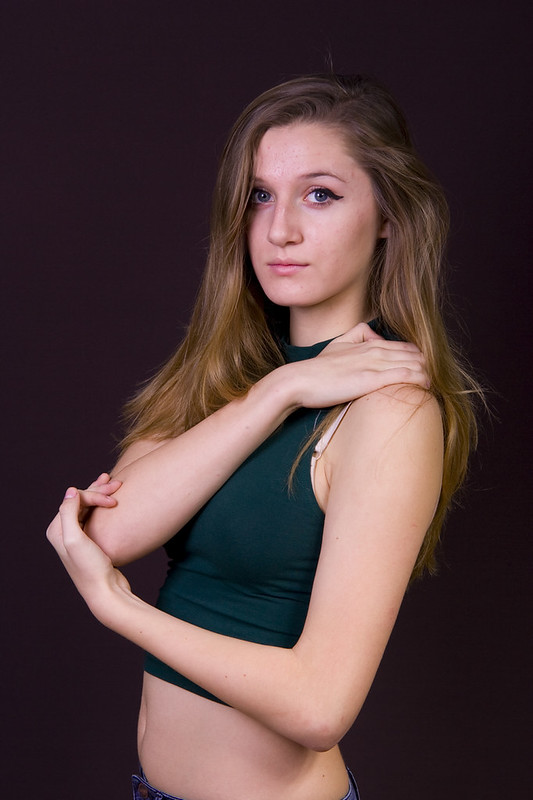

Olivia - UE-1 by Paul Wright69, on Flickr
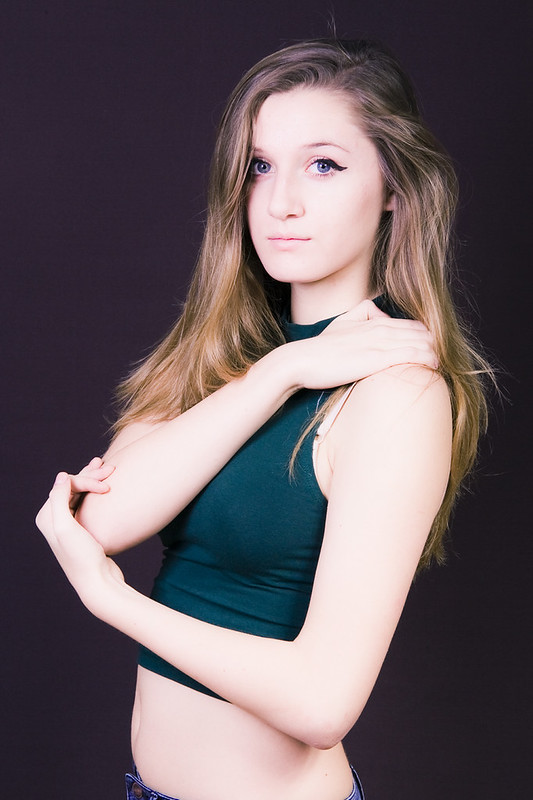

Olivia George-183 by Paul Wright69, on Flickr
 
Last edited:
not sure about. what's the raw like?
 
not sure about. what's the raw like?

Unedited Jpeg added to original post.

More interested on thoughts regarding the skin tones :thumbs:
 
not a fan, too washed out for my liking.
if she had something more colourful on and out there make up, i could see it working
 
To be fair you could get that look in camera with your lighting so you would have no need for a LR preset.

As for the preset itself - nah, doesn't say beauty to me.
 
not a fan, too washed out for my liking.
if she had something more colourful on and out there make up, i could see it working

To be fair you could get that look in camera with your lighting so you would have no need for a LR preset.

As for the preset itself - nah, doesn't say beauty to me.

Thanks guys, will have a play with it but will probably end up deleting it :lol:
 
Not fussed on it on this image, try it on something else before binning it, it might work with a different pic.
 
Go into the Tone Curve settings and drag the Higlights down to -70 or so. Even with your jpeg above it improves it a lot, and with the raw file you should be able to adjust it more for better results. A couple of quick dabs with the Adjustment Brush set to Iris Enhance will also add a little extra punch to this one.

Presets, for me at least, are a starting point, not just a one-click solution. They can get you near what you're aiming at but need to be refined.
 
Exactly which preset did you use? theres a good few different ones.
 
I generally like some styles of processing that gives washed out skin tones like this but find they only ever really work in images with very light backgrounds.
 
Go into the Tone Curve settings and drag the Higlights down to -70 or so. Even with your jpeg above it improves it a lot, and with the raw file you should be able to adjust it more for better results.

So he takes a perfectly exposed RAW... runs it through a LR preset that ruins it, then has to pull back exposure in LR to make it look usable?

LOL

I think that should be answering your questions on how good this preset is.
 
So he takes a perfectly exposed RAW... runs it through a LR preset that ruins it, then has to pull back exposure in LR to make it look usable?

LOL

I think that should be answering your questions on how good this preset is.

Surely that can only be applied to this particular photgraph. Is it not possible that it would work on another one?
 
Surely that can only be applied to this particular photgraph. Is it not possible that it would work on another one?

His RAW looks perfectly exposed, so what makes you think it would work any better on another photo?
 
I've had a play with these and frankly I haven't found an image they work on as is, the problem seems to be each has +1 stop exposure and around +50 brightness (as well as other ajustments) I found backing off the brightness to 0 and taking the exposure back to about half ish of a stop sort of worked on the pics I tried it with.
 
I took the QnB 3 preset, tweeked it to suit my images (lowered the brightness/exposure) pushed up fill a bit and lowered clarity) then saved that as a camera raw preset (I can't import into LR3 as I'm working with it at the moment) and applied that to your image, heres the result.

8169928935_6aea5a59a3_c.jpg
 
Thanks for all your replies & advice, much appreciated.

I will probably have a play with some other images & use this as a
start point.

Interested in learning how to edit & save a preset if anyone can point
me in the right direction :thumbs:
 
You edit a preset by applying it to a photo, making changes using the sliders until you get it right, then either update the existing preset by right-clicking it and selecting 'Update with Current Settings', or you save it as a new preset by clicking the + button to the right of the Presets panel (over on the left), giving it a name, selecting which preset folder it should go in, and ticking the boxes for which settings should be saved in the preset.

This business of ticking the boxes should give you the clue that you can 'stack' presets on a photo. For example, you can have a preset that alters the tonality, another than changes the colours, another that sets a vignette or uses graduated filters to highlight a portion of the photo, another to add the correct amount of noise reduction and sharpening, and so on. You can then apply one or more to the same photo and each preset affects just its own settings.
 
Back
Top