Lightroom 6 - no 'Export' button.

Lensflare

Suspended / Banned
Messages
3,156
Name
Simon Everett
Edit My Images
Yes
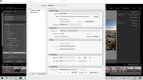
It worked fine yesterday, today I have imported, developed and gone to export the finished picture, the 'export' button isn't there. It is underneath the 'export' page as are the other buttons - when I say underneath I mean it is like the export details page is a paper page over the top.

What have I forgotten to do? I have been in and out of the programme several times and been trying to export this finished picture for the best part of 3 hours now! I'm stuck. I have tried other pictures, but the same thing happens - and yes, I have gone back from 'Develop' to 'Library'.. I have tried everything I can think of. Any help gratefully received, the tutorials I have gone to don't cover this scenario.
 
You've got the images selected haven't you? I think you have to select the images you want to export before than button becomes live. Haven't exported from LR Classic for a while so I'm a tad rusty.
 
I don't go to Library from Develop.

Export is in develop for me.

But then again I'm using the newest version.
 
Hi Simon

The four methods of "export" are in the list of functions when you click "file" in the top lefthand corner of the tab at the top.

In you then click on 'export' it open the dialogue box where you select the export settings you wish and on the lower right corner of that box is Export or Cancel?

Do you see the above or what else are looking at?

Edit ~ I was still typing when Rich @tijuana taxi posted ;)
 
Last edited:
I have the white form filled in, I can see 'export' through the white translucent page over it, but it doesn't go live. Everything is filled in the same - file size at 100% and where it goes. As far as I know I haven't done anything differently to yesterday... it worked perfectly then!
 
My screen won't take a screen shot. I have googled and tried 7 or 8 different ways that were listed now. None of them have worked.
 
I managed to talk to the computer doctor, but he doesn't do any photography, so has no idea how Lightroom works. He has talked me through doing a screen shot though! As you can see, the 'Plug-in', 'Export', and 'Cancel' buttons are all blocked by the output form.Screenshot 2021-04-13 160253.png
 
"Put in subfolder" is ticked but not specified .... ???
 
"Put in subfolder" is ticked but not specified .... ???

Well spotted - unticked, but that still hasn't brought the 'export' button out to play.... something else is causing a blockage.
 
Just to clarify. You can still change the settings in the export window?


Yes, I can. I have just changed to TIFF at maximum output and the 'export' button is still blanked out. So changed it all back again.
 
I'd try changing the export folder
Done that. Made a new folder and changed the destination to it... still no export button. BUT provided I go 'File', 'export as previous' it processes and sends the file as a jpeg to the previous destination folder.... so I am doing that for the time being and then shuffle them around later. It means I cannot downsize any though.
 
I have just gone on my LR 6.0, in "develop" I right click on a photo, left click "export" and I get similar form to you but the 3 boxes are clear to use (not that I know what "plug in manager" is so never used it), otherwise my screen looks similar to yours so sorry cannot help short of rebooting (but I expect you have tried this).
 
Now here is a thing. I have tidied up the hard drive and deleted a load off the computer after saving to external storage drives... now Lightroom can't find the folders. That is a big problem, because I don't leave much on the computer at all. I don't want Lightroom telling me what I can and can't do... I just want it to import the files and work on them, I don't want it to be a library finding thing as well - I import the pictures I want to process and then that's it, job done.
 
Now here is a thing. I have tidied up the hard drive and deleted a load off the computer after saving to external storage drives... now Lightroom can't find the folders. That is a big problem, because I don't leave much on the computer at all. I don't want Lightroom telling me what I can and can't do... I just want it to import the files and work on them, I don't want it to be a library finding thing as well - I import the pictures I want to process and then that's it, job done.

You often seem to have issues with things that others have no problem with.

Lightroom isn't telling you what to do, its not a sentient AI
Its a system you use within the specified parameters or don't.
 
You often seem to have issues with things that others have no problem with.

Lightroom isn't telling you what to do, its not a sentient AI
Its a system you use within the specified parameters or don't.

But other people know how computers work. I am still partly in the film world, even though my film is now electric. I sent one picture for export happily, the next it gave up yet they were both from the same shoot, in the same folder and going to the same place.... that is why I can't understand it. I didn't change anything, it was just the next picture. Now it won't do any - have you got an idea of why that might be and how I might fix it, so I can finish the pictures?
 
Simon,

Here is the thing AFAIK, LR is both a cataloguing & editing program. Once you have imported image files it builds a "catalogue" that identifies the files and their various locations...............it does not shift or otherwise move/lose/relocate them unless you do so and then allow LR to update/backup its catalogue.

Furthermore, the lefthand panel in LR (in your screenshot) shows the catalogue entries.................if you have deleted stuff from your hard drive outside of LR that will not change the catalogue unless you let it synchronise & update. All deletions of files must be done in LR for it to know what you have done!

Therefore I am wondering if by making the deletions you mention are the reason that "Export" & "Cancel" are greyed out. In other words did you make changes (deletions?) outside of LR between processing the first image and the second one that you talk about?

Indeed, though you can see the folder listed in the lefthand panel in LR does it still exist in the path shown on the screenshot?

PS consider LR and the way it works like an old school library index card system works.......every book had a Dewey Number on its spine and every index card was filed in Dewey Number order so that each book could be located as needed. However, is someone came along and started putting some books from different sections in another area but based on Author Last name > firstname without updated the Dewey Cards no one would ever find a returned books proper location on the right shelf!
 
Last edited:
Simon,

Here is the thing AFAIK, LR is both a cataloguing & editing program. Once you have imported image files it builds a "catalogue" that identifies the files and their various locations...............it does not shift or otherwise move/lose/relocate them unless you do so and then allow LR to update/backup its catalogue.

Furthermore, the lefthand panel in LR (in your screenshot) shows the catalogue entries.................if you have deleted stuff from your hard drive outside of LR that will not change the catalogue unless you let it synchronise & update. All deletions of files must be done in LR for it to know what you have done!

Therefore I am wondering if by making the deletions you mention are the reason that "Export" & "Cancel" are greyed out. In other words did you make changes (deletions?) outside of LR between processing the first image and the second one that you talk about?

Indeed, though you can see the folder listed in the lefthand panel in LR does it still exist in the path shown on the screenshot?

The one I am working from, yes, that is my default folder I download from the camera card into. Others have gone, as have the RAW files and the processed ones. Once they have been sent to the magazine, or I have lost interest if for me, then they get archived on the portable hard drive and deleted from the computer so as not to fill the thing up.
How do I synchronise the catalogue please?
 
Now bearing in mind I have never done what you appear to have done.

Along the top left area it goes File, Edit, Library etc

Click on Library > scroll down to and click on Synchronise and allow it to analyse the drive (folder) it will then allow the pressing of "Show Missing Photos" and "Synchronise" but also take note/heed of the dialogue boxes above. Whenever I had the occasional need to synchronised (not done it for a very long time) it would find some very minor differences to sort out......but in your case I have no idea what it might report??? So if you are unsure don't click on the options but take a screenshot for mine of those more knowledgeable than me to get the insights from ;)
 
Have you resync'ed the folded to make sure the file is there? go to library and to the folder, right click and synchronise it.
 
Right, update - I will go and do the synch messaged above in a mo... but in the meantime:
I have moved the taskbar to the left, out of the way (never done that before, in fact I have never done anything to a taskbar before...) - lo and behold, the export button and that line appears... the page has changed size somehow. I haven't managed to find out how it has happened, but I have managed to finish my pics!

For your delectation, here are a couple to show something for all your efforts. Thank you very much.
Uttoxeter.web-0800.jpg

Uttoxeter.bw.web-0793.jpg
 
Hi Simon - I'm back online now - looks like you're sorted!
 
Sort of...unless you know how I can make the export page fit the screen again - F11 doesn't do anyhting.

OK there's 2 things you can do:

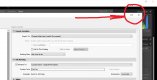
1) Make the export window fill the screen. On my copy of Lightroom 6 the export window there's an empty square box top right next to the X to close the window - left clicking in this will make the window expand to exactly fit the screen.

Screen 1.jpg


2) The other option is to manually resize the window. If you hover the mouse pointer at the edge of the export window it should change to a double headed arrow. When it does so you can click & drag downward to make the top of the window lower. Release the mouse button, then grab the window by the top bar (the pale strip running across the top) and raise it until the bottom of the window is above the bottom of the screen.
 
Thanks, it won't resize and only has an X in the top corner though... moving the taskbar has solved the immediate problem, but isn't ideal. I shall see if a complete shut down and restart helps matters. I can't understand why it was fine one minute and then bandjaxed the next.
 
Thanks, it won't resize and only has an X in the top corner though... moving the taskbar has solved the immediate problem, but isn't ideal. I shall see if a complete shut down and restart helps matters. I can't understand why it was fine one minute and then bandjaxed the next.
A restart is often helpful - I always shut down and restart every day.
 
Sometimes closing & restarting LR alone helps.

Simon apart from anything else it sounds as if LR's inescapable catalogue structure is an impediment to you. Certain other (but still capable) processors may avoid this ...

If you're embedded, though, and you want to move stuff & have LR keep track, you need to move it from within LR - to use LR as the moving agent. Something else to learn ...
 
This is a weird one. Sometimes I have the 'export' button visible at the bottom of the page. Sometimes it is hidden - and the export page, the one with all the parameters of where to put it and what size, seems to slip, during an editing session. I might have the EXPORT button visible for the first few pictures, then gradually the overlay page covers it up..... as I say, weird. The answer is for me to move the taskbar, then the overlay page fits and the export button is visible - it is a gradual and intermittent thing. Everything works, it is just how much of the page that overlay takes up!
Gradually learning a bit by bit. I have found the adjustment brush now. Not used one of those before.
 
Back
Top