Learn with MD Lesson No4

..MD..

Helen Shapiro
Suspended / Banned
Messages
10,257
Name
MonkeyDave
Edit My Images
Yes
Hi guys Well this week we will look at our histograms..

Histograms...


I would like three shots this week " Sorry to add a extra shot but it will be worth it."


1st.

I would like you to under exposed one stop.

2nd.

I would like this shot to be exposed correctly.

3rd.

I would like this one overexposed one stop.


You can shoot anything you like with any lighting you like. And any settings as long as you have the three shots with the exposures required..


Regards.

..MD...


"This will be very interesting as people may get asked to check if there correct exposure is right."

To get your shots.
Alt+Printscreen (So we don't see any of the other pr0n windows you have open :D )

Paste as a new image in PS or your tool of choice, crop as required... job's a good 'un.
 
Last edited:
But do you want the shots posted, or the histograms for the shots, or the shot and the histogram, or a copy of the display on the back of the camera after each shot? If we just display -1, 0 and +1 shots that won't say much about histograms, just that underexposed shots are dimmer than overexposed ones.

Personally I think we should have the shot and its histogram, either taken from the back of the camera or some editing software. Here are my three shots....

You will note that I used 200 ISO and f/5.6 for each shot, varying the shutter speed from 1/2000 through 1/1000 to 1/500.

-1 : Note that the histogram has a peak at the extreme left hand edge and a large gap over to the right. The areas marked in blue indicate parts of the image that have shadow clipping. The image looks underexposed and the histogram confirms it.
20100723_164706_06.jpg


0 : The histogram has shifted over to the right and the shirt now looks a much better shade of white, rather than grey. There is still a little shadow clipping, but nothing to cause concern, but perhaps just a little too much unused space to the right. This image is close to "correct" though.
20100723_164725_25.jpg


+1 : Now, with the overexposure the shirt looks too bright and detail has been lost in the brightest areas. The red patches show where highlight clipping has occurred. The histogram is showing a peak near to the right and is climbing up the right hand edge. Even so, there is still a little shadow clipping, but it is not in important areas and need not trouble us. The clipped (blown) highlights are a problem and the exposure definitely needs to be reduced. The red bits are where one might expect to see highlight alert warnings on the back of the camera.
20100723_164731_31.jpg


On a side note, since I shoot raw, this last image is actually much closer to my ideal exposure than the previous image. The picture might not look right but I have captured a huge amount of data from the scene, including more detail from the shadow areas than in the other examples. The (very slightly) clipped highlights are not a problem for a good raw processor to deal with. This is fractionally overdone, but it is basically an "Expose To The Right" exposure. For JPEG shooters the middle shot is probably the better one to aim for.
 
Last edited:
Wow, lesson 4 suddenly got a lot harder than the first 3 lessons. Yes it's easy to under expose and over expose but I wouldn't have a clue how to post a histogram of my shot.

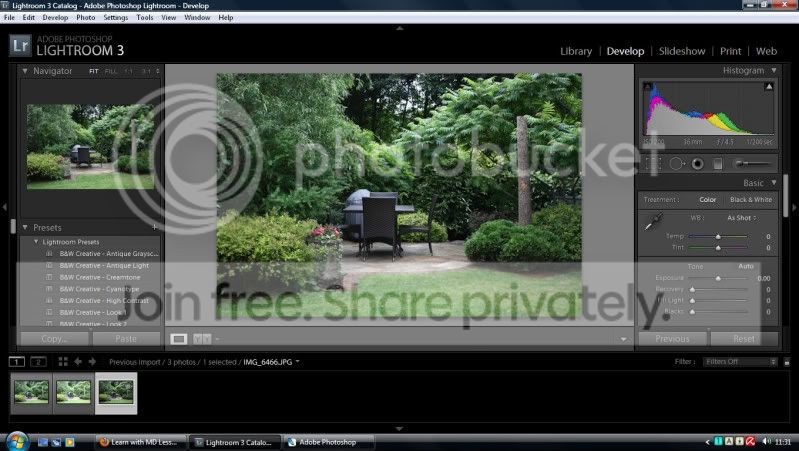
If you process your images in either PhotoShop or Lightroom then when you load up your picture then it will display the histogram on the comp screen. Just make a print screen grab of the screen and upload that :)
 
But do you want the shots posted, or the histograms for the shots, or the shot and the histogram, or a copy of the display on the back of the camera after each shot? If we just display -1, 0 and +1 shots that won't say much about histograms, just that underexposed shots are dimmer than overexposed ones.

Personally I think we should have the shot and its histogram, either taken from the back of the camera or some editing software. Here are my three shots..

I would like screen shots if possible.

If you process your images in either PhotoShop or Lightroom then when you load up your picture then it will display the histogram on the comp screen. Just make a print screen grab of the screen and upload that :)


If someone could post up a easy to follow guide for people to grab screen shots this would be fantastic.....


And very helpful.


MD
 
Wow, lesson 4 suddenly got a lot harder than the first 3 lessons. Yes it's easy to under expose and over expose but I wouldn't have a clue how to post a histogram of my shot.

No Rob the shots are easy enough but the grab screen now thats another matter

I have asked if someone can help with a easy to follow guide.. Then we will all learn something else...

Regards


MD
 
Alt+Printscreen (So we don't see any of the other pr0n windows you have open :D )

Paste as a new image in PS or your tool of choice, crop as required... job's a good 'un.
 
I have a few shots from the lake district but at +/- 0.7

-0.7


0


+0.7


Will add some new shots later.
 
Foggy your correct exposure is as I would like to see it No clipping either side..


MD
 
This lesson looks difficult and makes my head hurt. :( :gag:

I'm not sure how this lesson will help me. I don't really understand histograms or what adjusting the curves do or any of that gubbins. :bonk:

Could someone point me in the direction of something to read about it, or post what they look like and why they look that way - and more to the point, what a correct histogram should look like for different shots/compositions?

Hopefully this thread will be a good read. (Was going to say enlightening, but that would have been corny!)
 
I would like screen shots if possible.


If someone could post up a easy to follow guide for people to grab screen shots this would be fantastic.....


And very helpful.


MD
.... and instructions for those using ufraw/gimp and linux ? or would it be the same?
 
This lesson may become a two week job as there is alot to consider.. And I would like everyone to become aware of all aspects...
Regards

Dave
 
No Rob the shots are easy enough but the grab screen now thats another matter

I have asked if someone can help with a easy to follow guide.. Then we will all learn something else...

Regards


MD

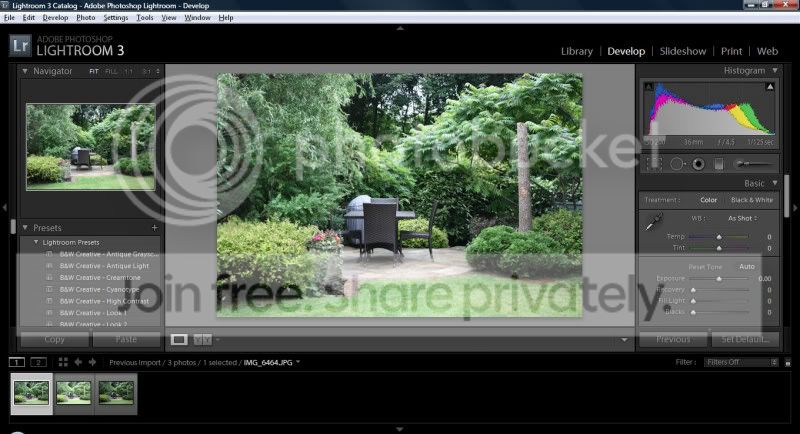
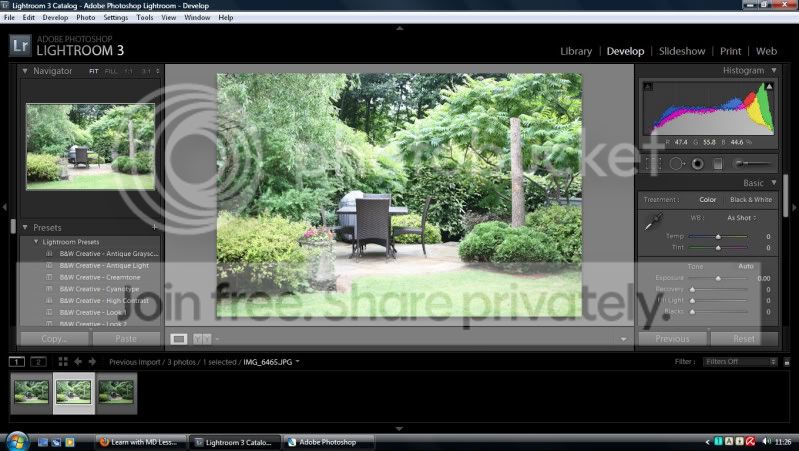
Step1: Load up your image in whatever programme you use so that the image and histogram are on the screen together.
Step2: (Using Windows) Press Print Screen (usually next to F12)
Step3: Load up and photo editing programme (EVEN PAINT!!!)
Step4: Crop your image if necessary if there's any personal information that was on your screen/desktop at the time of making your print screen
Step5: File-> Save (and save the image anywhere you like on your computer)

Step 6: Repeat 1-5 for however many images you have/ want to upload.

Step 7: Now use your usualy photo uploading site (such as Photobucket/ImageShack/TalkPhotography Gallery, etc)

Step8: Insert your image url into this thread and jobs a good un :)

Hope that helps people, I believe it's the same for people using Mac's but instead of Print Screen you press something like Cmd+Shift+4(F4)

I think it was MD (sorry if it isn't) made a 365 about Mac's and I know one of them was print screens on the Mac's so give that a check out :)
 
Step1: Load up your image in whatever programme you use so that the image and histogram are on the screen together.
Step2: (Using Windows) Press Print Screen (usually next to F12)
Step3: Load up and photo editing programme (EVEN PAINT!!!)
Step4: Crop your image if necessary if there's any personal information that was on your screen/desktop at the time of making your print screen
Step5: File-> Save (and save the image anywhere you like on your computer)

Step 6: Repeat 1-5 for however many images you have/ want to upload.

Step 7: Now use your usualy photo uploading site (such as Photobucket/ImageShack/TalkPhotography Gallery, etc)

Step8: Insert your image url into this thread and jobs a good un :)

Hope that helps people, I believe it's the same for people using Mac's but instead of Print Screen you press something like Cmd+Shift+4(F4)

I think it was MD (sorry if it isn't) made a 365 about Mac's and I know one of them was print screens on the Mac's so give that a check out :)


Many thanks for taking the time to write that out...

I hope it helps out a few members.. " I might even try it myself now Lol"


Regards


MD
 
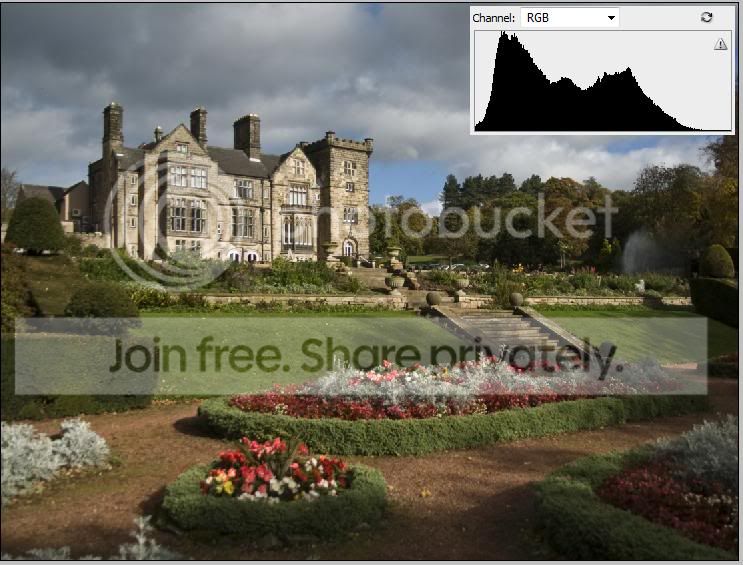
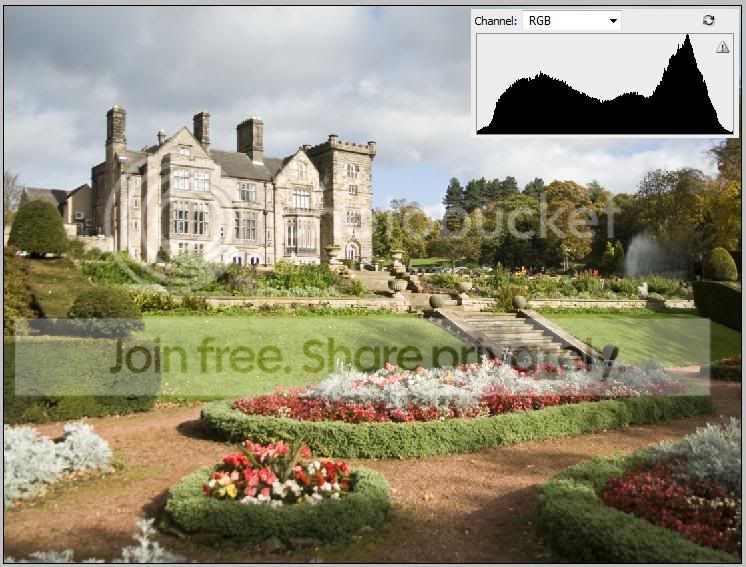
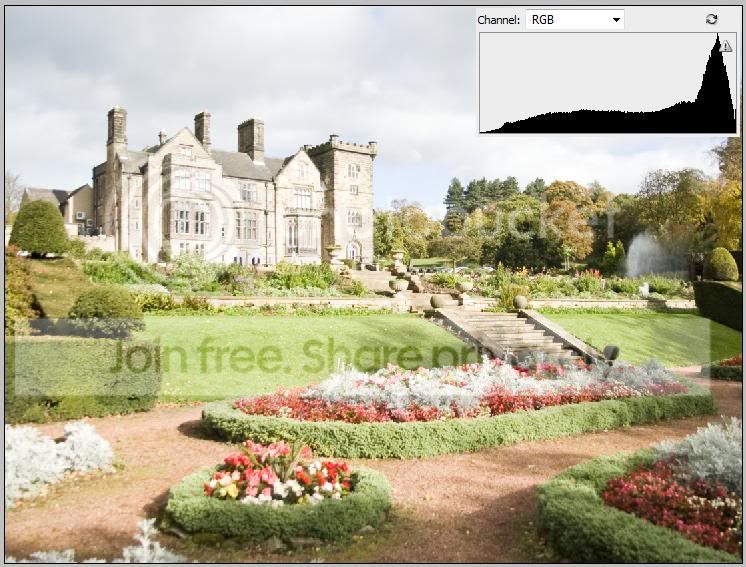
Here are my photos.

I've taken an old photo of Breadsall Hall near Derby and used Photoshop to under and over expose from the RAW file. I have to admit, I've never really used the histogram to correct the exposure before, I've usually just done it by eye.

Under Exposed
1Under.jpg


Correct Exposure
2Correct.jpg


Over Exposed
3Over.jpg
 
Id like to join in on this one but I have no trouble getting under/overexposed
shots its the correct ones I struggle with :bang: :lol:
 
Id like to join in on this one but I have no trouble getting under/overexposed
shots its the correct ones I struggle with :bang: :lol:

Well one key point about histograms is that they allow you to fine tune your exposure so that you can get it perfect before you walk away from the scene. When reviewing your images on the back of the camera, do not be tempted to judge exposure from the look of the image itself. Your eyes can easily be fooled. For starters, you can adjust the brightness of the display, so you can make an image look darker or lighter just by adjusting the display brightness, irrespective of the actual exposure, so which brightness setting is correct? The truth is that there is no "correct" setting. The strength of the ambient light will influence the sensitivity of your own eyes. In dim light, or at night, your eyes will be very sensitive and even an underexposed shot may look well exposed on the back of the LCD. Conversely, in bright light your eyes will reduce in sensitivity and you may think you have a dark image when perhaps the opposite is true. Use the histogram so that you can see how tones are distributed and make sure you are not losing information you want either in the highlights or shadows. Use the image to check composition and focus, not exposure.

If you have a peak at the extreme left hand edge and a gap at the right then you are probably underexposing. If you have a peak at the extreme right and a gap at the left then you are probably overexposing. If your histogram is not peaking at either edge then you are probably in the right ballpark. If your histogram is peaking at the extremes of both sides then the scene has a dynamic range so great that your camera cannot record all the tones within it. You need to think about which tones are more important and expose to preserve those tones. e.g. if you were shooting a bride and groom you will be more concerned to preserve details in the bride's dress than details within the shadowy creases of the groom's suit.

In the above paragraph I have used the word "probably" very deliberately because some scenes are unusual and do result in histograms that deviate from the norm. One example would be a shot of the moon. You have a very bright subject, which will yield a peak in the histogram somewhere between the middle and the right hand side, but the surrounding sky will be so dark that it will register as complete black, resulting in a big peak on the extreme left that is quite acceptable. Conversely, if you were shooting into a scene with point light sources, such as street lamps at night, car headlights or even glaring reflections off metalwork and white paint during the day then you may have a peak on the right that is acceaptable, since there are no details in that part of the scene that you wish to capture accurately, and if you tried, the rest of the scene (the important part) would be so dark as to be underexposed.

If your camera supports the feature I would recommend enabling highlight alerts. These will blink alternate white/black in parts of the image that are overexposed. These areas may be small enough that they do not register visibly in the histogram. You can make your own judgement as to whether or not the areas indicated are important and need an exposure adjustment to reduce the overexposure. Personally I make a lot of use of this feature, and I actually seek to see just small areas of clipping indicated, which means I have maximised my exposure as much as is sensible. The resulting image might look overexposed but I will fix that in my image editing software. This is a technique called "Expose To The Right" and is designed to maximise the data recorded and to reduce noise. More on the topic here....

http://www.luminous-landscape.com/tutorials/expose-right.shtml
 
Last edited:
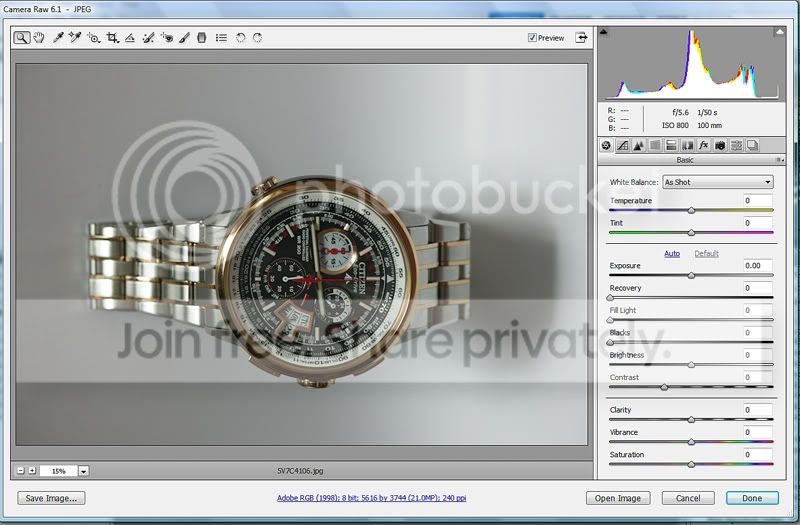
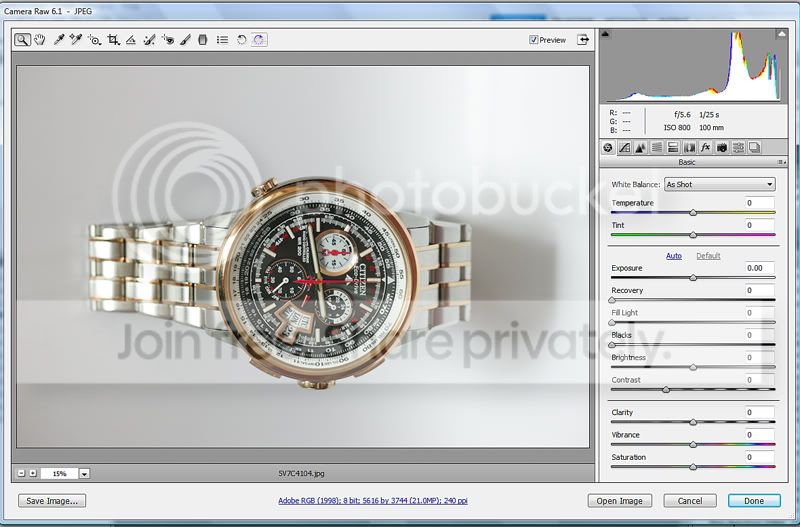
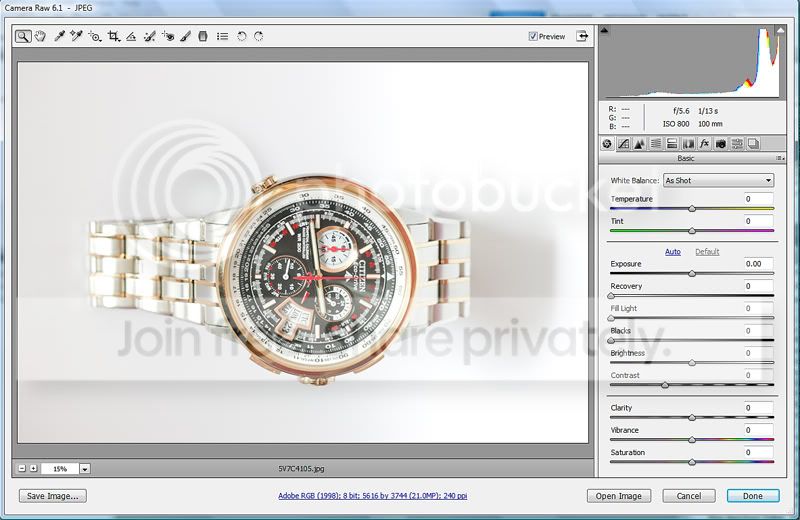
Seeing as there is a certain watch vibe going on this week, my three images are off my new watch!

Under

under.jpg


Optimum
normal.jpg


Over

Over.jpg
 
Right ,
I'm going to ask a very stupid question . Tim varied the shutter speed to alter the exposure for each shot , I think i think I understand that but can I use auto-bracketing function to just take the 3 shots with a single click of the button or is that not going to work the same ? :shrug:
 
If you shoot in Av mode (thus fixing the aperture) then autobracketing will adjust the shutter speed to give you your three exposures. Just make sure that your chosen aperture is not wide open or stopped all the way down to start with, otherwise the camera will not be able to make the necessary adjustment in one direction.

If you shoot in Tv mode then the camera will alter the aperture to give you the three exposures.

If you shoot in P mode then I imagine the camera will jiggle the shutter speed in preference to the aperture, but it might do a little bit of both.

In my series of shots I did adjust the shutter speed in Manual exposure mode.
 
Last edited:
This lesson looks difficult and makes my head hurt. :( :gag:

I'm not sure how this lesson will help me. I don't really understand histograms or what adjusting the curves do or any of that gubbins. :bonk:

Could someone point me in the direction of something to read about it, or post what they look like and why they look that way - and more to the point, what a correct histogram should look like for different shots/compositions?

Hopefully this thread will be a good read. (Was going to say enlightening, but that would have been corny!)

Histograms & other topics - see Ron Bigelow (that's twice today that I have recommended him :) )

http://www.ronbigelow.com/articles/articles.htm
 
Right ,
I'm going to ask a very stupid question . Tim varied the shutter speed to alter the exposure for each shot , I think i think I understand that but can I use auto-bracketing function to just take the 3 shots with a single click of the button or is that not going to work the same ? :shrug:

It's what I did with mine :thumbs:
 
I've had a go with a watch but I have realised that as I don't really understand histograms to start with, using an image with a low colour spectrum is confusing me even more :thinking:

The reason for this, I believe, is that while the typical correct histogram would show an even 'hill' profile shots like the watches with white backgrounds are showing some of "the unusual and do result in histograms that deviate from the norm" to quote Tim above.

Please correct me if I've grabbed the wrong end of the stick here, I'm trying to get my head around this.

Would it be more beneficial to use shots that will show the correct exposure as a 'typical' histogram as a means of learning?

I for one am struggling to pick the correct histogram from some of the watch examples.

I need help :help:
 
The problem with the watch examples is you've got those dazzling reflections in parts of the bracelet, like tiny little mirrors focusing and reflecting the light straight into the camera. Those areas are known as "specular highlights" and to try to get rid of them you would have to reduce the exposure a long way and thus lose details in the bits of the picture that are of real importance. In other words, those highlight areas are best ignored. You can't do anything with them (unless perhaps you move the lighting) so you just let them clip and blow to white.

If you look closely at the three histograms you will note that the optimum exposure and the one under both show a small spike over on the far right. That spike represents the specular highlights. If you ignore that spike and look at the rest of the histogram then you get a better representaion of the rest of the image. In the underexposed shot you see that there is really a bit of a gap in between that spike and the bulk of the histogram. That is about 1 stop of unused (or almost unused) tonal range. In the optimum exposure you see that the gap has been closed up. The spike has got a little larger, but not much. In the overexposed example you see the spike has grown dramatically and a large chunk of the histogram is pressing up against the right hand edge. Clearly that exposure is way over the top.

20100724_175012_.JPG


If you wanted to lose the spike completely you might have to go to -2 or -3 stops before it disappeared. At that point the rest of the watch and background would look dreadful. You'd get something similar if shooting indoors or out on the street at night, where if you caught lamps in the frame they too would create unavoidable spikes on the right. Unless the lamp(s) is/are your subject then let them blow. They aren't important to the subject. You do not need to be able to make out the word "Philips" or "Osram" etched onto the bulb. It's not important detail.

Here's an example with lamps. You can see the blown areas indicated in red. There are also clipped shadows indicated in blue. You can see the spike for the lamps, and also some daylight over on the left of the picture, showing on the histogram. Unfortunately the histogram is also bunched up on the left too. The scene has too much dynamic range for the camera to handle everything. The thing to do is to expose for what matters in the picture and sacrifice the things that do not.

20100724_175850_.JPG
 
Last edited:
Hope I done this correctly.I put camera in manual mode,usually use av.
Took one image with pointer in middle point and then one with pointer 2 notches under and one with 2 notches over.
I did 2 because the meter/slider thing in viewfinder says +1 -1 and adjusting just one notch either way would not get me there,I thing my camera stops must be in 1/3rds.
Maybe with all this waffle I got confused.

correct

correctexposureDesktopResolution.jpg


over

overexposedDesktopResolution.jpg


under

underexposedDesktopResolution.jpg


I usually find I allways prefer my images taken slightly under exposed even more so if there is sky in the scene.

Gaz
 
Well, I missed out on last weeks lesson - so here we go. All shot on my Canon 400d - hand held ISO200

Underexposed - 1/15 f/4.5


Correct Exposure - 1/8 f/4.5


Over Exposed - 1/4 f/4.5

 
Last edited:
For me your 'Overexposed' one at 1/4 sec a f4.5 is the correct one and still has no untoward clipping of the highlights and an extended dynamic range according to the histogram.
 
For me your 'Overexposed' one at 1/4 sec a f4.5 is the correct one and still has no untoward clipping of the highlights and an extended dynamic range according to the histogram.

There's certainly at least 2/3 of a stop left in the "correct" one I'd say - certainly the +1 over is closer to correct than the "correct" shot (now i've confuzzled myself!)
 
For me your 'Overexposed' one at 1/4 sec a f4.5 is the correct one and still has no untoward clipping of the highlights and an extended dynamic range according to the histogram.

There's certainly at least 2/3 of a stop left in the "correct" one I'd say - certainly the +1 over is closer to correct than the "correct" shot (now i've confuzzled myself!)


Totally agree with you both :thinking:
 
Totally agree with you both :thinking:

This is where you really need to know either a) how to meter for the correct exposure or b) how to adjust your settings to give you the optimum exposure after looking at the histogram.

You need to find out what your camera's exposure meter is calibrated to to give you the optimum range of tones from black to white.

Then metering from a known tone, set the camera's exposure to give you that tone, then looking at the histogram, adjust the settings to give you the widest range of tones without clipping any other than specular highlights.

The camera will often also meter differently under different light sources.
 
What's this weeks?

Not sure yet I was thinking of running this one for two weeks as it's a big one really.

Feel free to start lesson 5 with anything you like..

We are all here to help I just started it anyone can carry on

Regards

MD
 
I would like to see a lesson at some time on previsualisation!

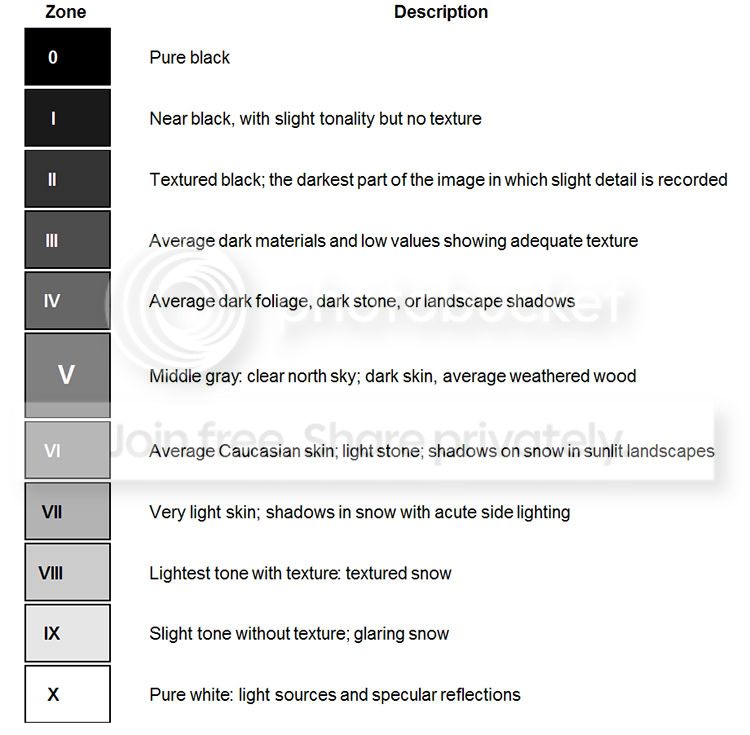
This is to understand that in an image with a full range of tones with a reasonable amount of contrast how much the sensor will resolve, is also a lesson in metering!

Zone.jpg


On a sensor the average range of tones able to be resolved is between 6 & 7 stops.

Taking Zone V as mid grey then each zone either way is approximately 1/2 stop.

Using spot metering if possible or partial metering if not my suggestion would be to take three images of a reasonably contrasty scene with a full range of tones:

1st image, meter from the brightest tone within the scene in which you would wish to retain detail and then overexpose by +2 stops.

2nd image, meter from the darkest tone in which you wish to retain detail and underexpose by -2 stops.

3rd image (if required), looking at each histogram adjust the exposure to give you the result you expected/wanted if you have not already got what you want!

Thoughts?
 
Not sure yet I was thinking of running this one for two weeks as it's a big one really.
I'm not sure it is a big one, whatever that means. With autobracketing it takes no more than a seconds to run off a triplet of shots. With manual bracketing it would not take much longer.

We've had six sets of submissions so far and there are still a couple of days to go. Questions have been asked and answered and links to further articles provided. As important as histograms are, I'm not sure that leaving this topic to run for another week is going to radically improve the learning experience.

It's also not as though this thread needs to die as soon as a new thread is started. There is nothing stopping people cintinuing to post here if they want to join in in the coming weeks. I'm sure if people have further questions about histograms then someone will be happy to answer. Personally, I think that to maintain momentum for the learning series we will need a new topic on Thursday.
 
OMG!!! how have I missed this post?????

I've got a lot of catching up to do - and NO idea whatsoever about histograms!

back tomorrow with pics,

thanks David, this is just what I need :)
 
. I'm sure if people have further questions about histograms then someone will be happy to answer. Personally, I think that to maintain momentum for the learning series we will need a new topic on Thursday.


Sounds good .We should keep the momentum going:thumbs:

Thursday will be the start of the next one..

MD:wave:
 
Back
Top