Laptop through the window.....

gwocni

Suspended / Banned
Messages
833
Edit My Images
Yes
.....Well that's what is about to happen. I've been asked to "see what I can do" with this old shot by way of repairing it so it could be printed and presented to the lady in the shot.
All this has done is highlight my absolutely incompetent and rubbish attempts at this sort of thing, so.....:bang:

Can some of the wizards pull me out of a hole and show/tell me how this can be "repaired" and make an old lady happy and a hamfisted Photoshopper a little more enlightened.
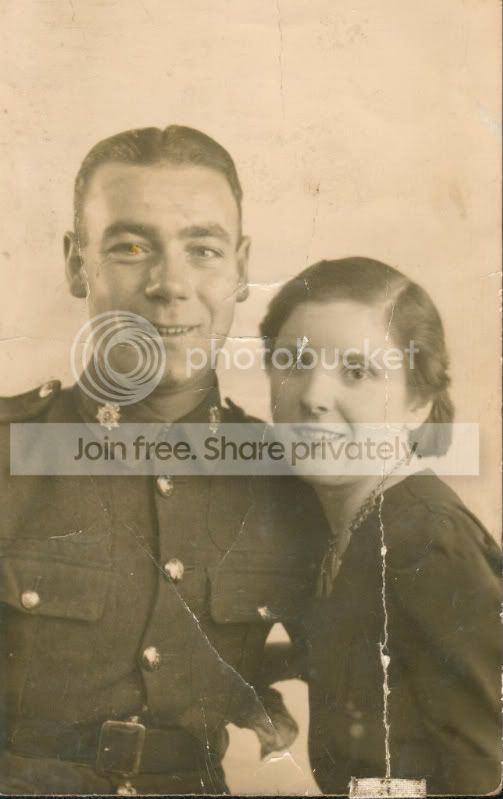
shay1-1.jpg


Thanks in advance

David.

Bigger version here I think!!

 
gwocni, the linked photo is only 84kb. Do you have something bigger we can have a go at?
 
I think you have your hands full there David!
I'm certainly no expert but I had a little play, just to give you an idea
First I got busy with the healing tool
then the clone tool then coverted to B&W and a tad on the sharpen
I am not sure what that bit is in the lower center so I left it
Obviously there is still a lot more to do but
Hope that helps :shrug:


david_shay1.jpg
 
Hi

I had a quick go on the low res version. My Photoshop skills are very limited and I have only used the Clone tool and the Healing tool, however this should show you what's possible.

Hopefully an "expert" on this can help more.

Like I say, this is a quick and dirty edit

edit_shay1-1.jpg
 
gwocni, the linked photo is only 84kb. Do you have something bigger we can have a go at?
Hmmm.. Obviously I've not done that right either if I look at in Photobucket it is much bigger. :bonk: Another skill gap I believe!

I think you have your hands full there David!
I'm certainly no expert but I had a little play, just to give you an idea
First I got busy with the healing tool
then the clone tool then coverted to B&W and a tad on the sharpen
I am not sure what that bit is in the lower center so I left it
Obviously there is still a lot more to do but
Hope that helps :shrug:
Far better already Cobra, I'm trying again now. It's a tear in the photo at bottom centre. :lol:
 
Hi

I had a quick go on the low res version. My Photoshop skills are very limited and I have only used the Clone tool and the Healing tool, however this should show you what's possible.

Hopefully an "expert" on this can help more.

Like I say, this is a quick and dirty edit
I don't know how to do a slow edit never mind a quick one, thanks it's better already.

Hi

I had a real quick go Click for larger image


Dave

Thanks Dave, good edit and I'll try putting up a large one myself.....
 
Haven't done the background, but is this any use so far

shay12.jpg
 
Ok give me some time tomorrow and I'll see what I can do with the rest of the picture.
 
Thanks Gremlin, I'm doing a bit of "healing" myself now. We'll see how that goes....... :lol:
 
If we are all having a go then

shay1.jpg


On a serious note I do hope you get someone to do a very good job on this for you
 
Started having a play and basically, it can be done but you need huge patience. Mainly you need the clone and healing brush, but I find it much easier if you turn down the hardness on both, the effect blends better. Take it right down to pixels if you have to, this will be a time consuming job, especially with the damage in the eye areas. CT is your man for full blown advice, I know he has done quite a bit of this kind of stuff, but just take your time and be very patient, dont send your self mad with it, do a little, then walk away for while. I will post my results when I have finished, but I reckon you can do it. :thumbs:
 
Started having a play and basically, it can be done but you need huge patience. Mainly you need the clone and healing brush, but I find it much easier if you turn down the hardness on both, the effect blends better. Take it right down to pixels if you have to, this will be a time consuming job, especially with the damage in the eye areas. CT is your man for full blown advice, I know he has done quite a bit of this kind of stuff, but just take your time and be very patient, dont send your self mad with it, do a little, then walk away for while. I will post my results when I have finished, but I reckon you can do it. :thumbs:

Thank you....... You are right about the madness, it's already set in.:gag: I've been at this all night and it is improving but as you say..... Patience is a virtue in short supply at the moment.:bonk:
 
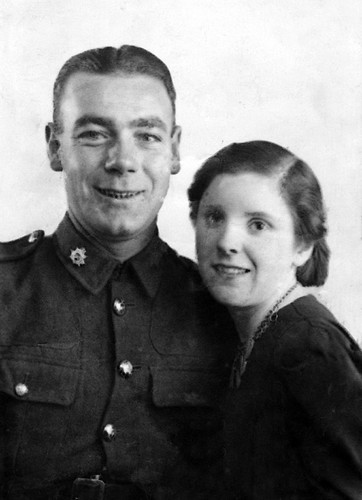
Bit cleaner


shay12-1.jpg
 
Started having a play and basically, it can be done but you need huge patience. Mainly you need the clone and healing brush, but I find it much easier if you turn down the hardness on both, the effect blends better. Take it right down to pixels if you have to, this will be a time consuming job,

Hardly! It's 10 minute job...The girl's right eye is the only problem area and even that's not a massive problem. The rest is all pretty simple stuff...
 
Hardly! It's 10 minute job...The girl's right eye is the only problem area and even that's not a massive problem. The rest is all pretty simple stuff...

That's easy enough for you to say...... This is the third time I've fetched this laptop from the garden.:lol::lol:

David.
 
What program you using ?

In Photoshop I've done a fair bit of cloning, layer via copy etc for eyes and scratches, background was just a quick paint job ;)

Done a fair bit or repair work but must admit that I hate working with eyes, so hard to get right
 
What program you using ?

In Photoshop I've done a fair bit of cloning, layer via copy etc for eyes and scratches, background was just a quick paint job ;)

Done a fair bit or repair work but must admit that I hate working with eyes, so hard to get right


Trying to use CS3 :rules: Some of the "tries" here have given me a few ideas and even a basis to start from. I'm still not getting what I think I should, the others are far better than mine even if they are quickies.:)

David.
 
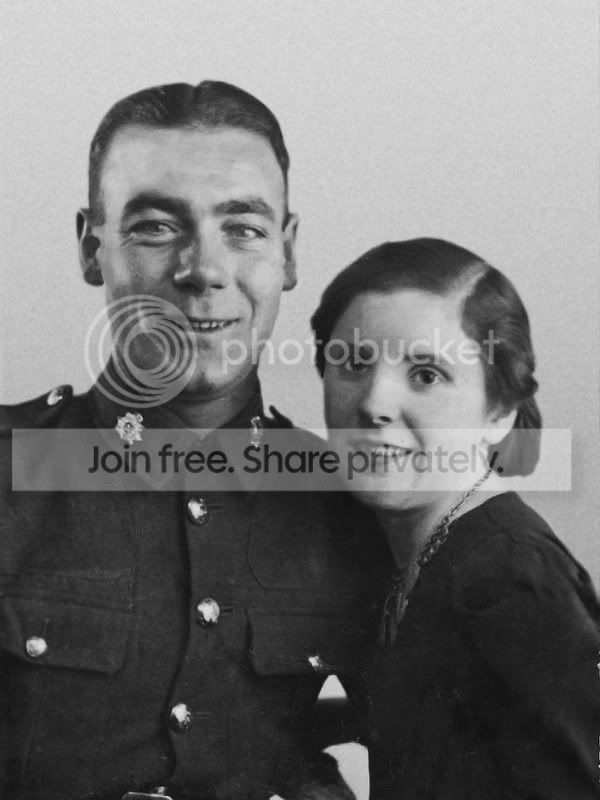
just finished ...... my photoshop is playing up, needs a reload I think.

shay1copy2Done.jpg


Jenny.


That's easy enough for you to say...... This is the third time I've fetched this laptop from the garden.:lol::lol:

David.

:lol: dont worry, it probably is 10 minutes work if thats what you spend all day doing, but for the rest of us mere mortals, gaffer tape for the lappy and mopping of fevered brows is the order of the day! :naughty:
 
Thanks Jenny........... Far better than my feeble attempts. I think I'll give it a rest for tonite as the laptop can't take much more.:lol:
 
Thank you Guys........ Keep 'em coming and if you briefly mention what you did I would appreciate it.

Tnx
David.
 
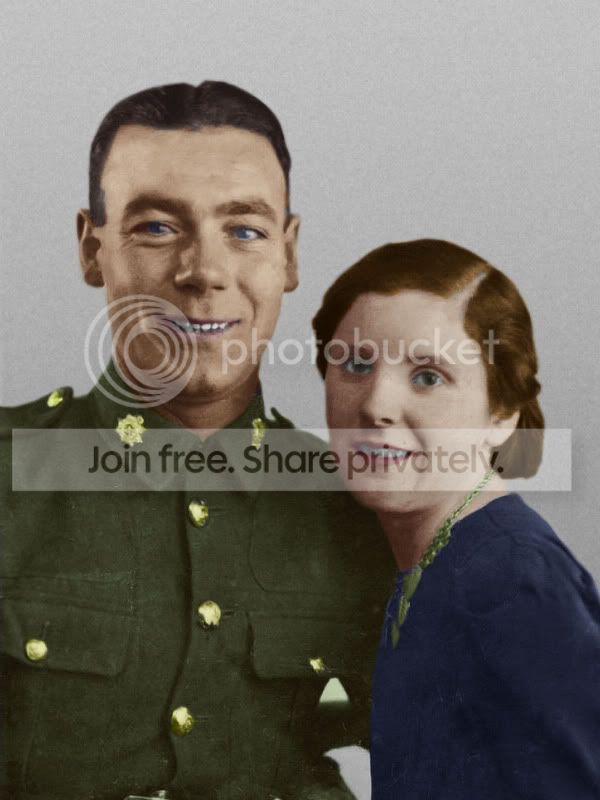
Looks realistic to me, bearing in mind the era of the pic. It's exactly what I would expect! :clap: Thank you and well done....... Now tell me how please.

David.
 
Looks realistic to me, bearing in mind the era of the pic. It's exactly what I would expect! :clap: Thank you and well done....... Now tell me how please.

David.

LOL, well, im not am expert or anything, so this may not be the right way )actually i know it isnt as my girls friend keeps nagging me to use layers), but...


Open image, use hue/saturation to remove colour.

Resize the image to something around twice the normal size.

Use healing tool to remove obvious long rips that go no-where near details like face or edgees of the face.

Use cloning brush, to fix othe ripped parts ofthe photo, dont have the brush too small and avoid short stabs of the brush to avoud spots everywhere.

I free transformed the mans left eye and free transformed it, flipped it onto where the damadged right eye was.

The rip through the womand eye was tricky but i just used the cloning brush to paint it back in.

To colour i used the magnetic lasso tool with 3px feather to hightlight the face (for example) then click remove from selection and then draw round the eyes and mouth
go to select/save selection, then save the selection as something like "mans face"

, then go to image/adjustments, coulour balance, then just change the balance to get the desired colour in the mids, shaddow and highlights seperately a bit o yellow an bit of magenta and a tad of red works for skin.

Keep saving every part of the photo as a diferent selection so you can always go back and change the colours of that part if it looks wrong later on.

Keep saving as psd as well.

I also lassoed the backround, put aslight gradient on it, add large grain and blurred a few times then added grain back on to give a dirty look.

Hope that helps.:shrug::thumbs:
 
Back
Top