Is there a way to do this?

Graham W

Suspended / Banned
Messages
3,252
Name
Graham
Edit My Images
Yes
I have an external hard drive with a folder with 536 sub-folders of edited work (I have the work backed up on two other drives.) All the images have been saved as TIFF files. Is there a way to convert them all to jpeg while keeping them in their folders? Exporting from Lightroom would be ideal if it were possible. Would it have to be done outside Lightroom and re-imported? Can it be done at all?
I really don't want to have to convert each folder individually. I could open the main folder to display all the images and export from there, but would they remain in their individual folders when re-opened.
I hope that makes some sort of sense.
 
If you are using Windows then I believe this is a job that Irfanview (free) can do.
 
All the files on an external drive can be added to the LR catalogue using the normal "Import" procedure. (This means the files can now be "seen" by LR, but are not physically moved from the external drive.) If these files are then exported to the same folder as the original photo, but as jpg's, they should appear alongside the original TIFF image. (The "Export" window has an option in the "Export To" setting, to export to the same folder as original photo.) I've never had to do it for large batches, but it shouldn't be difficult to try it, as I know it works for single images. Maybe you should try it in batches, in case your computer RAM is overloaded if you try to do all at once.
 
Last edited by a moderator:
All the files on an external drive can be added to the LR catalogue using the normal "Import" procedure. (This means the files can now be "seen" by LR, but are not physically moved from the external drive.) If these files are then exported to the same folder as the original photo, but as jpg's, they should appear alongside the original TIFF image. (The "Export" window has an option in the "Export To" setting, to export to the same folder as original photo.) I've never had to do it for large batches, but it shouldn't be difficult to try it, as I know it works for single images. Maybe you should try it in batches, in case your computer RAM is overloaded if you try to do all at once.


^This

If all those sub folders are very full it will take quiet some time though, and bear in mind, depending on the size and quality of JPEGs you'll need to ensure you have enough drive space left to accommodate the new files. As a rough guide, if the current contents take up for argument's sake 1TB, ensure you have at least a third of that again free to accommodate the JPEGs. If you're not resizing as part of the export, then you may need more.
 
Last edited:
Thanks for the comments. My reason for doing this is that the 500gb drive they are on is full (as you would expect.) I'll try exporting a small batch of folders to another drive and see how it goes.
If it works and I then export all the rest, I appreciate it will be a case of "Hit the go button and go out for the day."
I'll keep you posted.
 
Thanks for the comments. My reason for doing this is that the 500gb drive they are on is full (as you would expect.) I'll try exporting a small batch of folders to another drive and see how it goes.
If it works and I then export all the rest, I appreciate it will be a case of "Hit the go button and go out for the day."
I'll keep you posted.


You can still make a new catalogue and import the 500GB of images into LR, then export them to a totally different drive. Everything I said above is only relevant if you want the JPEGs alongside the other files. If you export to a different drive then I don't think you can keep the folder structure, as what you would normally do is export to the same folder, and choose "export to same folder" in the "export to" menu. I'm fairly certain if you choose another location, it just dumps them as files with no folders.

If you want to keep them alongside.... you need to transfer the images/folders to a drive with enough space to accommodate the new JPEGs.
 
Last edited:
You can still make a new catalogue and import the 500GB of images into LR, then export them to a totally different drive. Everything I said above is only relevant if you want the JPEGs alongside the other files. If you export to a different drive then I don't think you can keep the folder structure, as what you would normally do is export to the same folder, and choose "export to same folder" in the "export to" menu. I'm fairly certain if you choose another location, it just dumps them as files with no folders.

If you want to keep them alongside.... you need to transfer the images/folders to a drive with enough space to accommodate the new JPEGs.
Oh thanks, that kind of makes sense to me. I'll first transfer the whole caboodle to a drive that has enough space to do as you suggest.
 
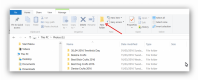
You could make a new Folder on your elected Drive by using "File Explorer" and renaming it to whatever you want and posting to that.upload_2016-5-2_9-16-32.png
 
You could make a new Folder on your elected Drive by using "File Explorer" and renaming it to whatever you want and posting to that.View attachment 63569


But all the images will just be dumped into that one folder. He wanted to know if he can export and maintain the sub folder structure. Unless you are exporting to the same folders, I don't think you can do this. I'm prepared to accept there may be a way, but as of yet, I've not found it.
 
Thanks for the comments. My reason for doing this is that the 500gb drive they are on is full
The easy way is to just buy another drive and put the first to one side. Recycling the jpgs back onto the original drive will (if it's full) involve deleting the tiff files as you go if you're not using an intermediate drive. I'm certainly not brave enough to allow any automated routine to do that!

Anyway, a really simple Google search..

Found this answer from the top search result..

From the description that should fit the bill. But you're still going to need a second drive, so why not just use that and carry on as you are?

If this answer's been useful, place a tip in the next RNLI donation box you're passing.

.
 
With all of your help I'm sure I'll get there. I've exported the folder with all the offending sub-folders to another drive which has enough space left to accommodate duplication in jpeg format and I'm currently importing that into Lightroom.
I'm perfectly happy to buy another drive (Say, 2 TB.) and carry on from there but I feel that having backups of edits in Tiff format instead of Jpeg is a little excessive*.
These are "Belt & Braces" backups of edited work only, the work is also backed up in tiff format along with the original Raws on two other drives. All of my work is originally loaded to a dedicated 2TB drive in my computer. Nothing photographic is stored on my C drive.
* I'm happy to be convinced otherwise if you think that's the case. :-)
 
Ok. So I'm nearly there.
I have all the images in one folder on one drive in both Tiff and Jpeg format, all in their individual sub-folders.
If I open a sub folder in File Explorer or Bridge I can see the Tiff and Jpeg versions, so I now need to open all the images in the main folder and delete just the Tiff versions.
The only place that I can see that it is possible to open all the images outside of their sub-folders is in Lightroom, but there it doesn't show the Tiff and the Jpegs, it shows the images as TIFF+JPEG.
So how, in Lightroom, do I separate the Tiffs from the Jpegs in order to delete them?
 
Last edited:
Nice one, but do yourself a favour and try "Everything"
 
Righty ho. I've now separated and deleted the Tiffs from the "Holding Drive", Deleted the original folder with my edit backups (Which were all huge Tiffs) and am now copying the folder with all the sub-folders which now only contain Jpegs back to my original drive.
All I should need to do then is re-import it to Lightroom...Can't find a "Fingers Crossed" emoticon.
 
Ok. So I'm nearly there.
I have all the images in one folder on one drive in both Tiff and Jpeg format, all in their individual sub-folders.
If I open a sub folder in File Explorer or Bridge I can see the Tiff and Jpeg versions, so I now need to open all the images in the main folder and delete just the Tiff versions.
The only place that I can see that it is possible to open all the images outside of their sub-folders is in Lightroom, but there it doesn't show the Tiff and the Jpegs, it shows the images as TIFF+JPEG.
So how, in Lightroom, do I separate the Tiffs from the Jpegs in order to delete them?
I've not been keeping up with your posts here, but for future reference if you look in the LR "Preferences" settings, under "Import Options" there is a check box for "Treat jpeg files next to raw files as separate photos". Perhaps this may be relevant to your question.
 
Last edited by a moderator:
But all the images will just be dumped into that one folder. He wanted to know if he can export and maintain the sub folder structure. Unless you are exporting to the same folders, I don't think you can do this. I'm prepared to accept there may be a way, but as of yet, I've not found it.

I haven't tested this but I think that the following will work:
  1. Select all the tiffs to export
  2. Export as jpeg - I think there's an option to have them exported to the same folder as the source tiff. And somewhere in the export dialog I think there's a also setting to add to the catalog after exporting; if not then just sync lightroom with the folder after exporting (when importing ensure that you don't apply a develop preset)
  3. Now select just the jpegs (use the Text filter and enter .jpg in the search field)
  4. Export as new catalogue and include negatives - this creates a new lightroom catalogue with just the jpegs and preserves the folder structure.
  5. Find the new catalogue using windows explorer and delete the .lrcat file as you no longer need it.
  6. Delete the jpegs created in step 2.
You should be left with just the tiffs exactly as they were and a folder structure somewhere else on disk which matches the original but contains only jpegs.

Alternatively after step 2 you could use xcopy.

Or.. I've just found this plugin which claims to do the job: http://regex.info/blog/lightroom-goodies/folder-publisher
 
I've not been keeping up with your posts here, but for future reference if you look in the LR "Preferences" settings, under "Import Options" there is a check box for "Treat jpeg files next to raw files as separate photos". Perhaps this may be relevant to your question.
Yes. I did find this when I was digging around and I've now "Ticked the box".
 
A bit late since you've already done this but for anyone else trying similar or if you want to do it again there's an awesome free plugin for lightroom called Photo Upload which was previously tree-mirror. Using the tree mirror setting which can be used as an export option to preserve the folder structure when exporting. For this scenario you could import the hdd using add in lightroom which wouldn't affect the original files then select all images and use tree mirror for the output parameter which would then allow you to use all the lightroom export settings to export them to another drive/folder whilst maintaining the original folder structure.
 
Last edited:
A warning has been given for this post
Why not, a lot of converters, see in russian internet, where a lot of cracked tools
 
In Linux you'd type:

for file in */*.tiff; do convert $file $file.jpg; done

Then go make a cup of tea.

You can do similar in windows, google batch file.
 
Back
Top