Improve photos

Mmarques

Suspended / Banned
Messages
826
Name
Marco
Edit My Images
Yes
Hi there everyone,
I've just recently come back from a cruise around Italy, France and Croatia and have taken loaaaads of pictures, is there a way to improve the look of the pictures in pse8? If there are any tutorial links that would be great.
Thanks
Marco
 
Thanks Christine, well I hope I took some fab pictures :P I want to improve them so they kind of stand out more or bring the detail out and colours, if you know what I mean.
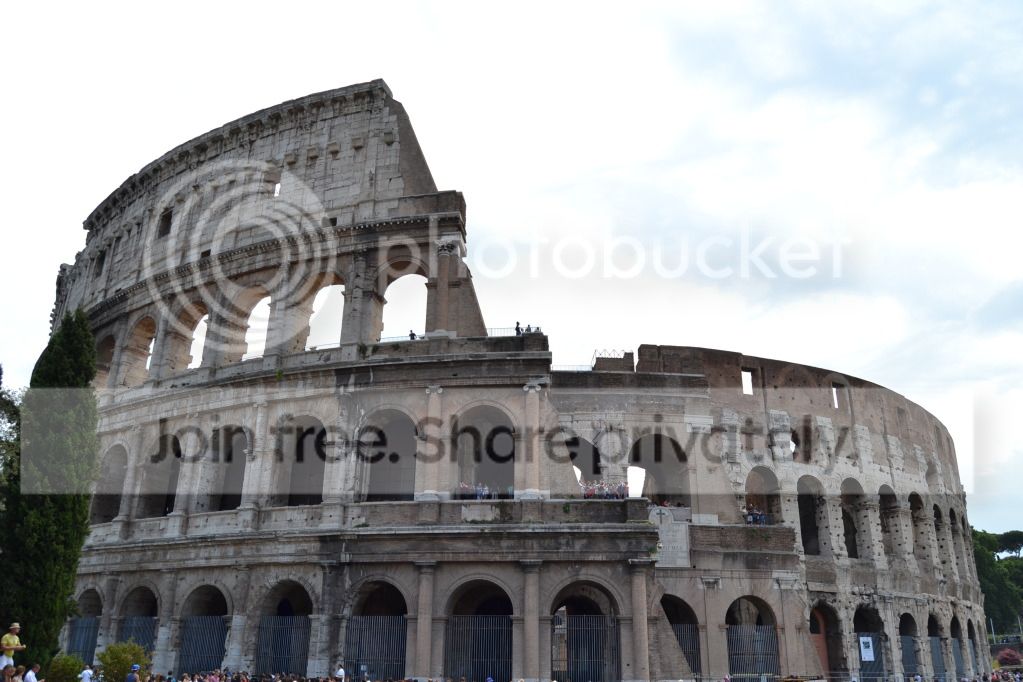
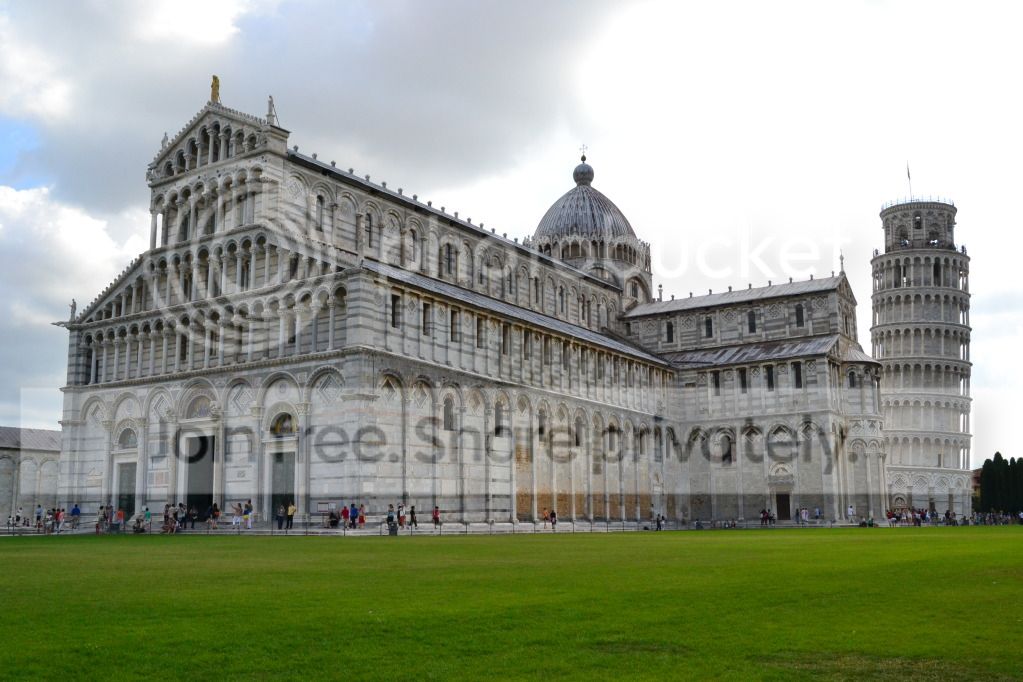
I'll have a look at you link thanks.
Marco
 
Last edited:
billybob99 said:
Hi if you post a couple and what you'd like from them someone will advise and have a go at them I'm sure

Thanks andrew, I'll choose a couple of the better ones and post it up. :)
 
sorry for the long delay, i have finally had the energy to upload all 1300 pics from holiday to the laptop and organize it :P
Here are a few pics of ones id like to edit and maybe improve to give it a wow look.
if anyone wants to edit these and tell me how to edit them in ps please feel free as im still trying to learn pp. if it helps i have pse8.
Thanks in advance

DSC_0521.jpg


DSC_0239.jpg


DSC_0132.jpg
 
The sky is completely blown so have dropped in a new one (from a picture I had open as been working on it, and corrected the verticals.

Increased saturation by +2
Slight S bend in curves
I am not happy with the colour but have no idea what it is supposed to be, I have included the layers so you can see

marco1.jpg
 
they look a little flat and soft to me

maybe copy some into a fresh folder and apply the 'process multiple files' command to them, ticking Auto Levels, Auto Contrast and Sharpen options.

see how they turn out and if any better, do the rest.

I've only got elements myself recently and didn't realise you cannot record actions :(
 
Kerioak said:
The sky is completely blown so have dropped in a new one (from a picture I had open as been working on it, and corrected the verticals.

Increased saturation by +2
Slight S bend in curves
I am not happy with the colour but have no idea what it is supposed to be, I have included the layers so you can see

That sky is definately better :) I have no idea yet about curves, still have to read up on that.
 
new2me said:
they look a little flat and soft to me

maybe copy some into a fresh folder and apply the 'process multiple files' command to them, ticking Auto Levels, Auto Contrast and Sharpen options.

see how they turn out and if any better, do the rest.

I've only got elements myself recently and didn't realise you cannot record actions :(

Yeh I agree about how flat they are, I have tried enhancing some of the photos yesterday..wow how time flies when playing around on ps.
I didn't know you could process multiple pics at a time.
 
I didn't know you could process multiple pics at a time.
Handy if you think a bunch of photos are lacking the same qualities ;)
 
new2me said:
Handy if you think a bunch of photos are lacking the same qualities ;)

Will be needinh it :P So how exactly do I edit multiple pics at once on pse?
 
I dont know if PSE8 is different to PSE10, which is what I have

a) copy some of those images into a new folder (call it 'bleh' or something)
b) create another new folder for the processed images (call it 'meh' or something)
c) open PSE and select File | Process Multiple Files from the menu
d) from the pop up box, select the 'bleh' folder as your source
e) select the 'meh' folder for destination - or tick same as source to overwrite your originals
f) on the right hand side of the pop up, I have a Quick Fix panel - tick each of those options, or try different combinations
g) click Okay and it should run through the images making the desired adjustments
 
That sky is definately better :) I have no idea yet about curves, still have to read up on that.

Curves and Levels are the 2 adjustments than can give the most 'pop' to your pictures in my humble opinion.

Full curves is not available in Elements but the basic version is and you can do the "shallow s" kerioak mentions with it.

To have a practice, in elements, open your image into elements, (do the raw adjustments first if you shot raw), then duplicate your layer (ctrl-j), then go to 'Enhance' menu, Adjust color -> Adjust color curves. A before and after dialog should come up. In the 'select a style' area click "increase contrast". you will see the small graph in the bottom change to an s shape. If the effect is too strong, move the adjust shadows slider and/or the adjust highlights slider to bring the point on the curve nearer to the centre diagonal. (i.e flatter curve)
Once you've done, click ok and then you can click the eye icon on your new layer on and off to see the changes you've just made.
 
Last edited:
Back
Top