Images Underexposed on Computer

htid

Suspended / Banned
Messages
2,497
Name
Chris
Edit My Images
Yes
Hi,

I do product photography for our company and I've always noticed something odd so I thought it's about time to try and find out what's going on, but google doesn't seem to offer anything. I take the photos under studio lighting with my d7000 and 50mm 1.4 and on the back of my camera they look perfectly exposed. I take them into Nikon ViewNX2 and they all look about 1 stop under exposed. I'm using a decent IPS monitor using AdobeRGB colour profile and use the same colour profile in camera. I shoot raw so I'm really lost as to why there's such a big difference. Anybody any ideas what's going on? Thanks!
 
Hi

1) what the image looks like on the LCD on the camera back can only be trusted for exposure accuracy if the histogram tells/shows you that it is indeed so.

2) very few monitors have as wide or wider gamut as sRGB so why are 'working' in aRGB? AFAIK an aRGB image seen on an sRGB gamut monitor will look dull.

3) have you actually calibrated the monitor?

4) back the histogram, what does it show in your editing programme on the pc about the exposure.

Subject to the knowing whether based on in camera histogram check IMO you need to think about and look at your workflow.

HTH
 
The first thing i would do is look at them on another monitor,to see if they look the same on both :)
 
Don't trust the camera's screen.

As above, look at the histogram, but even then, unless you know how to read a histogram, it can be confusing. You can have an underexposed image, and still have the histogram look OK if the contrast range is sufficiently low.

How are you metering? matrix? Centre Weighted? You haven't accidentally selected spot meter have you? If so, you're exposures will be all over the place.

In all likelihood though, it's your monitor. A calibrated monitor is quite important.


One thing you can do, is post up one of the images you feel is looking too dark on your monitor so I can check it here. If it's dark here too, then it's not your monitor, and therefore user error. If it's fine here, then it's your monitor.
 
Thanks for the advice everybody. Unfortunately I don't know how to read the histogram (i fell into graphics and photography by accident so I don't have any training). The things I'm taking are typically like boomerangs (work for a toy company) so there's a lot of white background with a sort of thin bit of colour. I don't know how a histogram should look with so much white.

The monitor isn't calibrated but it's a decent one (i think) and we've sent a lot of things to print based on the exposure and colours I've adjusted to on screen and they all come out ok. Obviously that's CMYK so maybe that changes things but shouldn't affect the exposure I guess. If be happy to send you an NEF for you to look at on your monitor if that's ok with you pookey. Will be Monday when I'm back at work though. Thanks for the offer!
 
Thanks for the advice everybody. Unfortunately I don't know how to read the histogram (i fell into graphics and photography by accident so I don't have any training). The things I'm taking are typically like boomerangs (work for a toy company) so there's a lot of white background with a sort of thin bit of colour. I don't know how a histogram should look with so much white.

The monitor isn't calibrated but it's a decent one (i think) and we've sent a lot of things to print based on the exposure and colours I've adjusted to on screen and they all come out ok. Obviously that's CMYK so maybe that changes things but shouldn't affect the exposure I guess. If be happy to send you an NEF for you to look at on your monitor if that's ok with you pookey. Will be Monday when I'm back at work though. Thanks for the offer!


No problem. You can just use drop box or we transfer or something. Send me a link.
 
This sounds like using Adobe RGB is the problem.
Working in sRGB throughout will be better for most purposes.
 
This sounds like using Adobe RGB is the problem.
Working in sRGB throughout will be better for most purposes.

It won't make the images darker. Viewing a Adobe RGB image in a non colour managed sRGB environment will just result in lack of saturation, not make it darker.

Using ICC v4 profiles in Windows Photo Viewer can though... as Windows doesn't play nice with ICC v4. I doubt that's it though, as Nikon software will be honouring the profiles.
 
Last edited:
As I said, I'm not expert in colour etc. but I was under the impression the Adobe RGB contained a wider colour gamut and therefore gave the images more vibrancy and 'pop'. Because I''m taking kids toys, that's ideal. Have a look at some of these images from our website which I've taken and had this problem with. They've been adjusted to look correct with the monitor in question and, on every other device I've viewed them on (including my home PC I'm using now, which has the exact same monitor as I use at work), they look good. This obviously leads me to believe it isn't the monitor. These are low res jpegs clearly, so I'll still send over the NEF tomorrow.

http://www.wickedvision.co.uk/products/wicked/booma/indoor-booma/
http://www.wickedvision.co.uk/products/wicked/booma/outdoor-booma/
http://www.wickedvision.co.uk/products/wicked/wicked-carbon/wicked-sky-rider-carbon/
 
As I said, I'm not expert in colour etc. but I was under the impression the Adobe RGB contained a wider colour gamut and therefore gave the images more vibrancy and 'pop'.

It does, but if whatever system your using to view it doesn't honour the profile, and has a sRGB gamut monitor, it will not translate the RGB values to render the image correctly, and instead, just "squeeze" the extra colour information into a smaller space and render it desaturated. It's for this reason that anything intended for the web, should be converted to sRGB first, as you've no control over who is viewing it and how. If it's for your own viewing, or printing, then yes, use Adobe RGB so long as you correctly convert it to Adobe RGB 1998. Unless you've changed it with a custom monitor profile, the default colourspace for Windows is sRGB.

Are you posting images to the web with AdobeRGB? That's never a great idea.

Because I''m taking kids toys, that's ideal. Have a look at some of these images from our website which I've taken and had this problem with. They've been adjusted to look correct with the monitor in question and, on every other device I've viewed them on (including my home PC I'm using now, which has the exact same monitor as I use at work), they look good. This obviously leads me to believe it isn't the monitor. These are low res jpegs clearly, so I'll still send over the NEF tomorrow.

http://www.wickedvision.co.uk/products/wicked/booma/indoor-booma/
http://www.wickedvision.co.uk/products/wicked/booma/outdoor-booma/
http://www.wickedvision.co.uk/products/wicked/wicked-carbon/wicked-sky-rider-carbon/

They look OK to me, but I have no context, as I haven't actually seen the objects themselves. However, it would appear that it's not the monitor then. Incidentally, setting Adobe RGB on your camera has no effect when shooting raw. Raw files are not embedded with a colour profile. You do that when you export from whatever raw program you are using. Are you assuming they're in AdobeRGB because that's what is set in camera?

Also, your initial complaint was one of exposure not colour, is this correct?
 
Last edited:
It does, but if whatever system your using to view it doesn't honour the profile, and has a sRGB gamut monitor, it will not translate the RGB values to render the image correctly, and instead, just "squeeze" the extra colour information into a smaller space and render it desaturated. It's for this reason that anything intended for the web, should be converted to sRGB first, as you've no control over who is viewing it and how. If it's for your own viewing, or printing, then yes, use Adobe RGB so long as you correctly convert it to Adobe RGB 1998. Unless you've changed it with a custom monitor profile, the default colourspace for Windows is sRGB.

Are you posting images to the web with AdobeRGB? That's never a great idea.

OK thanks I'll keep the stuff about sRGB for web in mind in future. I'm not sure about converting to RGB 1998 though, but I'll talk about that in the next bit...

They look OK to me, but I have no context, as I haven't actually seen the objects themselves. However, it would appear that it's not the monitor then. Incidentally, setting Adobe RGB on your camera has no effect when shooting raw. Raw files are not embedded with a colour profile. You do that when you export from whatever raw program you are using. Are you assuming they're in AdobeRGB because that's what is set in camera?

Also, your initial complaint was one of exposure not colour, is this correct?

I can understand you have no context, but honestly when I first import them from camera to ViewNX2, they are so much visibily darker than on camera LCD that you'd notice immediately. The monitor is this one which says it can display 99% Adobe RGB which is why I've always used it http://www.lg.com/uk/monitors/lg-27MB85Z, but clearly as you say there's the issue of converting Adobe RGB to sRGB for web which I've never done or considered (having said that, the image you viewed on the link must have been Adobe>sRGB converted and they look fine, not washed out at all).

Yes I was assuming that because I had the camera set to Adobe RGB, it would be outputting them as such. I didn't know that shooting raw made that irrelevant. But that still wouldn't explain the under exposure I guess, because I notice it when I open them in ViewNX2 as RAW files, so at this point I guess they have no colour profile assigned anyway? Slightly confused! My usual workflow is:
- Take photo in RAW and judge whether it's correct on LCD
- Put photo onto computer and open in ViewNX2 as RAW
- Make exposure correction for the underexposure
- Covert to tiff
- Do what I need to the image (cut out the object etc)
- Save as jpeg

And yes, my complaint is of under exposure, rather than colour. I only brought the colour into it as Box Brownie questioned why I was working in Adobe RGB.
 
OK thanks I'll keep the stuff about sRGB for web in mind in future. I'm not sure about converting to RGB 1998 though, but I'll talk about that in the next bit...


I can understand you have no context, but honestly when I first import them from camera to ViewNX2, they are so much visibily darker than on camera LCD that you'd notice immediately. The monitor is this one which says it can display 99% Adobe RGB which is why I've always used it http://www.lg.com/uk/monitors/lg-27MB85Z, but clearly as you say there's the issue of converting Adobe RGB to sRGB for web which I've never done or considered (having said that, the image you viewed on the link must have been Adobe>sRGB converted and they look fine, not washed out at all).


But I'm using a fully colour managed system, with a custom monitor profile being honoured by my browser (only Firefox colour manages properly). My Monitor is also AdobeRGB capable, and my default windows colourspace IS my monitor profile, so everything can handle your AdobeRGB images just fine here. Not everyone is in that situation, so others may not be seeing what I'm seeing.


Yes I was assuming that because I had the camera set to Adobe RGB, it would be outputting them as such.

Nope... raw files have no colour profile attached. Your raw software will do that upon export into a bitmapped image format.

I didn't know that shooting raw made that irrelevant. But that still wouldn't explain the under exposure I guess, because I notice it when I open them in ViewNX2 as RAW files, so at this point I guess they have no colour profile assigned anyway? Slightly confused! My usual workflow is:
- Take photo in RAW and judge whether it's correct on LCD
- Put photo onto computer and open in ViewNX2 as RAW
- Make exposure correction for the underexposure
- Covert to tiff
- Do what I need to the image (cut out the object etc)
- Save as jpeg

And yes, my complaint is of under exposure, rather than colour. I only brought the colour into it as Box Brownie questioned why I was working in Adobe RGB.

First of all, you definitely should NOT be putting images on the internet that are AdobeRGB profiled. Anyone not colour managed will see very desaturated colours on a default system that uses sRGB as they're working colourspace (most people) unless they have a correctly set up browser that correctly honours colour profiles. Always convert (not assign) images to sRGB before posting them onto the internet.

Chances are, the images are under-exposed then, and the camera's monitor is not showing them correctly. It's not designed to be an accurate representation of how your final images will look on a decent monitor. It's there to check focus, or just make sure no one was blinking etc. Even the histogram can be misleading if you don't know how to read them correctly.

How are you lighting these objects? How are you metering?

Ultimately... seeing one of your raw files that suffers from what you are talking about will settle it once and for all.
 
Last edited:
OK yeah rather than going backwards and forwards trying to work out where the problem is, let's get one of my files over to you tomorrow and we can go from there.

This is as an aside since this wasn't what my thread was about, but I wonder if when I save as jpeg they're being assigned an sRGB profile because on other monitors and on my phone etc. the images also look bright and vibrant, which as you said wouldn't be the case if I was saving them as Adobe RGB.
 
OK yeah rather than going backwards and forwards trying to work out where the problem is, let's get one of my files over to you tomorrow and we can go from there.

This is as an aside since this wasn't what my thread was about, but I wonder if when I save as jpeg they're being assigned an sRGB profile because on other monitors and on my phone etc. the images also look bright and vibrant, which as you said wouldn't be the case if I was saving them as Adobe RGB.

The images on yoru website are sRGB embedded (just checked), so the Nikon software is automatically doing that when you export as a JPEG then.
 
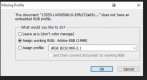
Hmmm, but I'm not exporting them as jpeg from the Nikon software. I'm taking them into Photoshop and then saving them as jpegs from there. Maybe photoshop is doing it but I just did a test and in the save dialogue box, "ICC Profile: Nikon Adobe RGB 4.0.0.3001" is by default ticked so I assume they are saving with that colour profile. These images are then simply uploaded to our website so I don't know where the change is taking place!

Also this is going off topic again, but since you seem quite knowledgable in this area, you might be able to help. I use the latest version of Photoshop CC which can open NEF files. If I just open an NEF in Photoshop, the colours are very visibly decreased, it's like somebody has reduced the saturation. This is the reason I export as TIF and then open the TIF in Photoshop, because this seems to preserve all the colour and look identical to the original NEF as viewed in the Nikon software. Why would Photoshop mute the colours so much? I would assume it's to do with colour profiles but since it's a raw file and you said that raw does not have a colour profile, it can't be that after all.
 
Hmmm, but I'm not exporting them as jpeg from the Nikon software. I'm taking them into Photoshop and then saving them as jpegs from there. Maybe photoshop is doing it but I just did a test and in the save dialogue box, "ICC Profile: Nikon Adobe RGB 4.0.0.3001" is by default ticked so I assume they are saving with that colour profile. These images are then simply uploaded to our website so I don't know where the change is taking place!

Be glad it is then, as posting to teh web in AdobeRGB1998 is a bad idea :)
 
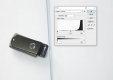
Loaded this up in ACR and Lightroom 6.1and it looks around 1 stop underexposed to me on my calibrated Spectraview 2690. I will be interested in what others think. By the way there is a snowstorm of dust bunnies on the image which you might want to deal with.

Anthony.
 
:agree:

13553-1445867097-71447c1d232b338aeac44318eea70f21.jpg


Rhodese.
 
@htid

Same here...

Around 1 stop under-exposed. Here's the uncorrected one... look at your histogram...

qerfwerf.jpg

Look at how much I had to dial in to exposure get it to look right here (+0.9)... and look at the histogram after adjustment.

adfadfv.jpg

Eizo ColorEdge CG303W hardware calibrated using Eizo Color Navigator and a X-Rite i1 Display Pro here. Not that it matters actually... your histogram says it all.


Mystery solved: User error.

How are you flash metering? ..or just metering if this is not flash? Are you using a hand held incident meter? (your raw's white point suggests either flash or daylight... but the aperture and shutter speed at ISO100 suggests flash).

@Rhodese Your screengrab has no profile embedded.. looks awful here on a wide gamut screen.. very desaturated.. which is a good demonstration of what I was talking about further up the thread. It's just being forced into sRGB without any numbers being translated by a colour profile.
 
Last edited:
Thanks for looking. I guess I need to learn how to read a histogram better! It's just that I assume it varies a lot when the file looks like this because as I said before there's a lot of white so it won't look the same as a normal, full coloured picture (I guess?):

_DSC0108 by Chris Cotton, on Flickr

I think I've figured it out and it's pretty stupid of me. The LCD brightness was at the max. Now, I did consider this but haven't had chance to check the camera until now. When I thought about it, I also thought that surely having the max brightness couldn't be the issue as they wouldn't allow the screen to go brighter than the actual image...but apparently they do! Just did a test knocking the brightness down and it's a lot better!
 
Also I'm not sure how I'm metering. Again I'm no expert at this! We have 2 lights like this http://isaacadams.com/wp-content/uploads/2011/10/Lighting-Setup-large.jpg and I'm using the matrix metering mode on the camera. I'm in manual mode and set the aperture/shutter speed/flash intensity manually until I feel the picture looks correct. I'm really not that sure what I'm doing with regards to the light levels, but since we only take a few photos every few months and they always look good, I've never bothered to learn more about it.
 
Also I'm not sure how I'm metering. Again I'm no expert at this! We have 2 lights like this http://isaacadams.com/wp-content/uploads/2011/10/Lighting-Setup-large.jpg and I'm using the matrix metering mode on the camera. I'm in manual mode and set the aperture/shutter speed/flash intensity manually until I feel the picture looks correct. I'm really not that sure what I'm doing with regards to the light levels, but since we only take a few photos every few months and they always look good, I've never bothered to learn more about it.


But is it flash or not? If it's flash, your camera's meter is useless. If it's not flash, then your issue is all the white is fooling the meter into under exposing. See my article here...

https://www.talkphotography.co.uk/t...t-were-afraid-to-ask-101.440126/#post-5028318


If it's flash, you need to use a flash meter.


To understand histograms you need to understand what they're saying. Basically, the extreme left is total black (RGB 0,0,0) and the extreme right is pure white (RGB 255, 255, 255).

So a pure white page looks like this..

tghdfgh.JPG

A pure black page will look like this...

fgdhdfgh.JPG

and a mid grey page (RGB128, 128, 128) will look like this.

ghbrtfhert.JPG

So each tone will be represented on a scale from left to right (Black to white).

Your image looked like this.

fgsbsfgb.JPG


So you read it thus...

rwer5f435.jpg

So your whites are bunched up around the middle, which is why they look grey and dull.


I think I've figured it out and it's pretty stupid of me. The LCD brightness was at the max. Now, I did consider this but haven't had chance to check the camera until now. When I thought about it, I also thought that surely having the max brightness couldn't be the issue as they wouldn't allow the screen to go brighter than the actual image...but apparently they do! Just did a test knocking the brightness down and it's a lot better!

Forget judging the image by the image on the screen. Use your histogram, or better still, learn basic photographic theory and how light meters work. Better STILL... if you are NOT using flash, then meter off a grey card. Not any old piece of grey card, but a proper photographic grey card. place a grey card in the set being photographed, then fill the camera's frame with it (being careful not to block the light falling on the set - zoom in rather than move in close) then meter off THAT... manually... then remove the card and take the image.
 
Last edited:
Re: grey cards....

Here's what I mean.

I shot a small black pen drive on a white background, and just trusted the meter's reading, which was 1/160th at f2.8 - ISO800.

45ge4rwtg.JPG

On the screen, it actually look fine... but look at the histogram... the whites are way down from where they should be, and now on a proper screen, the white is clearly grey.


So I put a proper photographic grey card in the scene, and re-metered....

567h4e56h4e56h.JPG

The meter gave me a totally different reading now.... 1/40th @ 2.8 - ISO800... so it's reading 2 stops lower. However, this is how meters work. They render the average of the scene to around 18% grey. If you purposely FILL the frame with 18% grey, then the reading will be accurate for whatever is in the frame, whether it be white, black or anything in between once the card is removed (you must fill the camera's frame with it though... or spot meter off it). It's interesting to note that the shot of the grey card is almost identical in tone to the WHITE paper in the first shot. This is because the first shot is predominantly white, and as previously stated, the camera will reduce the average of the scene to 18% grey. (In reality a great many meters are calibrated to between 12 and 16% grey, but it's close enough).


Now if I stay at 1/40th, f2.8, ISO800 and remove teh card, and reshoot...

67h56r7hr567h.JPG


Perfect. The whites are right over to the right. They're not ALL the way over you'll notice.. which is where you want them. They are far enough over to be rendered white, but still retain detail and texture of the paper. If they were pushed all the way over to the right, that's a sign of OVER exposure.

It's interesting to note that on the camera's screen, this last image looked overly bright, whereas the first one looked fine. DO NOT trust the camera's screen.

You can also batch white balance off the grey card shot too.


All this only relates to continuous light.. not flash. For flash, you need a flash meter (although you can still use the grey card for white balance purposes).
 
Last edited:
Lucky chap..
You just got an excellent free tutorial
 
Thanks for the in depth response, that's really helpful! :)

I don't use any type of metering (if I'm understanding you correctly). I simply aim 2 lights (flashes) at the object, with the flash controller attached to the top of my camera, and take the photo, after having manually dialled in whatever values I feel would work. Both flashes obviously go off when I take the photo. We did have a Sekonic light meter but unfortunately it went missing in our warehouse so since then I've just used my eye and the LCD. To be honest, using the light meter was slightly more cumbersome than just taking the shot and then changing the exposure slider on the computer anyway, so I didn't really miss it. Is there any other reason I should be using a light meter except to expose correctly? Or am I OK to simple adjust in post?

I appreciate all the effort you've gone to to explain everything to me still!
 
Thanks for the in depth response, that's really helpful! :)

I don't use any type of metering (if I'm understanding you correctly). I simply aim 2 lights (flashes) at the object, with the flash controller attached to the top of my camera, and take the photo, after having manually dialled in whatever values I feel would work. Both flashes obviously go off when I take the photo. We did have a Sekonic light meter but unfortunately it went missing in our warehouse so since then I've just used my eye and the LCD. To be honest, using the light meter was slightly more cumbersome than just taking the shot and then changing the exposure slider on the computer anyway, so I didn't really miss it. Is there any other reason I should be using a light meter except to expose correctly? Or am I OK to simple adjust in post?

I appreciate all the effort you've gone to to explain everything to me still!


Yes, there's a good reason. Altering incorrect exposure post shoot lessens quality, especially if you are recovering shadow detail, which you will be with an underexposed shot.

If you have no flash meter, then yes, you can just experiment with exposures and use the histogram as a guide. Alternatively, if the lights have modelling lights, you can use them instead of the flash, and use the grey card method of metering with the camera. If you shoot raw, then you don't even have to worry about the white balance, as the grey card shot can be used to batch the whole shoot for white balance.

See this...

https://www.dropbox.com/s/ate6el85cvqu0ok/White Balance.docx?dl=0
 
Now you have all the correct answers... I offer an admission... we do do always follow best practice.

This shot, which I used in another thread tends to break all the rules.
I set the squeezer up so that it was illuminated by the two under cabinet tungsten strip lights and the two ceiling fluorescent units. and with the judicious placement of a piece of kitchen paper over one of the counter lights attempted to balance the light visually.

This was a mix of lights devised by the devil.

I took a shot and adjusted the the exposure to the histogram, as it needed a little front fill I added a small off camera flash at almost its lowest setting.

As the depth of field needed was quite considerable, I used focus peaking and adjusted the aperture to F8 and the shutter speed to 1/4 second.
At F8 my little Fuji X30 is into diffraction territory, but depth of field was more important than ultimate sharpness, so who cares.

I was now using horribly mixed lighting and less than Ideal sharpness.

I took the shot in raw... In photoshop there was a tweak or two to do colour wise, but the exposure, according to the histogram, was about right with the bright metal showing up as bright metal in an otherwise quite soft field. I did need to adjust the whites slightly to reduce the small spectral highlights to their minimum

It should be far worse than this...

I have a flash ambient meter, could not be bothered....
https://www.talkphotography.co.uk/threads/still-squeezing-fruitely-after-82-years.606055/

(I have since remove the blue and green fringing on the metal highlights in the tiff.)
 
Last edited:
@htid


@Rhodese Your screengrab has no profile embedded.. looks awful here on a wide gamut screen.. very desaturated.. which is a good demonstration of what I was talking about further up the thread. It's just being forced into sRGB without any numbers being translated by a colour profile.


Hi David, long time no speak.

David I have recently upgraded my computer and gone over to PS CC and the "save for web" feature is now under Export. It has (Legacy) tagged onto it, I don't know if there is a difference from cs6. Here's a shot of my settings uploaded to the TP Gallery.

It looks fine here.
13555-1445959610-35fb272a091cd5ec95c19d492228be67.jpg


Rhodese.
 
Hi David, long time no speak.

Rhodese.


Ello matey :)


The box that says "Embed color profile" is not ticked :) Make sure it's ticked and that you're embedding sRGB for anything bound for the internet.

It looks desaturated here compared to mine.

When I download the above screen grab, and load it into PS.. it warns me it has no profile..

Capture.JPG
 
Last edited:
I think people are over thinking this. If there is a lot of white in the background the image will be underexposed. Just dial the exposure compensation up one stop.

(Hold the +/- button near the shutter release whilst turning main dial until LCD reads +1).

Job done?
 
I think people are over thinking this. If there is a lot of white in the background the image will be underexposed. Just dial the exposure compensation up one stop.

(Hold the +/- button near the shutter release whilst turning main dial until LCD reads +1).

Job done?

The shots I took to demonstrate show a 2 stop difference. Exactly how much you need to compensate for is variable depending on the subject. No one's over-thinking anything. Just use a grey card. They cost as much as a couple of packs of cigarettes, fit in your camera bag, and take a few seconds to use in order to get accurate exposures reliably. Remember, we're talking about a studio product shot here. Out in the wild, sure... make a guess and dial in Exp comp... or if shooting manually, just open up a bit, or slow the speed down a bit... but in a studio, what I recommend is just best practice, and there's no excuse not to.
 
Ello matey :)


The box that says "Embed color profile" is not ticked :) Make sure it's ticked and that you're embedding sRGB for anything bound for the internet.

It looks desaturated here compared to mine.

When I download the above screen grab, and load it into PS.. it warns me it has no profile..

View attachment 49320

Thanks David. (y)
 
Back
Top