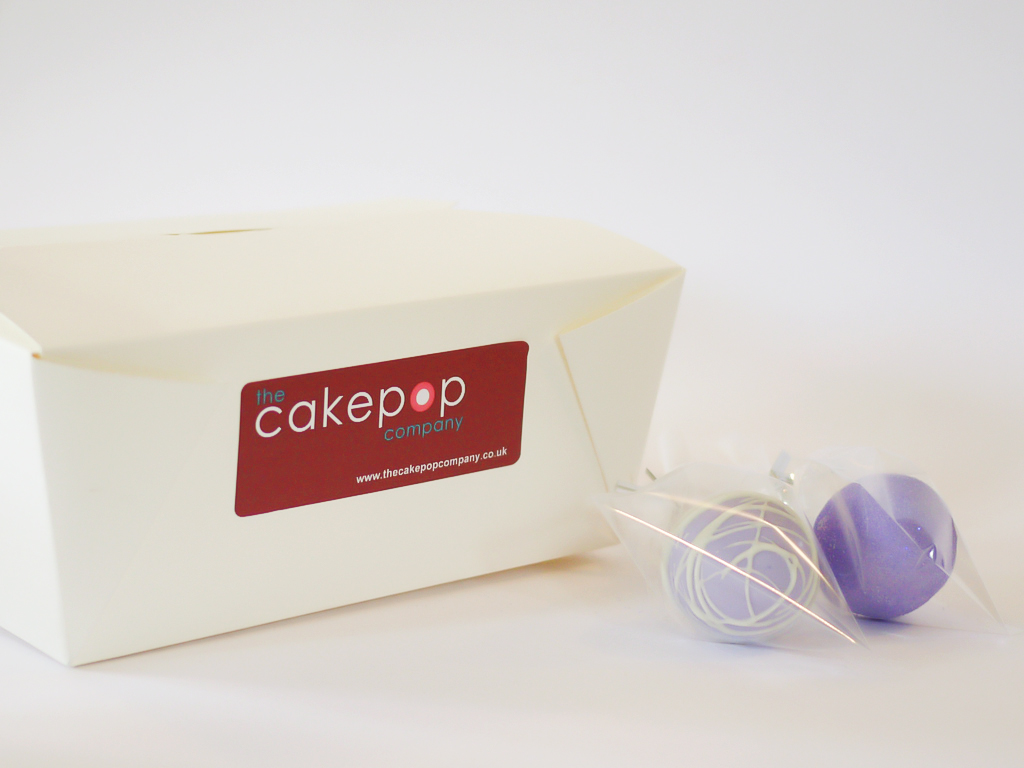
How would you lighten this?

The goblin

<span class="poty">POTY Winner 2015</span></br>
Suspended / Banned
Messages
4,407
Name
Marsha
Edit My Images
Yes
Hi,

My friend sent me this image and asked if I could edit it for her.

Unedited


I've finally learnt how to use the clone stamp tool and sharpen it slightly, but how do you blow the back ground out so it's brighter? I've tried the vignetting tool to remove any possible issues there (another new thing, still learning)

My efforts so far


Any tips/ advice appreciated.
 
For a start it is underexposed and is not great for post process work.

What software do you have? (this is really important for us so we can try and help you more/better)

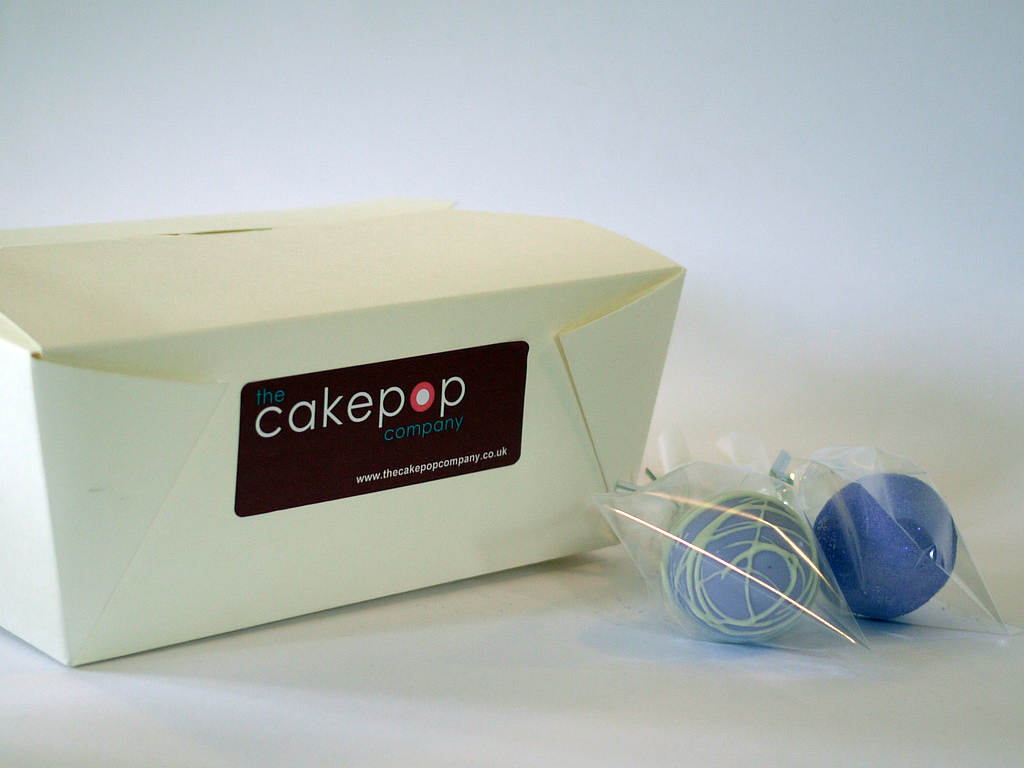
I have done a tiny edit, opened up the image and adjusted the white balance then did an auto level adjustment on it. (all in photoshop)

5941726587_8f56fe6d62_b.jpg


As you can see, it is not brilliant but much better and this was 2 click 10 second operation.

More care on lighting is required as not everything is recoverable.
 
Try something similar to the last one I edited for you - look at the curves layer very carefully. This is upside down in layer terms but the right way up in how you would work

Layer 1. Bottom (original layer)
Layer 2. Above it a curves layer really blown out
Layer 3. Duplicate original layer and use a mask to select the cake area
Layer 4. Another curves layer clipped* to layer 3 to lightly lighten the box etc.

Layers and Masks are the basic tools of CS5, if you can master these you will really open up your options for using this software :)


*Tip: If you have the adjustments window open (Windows - Adjustments) there is an icon with three round/egg shaped objects in its bottom right hand corner. Click to change so if they look like eggs the adjustment will affect all layers, if they are round the adjustment will be "clipped" to the layer you currently have selected and only affect that layer.
 
I had a go at this.
I mainly adjusted the white balance but I found the bottom of the image was different to the top so I adjusted for both then combined them using a mask.
I also dodged the label a little to get that to stand out a little more then I reduced noise and sharpened.

ah7Ok.jpg
 
Last edited:
Now I have woken up, I did another quick edit but I went to the company website to sample some branding colours and came up with this

5942483725_bce84a3297_b.jpg
 
Try something similar to the last one I edited for you - look at the curves layer very carefully. This is upside down in layer terms but the right way up in how you would work

Layer 1. Bottom (original layer)
Layer 2. Above it a curves layer really blown out
Layer 3. Duplicate original layer and use a mask to select the cake area
Layer 4. Another curves layer clipped* to layer 3 to lightly lighten the box etc.

Layers and Masks are the basic tools of CS5, if you can master these you will really open up your options for using this software :)

Thank you (again) for the tips. I did look at curves but didn't really have a clue! I will focus on layers and masks for a while and try to teach myself how to use them!

Now I have woken up, I did another quick edit but I went to the company website to sample some branding colours and came up with this

Tom that's amazing. Although I have only just noticed that you attempted an edit at 0620 in the morning!

I had a go at this.
I mainly adjusted the white balance but I found the bottom of the image was different to the top so I adjusted for both then combined them using a mask.
I also dodged the label a little to get that to stand out a little more then I reduced noise and sharpened.

This is amazing too.

I love how you all do something slightly different, I shall be spending quite some time learning how to use CS5. Firstly I need more memory, I keep getting RAM issues.

Thank you all for the tips, I'll come back in about a year with an attempt on this photo :thinking:
 
Back
Top