How to smoothly blend exposures? (brushwork)

The Matt

Suspended / Banned
Messages
1,642
Edit My Images
Yes
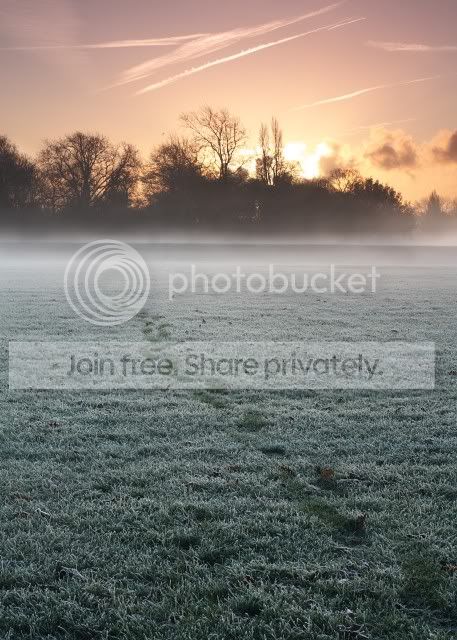
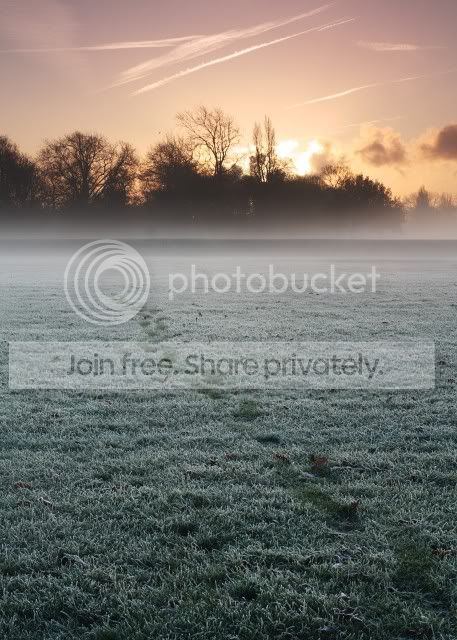
So I have 2 exposures, ground and sky that I'm blending to create 1 image. I'm creating a transparent layer mask on my sky layer in the transitional zone I'm using a wide, soft edged brush on a really high transparency setting. Things aren't coming out quite like I want, looking a bit unnatural like I can see the joins. My goal is that I don't want anyone to be able to see what I've done. Shouldn't look HDRed in any way. Could anyone give any tips of how to get a seamless looking result?

Here's a couple of versions of one I did lately so you can see what I mean

parkb.jpg


parka.jpg
 
Yes post your 2 originals and we can explain :)
 
What does the layer mask look like? is there a strong black line or a nice blend of grey?
What blend mode are you using?
 
Best technique I learnt was doing a gradient.

Apply a layer mask to the top image then draw a gradient with black and white across the blend.

Should work a treat
 
Best technique I learnt was doing a gradient.

Apply a layer mask to the top image then draw a gradient with black and white across the blend.

Should work a treat

I argree the longer the gradient the smoother the blend (more gradual fade from one to another) a short drag of the tool will give a sharper join
 
Thanks for the responses everyone.

Can you post the originals so we can see where you're starting from

Here you go:
parka2small.jpg


parka1small.jpg


What does the layer mask look like? is there a strong black line or a nice blend of grey?
What blend mode are you using?

The mask in the 1st version is pretty abrupt transition. In the second it's a lot softer and wider. I reckon the abrupt one looks the better of the two. I'm not sure what you mean by blend mode.

Best technique I learnt was doing a gradient.

Apply a layer mask to the top image then draw a gradient with black and white across the blend.

Should work a treat

Ooh, I must figure out how to use that feature. I didn't know it existed til now.
 
Sure is! I think I'm set until comes the time that I need to do a similar trick across a line that's not straight, or not along a line at all.
 
Sure is! I think I'm set until comes the time that I need to do a similar trick across a line that's not straight, or not along a line at all.

You can drag the gradient to any angle :) And you can add more than one to any image.
 
Back
Top