
How to in Photoshop replace Black with White

Tysonator

Suspended / Banned
Messages
2,299
Name
T
Edit My Images
Yes
Hi All,

I use LightRoom for editing by default and occasionally use Photoshop for some local editing.
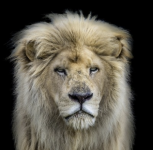
1724879658737.png

I would like to replace in the above image the black ground with white in Photoshop and really not sure how to do it Photoshop.
My version is Adobe Photoshop CC Version: 20.0.1

Many thanks

T
 
Hi All,

I use LightRoom for editing by default and occasionally use Photoshop for some local editing.

View attachment 432529

I would like to replace in the above image the black ground with white in Photoshop and really not sure how to do it Photoshop.
My version is Adobe Photoshop CC Version: 20.0.1

Many thanks

T
You could try masking (I got a tutorial link on my pc, but on phone right now) , or as a quick try, select BG and invert it?
I'll put the link up in a minute. It's all about masking fur, so should work well.

Link
View: https://www.youtube.com/watch?v=68Kc1tW0Xag
 
Last edited:
You could try masking (I got a tutorial link on my pc, but on phone right now) , or as a quick try, select BG and invert it?
I'll put the link up in a minute. It's all about masking fur, so should work well.

Link
View: https://www.youtube.com/watch?v=68Kc1tW0Xag
I will have a watch,...

My original image has not been masked out out, it is just edited in LightRoom to hide the back ground !
 
Last edited:
Maybe use an online tool instead? There are plenty of background changers out there, like this one or another one here.
 
Last edited:
How, with "select background"?
I just use edit brush, gradient feature in basic adjust panel the top box on the right in development mode.
The process I use is to just keep brushing over the back ground with black, and minus saturation to achieve the black back ground.
My version of LightRoom is Classic Vr 8.1

I do not have the modern feature of 'select background' lol
 
I just use edit brush, gradient feature in basic adjust panel the top box on the right in development mode.
The process I use is to just keep brushing over the back ground with black, and minus saturation to achieve the black back ground.
My version of LightRoom is Classic Vr 8.1

I do not have the modern feature of 'select background' lol
Well, the result is that the brushing (I assumed "masking" with a brush) has overlayed the edges of the fur turning it shades of gray... kind of as if the hairs themselves are translucent and the black BG is visible in the strands... that would not happen if the subject is front lit against a dark BG like this; and it would not happen if the BG was light and shining back at the camera. And there is no way to reverse it... the gray transition/edges/fur will look very wrong against a lighter BG.

There is a reasonable possibility that it could be done well enough working from the original unedited image.
 
Well, the result is that the brushing (I assumed "masking" with a brush) has overlayed the edges of the fur turning it shades of gray... kind of as if the hairs themselves are translucent and the black BG is visible in the strands... that would not happen if the subject is front lit against a dark BG like this; and it would not happen if the BG was light and shining back at the camera. And there is no way to reverse it... the gray transition/edges/fur will look very wrong against a lighter BG.

There is a reasonable possibility that it could be done well enough working from the original unedited image.

Yep, I believe you are right as I am trying to do a difficult edit on the wrong type of image.
Unfortunately there are so many variables on shooting wildlife I just go with the flow of the conditions on the day.

One trick I might do next time for a more lighter back ground is too either spot meter on the subject or use Exposure compensation dial to over expose the scene.
 
If the Lion is a clear subject in the image, which it looks like it will be (even with a natural background), use the Select Subject command in the Photoshop Select menu. I would expect it to make a clean selection.
Invert the selection with the Inverse command, which is also in the Select menu.
Add a new Layer Mask to the layer to hide the background.
Add the new background layer and move it to the bottom layer in the image.

If the Select Subject command doesn't make a clean selection of the Lion, use the Select & Mask command in the Photoshop Select menu. That contains all the tools necessary to clean up the masking of fur, but there are too many options to describe in a post.

Good luck
 
If the Lion is a clear subject in the image, which it looks like it will be (even with a natural background), use the Select Subject command in the Photoshop Select menu. I would expect it to make a clean selection.
Invert the selection with the Inverse command, which is also in the Select menu.
Add a new Layer Mask to the layer to hide the background.
Add the new background layer and move it to the bottom layer in the image.

If the Select Subject command doesn't make a clean selection of the Lion, use the Select & Mask command in the Photoshop Select menu. That contains all the tools necessary to clean up the masking of fur, but there are too many options to describe in a post.

Good luck
Many thanks,
I will give this a try.
The problem with my question is I can not find much on the web / YouTube that is particular to my question.

Once again many thanks

T
 
It will be interesting to see the finished result :)
 
Back
Top