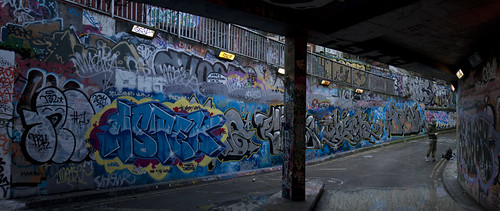
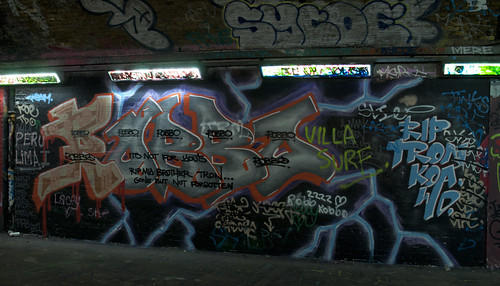
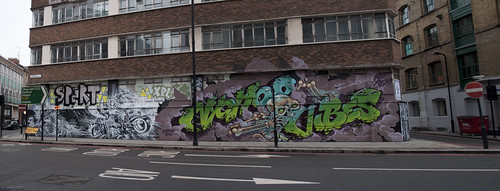
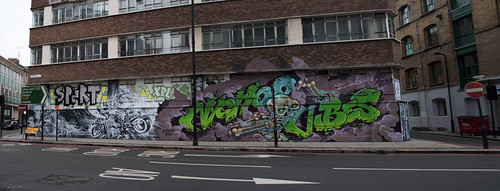
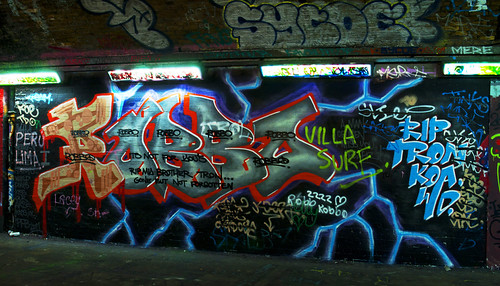
how to achieve this- getting the graffiti to pop

I'd make a simple selection around the main part of the grafitti, feather the selection to soften the edges, then use curves or levels to lighten it a bit and boost the saturation a bit.
Wayne

5388462866_1530241951.jpg
 
what tool do i use to make a simple selection, i tired the lasso tool and did my line around the graffiti, but when playing with the curve`s all of the picture changes
 
well i had a quick go

raw unedited


1 i played with


need to get to grips with this cs5 a bit more
 
I used the oval lassoo tool with a feather to soften the edge.
 
Looks good Stormcrow


ditto I like that...

Layer masks are good/ quick for this and I, suggest changing the blend mode of a copied top layer to "hard light" which is all I did to this one.. :)
wall.jpg
 
For this one I first did a levels adjustment layer to brighten up the graffiti, I then inverted the adjustment (ctrl + i) which makes the adjustment mask turn from white to black also the apperance of the image reverts back to the original, and then I used my paintbrush set on white to paint the brightness back into various parts of the image. I then finished off with a little dodging of the highlights.


cpWgN.jpg
 
Last edited:
wow, to many reply,

joking thanks people, will be having a play with these ideas over the new few day and today,

lets see what i can pull out of the bag.
 
Lewis, part of the problem here is your original exposures which are under where they might be. Just check your histogram at the time -- if you've time!

Underexposure has a significant effect on colour strength. In software use your Mask Tool, or whatever Adobe calls it, and draw a box or any shape around what looks to be somewhere around a mid-tone. If it's off to the left you will get reduced contrast and colour strength on much of the paintwork.

Digital exposure can be tricky with highlights blowing out at the drop of a hat, but on the whole try more exposure. It will help.

These shots can be fixed in software. But it's true that all images can be enhanced in software.

Regards,

Sam

:)
 
right cheers sam, so your saying i am under exposing my shot to begin with??? i dont have a clue how to read my histogram, very silly of me i guess,


right, i need to get out and try to get the exposure a little brighter and then play with in photo shop if need be.

can any one recommend a good page on histograms??

cheers again dude.
 
Can I suggest another trick? It involves converting the image to LAB colour mode, compressing the colour channels, then converting back to your normal RGB. The colour boost/pop effect can be really effective!


> If you're using Photoshop, right click the image and select 'duplicate layer', rename it LAB and use the drop down box to select 'New'.

> This will create a duplicate of the image on a new document called 'LAB Boost'. Go to this image, select 'Image' menu, then 'Mode' then select 'LAB'.

> After doing this press CTRL+L to bring up the 'Levels' dialog box.

> Select channel 'a' (ignore the strange looking histogram).

> There will be 3 values in the boxes for the channel: 0, 1.00 and 255.

> Select the box with 0 in it, then press shift+up arrow twice. The value should now be 20.

> Go to the box with 255 and press shift+down arrow twice. The value should now be 235.

> Go to channel b and repeat with the 0 and 255 values.

> After completing this, press 'OK', the go to the 'Image' menu, the 'Mode' then 'RGB'.

> Right click your image layer in the layer palette, select 'Duplicate layer' then select the original file you were working on from the drop down box.

> Go back to your original image and you should see your new layer called 'LAB Boost'.


Sounds like a massive faff but after a few times you'll be able to do it in 30 seconds flat. Try playing around with those values on the levels dialog box, the results can be incredible.

Unfortunately I don't have access to my laptop so can't provide screenshots or Before/after images, but you can search google for more tutorials.

Here's a couple of examples using this technique:
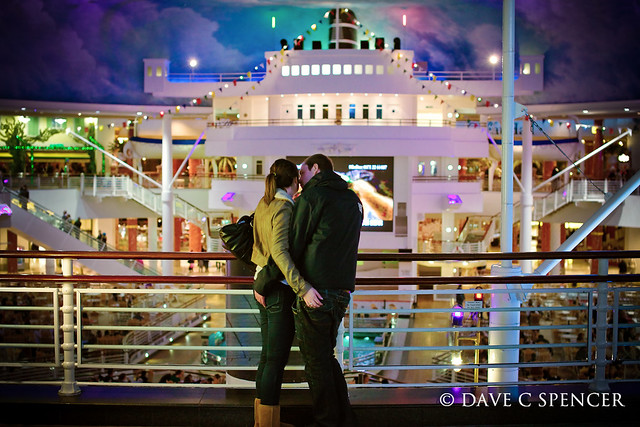

"Look at me..." by Digital.Clarity, on Flickr
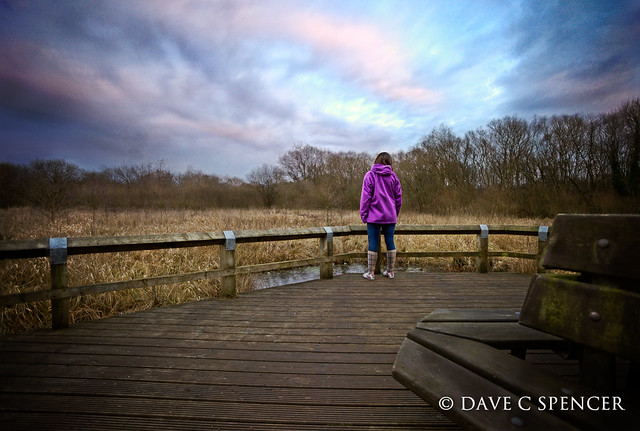

Looking Out by Digital.Clarity, on Flickr

 
A quick and simple suggestion..

Levels - brighten the image
Create a duplicate layer
Select 'Hard Light' blend mode

Before
graffiti.jpg

After
graffiti edited.jpg


OR another option - substitute 'Vivid' for hard light blend, then change opacity to 75%

graffiti vivid.jpg
 
Last edited:
dave i tried that 3 times and it never saved it as LAB boost, only lab, and could`t get any changes.

i tried your way jeremy, this is what i got, cheers. still need to play more but i am getting there.

 
Back
Top