Can I suggest another trick? It involves converting the image to LAB colour mode, compressing the colour channels, then converting back to your normal RGB. The colour boost/pop effect can be really effective!
> If you're using Photoshop, right click the image and select 'duplicate layer', rename it LAB and use the drop down box to select 'New'.
> This will create a duplicate of the image on a new document called 'LAB Boost'. Go to this image, select 'Image' menu, then 'Mode' then select 'LAB'.
> After doing this press CTRL+L to bring up the 'Levels' dialog box.
> Select channel 'a' (ignore the strange looking histogram).
> There will be 3 values in the boxes for the channel: 0, 1.00 and 255.
> Select the box with 0 in it, then press shift+up arrow twice. The value should now be 20.
> Go to the box with 255 and press shift+down arrow twice. The value should now be 235.
> Go to channel b and repeat with the 0 and 255 values.
> After completing this, press 'OK', the go to the 'Image' menu, the 'Mode' then 'RGB'.
> Right click your image layer in the layer palette, select 'Duplicate layer' then select the original file you were working on from the drop down box.
> Go back to your original image and you should see your new layer called 'LAB Boost'.
Sounds like a massive faff but after a few times you'll be able to do it in 30 seconds flat. Try playing around with those values on the levels dialog box, the results can be incredible.
Unfortunately I don't have access to my laptop so can't provide screenshots or Before/after images, but you can search google for more tutorials.
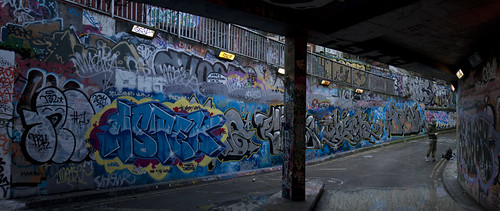
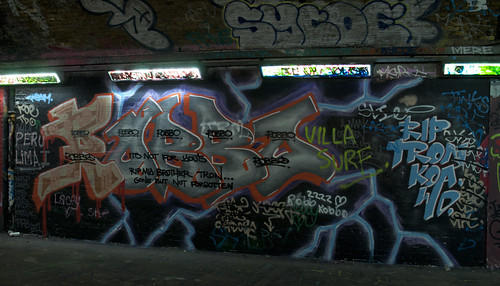
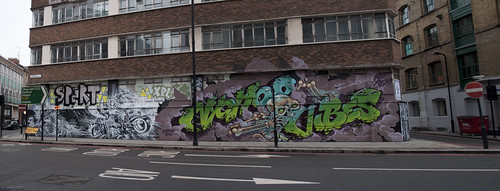
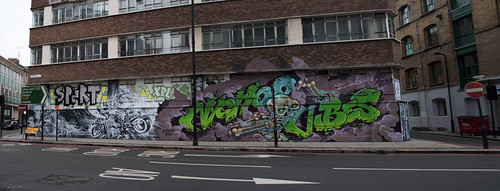
Here's a couple of examples using this technique:
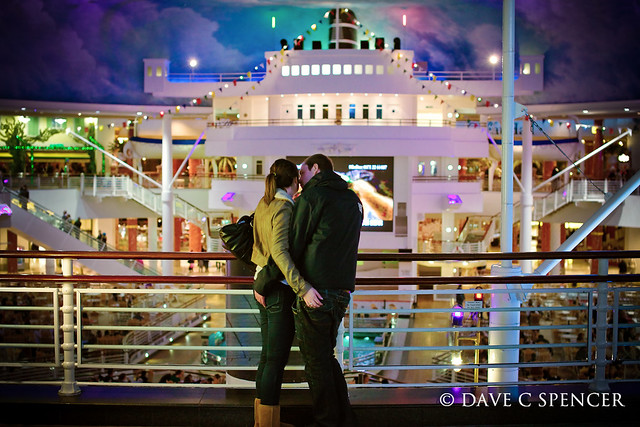 "Look at me..."
 by
Digital.Clarity, on Flickr
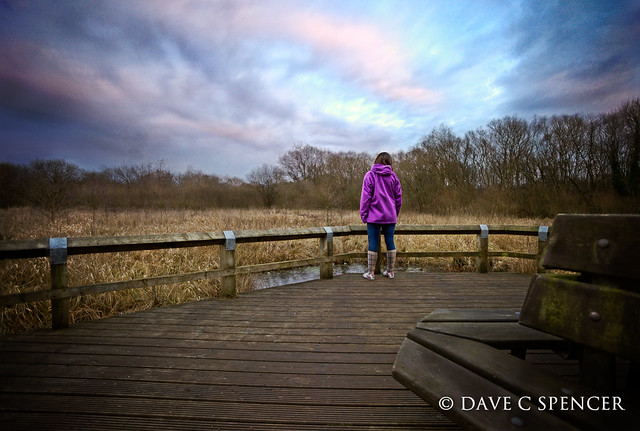 Looking Out
 by
Digital.Clarity, on Flickr