
and please use their services
You are using an out of date browser. It may not display this or other websites correctly.
You should upgrade or use an alternative browser.
You should upgrade or use an alternative browser.
How improve this?
- Thread starter rookies
- Start date


Craikeybaby
Suspended / Banned
- Messages
- 7,590
- Name
- Lewis
- Edit My Images
- Yes
Is that the original, or what have you done to it already?

Rockshifter
Suspended / Banned
- Messages
- 6,229
- Name
- Charles
- Edit My Images
- No
Nice shot.
I think it would have been stronger with the rocks in front making more impact (closer).
Lovely sky.
If you have PS I think playing around would give it a boost.
I think it would have been stronger with the rocks in front making more impact (closer).
Lovely sky.
If you have PS I think playing around would give it a boost.
Craikeybaby
Suspended / Banned
- Messages
- 7,590
- Name
- Lewis
- Edit My Images
- Yes
I would probably increase the colour temp a bit and put a grad filter to darken the sky a bit (maybe also brighten the forground a bit), but then I'm not the type to do lots of PP.
OP

rookies
Suspended / Banned
- Messages
- 8,064
- Name
- Andrew
- Edit My Images
- No
By selecting different parts of the shot. and playing around with the levels.
Had a quick tweak with it.

That pretty nice... How do you do it so easy as I have tried selecting and altering I end up having a crap image, I end up making it like like a patch work image
Rockshifter
Suspended / Banned
- Messages
- 6,229
- Name
- Charles
- Edit My Images
- No
Hope you don't mind - here's my effort.


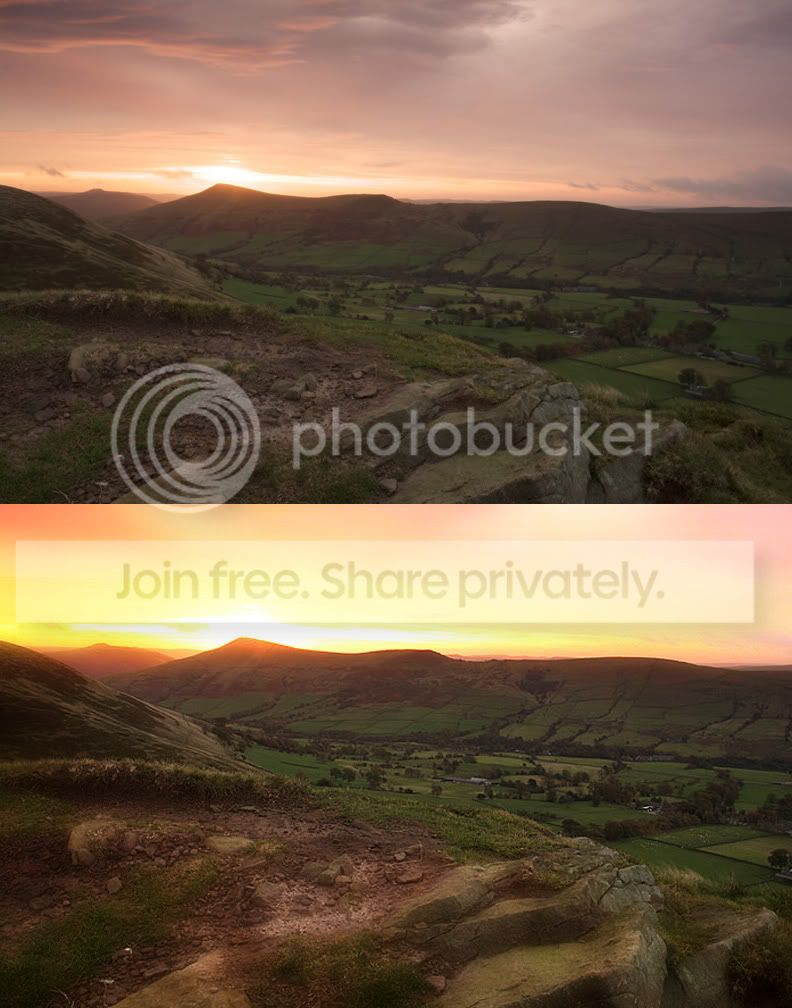

Gerods
Suspended / Banned
- Messages
- 681
- Name
- George.
- Edit My Images
- Yes
First open your image, then select the polygonal lasso tool, go round the area you need to alter, doesn't need to be perfect, then feather it, this depends on the file size.
Then at the bottom of the layers pallet select create new fill adjustment layer, select levels, and enjoy yourself. You can do this to any part of the image.
Looking at the sky on the one I did it seems a lot lighter on the post than it did in PS.
Then at the bottom of the layers pallet select create new fill adjustment layer, select levels, and enjoy yourself. You can do this to any part of the image.
Looking at the sky on the one I did it seems a lot lighter on the post than it did in PS.

Rockshifter
Suspended / Banned
- Messages
- 6,229
- Name
- Charles
- Edit My Images
- No
artona 
Rockshifter
Suspended / Banned
- Messages
- 6,229
- Name
- Charles
- Edit My Images
- No
Rookies
You're getting there.
It's all a matter of personal taste, playing around and luck -IMO.
Bet you know that anyway.
You're getting there.
It's all a matter of personal taste, playing around and luck -IMO.
Bet you know that anyway.


hunter20ga
Suspended / Banned
- Messages
- 2,777
- Name
- Drake
- Edit My Images
- Yes
Very nice, Walls...I like your version very much.

Jo
Suspended / Banned
- Messages
- 3,667
- Name
- Jo Fisher
- Edit My Images
- Yes
I would (using Corel Paint Shop Pro Photo x2)
Right click > Copy
Right click > Paste as new layer
Right click > Paste as new layer
Select first layer, and Clarify 7, contrast boost 5
Select the rest (roughly) of the image using lasso tool, and the 'cut'.
Select the second layer.
Boost contrast 7
Clarify 7.8
Using the lasso tool, select the foreground that leads from just above the bottom right corner, to about half way up on the left side, on the hill.
Edit > cut
Adjust > colour > Channel mixer
On the red channel reduce the red from 100% to 92%
Now boost contrast to liking, and then clarify to liking.
Finally using the eraser tool I would click each layer separately, and neaten up the edges of each layer. Flatten the layers and use the Burn tool to dark the top part of the mountain under the sun.
USM > Radius = 7.00 Strength = 26 Clipping = 5
To get this:
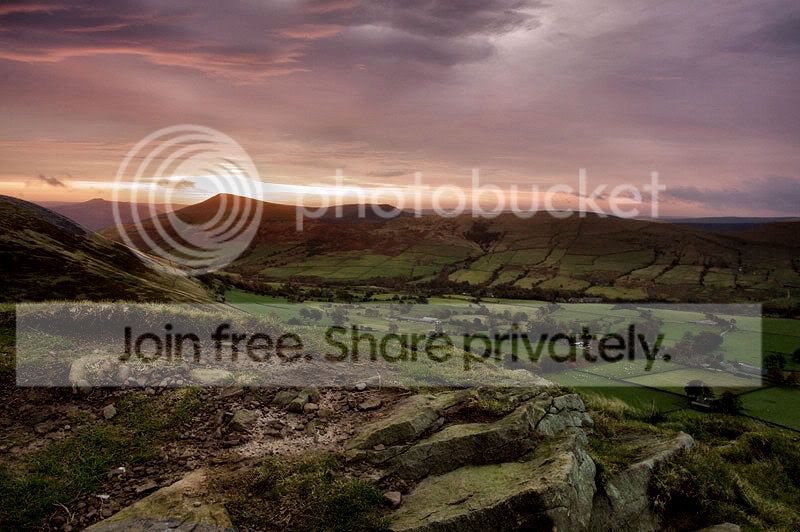
The above editing is typed by memory, as I forgot to type it before I closed the image after saving But I think it's about what I did.
Not to everyones taste, and probably a little too dark, but that's how I imagine the eyes would see it with such a bright bit of sunshine poking through the clouds.
Right click > Copy
Right click > Paste as new layer
Right click > Paste as new layer
Select first layer, and Clarify 7, contrast boost 5
Select the rest (roughly) of the image using lasso tool, and the 'cut'.
Select the second layer.
Boost contrast 7
Clarify 7.8
Using the lasso tool, select the foreground that leads from just above the bottom right corner, to about half way up on the left side, on the hill.
Edit > cut
Adjust > colour > Channel mixer
On the red channel reduce the red from 100% to 92%
Now boost contrast to liking, and then clarify to liking.
Finally using the eraser tool I would click each layer separately, and neaten up the edges of each layer. Flatten the layers and use the Burn tool to dark the top part of the mountain under the sun.
USM > Radius = 7.00 Strength = 26 Clipping = 5
To get this:
The above editing is typed by memory, as I forgot to type it before I closed the image after saving
But I think it's about what I did.Not to everyones taste, and probably a little too dark, but that's how I imagine the eyes would see it with such a bright bit of sunshine poking through the clouds.

Werecow
Suspended / Banned
- Messages
- 761
- Edit My Images
- Yes
Here's my go at it.
It's turned out a bit more extreme than i had originally planned. Don't think i like it as much as the others above.
I've forgotten all the steps i took to do it. But i basically worked on the land and the sky separately on layers and used various curve and saturation adjustments.

It's turned out a bit more extreme than i had originally planned. Don't think i like it as much as the others above.
I've forgotten all the steps i took to do it. But i basically worked on the land and the sky separately on layers and used various curve and saturation adjustments.
OP
rookies
Suspended / Banned
- Messages
- 8,064
- Name
- Andrew
- Edit My Images
- No
I would (using Corel Paint Shop Pro Photo x2)
Right click > Copy
Right click > Paste as new layer
Right click > Paste as new layer
Select first layer, and Clarify 7, contrast boost 5
Select the rest (roughly) of the image using lasso tool, and the 'cut'.
Select the second layer.
Boost contrast 7
Clarify 7.8
Using the lasso tool, select the foreground that leads from just above the bottom right corner, to about half way up on the left side, on the hill.
Edit > cut
Adjust > colour > Channel mixer
On the red channel reduce the red from 100% to 92%
Now boost contrast to liking, and then clarify to liking.
Finally using the eraser tool I would click each layer separately, and neaten up the edges of each layer. Flatten the layers and use the Burn tool to dark the top part of the mountain under the sun.
USM > Radius = 7.00 Strength = 26 Clipping = 5
To get this:
The above editing is typed by memory, as I forgot to type it before I closed the image after saving
Not to everyones taste, and probably a little too dark, but that's how I imagine the eyes would see it with such a bright bit of sunshine poking through the clouds.
Really do like that image and that software seem pretty good is it as easy and powerful as CS3 do you know jo?

- Messages
- 12,646
- Name
- John
- Edit My Images
- Yes
Here's my somewhat poor go. Using Gimp 2.6, curves to increase contrast. Select across the horizon, duplicate layer, feather, curves to lighten, increase saturation. New layer, invert selection, curves and saturation. Flatten, minor adjust in sat and contrast

Jo
Suspended / Banned
- Messages
- 3,667
- Name
- Jo Fisher
- Edit My Images
- Yes
Well I use it for all of my processing, and I know a few others around here do to. It has everything I need and more, but is around £40 instead of £400+
You can always download the FREE TRIAL and see for yourself
You can always download the FREE TRIAL and see for yourself
OP
rookies
Suspended / Banned
- Messages
- 8,064
- Name
- Andrew
- Edit My Images
- No
Well I use it for all of my processing, and I know a few others around here do to. It has everything I need and more, but is around £40 instead of £400+
You can always download the FREE TRIAL and see for yourself
Thanks just had a look
 no good for me as it does not support Apple Mac
