How do you pop a certain part of a black & white photo in colour?

GIZTO29

Suspended / Banned
Messages
678
Name
Philip
Edit My Images
Yes
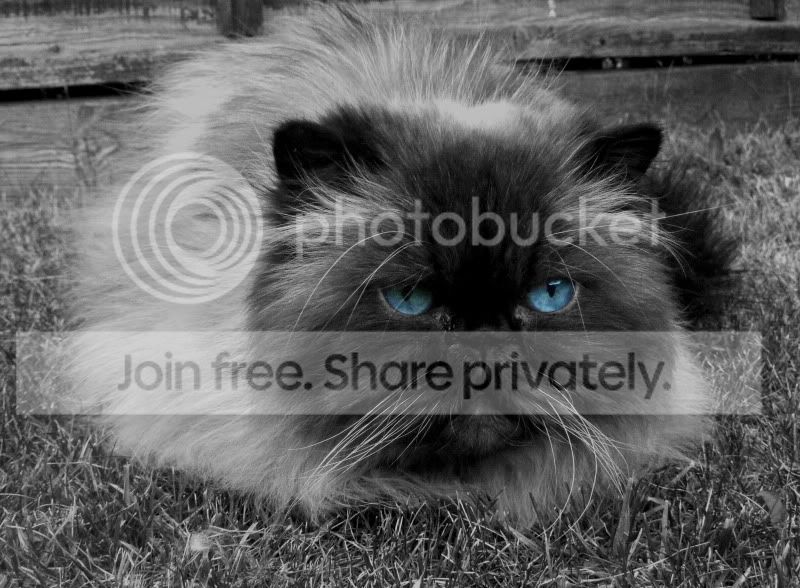
As the title says really. I have a Hymalayan cat which is similar to a Persian but the colours of a Siamese so has vivid blue eyes. I wondered how you could show the eyes in colour while everything else is B & W.
Thanks in advance, Phil
 
Last edited:
Assuming you have photoshop, create a black and white layer mask (which has the benefit that it also allows you to tweak the various levels to create nicer B&W image than a straight forward desaturate does) then grab a black paintbrush and paint the bit you want to be in colour.

If you cock up/ change your mind on a bit that you've recoloured, just grab the eraser and correct it
 
What photo editing software do you use?

I have PS CS5 but am very new to photography and have just used ps once to create an HDR image. I dont even know how to use the basic settings yet as i followed a guide.

Assuming you have photoshop, create a black and white layer mask (which has the benefit that it also allows you to tweak the various levels to create nicer B&W image than a straight forward desaturate does) then grab a black paintbrush and paint the bit you want to be in colour.

If you cock up/ change your mind on a bit that you've recoloured, just grab the eraser and correct it
Thanks, i'll give it a whirl! Er, i havnt got a clue how to do the above. I best start reading the manual......
 
Last edited:
If you want to do it in a simple way open the photo in photoshop, go to image, adjustments and select black and white or under adjustments go to hue/saturation and turn down the saturation. Once you have it black and white select the history brush and erase the eyes. It will bring color back to them. This is the simple way but using layers and mask is the way to go...
 
If you want to do it in a simple way open the photo in photoshop, go to image, adjustments and select black and white or under adjustments go to hue/saturation and turn down the saturation. Once you have it black and white select the history brush and erase the eyes. It will bring color back to them. This is the simple way but using layers and mask is the way to go...

Thanks very much, for now i'll follow the simple route youve pointed out until i start to figure out how this prog works:)
Phil
 
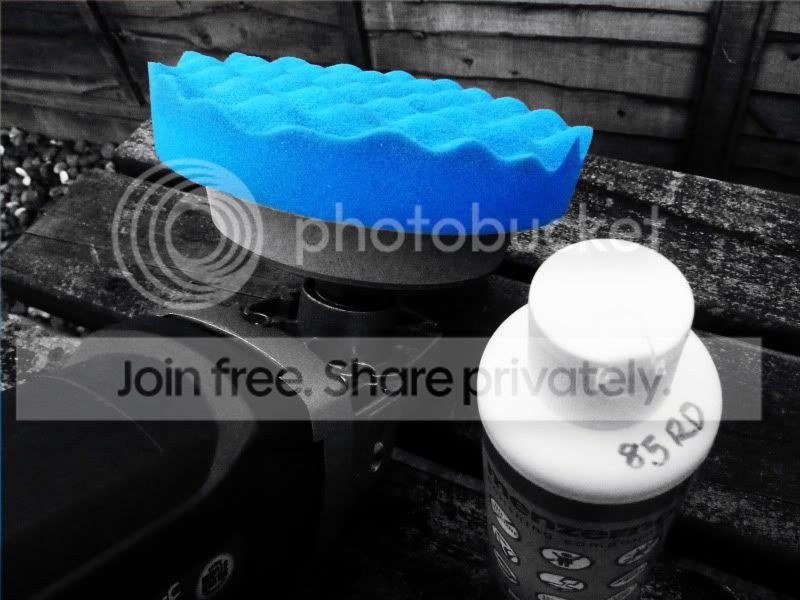
Ok, i had a quick go this morning on a different pic just to see how it works and while i managed to recolour the pad on my rotary polisher i did go to do the bottle but it started making it blue like the pad but lighter. :thinking:
Why is this?
Bluepad.jpg

Phil
 
Good first go, selective colouring can be addictive at first.
Agreed, but how would i recouler the bottle without it going blue?
Phil
 
Isn't the bottle white anyway?

Aye mate, the bottle is white with a blue label but when i started erasing it back it was coming out light blue for some reason? MAybe this was due to me messing with Saturation etc??
 
Isn't the bottle white anyway?

Aye mate, the bottle is white with a blue and yellow label but when i started erasing it back the top area was coming out light blue for some reason? MAybe this was due to me messing with Saturation etc??
Phil
 
Do the bottle the same as the sponge and it should come back to original color. You must have messed with something like saturation as you said...
 
Another option you have is to use the polygonal lasso tool to select the part of the image you want to keep in colour & copy it. Next, convert the image to B&W then paste the colour selection as a new layer. Not as fiddly as the eraser method, and it depends on the complexity of the edges on the area you want to copy, but it can be a lot quicker.

Bear in mind that if you use 'convert to greyscale' on your image before pasting, you will paste it as a new grayscale layer, so you'll need to convert it to RGB (it will still be a B&W image) to paste a colour layer in. The preceding sounds a lot more complex than it is :D
 
Thanks guys. I'll start over on another image:)
Phil
 
It's just a but cheesy to be honest! I think it's a stage that everyone goes through, especially when they first start but at least it means your learning potatoshop ;-)
 
was that a typo in the post title?

:lol: I is wondering how many will understand what you mean

Yes it was. I tried to change it in advanced editing but it has stayed the same for some reason!:( Whup, ive just tried again and it worked which is confusing. I think its pretty clear what im asking though tbh.
Phil
 
Last edited:
Back
Top