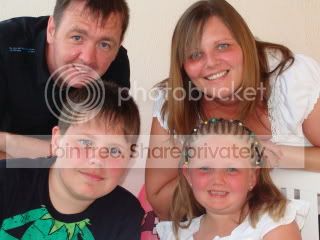
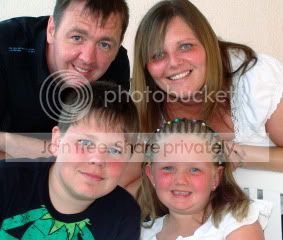
A guide to how I do this in the gimp. I'm sure there's a photoshop alternative:
Method 1:
1. Use the "free select tool". This allows you both hold down the mouse button and draw your select area, or click to make points to join up.
2. When the area is selected move to the required position. It may take a few undos and reselects if you're slightly off.
3. When it's in place use a mixture of small clones and heals (it's like a colour blender/smudger in gimp). Do this around the edge to blend in the colours.
Job done.
Method 2:
1. Copy the image onto a new layer.
2. Delete everything to the right (or left) of the object you with to move.
3. Move it into place.
4. Flatten the image (or merge the layer down)
5. Use a mixture of small clones and heals (it's like a colour blender/smudger in gimp). Do this around the edge to blend in the colours.
You could also use feather on your selects etc, but I find a more manual approach seems to achieve better results. It is a bit more tedious though!