Help making this shot shot stand out.

Silver Simon

Suspended / Banned
Messages
569
Name
Simon
Edit My Images
Yes
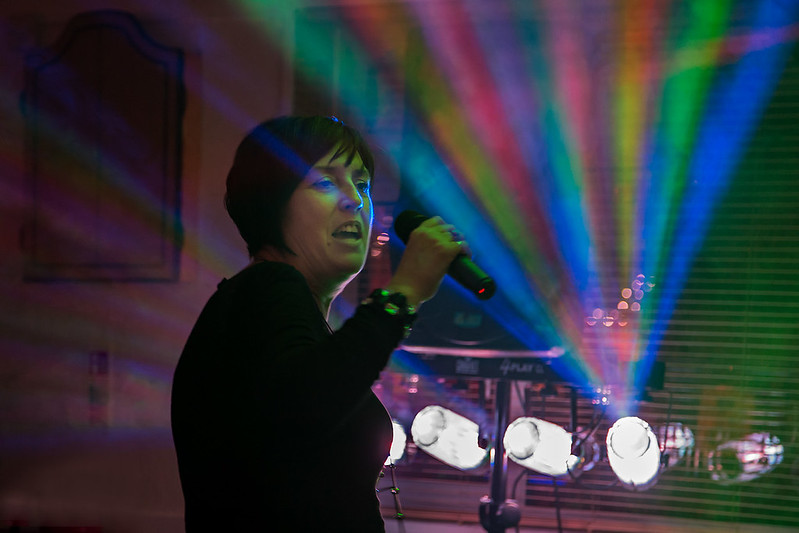
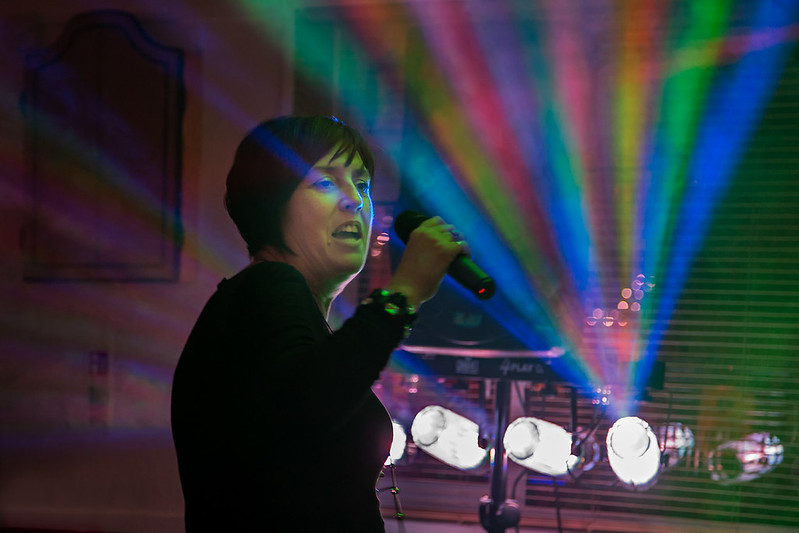
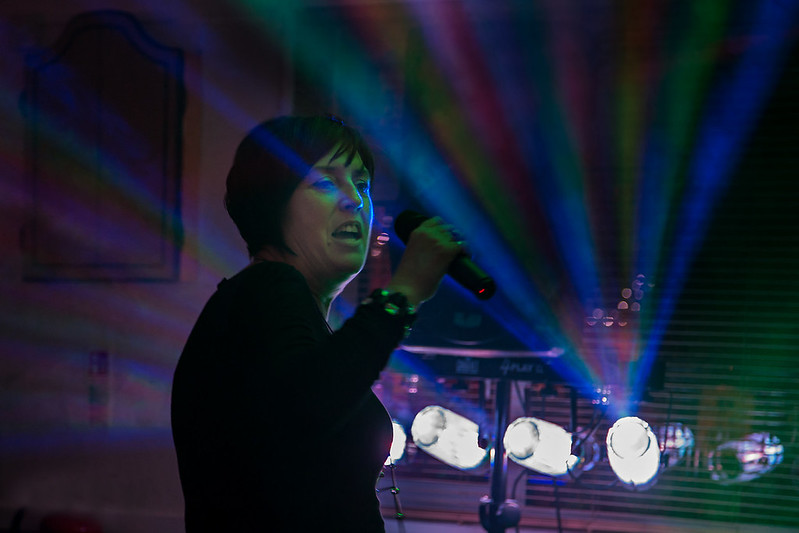
I took this shot of partner doing karaoke last night and love it apart from I can't make it jump out at me.

I think it could be good but I just don't know where to go in Elements 11 to make the adjustments necessary.

Would be very appreciative if anybody can help. :)

Thanks
 
im not sure
i think her being more of a focal point would be good
i know its not but the lasers/lights look fake
but well captured
:)
 
You might get lucky if it's in raw. I'd try increasing the contrast and playing with curves over her face and see if it works
 
Thanks, yes I have it in RAW. It's knowing where to start, it looks dull and I want her to POP out and as Brad says be the focal point.

Cheers :)
 
I think it's likely you don't have enough contrast in the original image but worth you trying. In LR play with the blacks and shadows and see what you get.
 
Simon if you put a link to the RAW I'm sure some will have a go at an edit for you.
 
You'll need to FTP it into an on-line folder you have access to ...like any website you might have? Then simply give us a link to its location.

Loads of free FTP packages available. trial one here by Cute FTP
You might easily find an early free copy of cute FTP as well.

Plus you may find you have some fee online space within your broadband package, and probably some free FTP software also ...go look into your broadband home page login and see what's available inside, location addresses, FTP username and the chose a password for it all.

Once thats done, load up the software, fill in username, web address and password click go and it will open the online folder and you can download the raw into it.

Give us a link by copying the ftp addressing, something like ...http:// mybroadband . co /onlinefilename / theraw . raw
 
Last edited:
I'm no expert but trying to improve my skills. Read this thread and thought I will give it a go hope you don't mind.
What do you think of this version.
 
The RAW you uploaded is a different shot but here's a (very) quick 5 min edit in LR.
Tweaked the blacks, added some NR, applied a sharpening brush around the face and a few other bits. Can't do anything with the spot lights, they're blown but you can see what kind of improvement you can make very quickly?


20131220-Players Night 108.jpg
by landwomble, on Flickr
 
Last edited:
I had a little play- converted to HDR in RAW and played with contrast levels etc also a slight crop and cloned put the fire extinguisher


Les :)
 
The RAW you uploaded is a different shot but here's a (very) quick 5 min edit in LR.
Tweaked the blacks, added some NR, applied a sharpening brush around the face and a few other bits. Can't do anything with the spot lights, they're blown but you can see what kind of improvement you can make very quickly?

OOOPS, sorry! Hey you've done a great job there, thanks, just what I was hoping for. Really does highlight one thing .... I'm rubbish at Lightroom/Elements.

Thanks to the others, I've played around with HDR and again mine haven't turned out as good as yours, cheers.

There is one I've done and like I'll find it and post, it is cheating a tad. :)

Again, many thanks it shows what can be done.


20131220-Players Night 108.jpg
by landwomble, on Flickr
The RAW you uploaded is a different shot but here's a (very) quick 5 min edit in LR.
Tweaked the blacks, added some NR, applied a sharpening brush around the face and a few other bits. Can't do anything with the spot lights, they're blown but you can see what kind of improvement you can make very quickly?


20131220-Players Night 108.jpg
by landwomble, on Flickr
 
Best LR tip is use the black/shadow/white sliders. Get your exposure adjustment dive so the histogram shows areas on right hand side (I.e. isn't under exposed). Set your black level by holding down ALT and then slide the black slider to the left. You'll see a blank screen and gradually the darkest areas will appear. These are the areas that will be totally black with the new adjustment. Slide to the right until they just start to appear then let go of ALT. You've now set the black level. Do the same with the white slider - areas that show up whilst holding down ALT are the blown out bits eg you'll see the spotlights are doing it. Move the slider to this starts to happen (in your image is already there) and then you've set white level. Do the shadows by eye.
That's the basics. Apply a bit of NR.
You can then use the brush tool to selectively apply changes only to the bits you paint over - e.g. hit brush tool, turn the sharpness slider up and paint over face/hands. If you press the O key whilst doing this it'll show you on red highlighter where you've already painted. Any slider adjustment you so now only affect the painted areas. Hit some when finished and you can do a second, different brush as well.
Some great YouTube tutorials out there which are really helpful!
 
Best LR tip is use the black/shadow/white sliders. Get your exposure adjustment dive so the histogram shows areas on right hand side (I.e. isn't under exposed). Set your black level by holding down ALT and then slide the black slider to the left. You'll see a blank screen and gradually the darkest areas will appear. These are the areas that will be totally black with the new adjustment. Slide to the right until they just start to appear then let go of ALT. You've now set the black level. Do the same with the white slider - areas that show up whilst holding down ALT are the blown out bits eg you'll see the spotlights are doing it. Move the slider to this starts to happen (in your image is already there) and then you've set white level. Do the shadows by eye.
That's the basics. Apply a bit of NR.
You can then use the brush tool to selectively apply changes only to the bits you paint over - e.g. hit brush tool, turn the sharpness slider up and paint over face/hands. If you press the O key whilst doing this it'll show you on red highlighter where you've already painted. Any slider adjustment you so now only affect the painted areas. Hit some when finished and you can do a second, different brush as well.
Some great YouTube tutorials out there which are really helpful!
That's brill thanks.

I've looked on youtube but the problem is searching, using the right term/words for what I want. Might sound silly but it's knowing the correct terminology. :)

Here's my other one.
 
View attachment 2739 Don't have LR, but I think the RAW editor in CS6 is the same one (anyone know??) Anyway, this got some twiddling to get something approaching a realistic skin tone (well, for a given value of o_O), some lifting of shadows, some boosting of vibrance and saturation in RAW. Then in jpeg, selective noise reduction, sharpening, and cropping.
 
View attachment 2739 Don't have LR, but I think the RAW editor in CS6 is the same one (anyone know??) Anyway, this got some twiddling to get something approaching a realistic skin tone (well, for a given value of o_O), some lifting of shadows, some boosting of vibrance and saturation in RAW. Then in jpeg, selective noise reduction, sharpening, and cropping.
Blimey, that's brill. I've got CS6 on trial at the moment, only had it for a few days but if it can make my shots look like that, then I'll get the cheque book out now! By the way Jon, I'll email you the RAW album! :p
 
RAW adjustments. (Note very odd settings for colour temp and tint. Profile set was Camera Standard). I used Imagenomic 'portrait' noise reduction, selectively on the face via layer mask and then reduced to avoid too much 'plastic skin' look. Sharpening was high pass, soft light blend, at around 80%, followed by USM with settings

Amount 500
Radius 0.2
Threshold 0


View attachment 2744
 
This is how I would do it. I would just let the lights go wild and a bit crunchy looking, and try not to bother too much about realistic skin tones. Adds to the feel of the event to me.


Click for full res.


10ep6qs.jpg
 
Last edited:
Or you could try Perfect Effects 4, its an Elements plug in.......
 
Or alternatively, a version following some interesting QA from the wife. She compared all the reworks to the RAW as imported by Lightroom, and liked the "moody, nightclub look" that she saw in the imported RAW image. She also didn't like the way the very bright "light rainbow" fought with the singer as a potential subject of the image - she wanted the singer to be what the image was about, not the light show. (I think it probably looks better if you click through for the large version, where you will be seeing it against a mainly black surround, as against the mainly white surround on this page, which makes the image look rather dim.)


NOT MY IMAGE - Silver Simon - Players Night 108 - LR5 PS1 ClPSS3.43
by gardenersassistant, on Flickr
 
Last edited:
Back
Top