Help In Defining Edges

ktbkr

Suspended / Banned
Messages
74
Name
Katie Baker
Edit My Images
Yes
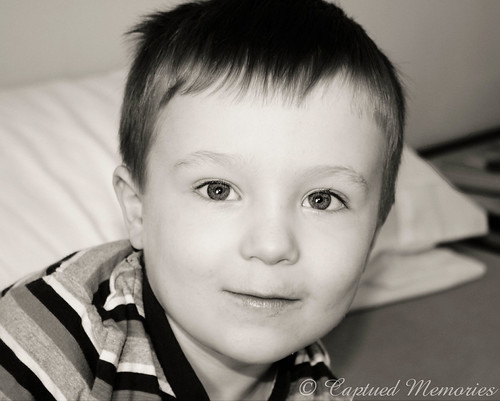
I'm not normally a fan of white backgrounds but my Sister requested a photograph of my Nephew with a white background. I've got it nearly ready to go but I'm finding it hard to refine the edges of the selection.

Any help would be appreciated.

5539852345_e5d2462e29_b.jpg
[/url]
Jack by ktbkr87, on Flickr
 
id help, but it says the photo is currently unavailable :P
 
I wouldn't bother with that photo, the face is so blown you can hardly tell he has a nose.

Do you have a better photo in full res, should be quite simple in CS5.
 
No image is this it, my opinion bin it, just looks carp,
5548066859_c55d828139_b.jpg

huh, ok, i can see it in this post

righty, what id suggest is open a seperate straight out of camera copy of it, firstly, check there arent any nicely seperated color channels - failing that, add a B&W layer set to luminance, and play with the sliders till youve found a much contrast as you can (tip; skin tones will be the red channel, so darken or lighten to contrast with the background) when youve got it as good as you can, merge visible with ctrl-shift-alt-e and desaturate the merged layer, then play around in either levels or curves depending on what your more comfortable with to acheive yet further contrast, than bring the white and black points massively in in a seperate levels adjustment until you have a purely black and purely white image. invert if nececery so the part you want to keep is white. then copy this over into a layer mask and voila

depending on whether or not the shirt is contrasting with the background or not, you may have to do that seperatly, if you can just do that with the pen tool, afterall, the shirt should be pretty simple
 
Hi Ershin,

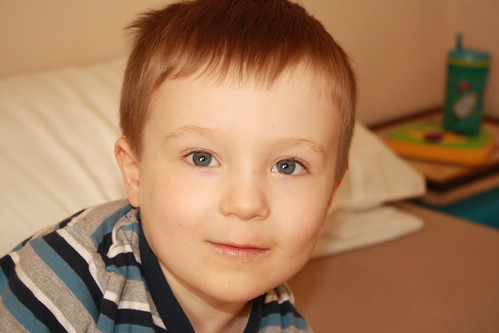
Many thanks for your comment. I have taken your feedback on board but have scrapped the white background & now have gone natural ... better? The edge of the pillow on the right is a bit blurred but I only done this edit quickly. I'll post the original too if I can locate it. There is a massive difference!


Jack1 by ktbkr87, on Flickr
 
You need shadow to define edges. That photo is far too overexposed to save as it is. See if you can recover any details from RAW file, and follow what Ershin said above. What he's saying is basically if you can find the details in RAW file, you can lay that on top of what you have, and mask out the bits you want to keep in your current shot.

Quite frankly, since it's your nephew, you'll have more opportunities. Put it down to experience, and retry next time you see him, and try to light him better. Remember, you need to light at an angle to create shadow, which gives it depth and definition.

Good luck
 
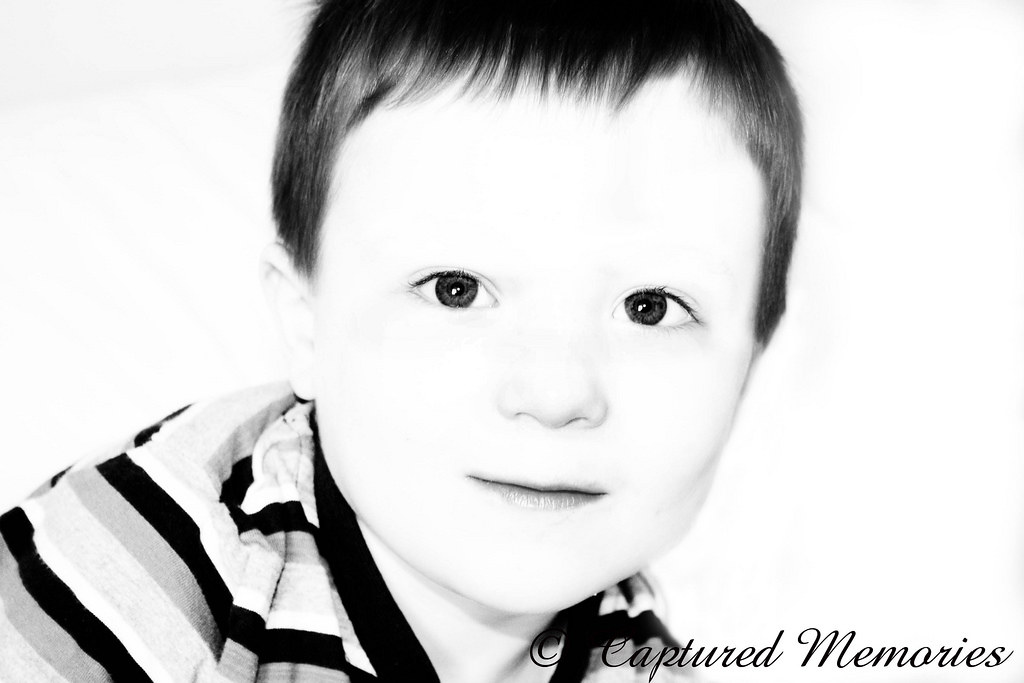
Just a quick go as really need the full size file to do it justice. Is this what you are after?

5549681199_6156cacab3.jpg
 
That's exactly what I was trying to do but kept getting jagged edges :-(. I've not had much practice in photoshop tbh. Why were the steps to produce the final image?
 
Duplicate the layer. On the new layer do a polygonal lasso around him and then click on Refine Edge. In Edge Detection tick the Smart Radius checkbox and increase the radius as necessary. Click the 'washing machine' icon in the layers palette to add a layer mask. You can then refine the mask if needed by brushing in black or white on the mask. Click on the original layer and select Layer, Fill and fill it with white. Flatten and save.
 
Ah, the RAW file was exposed fine then. Good, good. There are so many ways to get rid of the cluttered background, but Ploddles' method is perfectly fine. You can also select using colour channels and by increasing the contrast locally, or pen tool and feather selection, quick mask, or even quick selecion, magnetic lasso, etc, etc. Any jagged edge is due to hard brush or selection. You need a soft feather whichever method you try. There are loads of tutorials on Youtube or other places on the net. Good luck.
 
thank you guys, the way you explained it has sunk in! I do like to make things difficult for myself! I shall have a play around later :-). You'll be pleased to know I'm gonna be enrolling in a Photoshop course, sooner the better!

Many thanks,as always most appreciated!
 
Back
Top