Help evening out this sky.

bass_junkie83

Suspended / Banned
Messages
4,367
Name
Dave
Edit My Images
Yes
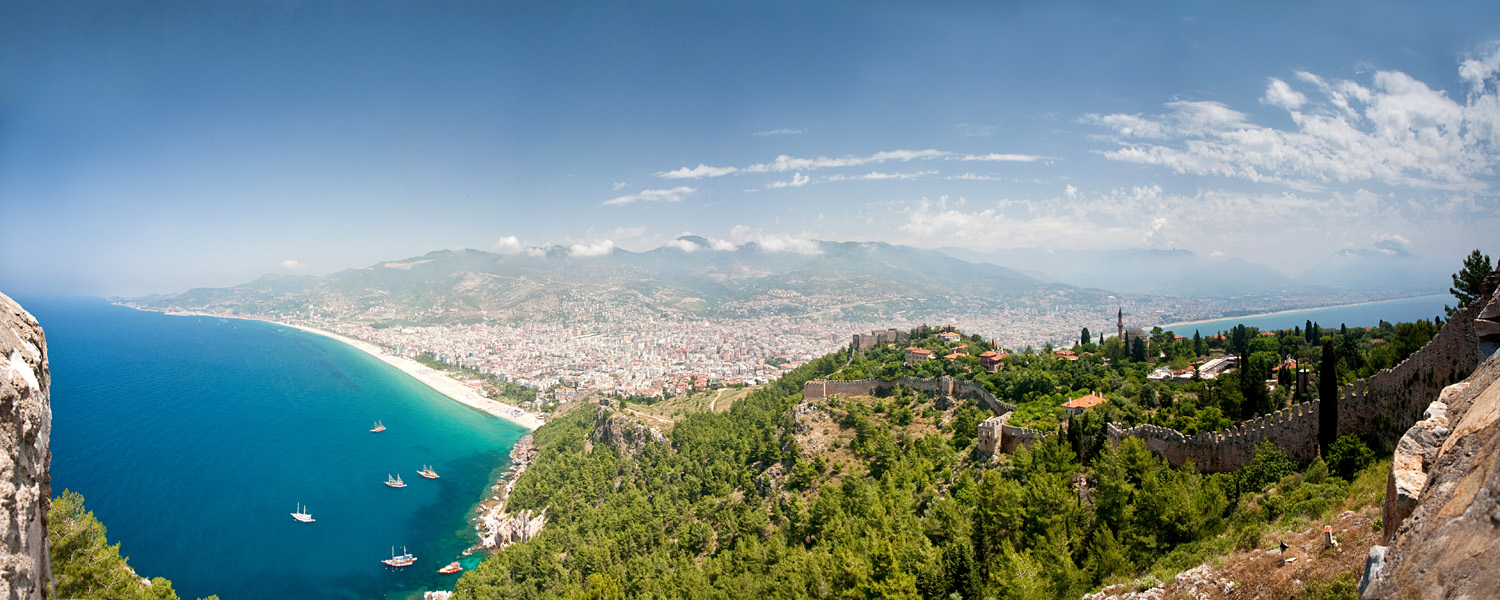
This is a panorama I made last year from a holiday in Turkey. Due to the distortions and what not during the stitching, the corners were missing which I tried to fill in using content aware fill. This worked well on the bottom corners, but with the top corners it is getting thrown out be the gradient of the sky.

So I need to try and even it out a bit, but everything I have tried so far has made it worse. Anyone have any suggestions?


turkey.jpg


Link to full size.
http://bass_junkie.cozywebhost.com/gallery2/d/11661-2/turkey.jpg

The aspect ratio needs to remain the same, and I don't want to crop it as it will lose the framing from the cliff on the left, and part of the wall on the right.
 
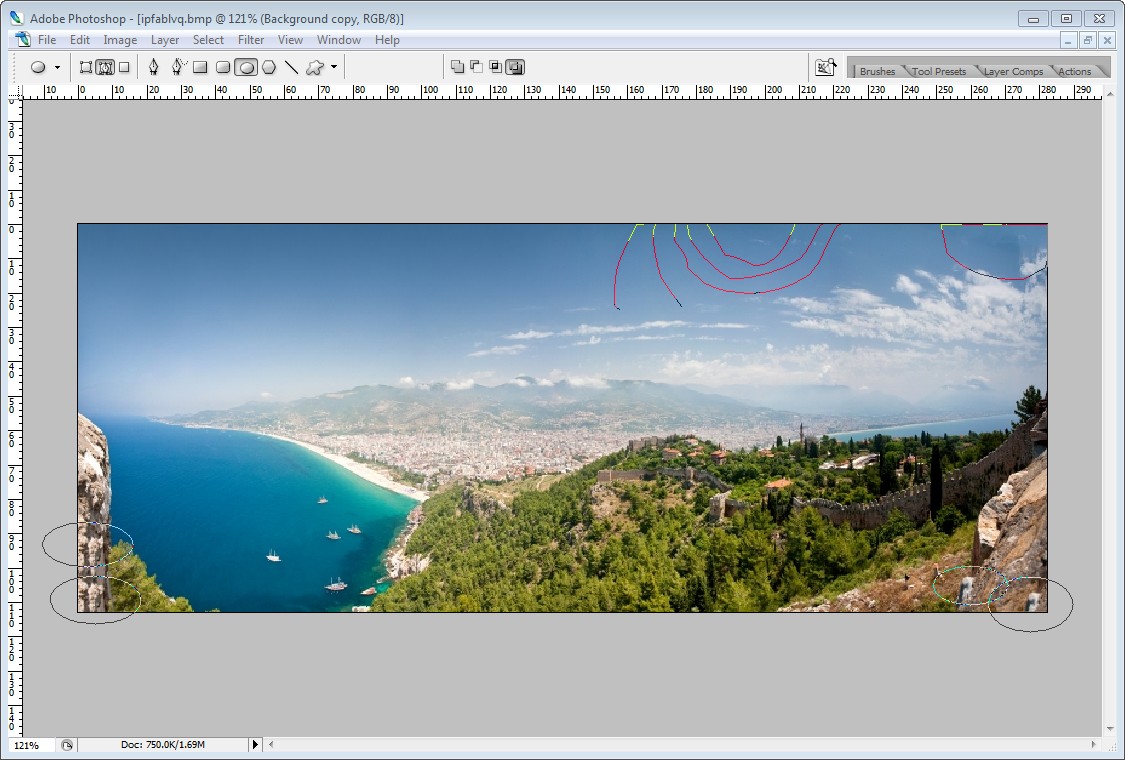
You might want to try using the "non-intelligent" plain clone brush rather than content aware fill. That is what I used for the top left.*

8149043335_4e0692165b_o.jpg


I also noticed some faint lines roughly where the red lines are in the middle. They might be a bit more difficult to fix because they cover quite a large area, but cloning is what I would try for them, as well as for the top right corner.

Using cloning rather than content aware fill may also let you avoid the repititions you can see in both bottom corners of bits of scenery near to them.


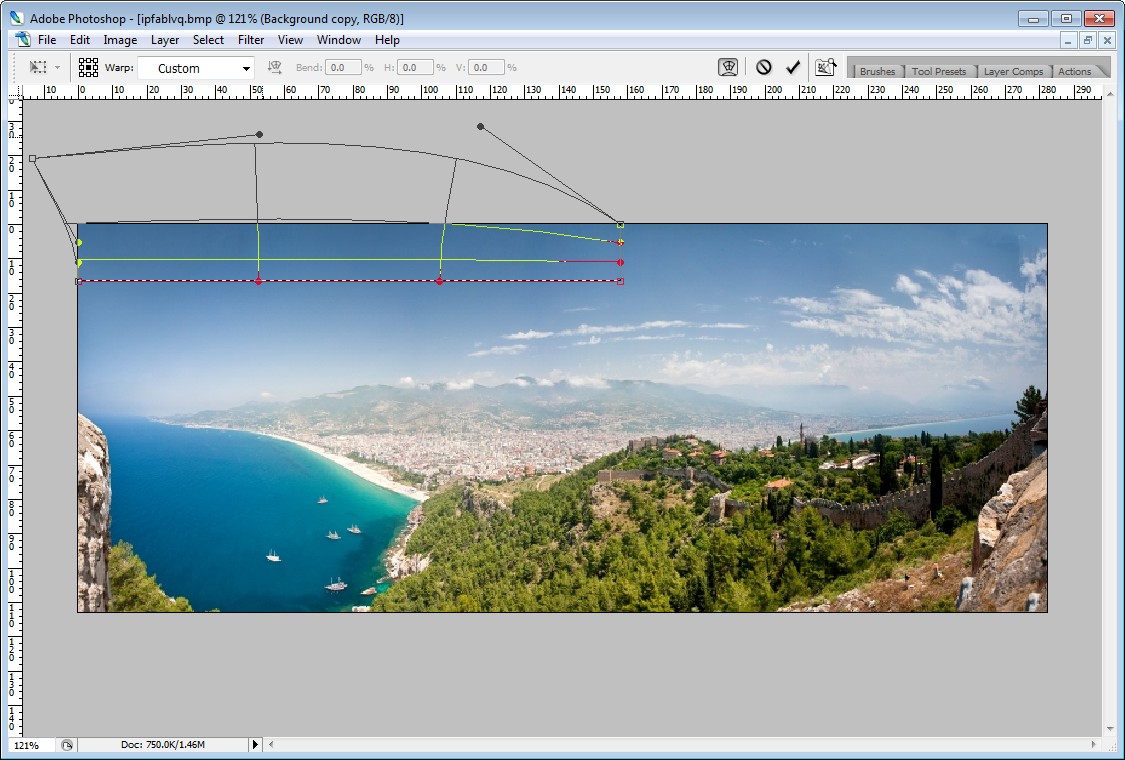
* Sort of. Actually I used the clone brush a bit on the left towards the top, and then used warp to spread the "good" sky upwards to fill up the frame at the top. I then used the clone brush to make it look a bit better, and I think I worked over everything I did with the warp, so in practice I think I probably did the business using just the clone brush in practical terms. But here is what the warp looked like anyway.

8149084626_b2d22fdd43_o.jpg
 
Last edited:
Ah, silly me, I only just noticed the link to the large version. That makes it pretty obvious what is going on up at the top right. I think cloning could fix that.

The lines at the top are more substantial than I thought (in fact they aren't quite "lines", more "purpleish areas with edges"). A couple of them stretch down through the clouds down below the horizon. One of them, on the right, goes right down across the water. How much any of that matters depends on what size the image will be looked at. I only just saw the lines in the sky in the small version in your post and didn't see them further down. But zooming in on the full size version they are much more visible.
 
Just had a play with the big version. Used the clone then warp technique on the top left and cloning on the top right. I also used cloning on the bottom left and right corners to take out the repeats.

In the top middle, for the "lines", I used "smudge" followed by cloning in the clearish areas of the sky. I didn't try to fix the lines further down.

You'd need to spend longer on it to do a proper job, but hopefully this will give you some ideas.

I can put the full size version up somewhere for you to grab if you are interested.


NOT MY IMAGE - Turkey sky fix - big source image - v1.2 600h by gardenersassistant, on Flickr
 
Ahh thank you, that is great!

I shall give it a go myself and see if I can get anywhere near your results.

The missus has been pushing me since summer last year to get this done as she wanted it on the wall and I never got round to it. Now she has a new flat I thought it would make a good house warming present, so time to pull my finger out!

If it is possible to get a large copy of your edit, I would really appreciate it. Just in case I manage to fluff it up again. :D
 
Nick may I jump in and say excellent work. I wish I was as good so lesson for me. Hope I will remember it for when I want it though :thumbs:
 
Use of the warp tool for this was very useful, wouldn't have thought of that!
 
Thank you! I have just replied to your pm.

With the warp tool, I made a selection around the top/corner, but when I try to warp the top, the bottom of the selection deforms also, giving a cut in the image. I assume the is a simple way I am missing to stop it doing that, or to anchor part of a selection boundary?
 
Thank you! I have just replied to your pm.

With the warp tool, I made a selection around the top/corner, but when I try to warp the top, the bottom of the selection deforms also, giving a cut in the image. I assume the is a simple way I am missing to stop it doing that, or to anchor part of a selection boundary?

I sometimes get a very thin line (hairline) along the bottom of the box. I have found that making a duplicate layer and doing the warp on the top layer cures that (hides it I suppose).

If it is a bigger cut/gap than that we will need to check we are doing exactly the same thing.
 
Back
Top