GIMP to improve blown highlights/overexposure?

vickylou

Suspended / Banned
Messages
246
Name
Vicky
Edit My Images
Yes
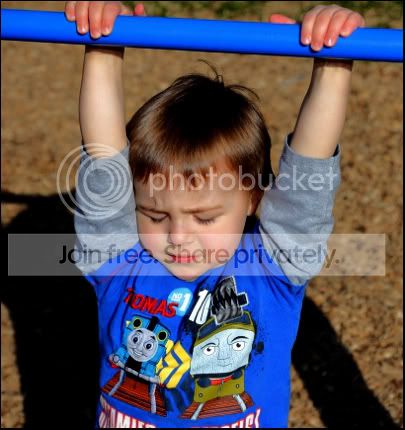
I hope you can help a newbie. I know it is best not to blow them/overexpose in the first place and I do use the histogram but now and again it happens. I took my son to the park in very harsh sunlight the other day, probably not the most ideal conditions and in a few of the shots his skin was very overexposed. Admitedly I was not concentrating as much as normal as I was trying to make sure my 3 year old was safe as well as trying to take some shots.

I can't afford photoshop or light room for which there are lots of tutorials. I only have DPP which is Ltd and GIMP. I am new to PP and completely new to layers and masks and wondered how I would go about adjusting the exposure is specific areas or the best way to go about improving the image. Just adjusting exposure or highlights and shadows in DPP does improve the image but does not do quite what I want. I know some highlights are just not recoverable.

Thank you.
 
Have you shot in raw? theres usually a bit of latitude to pull back highlights with raw, more than you'd get with a jpeg. Can you post the pic or raw file for us to see and try for you?
 
Thankyou, yes I alway shoot in RAW, PP then convert. I will try and find one to upload.
 
Last edited:
I just opened the image in photoshop to check the clipping and as I suspected it's not blown, the highlights are recoverable ok.

Cimp version
What I did was use levels in gimp with the following settings 0.30 0.75 255, you could go a bit darker if you wish, but I'm working on a laptop (the only computer I have available with gimp) so the screens a bit tricky to judge.

6840760916_cda16d9fa4_z.jpg
 
Last edited:
The way I did it with that combination of programs was to first open up the raw file in DPP and export two (8bit) tiffs from the image, one with a normal exposure for the mid range details and one dark layer with the exposure dragged down till you've got the highlights looking OK (keep all other processing the same, minimal)

Then open up both tiffs in the the window in gimp using "open as layers", and get the darker file on the top layer. Now go the the layer panel on the right, right click the dark layer and click "add layer mask" and in the pop up window check default full transparency, and the dark layer should become invisible leaving the lighter layer showing, and it'll have a little black rectangle next to the little thumbnail of the layer on the layers panel, which is a display of the layer mask. There should be a white edge around this black box, denoting that you're editing the layer mask, not the layer itself. If there isn't, click the black box to select it.

Now you're editing the mask of the layer, and you can use the paint brush to brush areas of opacity onto the layer. I'd personally use a very soft edged brush and set it to a mid grey tone, which means it'll be brushing roughly 50% opacity onto the mask, but you can vary this depending on how extremely you want the dark layer to show through. Now carefully paint over the highlight areas you need recovering. You can always go back and neaten up edges by painting with a black brush to make it fully transparent again.
It'll probably take some experimenting with different soft edged brushes and levels of grey to get the effect visible but with no obvious brushing showing.
Then you can using the opacity slider on the layers panel to vary the opacity of the dark layer and increase the effect of darkening the highlights to a level you like. Then save the image as a GIMP file (.xcf) if you want to be able to go back and edit the layers at this stage. Now, right click on the dark layer on top with the mask and select merge down, so you've only got one layer. Now do any of your normal processing (contrast, sharpening, colours, that sort of thing), and export from gimp as a jpeg or tiff.

I hope that's clear enough, I can post some screen grabs of various stages if I'm not explaining it well enough. There will be other methods, this is the one that's worked best for me using this software. It's a bit time consuming sometimes, trying to make the brushing subtle enough that it just looking like increased dynamic range, but it pays off when you get it right.

EDIT- - -

As Wayne has shown that image doesn't actually have blown highlights, so the levels tool is the best way to recover it. The method I described is only necessary when you've got close to or fully blown highlights in raw file when the rest of the image is properly exposed, a circumstance where the levels tool isn't effective (i've found) for recovering the highlights, but it's not needed here :) For that image, I would just open the raw file in DPP and move the exposure slider down a little way, should look fine.

 
Last edited:
Thank you very much for your help, I will have a go following the steps you have suggested and see what i come up with :) It did reduce the exposure in DPP and adjust the shadows and highlights in my orginal photo not posted, but it seemed to make the rest of the image look a little underexposed.
 
Last edited:
MG_2858_640x427_.jpg
[/IMG]

This is the PP that I had already done, as you can see it looks very flat. I will try your methods.
 
Last edited:
slight adjustment of the Levels- cropped to Portrait- oh and a thin black frame for good measure lol

MG_2858_640x427_.jpg


Les :thumbs:
 
Ok I have got to the bit with the paint brush, I can only see 1 paint brush in the box and I have no idea for how to paint with it or change brush or choose a colour?

The way I did it with that combination of programs was to first open up the raw file in DPP and export two (8bit) tiffs from the image, one with a normal exposure for the mid range details and one dark layer with the exposure dragged down till you've got the highlights looking OK (keep all other processing the same, minimal)

Then open up both tiffs in the the window in gimp using "open as layers", and get the darker file on the top layer. Now go the the layer panel on the right, right click the dark layer and click "add layer mask" and in the pop up window check default full transparency, and the dark layer should become invisible leaving the lighter layer showing, and it'll have a little black rectangle next to the little thumbnail of the layer on the layers panel, which is a display of the layer mask. There should be a white edge around this black box, denoting that you're editing the layer mask, not the layer itself. If there isn't, click the black box to select it.

Ok I only seem to have one paint brush in the selection and I have no idea how to get it to paint let alone choose a colour to paint?

Now you're editing the mask of the layer, and you can use the paint brush to brush areas of opacity onto the layer. I'd personally use a very soft edged brush and set it to a mid grey tone, which means it'll be brushing roughly 50% opacity onto the mask, but you can vary this depending on how extremely you want the dark layer to show through. Now carefully paint over the highlight areas you need recovering. You can always go back and neaten up edges by painting with a black brush to make it fully transparent again.
It'll probably take some experimenting with different soft edged brushes and levels of grey to get the effect visible but with no obvious brushing showing.
Then you can using the opacity slider on the layers panel to vary the opacity of the dark layer and increase the effect of darkening the highlights to a level you like. Then save the image as a GIMP file (.xcf) if you want to be able to go back and edit the layers at this stage. Now, right click on the dark layer on top with the mask and select merge down, so you've only got one layer. Now do any of your normal processing (contrast, sharpening, colours, that sort of thing), and export from gimp as a jpeg or tiff.

I hope that's clear enough, I can post some screen grabs of various stages if I'm not explaining it well enough. There will be other methods, this is the one that's worked best for me using this software. It's a bit time consuming sometimes, trying to make the brushing subtle enough that it just looking like increased dynamic range, but it pays off when you get it right.

EDIT- - -

As Wayne has shown that image doesn't actually have blown highlights, so the levels tool is the best way to recover it. The method I described is only necessary when you've got close to or fully blown highlights in raw file when the rest of the image is properly exposed, a circumstance where the levels tool isn't effective (i've found) for recovering the highlights, but it's not needed here :) For that image, I would just open the raw file in DPP and move the exposure slider down a little way, should look fine.
 
Last edited:
Ok I tralled the net and found out where to find the brushes and how to change the colour etc, this is my latest attemp:

MG_2858gimpeditb_640x426_.jpg
[/IMG]

I think PP is going to be a very steep learning curve for me!!!!
 
Last edited:
slight adjustment of the Levels- cropped to Portrait- oh and a thin black frame for good measure lol

MG_2858_640x427_.jpg


Les :thumbs:

What did you do to get the colour back in his cheeks?
 
Back
Top