
and help to keep the site free for all
You are using an out of date browser. It may not display this or other websites correctly.
You should upgrade or use an alternative browser.
You should upgrade or use an alternative browser.
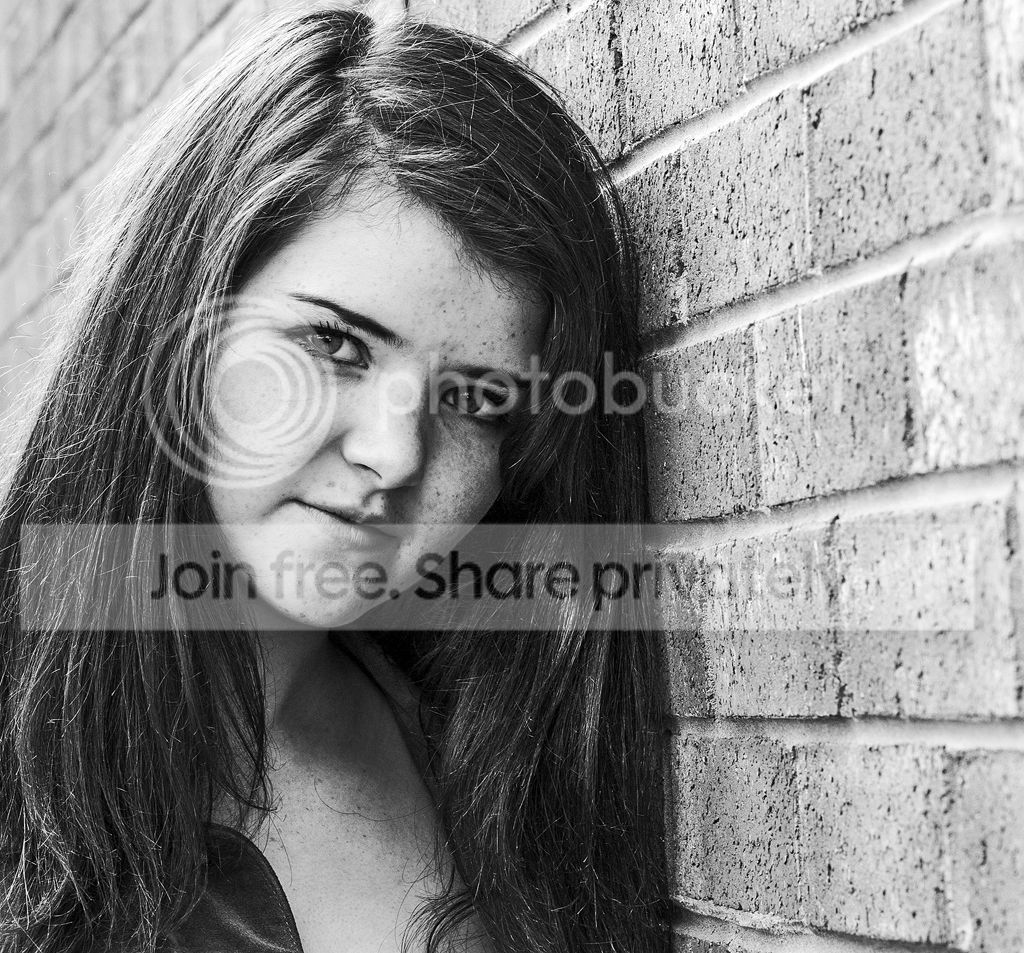
Flat Portrait ?
- Thread starter Seajay
- Start date


- Messages
- 7,018
- Name
- Keith
- Edit My Images
- Yes
Guessing that upload didnt go to plan then? 
OP

Seajay
Suspended / Banned
- Messages
- 1,493
- Name
- Cathy
- Edit My Images
- Yes
dropbox will not recognise the DNG files?
will try again.
Could only get it on dropbox as a PsD file
https://dl.dropboxusercontent.com/u/106500837/IMG_6649.psd
Tiff file on Flickr if that is better
http://www.flickr.com/photos/cooriedoon1/9933317643/
will try again.
Could only get it on dropbox as a PsD file
https://dl.dropboxusercontent.com/u/106500837/IMG_6649.psd
Tiff file on Flickr if that is better
http://www.flickr.com/photos/cooriedoon1/9933317643/
Last edited:


OP
Seajay
Suspended / Banned
- Messages
- 1,493
- Name
- Cathy
- Edit My Images
- Yes
Jon that makes the blacks and whites look so much better.
i will give this a go.
Ross thank you and you may have a point as the bricks are red and with her tanned make up that could just be right!
She was not in the mood really on the day as her brows were needing done and she had spots. But I told her I needed them all for practice lol!
She would have a fit if she thought I had shown it.
Cathy
i will give this a go.
Ross thank you and you may have a point as the bricks are red and with her tanned make up that could just be right!
She was not in the mood really on the day as her brows were needing done and she had spots. But I told her I needed them all for practice lol!
She would have a fit if she thought I had shown it.
Cathy

Purpleflanger
Suspended / Banned
- Messages
- 47
- Name
- Ivan
- Edit My Images
- Yes
Not bad, but to my mind it could do with a tighter crop.
Purpleflanger
Suspended / Banned
- Messages
- 47
- Name
- Ivan
- Edit My Images
- Yes
.
Last edited:

symmetricalOCD
Suspended / Banned
- Messages
- 478
- Name
- Ben
- Edit My Images
- Yes

BW_girl-1 by btyreman, on Flickr
here's my rough edit in LR5 taken from the jpeg, it took me 5 minutes.
cropped,
cloned the bricks from the right side into the left,
darkened the highlights quite a bit,
decreased blacks,
increased shadows,
changed tone curve to medium contrast,
lightened highs and lights in tone curve whilst darkening shadows,
blurred the background using gradient filter and the right side,
added 2 radial filters to each eye in 'inverse' mode.
hopefully this should 'pop' much more on your screen
Last edited:
OP
Seajay
Suspended / Banned
- Messages
- 1,493
- Name
- Cathy
- Edit My Images
- Yes
Hi Ben! a super edit here too.
I see how the colours stand out much better than my try at it.
5mns! gosh I wont say how long I was trying lol!
I also like the idea of removing the corner as your eye was drawn there,this way you just look at Charly.
Thank you looks so much better
Cathy
I see how the colours stand out much better than my try at it.
5mns! gosh I wont say how long I was trying lol!
I also like the idea of removing the corner as your eye was drawn there,this way you just look at Charly.
Thank you looks so much better
Cathy
Last edited:

suggs
Suspended / Banned
- Messages
- 2,053
- Name
- Harry
- Edit My Images
- Yes
heres my edit, just very basic in LR4 just a few mins to do. lowered highlights and exposure blacks, tweaked contrast and brought up the shadows etc

ch-3 by harrylessman, on Flickr
ch-3 by harrylessman, on Flickr
Last edited:

Photo (2 of 2).jpg by Furtim!, on Flickr
Adjust the histogram so the whites are white and the blacks are black, very slight lighten to the lefthand side of the face to lift the shadows a little, grain, contrast and a gentle clarity / exposure boost to iris.
OP
Seajay
Suspended / Banned
- Messages
- 1,493
- Name
- Cathy
- Edit My Images
- Yes
David thank you this is another great edit!
I am seeing now how you all get the best of the blacks and whites to make them pop!
Most of mine were very flat and grey and I was washing them out more by lightening them.Most of it as I was trying to fade out her freckles etc lol!
I will be following the steps you take to give it a try
Thank you
Cathy
I am seeing now how you all get the best of the blacks and whites to make them pop!
Most of mine were very flat and grey and I was washing them out more by lightening them.Most of it as I was trying to fade out her freckles etc lol!
I will be following the steps you take to give it a try
Thank you
Cathy

craftysnapper
Suspended / Banned
- Messages
- 255
- Name
- Paul
- Edit My Images
- No

OP
Seajay
Suspended / Banned
- Messages
- 1,493
- Name
- Cathy
- Edit My Images
- Yes
Thank you Paul well done!
I like the vignette around it draws you to her more.
You have also managed to get really nice tones. This is great for me as it allows me to closely look at all the different looks achieved
I can see I need to hurry and get my chores done and get up onto my mac to play
I like the vignette around it draws you to her more.
You have also managed to get really nice tones. This is great for me as it allows me to closely look at all the different looks achieved
I can see I need to hurry and get my chores done and get up onto my mac to play

TheDrift-
Suspended / Banned
- Messages
- 376
- Name
- Shaun
- Edit My Images
- Yes
Here's my take

Have put the PSD below if anybody wants to look, all done in PS
https://dl.dropboxusercontent.com/u/6574169/IMG_6649.psd

Have put the PSD below if anybody wants to look, all done in PS
https://dl.dropboxusercontent.com/u/6574169/IMG_6649.psd
OP
Seajay
Suspended / Banned
- Messages
- 1,493
- Name
- Cathy
- Edit My Images
- Yes
Shaun a couple of questions if it is ok to ask.
is Dream layer just a soft blur brush and how did you get the image pic beside the mask used.
How did you create the sharpen layer with mask.
Had no idea about these but used a high pass sharpen with original layer on top and rubbed out eyes lol!
Used another image from same set just to show i am not cheating and really taking all info given and trying it out.
So much better than my first try.I know there are stray hairs and bits of eyebrows needing removed but that can be for another day.
Thank you so much everyone this has been so helpful!

is Dream layer just a soft blur brush and how did you get the image pic beside the mask used.
How did you create the sharpen layer with mask.
Had no idea about these but used a high pass sharpen with original layer on top and rubbed out eyes lol!
Used another image from same set just to show i am not cheating
and really taking all info given and trying it out.So much better than my first try.I know there are stray hairs and bits of eyebrows needing removed but that can be for another day.
Thank you so much everyone this has been so helpful!
Last edited:
TheDrift-
Suspended / Banned
- Messages
- 376
- Name
- Shaun
- Edit My Images
- Yes
Shaun a couple of questions if it is ok to ask.
is Dream layer just a soft blur brush and how did you get the image pic beside the mask used.
How did you create the sharpen layer with mask.
Had no idea about these but used a high pass sharpen with original layer on top and rubbed out eyes lol!
Used another image from same set just to show i am not cheating
So much better than my first try.I know there are stray hairs and bits of eyebrows needing removed but that can be for another day.
Thank you so much everyone this has been so helpful!
Hi glad you liked it, (and thanks suggs
not sure I understand all you questions but I'll do my best.Dream layer is a stamp layer of all previous layers, and i then ran a Noise reduction over it at 10, 0 0 0. reduced opacity to taste then masked out important areas eg edges and eyes etc (as you can see from the mask this is very rough). blur would have worked too (I sometime blur then reduce to 50%ish opacity and do the same thing but get an even more dreamy look, (google Orton effect and you'll find loads on this).
My main thought with this was to help de-frizz the hair a little, and help guide the view to the face and eyes
Sharpen layer as you did just a HP sharpen, hide all mask, and reveal details where i wanted them namely eyes
Hope that helps
Last edited:
OP
Seajay
Suspended / Banned
- Messages
- 1,493
- Name
- Cathy
- Edit My Images
- Yes
Shaun yes I get it.
I could not for the life of me see how you had a picture of the image beside the mask.
Not having ever heard or used snapshots this is why lol! But I know now.
Yes I did enjoy the edit as it was easy to follow and allows you to see each stage.
Thank you
Cathy
I could not for the life of me see how you had a picture of the image beside the mask.
Not having ever heard or used snapshots this is why lol! But I know now.
Yes I did enjoy the edit as it was easy to follow and allows you to see each stage.
Thank you
Cathy