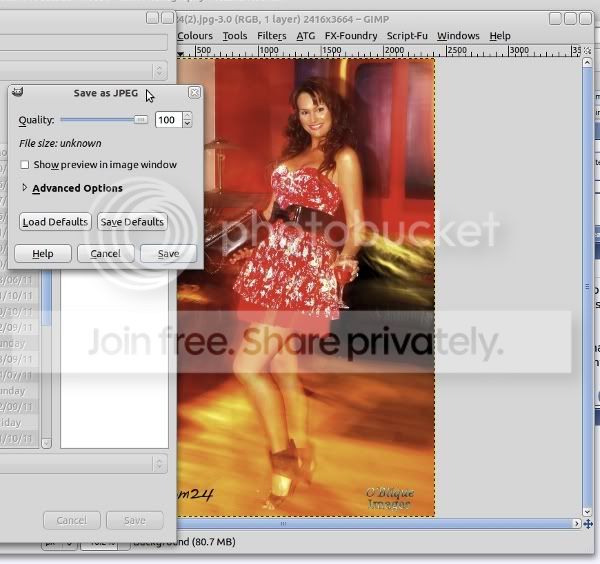
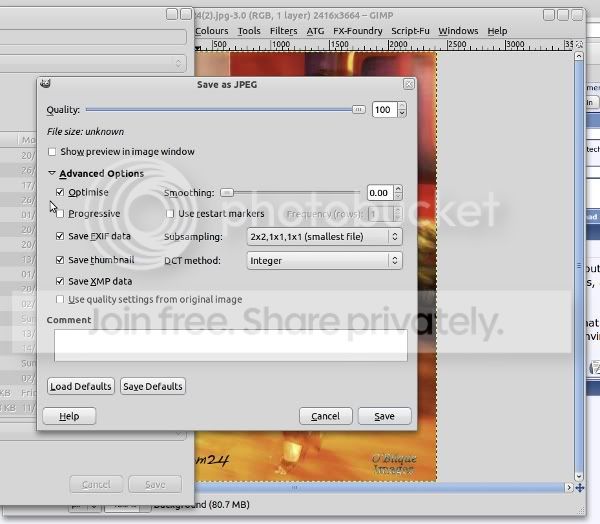
I have been using Gimp as my photo editor for years, long before I changed over to Ubuntu. For Some reason everthing that I process in Gimp is now coming out without any Exif Data where as the unprocessed files still have the data. I am shooting in Jpeg fine and have asked around and so far no answers. Gimp hasn't answered my queries, and Ubuntu troubleshooters tell me to go to Gimp...
I am hoping here that there might just be a Gimp / Linux user that might have some idea of what I am dealing with and a solution for the problem. At first I thought that it might have been my photo holding site that was doing it but after looking at a photo I had saved on my hard drive immediately after processing and having no data convinced me that it wasn't the site doing the stripping it was me...
I am hoping here that there might just be a Gimp / Linux user that might have some idea of what I am dealing with and a solution for the problem. At first I thought that it might have been my photo holding site that was doing it but after looking at a photo I had saved on my hard drive immediately after processing and having no data convinced me that it wasn't the site doing the stripping it was me...