Editing Advice - Portrait image

mehstg

Suspended / Banned
Messages
10
Name
Paul
Edit My Images
Yes
Hi guys

Haven't posted on here in ages (Been out using the camera lots :D)

Was just after a little bit of post-processing advice....as this is still a relatively weak point of mine.

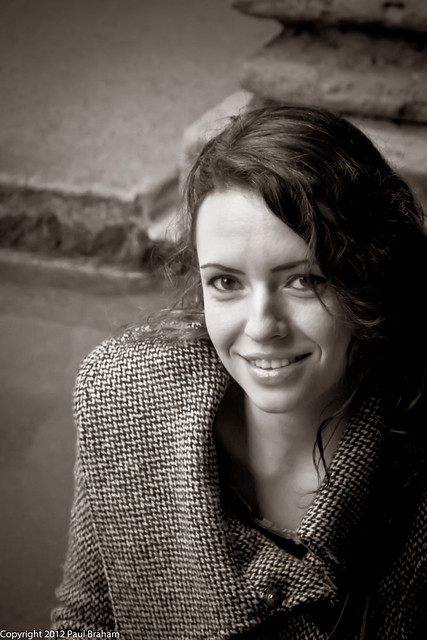
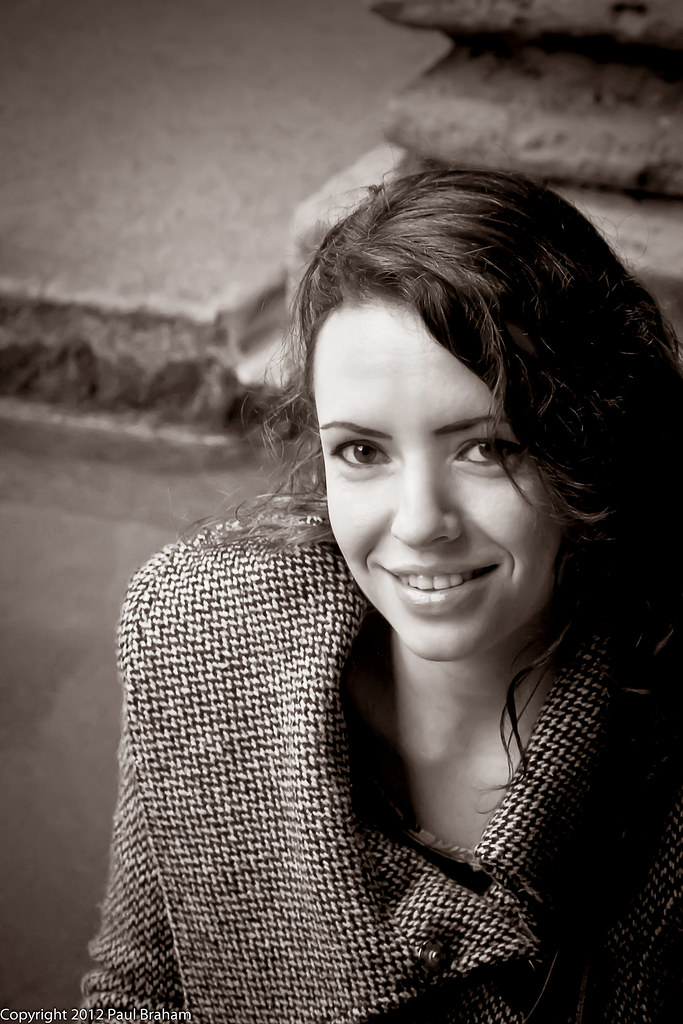
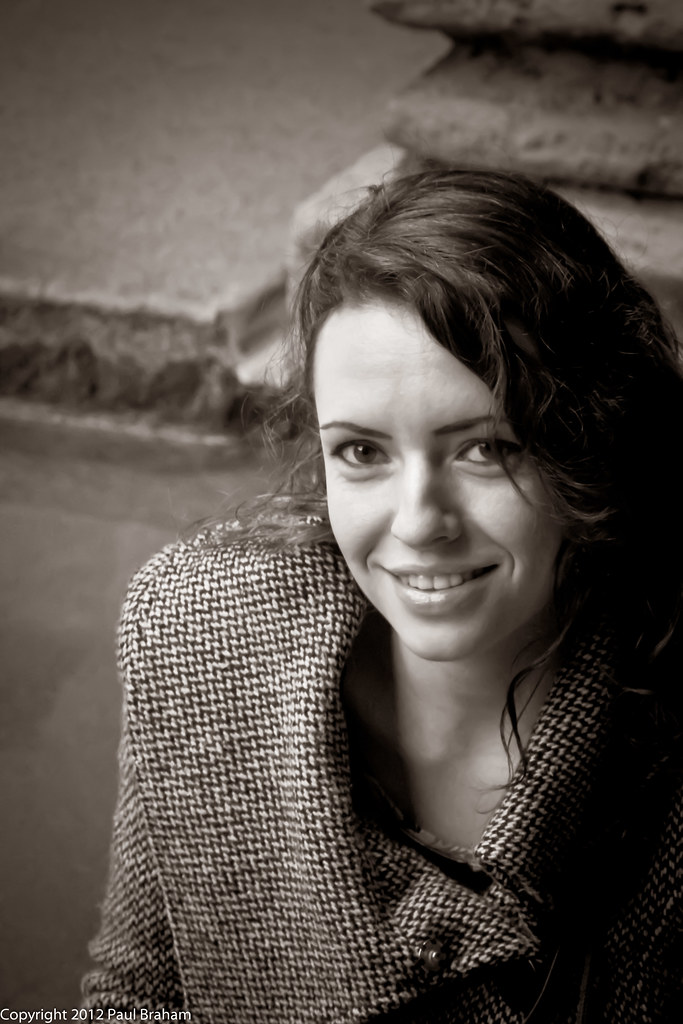
I took a photo in Bath a few months back that I really like, however the lighting has cast a shadow on my girlfriend's nose that I think spoils the picture a little, and means the girlfriend unleashes a torrent of abuse any time I show the picture to anyone :(

I have tried tweaking it a little, but seem to have only made things worse.

Any help would be muchly appreciated.
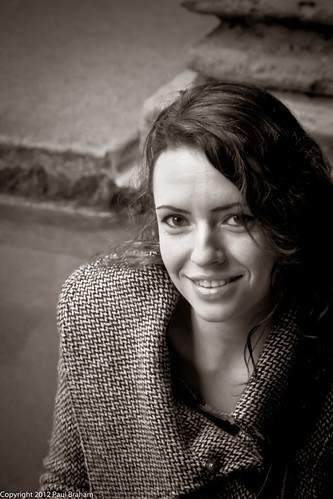

Tasha at Bath Spa by Mehstg1319, on Flickr
 
I had a quick go, I mainly did it by doing some selective lightening with a curves adjustment layer and also a little dodging of the midtones and shadows.

Bguus.jpg


larger version here http://i.imgur.com/AGfgA.jpg
 
stormcrow said:
I had a quick go, I mainly did it by doing some selective lightening with a curves adjustment layer and also a little dodging of the midtones and shadows.


larger version here http://i.imgur.com/AGfgA.jpg

Thanks. This is exactly what I was trying to achieve. Out of interest, how did you transition the newly lightened with the unadjusted area around it? Did you select a bigger area than needed then feather the edges to blend it in?
 
Also, did you play with the skin smoothing a little as well....or is that just the resaving of the jpeg?

P
 
Also, did you play with the skin smoothing a little as well....or is that just the resaving of the jpeg?

P

• I made a copy of the layer first then I lightened the new layer using a curves adjustment layer.

• I then inverted the mask that is automatically generated with adjustment layers by making sure the curves layer was selected and then pressing CTRL I.

• I then used a soft paintbrush (white) at 10-20% opacity to gradually reveal the lighter area around the nose.

• The brush I used was probably about the size of the iris but I adjusted that where required.

• I also used the patch tool to try to get a smooth transition between contrasting areas

• Yes I did use a little skin softening (portraiture) as the image seemed to have a few areas of banding that possibly was created in whatever post processing that you had used.

• The softening was only applied to the skin areas to do this I again duplicated the layer then applied portraiture to it I then used a layer mask to apply the softening to the skin.

Hope some of that make sense.
 
• I made a copy of the layer first then I lightened the new layer using a curves adjustment layer.

• I then inverted the mask that is automatically generated with adjustment layers by making sure the curves layer was selected and then pressing CTRL I.

• I then used a soft paintbrush (white) at 10-20% opacity to gradually reveal the lighter area around the nose.

• The brush I used was probably about the size of the iris but I adjusted that where required.

• I also used the patch tool to try to get a smooth transition between contrasting areas

• Yes I did use a little skin softening (portraiture) as the image seemed to have a few areas of banding that possibly was created in whatever post processing that you had used.

• The softening was only applied to the skin areas to do this I again duplicated the layer then applied portraiture to it I then used a layer mask to apply the softening to the skin.

Hope some of that make sense.

Thanks very much for your time. Definitely enough to go on and have a go myself.

One last question, I am assuming that when saying Portraiture, you mean this

Thanks
 
Well tonight's attempt was hopeless! - Couldn't remove enough of the shadow using cuves. I think I was also overdoing it with the dodge tool.

Practise makes perfect.
 
My attempt...

girl-1.jpg
 
Sorry but the softness is killing the image altogether. Portraiture is one of the most over used over rated plugins out there imo. It's ok if you are shooting glamour but not a nice portrait like this that doesn't need the skin destroyed by over softening.

Not saying my edit is perfect as really it's better to get this right in-camera but sorry the first edit makes the image look out of focus altogether and the second although a bit better just doesn't look right to me.Eyes too sharp and everywhere else too soft.....

Here's the original
6751290077_81d3025ef5_z.jpg

and my edit
02j0cn1a.jpg
 
Last edited:
I believe you will be able to achieve the same results with the clone stamp tool on a brush of about 5% opacity. First duplicate your image onto another layer and you can then change the opacity of your edited layer to bring back some detail if you wished. Clone out the dark patches. This is how it looks with the clone stamp tool applied.
6770579623_6e0e81c768_b.jpg
 
Thats better, retained the sharpness too. Never seen the Portraiture plug in, there does seem to be a plethora of portrait software about.
 
Original:

6751290077_81d3025ef5_b.jpg


Version 1:


Version 2:


Did two versions in pretty much the same ways as everyone else: healing tool, took colour samples and went over with a light airbrush, history brush to restore and blend. The second one I just put through a 'freezing blue' filter then went over with the history brush set at 20 opacity.

I just wanted to get involved, nothing on TV...
 
Back
Top