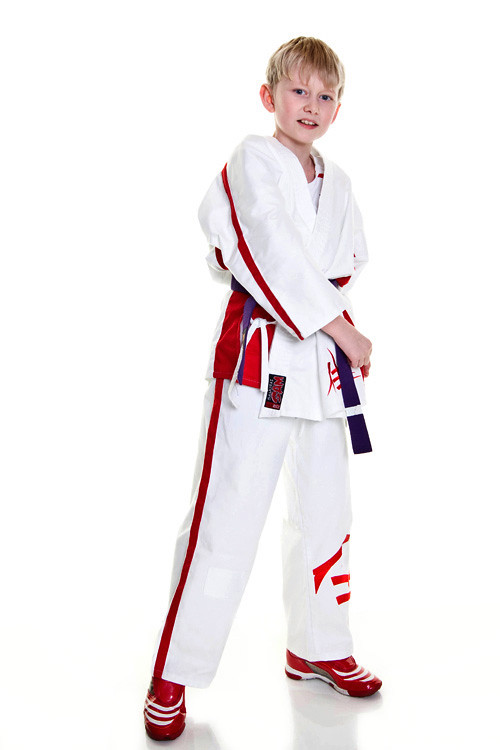
Editing a white studio floor

donkeymusic

Suspended / Banned
Messages
2,524
Name
Carlo
Edit My Images
Yes
Hello,

thought i had my studio setup correct so that white floors coming out grey were eliminated at camera level. However from a few shoots, i need to tidy up camera settings, but for the time being i need to be able to edit and clean up the grey floor to look white with reflections.

I am using Lightroom 2.7 and photoshop CS5.

If anyone advise it wold be a great help.

Thanks
 
Can you post an image? Lr can easily edit a grey floor in seconds using the adjustment brush with Auto Mask turned on.
 
lol yes I forgot about that Dave :) Lets do both!
 
CS5 Dodge Highlights set to about 30% should do the trick.
same as i do, but i set to about 5% opacity.


DSC4956-1.jpg
 
edit-50.jpg


A quick edit using Lightroom. 2 adj brushes. The first without the Automask set at +4 exp to remove the dark lines.

The second with a larger brush, auto mask turned on and care going round the image not to burn the whites in the boys gear. Exp +2 to make it white and used over the whole area then reduce the exposure to taste.
 
To be honest the white floor looks Ok apart from the line of it, think mostly your main prob is the upper left inside leg being lost, either through sloppy PP, (not being insulting there) as the exposure looks good, the floor looks good thinking just up the sat for the shadows a little, as they look a bit weak think JD edit looks good, maybe a little more over all contrast


LOL JD I uploaded the wrong pic messed up other words LOL


Dave
 
Last edited:
3 decent efforts all basically getting the same results - I think the image needed a little contrast added as I think the light spilling around is causing a slight fogging (I get that with mine).
 
edit-50.jpg


A quick edit using Lightroom. 2 adj brushes. The first without the Automask set at +4 exp to remove the dark lines.

The second with a larger brush, auto mask turned on and care going round the image not to burn the whites in the boys gear. Exp +2 to make it white and used over the whole area then reduce the exposure to taste.

This method sounds as if it will be the best for me, could you describe the steps in detail, if possible

thanks
 
This method sounds as if it will be the best for me, could you describe the steps in detail, if possible

thanks

very simple

1. Select the adjustment brush.

2. Increase the exposure slider to say +2 or +3 (this could be anything as it can be amended later)

3. Make sure the "Auto Mask" box is selected - it's one of the settings of the adjustment brush.

4. Increase the brush size and increase the feather size

(All this takes just a few seconds when doing it)

5. The Auto mask works by what you select in the centre of the brush so if you point the centre of the brush on the white background generally the different coloured subject will not be affected even if the edge of the brush goes over the subject - however because your subject is also white you just need to be more careful in this situation when painting with the brush so a smaller brush may work better.

6. Now just paint over the white area. Don't worry about losing the shadow at this time. Once you have it white (forget the darkest lines at this point) all you need to do is reduce the exposure till you get the reflection back and the background should still be nice and white.

7. To remove the dark lines, select NEW under the aadjustment brush. Switch off the auto mask and select +4 exposure and a pretty small brush. Zoom in and just paint over the dark lines and they should just disappear. Be careful close to your subjects white robes.


Might sound complicated but literally takes seconds once used to it.
 
edit-50.jpg


A quick edit using Lightroom. 2 adj brushes. The first without the Automask set at +4 exp to remove the dark lines.

The second with a larger brush, auto mask turned on and care going round the image not to burn the whites in the boys gear. Exp +2 to make it white and used over the whole area then reduce the exposure to taste.

hi, would you say that the floor on this would be acceptable to give a customer, as looking at it the floor isn't perfect white towards the front?

It looks good to me, just want to make sure what people think

cheers
 
very simple

1. Select the adjustment brush.

2. Increase the exposure slider to say +2 or +3 (this could be anything as it can be amended later)

3. Make sure the "Auto Mask" box is selected - it's one of the settings of the adjustment brush.

4. Increase the brush size and increase the feather size

(All this takes just a few seconds when doing it)

5. The Auto mask works by what you select in the centre of the brush so if you point the centre of the brush on the white background generally the different coloured subject will not be affected even if the edge of the brush goes over the subject - however because your subject is also white you just need to be more careful in this situation when painting with the brush so a smaller brush may work better.

6. Now just paint over the white area. Don't worry about losing the shadow at this time. Once you have it white (forget the darkest lines at this point) all you need to do is reduce the exposure till you get the reflection back and the background should still be nice and white.

7. To remove the dark lines, select NEW under the aadjustment brush. Switch off the auto mask and select +4 exposure and a pretty small brush. Zoom in and just paint over the dark lines and they should just disappear. Be careful close to your subjects white robes.


Might sound complicated but literally takes seconds once used to it.

Hi thanks for these instructions, have tried them this evening and what i found as that i had to use exposure of +4, but instead of painting over everything i went around all the edges, but edges looked jagged. When i did paint over the reflections and pulled it back with the exposure slider then some of the floor appeared non white and also you could see on the reflection where i had painted over it.

Was going to post photo but limited to 200kb and any image is well too big even at ridiculous sizes, like height 400px

any more advice would be much appreciated

Thanks
 
You need to use the original image - not a small jpg.
 
Are you using a feathered brush? Not sure why it would be jaggy as it wasn't on the one I used?

i had a nother go before going sleep last night, and seemed to get it looking pretty decent, just a slight bit of off colour to the white floor, but nothing major, think i could get away with it.

What i will do is carry on with the few i need to do and post them on here some point this evening for all round feedback.


thanks for your assistance
 
Re colour, you can use the colour correction tool in Lr to fix that. I think I did.
 
again sorry to be a pain, but what method do you use?

thanks

There is a colour correction tool in Lr. Select that and click on an area that you know should have a neautral colour (grey, white, black)..... So select the white of the karate suit. That should colour correct the image. Sometimes a little trial and error and a small tweak may be required.

Best way to fix is to do a custom white balance before the shoot or shoot a grey card as your first shot then using the colour correction in lr, batch all the images and sync them to the same colour settings
 
Last edited:
Back
Top