Dual SSD set up

pjm1

Suspended / Banned
Messages
4,155
Name
Paul
Edit My Images
Yes
Ok, my current system (which is really quite new!) is itching to be upgraded. I have a small 120GB SSD which I use for OS and key things like PS scratch, OS swap and LR library / previews. Everything else goes on the HDD which is not the most efficient setup since I should probably have my latest photos on SSD as well.

I'm mulling over sticking a 512GB SSD in as a second drive. My pictures are currently only 100GB (last 6-7 months only) so I'd obviously move those onto SSD. The question I have is what is the optimal dual SSD setup for LR & PS usage? I'm not interested in RAIDing the disks, I just want to put the right things on the right disks. I'd assume something like:

(1=120GB SSD, 2=512GB SSD, 3=HDD)

1. OS & apps (currently only half used), PS scratch and LR catalogue and previews
2. OS swap, Outlook psts etc. & other user data, pictures (at least most recent year's worth)
3. Everything that doesn't fit on 2 / older pictures etc.

Anybody have a view on whether this is a "balanced load" between the two SSDs for PS editing and LR usage? When I'm doing one, I won't likely be doing the other, so I'm assuming LR and PS scratch etc. can go on the same drive. I'm also assuming this should be the opposite drive from the OS swap (although probably rarely used with 16GB RAM) and also opposite from the pictures themselves?

The only thing which is keeping me from doing this is thinking I'd be better off waiting until 1TB prices come down and I can stick an even bigger second SSD in.

Thanks in advance.
 
The setup you describe works fine for me (the second SSD is used to house my last 3 years worth of photos - everything else is on the third drive).
 
Ok, my current system (which is really quite new!) is itching to be upgraded. I have a small 120GB SSD which I use for OS and key things like PS scratch, OS swap and LR library / previews. Everything else goes on the HDD which is not the most efficient setup since I should probably have my latest photos on SSD as well.

I'm mulling over sticking a 512GB SSD in as a second drive. My pictures are currently only 100GB (last 6-7 months only) so I'd obviously move those onto SSD. The question I have is what is the optimal dual SSD setup for LR & PS usage? I'm not interested in RAIDing the disks, I just want to put the right things on the right disks. I'd assume something like:

(1=120GB SSD, 2=512GB SSD, 3=HDD)

1. OS & apps (currently only half used), PS scratch and LR catalogue and previews
2. OS swap, Outlook psts etc. & other user data, pictures (at least most recent year's worth)
3. Everything that doesn't fit on 2 / older pictures etc.

Anybody have a view on whether this is a "balanced load" between the two SSDs for PS editing and LR usage? When I'm doing one, I won't likely be doing the other, so I'm assuming LR and PS scratch etc. can go on the same drive. I'm also assuming this should be the opposite drive from the OS swap (although probably rarely used with 16GB RAM) and also opposite from the pictures themselves?

The only thing which is keeping me from doing this is thinking I'd be better off waiting until 1TB prices come down and I can stick an even bigger second SSD in.

Thanks in advance.

I have a simple setup on my i7 - 250GB SSD inside and everything else (including a 500GB SSD and all my HDDs) used through USB3s - and it works fine.

I have a 500GB Samsung 840 SSD in an external caddy:

http://www.amazon.co.uk/gp/product/B00FCLG65U/ref=oh_aui_detailpage_o06_s00?ie=UTF8&psc=1

Which runs at about 300MB/Sec and a 2TB in a USB3 caddy which runs at about 200MB/Sec (depending on how full it is)

I use the 500GB SSD as a workspace for editing my pics and if I need more space then the 2TB external drive is connected.

I also have about other Seagate USB3 drives as permanent backups for all photos - finished and unedited.

EDIT: The prices of SSDs seem to have been constant for the last 6-9 months so may not change for some time - I think.
.
 
Last edited:
I would recommended SSD for OS, swap file and scratch disks and fast HDD like Black Scorpio for data. SSDs work much better for small files due the low seek times. This is my setup and is amazingly fast. My swapfile sits in its own partition to minimize disk fragmentation. Last years photos sit on a WD My Cloud drive and they are marked as offline in LR.
If I had space I would put a 2nd hdd and run raid0 which is how I had my old desktop. Even video editing is fast like this.
 
SSDs work much better for small files due the low seek times.
Modern SSDs are about 5x faster than HDDs. You can saturate SATA III with SSDs (~500MB/s), HDDs struggle to get beyond 130MB/sec. If you can fit your data on an SSD, it will be faster.

And who uses swapfiles these days? (:toungueincheeksmilie:)
 
Modern SSDs are about 5x faster than HDDs. You can saturate SATA III with SSDs (~500MB/s), HDDs struggle to get beyond 130MB/sec. If you can fit your data on an SSD, it will be faster.

And who uses swapfiles these days? :)toungueincheeksmilie:)

My 250GB Samsung runs at approx 5GB/Sec and 4 GB/Sec read and write in my i7.
 
My 250GB Samsung runs at approx 5GB/Sec and 4 GB/Sec read and write in my i7.
No it doesn't :D It runs at 500MB/sec.... I'd agree if you said 5Gb/sec (little b = bits, big B = bytes...). :)
 

SSD SPEED
by petersmart on Talk Photography

No I'm pretty sure it's approx 5 and 4 GB/Sec ;):)

In fact it's a slight exaggeration since no SSD (as far as I know) can run at those speeds.

The Samsung 840 series can be set to RAPID mode where it then uses the PCs DRAM as a cache - in mine it uses up to 4GB of DRAM which is of course much faster than any SSD - when I had a Ramdisk before I think it was about 120GB/Sec which gives a vast (apparent) increases in speed and does actually speed up the initial copying of files etc.

But I WAS right - :)
.
 
Last edited:
No I'm pretty sure it's approx 5 and 4 GB/Sec ;):)
LOL A disk cache. Just like Windows does by default with any extra memory. You could try it with the 4G size in CDM as that's bigger than the RAPID cache size ;)

Your SSD will be running at 500MB - but you know that anyway :)
 
LOL A disk cache. Just like Windows does by default with any extra memory. You could try it with the 4G size in CDM as that's bigger than the RAPID cache size ;)

Your SSD will be running at 500MB - but you know that anyway :)

Yes I did know :D but it still speeds up some processes if the cache does not fill up completely - copying files from the external SSD shows that the copying speed starts at about 600MB/Sec (don't ask me - and yes, I know that is far above the USB3 specs) and only slowly falls down as the cache fills up - to around 260MB/Sec - 280MB/Sec.

In fact it can move 17GB from the external drive to the internal SSD in 60 secs.

So it does seem to speed up the copying.

Ad if Win 7 does this by default why doesn't it show the same speed increase on my SSD?
 
Wow, slap me with a wet fish.
Those are speeds I've never seen on SSDs or HDDs. Defiantly +5x faster then my HDDs

What SSDs you guys using?
 
Wow, slap me with a wet fish.
Those are speeds I've never seen on SSDs or HDDs. Defiantly +5x faster then my HDDs

What SSDs you guys using?
I use Samsung series 840 EVO:

http://www.amazon.co.uk/Samsung-250...F8&qid=1411318198&sr=8-1&keywords=samsung+ssd

on my i7 machine running Win 7 64bit and AHCI mode operating for the fastest speed.

And as already said all other SSDs and HDDs are used in external USB3 caddies or for backups.

Don't forget that for the fastest speeds you need to have a machine that allows AHCI mode to be set in the BIOS and also operates SATA3 for the SSDs or HDDs and USB3 for the external drives.

And to access all the memory you have you need a 64 bit system which means either Win 7 or Win 8.
.
 
I'm using SATA2. Hopefully I will get 1/2 those speeds listed above. I'm getting 450MB/s on hdd
 
I'm using SATA2. Hopefully I will get 1/2 those speeds listed above. I'm getting 450MB/s on hdd

That speed seems far too fast for SATA2 - Are you sure it's 450MB/Sec?

The other thing I forgot to mention is that all HDDs suffer from "droop" which means that as the head moves from the outside to the centre the attainable speed will drop.

And also the copying speed whether HDD or SSD will vary depending on the size of the files you are transferring; a folder containing a large amount of very small files will take a lot longer to transfer than a folder containing a smaller number of larger files even though the overall size is the same.
.
 
Ad if Win 7 does this by default why doesn't it show the same speed increase on my SSD?
Because the driver that rapid mode installs becomes the raw HDD and Windows sees that as the disk, not the raw SSD. When benchmarks are run, they use the raw read/write commands.

As Scottie said repeatedly - ye cannae break the laws o' physics.:D
 
I'm getting 450MB/s on hdd
No you're not - not on a single SATA2 physical HDD drive which isn't physically capable of those speeds.... :)
 
The setup you describe works fine for me (the second SSD is used to house my last 3 years worth of photos - everything else is on the third drive).
Same here (based on Andy's advice).

1x 128 samsung 830 - os, programs
1x 128 Samsung 830 - LR cat and working raw, ps scratch, caches etc

Everything else gets moved to network storage.
 
Last edited:
Cool, thanks guys. I'm not going to be buying anything quite yet - at least not for a few weeks. 512GB prices for SSDs have been easing since the beginning of the year and that's based on average pricing. The 840 is now down at sub £150 which is stupendous value given they were £250+ not that long ago.

Thanks Neil. I'd assume (quite possibly wrongly) that OS swap and then stuff like LR/PS scratch (and catalogue) would be better off on opposite disks? OS is less likely to be paging when accessing images directly, but could well be when switching between LR/PS etc. and therefore accessing the scratch & catalogue? So would that not mean putting OS swap on the same disk as images and the LR/PS scratch/catalogue on the C: drive with OS install and apps? The advantage of having 1x500GB SSD is that a fair few pictures can reside there too, meaning I only really need to access HDD for archive images. Network storage (which isn't mapped to a drive letter) is just for backup - 2TB drive with differential backups of everything from most recent system images through to all data files. GF-F-S rolling backups for a some of it as well.

I guess I'll be able to play around once I do buy the new kit, but just thinking out loud really.
 
To be honest I wouldn't worry much about the swap file. If you're specing the system with enough ram in theory you shouldn't be paging anyway.

I've got my swap on the c: set very low. I haven't disabled it as there are some articles around that turning it off completely can cause adverse behaviour in some apps. I have 16gb ram havent had an issue from this setup.

Same for scratch. Ps will only scratch when it runs out of memory. So spec ram accordingly.
 
Last edited:
Because the driver that rapid mode installs becomes the raw HDD and Windows sees that as the disk, not the raw SSD. When benchmarks are run, they use the raw read/write commands.

As Scottie said repeatedly - ye cannae break the laws o' physics.:D

But a Ramdrive that I had showed about 12GB/Sec speed so if what you're saying is true shouldn't it show that speed NOT 5GB/Sec?

And if I can't break the laws of physics then I simply choose to ignore them! :D
.
 
But a Ramdrive that I had showed about 12GB/Sec speed so if what you're saying is true shouldn't it show that speed NOT 5GB/Sec?.
Why? You have to manage it all in software - figure out where to put it in memory, copy it, possibly shovel some least used data onto disk. If you're on an i7 on DDR3, max bandwidth is 20-something GB/s. Neither RAMdisk or cache equals that speed....

For benchmarking, you really have to take any effects of memory out of the equation. On my fileserver. I have a RAID5-like array of 4 real HDDs backed by 16G of RAM, around 12G of which is used as cache. When I benchmark those drives, I use a filesize of 32G to make sure the files being used can't fit into RAM. Those 4 HDDs in parallel benchmark at ~350MB/s read max. Just tried it now with 1G files and I get 1.6GB/s read at 99% CPU using the same benchmark (it's an old quad core AMD processor).
 
@neil_g just checked my system and in old English I get 612mbps.
I guess this is a massive 80MB/s (bytes) as shown in crystal drive.

I don't understand how @petersmart gets 4869MB/s on a 500MB/s drive, presuming it is a Samsung 840 EVO.

Would be good to know before I sell my arm before buying 1 (or 2 if I replace my internal DVD with one)

Btw I have sata-150 controller
 
@neil_g just checked my system and in old English I get 612mbps.
I guess this is a massive 80MB/s (bytes) as shown in crystal drive.

I don't understand how @petersmart gets 4869MB/s on a 500MB/s drive, presuming it is a Samsung 840 EVO.

Would be good to know before I sell my arm before buying 1 (or 2 if I replace my internal DVD with one)

Btw I have sata-150 controller

The Sata controller is SATA 2 which will slow down any HDD you attach to it but an SSD will give you about 200-250MB/Sec even in SATA 2 (my own Quad Core with a 128GB Samsung 830 SSD gives this).

I am also guessing that your HDD is a fairly old one which doesn't help.

And I get those incredible speeds on my i7 computer because I am using 4GB of DRAM as a cache which will really ramp up the speeds - as Arad85 said it's a bit of a con but can give a speed advantage for small files - in fact my setup will transfer 17GB on my external SSD (Samsung 840 EVO) to the internal drive in 60 secs which equates to 283MB/Sec transfer.

And I can get between 150MB/Sec to 200MB/Sec using SATA 3 HDDs in an external caddy.

This is one reason why all I have now in my i7 is a single 250GB Samsung 840 EVO and the other 2 drives plugged into the USB 3 ports.

Which can make for a smaller PC.
.
 
Thanks @petersmart.
My HDD is a black Scorpio which for my old laptop is quite new. It was listed as the fastest HDD when I bought it. Its more likely to be my whole system causing the bottle neck. It is A Dell 1537.
Is your cache from your main memory?
I'm trying to save for a new one but haven't found one for all my needs.
I was looking at Dell XPS/ precision or HP Envy
 
Thanks @petersmart.
My HDD is a black Scorpio which for my old laptop is quite new. It was listed as the fastest HDD when I bought it. Its more likely to be my whole system causing the bottle neck. It is A Dell 1537.
Is your cache from your main memory?
I'm trying to save for a new one but haven't found one for all my needs.
I was looking at Dell XPS/ precision or HP Envy

Yes the cache is from the main memory 16GB on my i7.

And the drive is also SATA 2 - nowadays if you want fast speed then it has to be SATA 3, USB 3 and an SSD with AHCI set in the BIOS.

You would certainly notice the difference.
 
The Sata controller is SATA 2 which will slow down any HDD you attach to it
???? HDD data rate is lower than SATA II, why would it slow it down? SATA II runs @~250-300MB/sec which is way faster than any HDD.
 
???? HDD data rate is lower than SATA II, why would it slow it down? SATA II runs @~250-300MB/sec which is way faster than any HDD.

In theory, but I've always found that HDDs connected to a SATA 2 always seem to run slower - maybe it's just that SATA 3 is mainly used on faster computers anyway or his HDD is over half full and hitting the "droop".
.
 
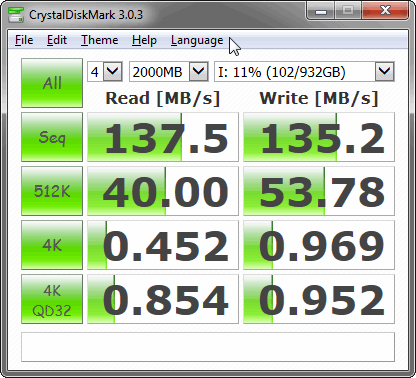
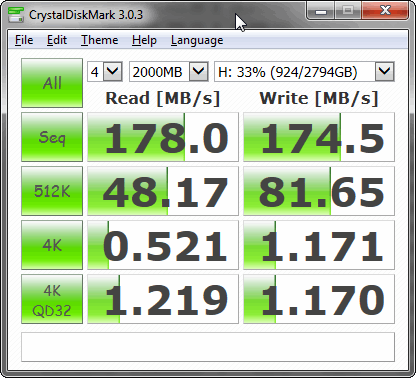
Well, here's my 1TB and 3TB drives benchmarked on a 3Gb/s SATA II connection....

1TB-SATAII.gif
3TB-SATAII.gif


What does yours say with the same parameters (4 & 2000MB) via USB3?
 
Back
Top