

Do these clean ups work?

Cobra

In Memoriam. TPer Emeritus
Admin
Messages
114,434
Name
The real Chris
Edit My Images
No
My computer is running a little slow these days ( W7)
i7 - 2600 @3.4Ghz
8Gb ram
64bit
1Tb HD is about 3/4 full.
I run the disc clean up and de-frag weekly.

I have AVAST pro, that every now and again tells me that they can speed up my PC for £20 / year.
I don't mind paying the 20 quid, if it works, but I'm also wary that it may delete something that it shouldn't (can these "PC performance utility's actually do that? )
Thoughts or suggestions?
TIA :)
Untitled-1.jpg
 
I don't know so much about Windows nowadays but back in the day I avoided these things as messing with the registry (which is where a lot of these programs 'optimise' things - see those junk files) was an incredibly risky thing to do, probably still a valid POV for W7. Basically it is safer to do it yourself by doing things such as looking at the startup program list and disabling those you don't use.

However, it used to be that if you really wanted to speed up your Windows machine the best thing to do is back up your valuable data and do a fresh install.

p.s. defragging the HD used to work wonders too.
 
but back in the day I avoided these things as messing with the registry (which is where a lot of these programs 'optimise' things - see those junk files) was an incredibly risky thing to do, probably still a valid POV for W7.
I really don't know a lot about this stuff at all TBH, but that was my main concern.

However, it used to be that if you really wanted to speed up your Windows machine the best thing to do is back up your valuable data and do a fresh install.
Cheers Ned, That is something I'm trying to avoid TBH, as I really don't like having to go through all that.
Its the same with a new PC, I approach them with trepidation.
( and replace them as little as possible, this one has to be at least 7 years old)
For now though I'll go look at the start up list :thumbs:
 
Grab a copy of Malwarebytes Anti Malware, they have a free version here and save yourself £20, it's well know to be the best at hunting down malware, spyware etc that slow down pc's

I'm always amazed how much cr@p it finds on my pc's :)
 
Grab a copy of Malwarebytes Anti Malware, they have a free version here and save yourself £20, it's well know to be the best at hunting down malware, spyware etc that slow down pc's

I'm always amazed how much cr@p it finds on my pc's :)
Cheers I'll give it a go :thumbs:
 
Give CCleaner a go too, it's free here, i run this and Malwarebytes on mine and i don't really have any problems.
I've got CC thanks anyway :)
 
No Malware according to the malware scan :)

Maybe I just need to beat the hamster harder so it'll run round its wheel faster ?
:D
 
A fresh install may well be the best way to recover a bit of performance. TBH we often have higher expectations of PCs these days, especially if comparing older gear alongside modern kit: My 7YO Macbook core 2 duo machine is painful compared to a 2 YO Dell i7 quad core, even with both machines running SSDs - and the Mac felt amazing when I first put an SSD in after a conventional HDD.
 
I assume PCs with a physical disc still benefit from defragging? (I know SSDs don't need it).

That used to be one of the things that had a great effect on speeding up an older system, especially with an old HD that has lots on it and hasn't been defragged at all.

Essentially it re-orders the HD so that all the info that is related to each other is located together on the disk so that the disc doesn't have to jump about trying to read various bits of related info for the same task. It gets worse in old systems as Windows doesn't reorder things when data is deleted and then just writes new data in the empty spaces even if they are spread all over the place, I would imagine a 7 year old HD is highly fragmented. Or at least that's how it used to be.

edit: Macs do this automatically hence my lack of up to date knowledge.
 
I've got CC thanks anyway :)

Well use it every couple of weeks, it will clean up your PC better than most.

However, it might just be malware, so malwarebytes should help.

Should not be any need to defrag drives manually these days
 
I love malwarebytes:banana:
 
My schedule is a weekly CCleaner, Malwarebytes & Avast scan ... I don't think your £20 would buy you anything more than these can do. :)
 
No Malware according to the malware scan :)

Maybe I just need to beat the hamster harder so it'll run round its wheel faster ?
:D

You're doing well then mate :)

When i setup a new PC, once i've got everything just right i'll make a ghost image and save it externally, it's not the best solution but it means i can quickly get my system back up and running in the event of any problems.

It's easy to do and there are some good free applications to do it.
 
Providing you're not installing and uninstalling a load of rubbish apps all the time your performance really should not degrade to the point of having to regularly use system "cleaners" and especially not reinstall regularly.

I wouldn't even suggest regular defrags these days assuming you're running ntfs file system which is more self maintaining.

I7-2600 is still an extremely capable base and even some of the more modern processors don't come close to being as good bang/buck.

If your machine is not performing as expected it would be best to check what is using the system resources during use.
 
Perhaps increase your RAM to 16GB - I have an i7 machine and it runs fine editing TIFF files at almost 100MB each and 16GB Ram - as Neil said you shouldn't be having problems such as you describe.

I also have a 500GB SSD partitioned to use 60GB for windows 7 and the rest as a work area for my editing.

I also offload any work not being done to an external HDD to keep a lot of space on my i7.
 
I would keep your 1tb hdd as a data disc.

Do a fresh install on a 128gb ssd of Windows and I think you'll notice a performance increase. Half of these registry cleaners slow you down and add their own s***. Not needed.

Some are even malware themselves finding errors that aren't there just to part you from your hard earned.
 
Avast are just after your ££
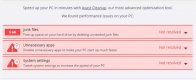
The start-up applications it recommends I remove, happen to be applications I need and use.
The suggested system settings changes, I felt on my machine to be unecessary.
Deleting junk files... just run Windows Disk CleanUp.

Nothing else to add that other people haven't touched on, except to say don't defragment an SSD. SSD's need "trimming" instead -> https://en.wikipedia.org/wiki/TRIM_(SSD_command)
IIRC cloning Win7 from HDD to SSD involved some extra steps to get the OS run a background TRIM rather than a defragmentation. I suspect Win8+ is clever enough, but it's probably worth checking...
 
IIRC cloning Win7 from HDD to SSD involved some extra steps to get the OS run a background TRIM rather than a defragmentation. I suspect Win8+ is clever enough, but it's probably worth checking...
if i remember rightly if you run the Windows Experience test it sees the SSD and sets the options. at least thats what you did on 7.
 
if i remember rightly if you run the Windows Experience test it sees the SSD and sets the options. at least thats what you did on 7.

I think there's a registry value you can check just to ensure it's kicked in. I'm sure some search-engine-fu will give the right answer. It's just something to be aware of at any rate..
 
Don't pay for it. Windows has auto cleaners these days but the best free option I would suggest is search for CCleaner and install the free version. very good in my opinion and has been using it for 7 years now and also make sure you check in the auto disk checker and auto disk fragmentation ON (preferably weekly).


ccleaner has two set of runs.. and you can and choose each one of them under each runs.
1. for all unecessary files
2. for all unnecessary registries.
 
I would imagine a 7 year old HD is highly fragmented.
I have always run that weekly (whether it needs it or not :D )

However, it might just be malware, so malwarebytes should help.
Already run on the suggestion of @Swissy and it can up clean, or negative or whatever .. nothing found.

Providing you're not installing and uninstalling a load of rubbish apps all the time your performance really should not degrade to the point of having to regularly use system "cleaners" and especially not reinstall regularly. .
I don't use apps of any kind ( I don't think) just programmes like office, 2010 CS5, Abode reader, and other useful photo editing software.
If your machine is not performing as expected it would be best to check what is using the system resources during use.
I'm not really sure how to check that, or what to do with the info, once I have it.
But one thing I've noticed when I shut it down, ( not that I do that very often) I get a message something about waiting for task host to shut down?

Perhaps increase your RAM to 16GB - .
Worth a thought :)

Don't pay for it. Windows has auto cleaners these days but the best free option I would suggest is search for CCleaner and install the free version.
As above I already have it and run it about every 10 days.

Thanks for all the suggestions and info guys :thumbs:
 
Have you looked at what is actually runninf in the bacground? Click "Start" and then type resmon in the "Search Programs ..." box then have a look at what is busy, if there are things you don't need try uninstalling them. Things that aren't seen as malware are often left running in the background from old installs. The other thing to have alook at is what automatically starts on boot-up, type msconfig in the "Search Programs ..." box and then look at what is on the Statup tab, again you can turn off anyhting you don't need, just google what is what before turning anything off.
 
Have you looked at what is actually runninf in the bacground? Click "Start" and then type resmon in the "Search Programs ...
Did that and it seems there is a lot of stuff running, but it all means nothing to me, save that at the top the numbers fluctuate between 8-12% usage of the CPU.

The other thing to have alook at is what automatically starts on boot-up, type msconfig in the "Search Programs ..." box and then look at what is on the Statup tab, again you can turn off anyhting you don't need, just google what is what before turning anything off.
Cheers Chris, I did that before and all that's running at start up is AVAST & CC Cleaner and two microsoft programmes, HKLM software &HKCU software, ( no idea what these are)
but TBH I rarely turn off the PC, I just put it to sleep.
 
When the machine is idle, what is using CPU? A clean install will be like 0-1% utilised, unless the Windows Update Service is getting busy.
 
When the machine is idle, what is using CPU? A clean install will be like 0-1% utilised, unless the Windows Update Service is getting busy.
Even when I close everything there is a whole list of names up there that mean absolutely nothing to me,
but its saying its using, fluctuating, between 1-2%
 
If you give me £15 I'll tell you how to clean it up :)
 
I have just cleaned something like 500GB from my 1TB C: drive using the info explained here http://www.howtogeek.com/125923/7-ways-to-free-up-hard-disk-space-on-windows/.

Most of the amount was caused by System Restore files that had accumulated since the PC was new some 4 years ago. If you do a System Restore before you follow the procedure then that newest one will not be removed when the others are deleted.
 
run msconfig, look at whats running at startup - you'll find all sorts of updaters etc that you don't need. Just disable them.
 
run msconfig, look at whats running at startup - you'll find all sorts of updaters etc that you don't need. Just disable them.
As above, already done and
all that's running at start up is AVAST & CC Cleaner and two microsoft programmes, HKLM software &HKCU software,
I have just cleaned something like 500GB from my 1TB C: drive using the info explained here http://www.howtogeek.com/125923/7-ways-to-free-up-hard-disk-space-on-windows/.
Thanks I'll have a read through.

I would offload everything you want to keep onto an external HDD then reinstall Windows.
As above, I'm trying to avoid that, I hate reinstalling programmes, recovering emails and other stuff.
So I'll save that one as an absolute last resort :)
 
I would suggest that those HKLM and HKCU entries refer to registry entries that no longer exist and therefore can't display their proper names. I would have thought CCleaner would have picked up on that. I also wouldn't have CC Cleaner running in the background personally. Can't see a reason for it.
 
I also wouldn't have CC Cleaner running in the background personally. Can't see a reason for it.
Gone :)
both HKLM and HKCU say
Microsoft\windows\current version\run
 
I don't use apps of any kind ( I don't think) just programmes like office, 2010 CS5, Abode reader, and other useful photo editing software.

(y)

Sure you do - app is short for application = program. :)

But if you don't install and uninstall programs frequently (or indeed ever once these are installed) then you shouldn't have orphaned bits of applications cluttering up the drive & the registry etc.
 
Sure you do - app is short for application = program. :)
I do wish some people would speak English :D

But if you don't install and uninstall programs frequently (or indeed ever once these are installed) then you shouldn't have orphaned bits of applications cluttering up the drive & the registry etc.
Cheers, that's pretty much how I do things, install and leave.
Not that I have installed anything in a long time, save the afore mentioned malwarebytes.

And what is the value in the run field?
Not sure where that is?
 
Not sure where that is?

I suspect they are programs which a running because of a registry entry under HK(LM|CU)\Software\Microsoft\Windows\CurrentVersion\Run
If you download and run SysInternal ProcessExplorer it might give a little more information about those running processes - http://live.sysinternal.com/procexp.exe

https://technet.microsoft.com/en-us/sysinternals/processexplorer.aspx

Just hovering over the name of a running program shows a tooltip with the full command line of the running process. You may need to run it as an administrator to show all the details about all running processes.
 
Back
Top