
and help to keep the site free for all
You are using an out of date browser. It may not display this or other websites correctly.
You should upgrade or use an alternative browser.
You should upgrade or use an alternative browser.
Tutorial Contrast Masking - an HDR alternative,
- Thread starter HIMUPNORTH
- Start date

- Messages
- 18,976
- Name
- Matt Sayle
- Edit My Images
- Yes
I figured it out thanks for the help!

- Messages
- 25,725
- Name
- Yvonne, pronounced Eve...
- Edit My Images
- Yes
Doesn't seem to work or me. It al seems very dark. or very grey. where am i going wrong?
I have the invert filter as first layer
then b and W
Then orginal colour.
is that right?
Creat duplicate layer > ctrl and J
then Image menu > adjustments > invert
then on the layers panel on right, drop down box that by default says 'normal' and change it to overlay
then Filter menu, gaussian blur - for a full res image you should set this to about 80 pixels on the slider - but play around for best setting for each image
then go back to the layers panel and use opacity slider to adjust the level of the effect to a position you like
then Layers menu - flatten image
OP

HIMUPNORTH
Suspended / Banned
- Messages
- 5,178
- Name
- Gary
- Edit My Images
- Yes
You select the inverted layer Matt and change this to an overlay layer. HTH! 
EDIT: Oops, missed replies (working of email notification - must wake up! )
)
EDIT: Oops, missed replies (working of email notification - must wake up!
)

photon
Suspended / Banned
- Messages
- 5,123
- Edit My Images
- Yes
A contrast masking script for Paint Shop Pro (not tried beyond v9):
http://pixelnook.home.comcast.net/~pixelnook/FotoFixer.htm
I usually edit it to drop the layer opacity to 40.
http://pixelnook.home.comcast.net/~pixelnook/FotoFixer.htm
I usually edit it to drop the layer opacity to 40.


smithphoto
Suspended / Banned
- Messages
- 336
- Name
- Neil Smith
- Edit My Images
- No
Thanks for the tip Gary. I've never been fully convinced about HDR, but you're technique looks great. I will give it a go once I can get out with my camera!
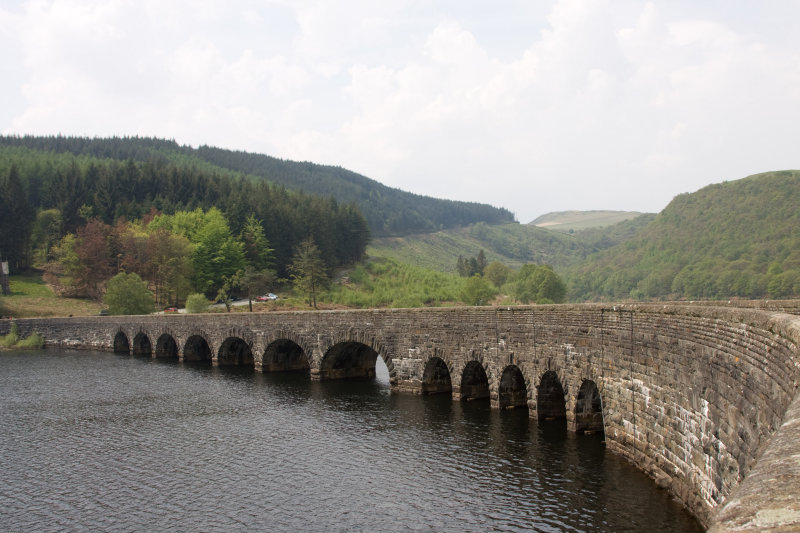
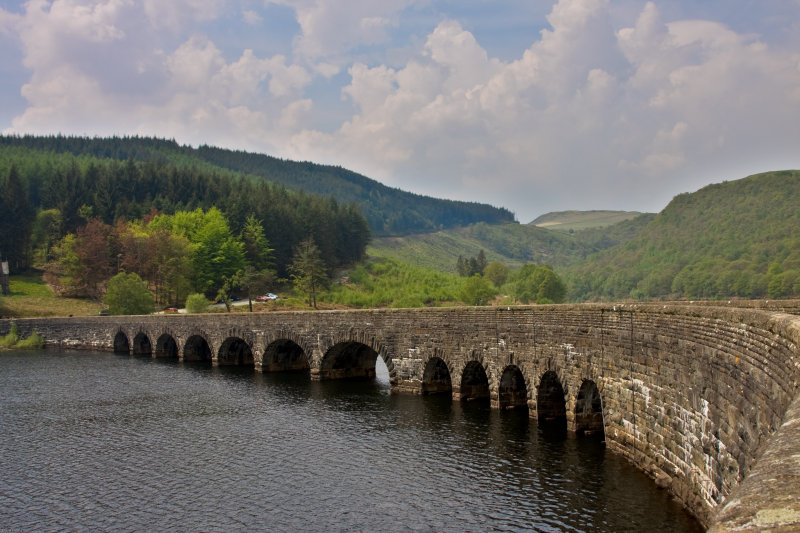

natjag
Suspended / Banned
- Messages
- 2,498
- Name
- Nathan Hulse
- Edit My Images
- Yes
I like this, after someone else posted a picture which used this technique and credite the thread. As just mentioned, need to watch for halo effects (depends on amount used in gaussian blur).
Now, as a new CS3 user, how do you save this as an action.
Now, as a new CS3 user, how do you save this as an action.
OP
HIMUPNORTH
Suspended / Banned
- Messages
- 5,178
- Name
- Gary
- Edit My Images
- Yes
I simply went through all of the process except the gaussian blur bit and saved that as an action. In practice I very nearly always use 250pixels then reduce opacity of layer.Now, as a new CS3 user, how do you save this as an action.
HTH.


- Messages
- 7,450
- Name
- Andy!
- Edit My Images
- Yes
Nice one, works very well indeed.
Grateful to you for taking the time to post.
Grateful to you for taking the time to post.
- Messages
- 7,450
- Name
- Andy!
- Edit My Images
- Yes
Here's my attempt:
Original:

Adjusted:

 this technique!
Original:
Adjusted:
this technique!
yourapocalypse
Suspended / Banned
- Messages
- 889
- Name
- Spike
- Edit My Images
- Yes
I have a large collection of photos that might just have their bacon saved by this technique.


gman
Suspended / Banned
- Messages
- 11,100
- Name
- Graham
- Edit My Images
- Yes
Am I reading this correctly in that you only need one source image because you are duplicating the layer? If so then I think this is a great tip as although I quite like HDR, it's not really ideal if there's movement in the frame, whereas this method overcomes this. Is this right?


Trev Rich
Suspended / Banned
- Messages
- 3,836
- Name
- Trev
- Edit My Images
- Yes
This is a great post. Have used this and am impressed. I have set it as an action, but .......................
Once you have completed the action can you amend it? I ask as some photos need different opacity and blur.
yes.. in the actions.. theres a box to the left of each bit.. click the ones that you want control over.

Craig2008
Suspended / Banned
- Messages
- 1,092
- Name
- Craig Thomas
- Edit My Images
- Yes
Many thanks for posting this really useful technique, just tried it out on an image i got completely wrong while in Rome :bang:, not a very good picture at all, just one inside one of the churches there
Before

After


Craig
Before
After
Craig

- Messages
- 7,299
- Name
- mark
- Edit My Images
- Yes
wow craig...what a difference


Pirate Neilsouth
Suspended / Banned
- Messages
- 4,379
- Edit My Images
- Yes
Creat duplicate layer > ctrl and J
then Image menu > adjustments > invert
then on the layers panel on right, drop down box that by default says 'normal' and change it to overlay
then Filter menu, gaussian blur - for a full res image you should set this to about 80 pixels on the slider - but play around for best setting for each image
then go back to the layers panel and use opacity slider to adjust the level of the effect to a position you like
then Layers menu - flatten image
I have Corel Paint Shop Pro Photo X2 and i don't have Image menu - Adjustments - Invert...
Ok i think its IMAGE MENU - MIRROR ?
Last edited:

Pirate Neilsouth
Suspended / Banned
- Messages
- 4,379
- Edit My Images
- Yes
Hmmm looks like arse on my images , can we have a STEP BY STEP with
Corel Paint Shop Pro Photo X2 please
Corel Paint Shop Pro Photo X2 please

- Messages
- 11,048
- Name
- Adam
- Edit My Images
- Yes
I used to use corel draw Neil, I'm sure it did something similar.. can't remember what it was though, maybe, make 'negative' or transparency/inverted..


the ghost
Suspended / Banned
- Messages
- 1,912
- Name
- paul rogers
- Edit My Images
- Yes
Hmmm looks like arse on my images , can we have a STEP BY STEP with
Corel Paint Shop Pro Photo X2 please
yeah can we have a step by step guide
i tried it but done something wrong I know it me but what did i not do
photon
Suspended / Banned
- Messages
- 5,123
- Edit My Images
- Yes
Did you see: http://www.talkphotography.co.uk/forums/showpost.php?p=658245&postcount=47
There are freeware plugins available also, but I've not tried any.
There are freeware plugins available also, but I've not tried any.
Last edited:

tracybradbury
Suspended / Banned
- Messages
- 908
- Name
- Tracy
- Edit My Images
- No
I have Photoshop and there is a Plug In for it to make the HDR effect and it works quite well and is a LOT quicker than trying to do it stage by stage
Its called ReDynaMix HDR and can be found on www.mediachance.com.
Hope that might help someone
Tracy.
Its called ReDynaMix HDR and can be found on www.mediachance.com.
Hope that might help someone
Tracy.


Hammerhead64
Suspended / Banned
- Messages
- 726
- Name
- Paul
- Edit My Images
- Yes
*** a top tip ..... thx for sharing it works a treat.