
and the site receives a small commission
You are using an out of date browser. It may not display this or other websites correctly.
You should upgrade or use an alternative browser.
You should upgrade or use an alternative browser.
Tutorial Contrast Masking - an HDR alternative,
- Thread starter HIMUPNORTH
- Start date
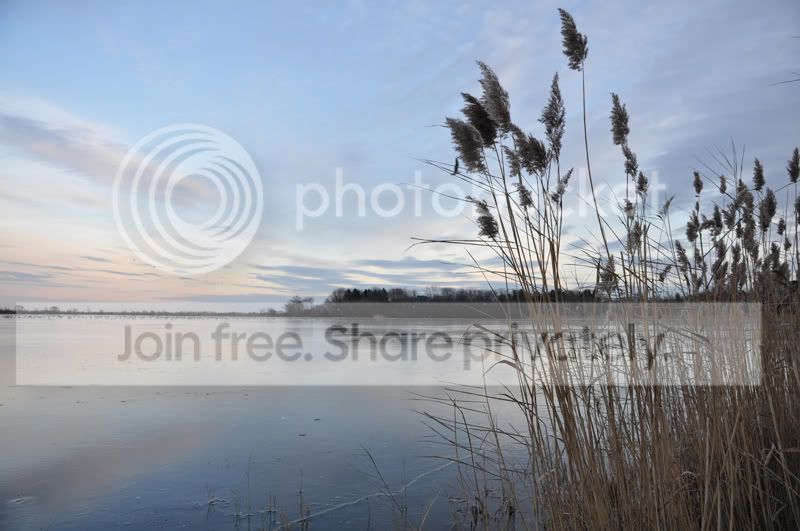
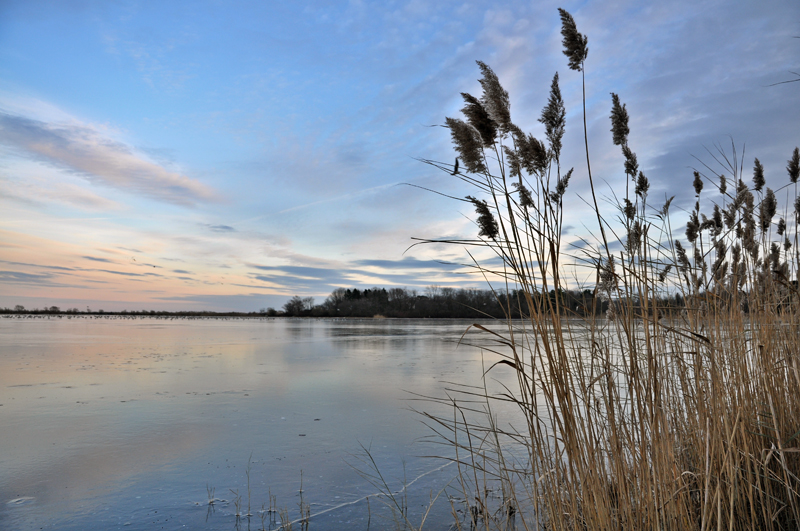


doozie
Suspended / Banned
- Messages
- 204
- Edit My Images
- Yes
Is there any step by step tutorials i can use?
Step by step is at the start of the thread. Go to page #1.

- Messages
- 7,299
- Name
- mark
- Edit My Images
- Yes
here you go andiphoto....
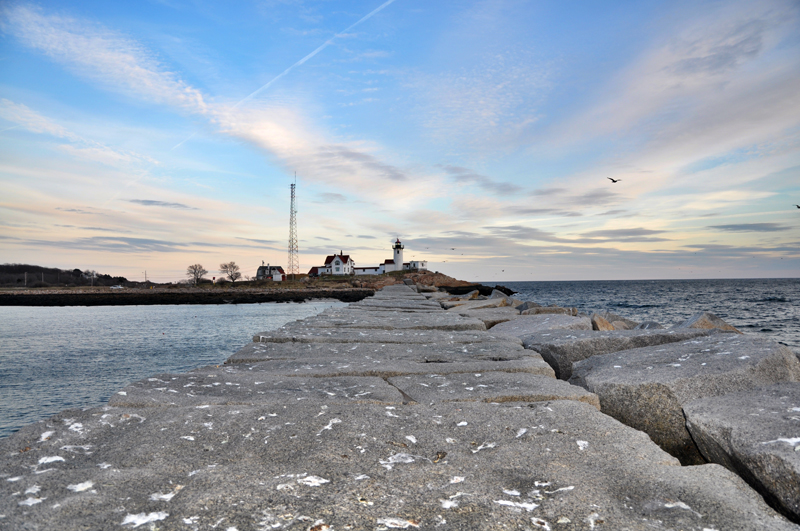
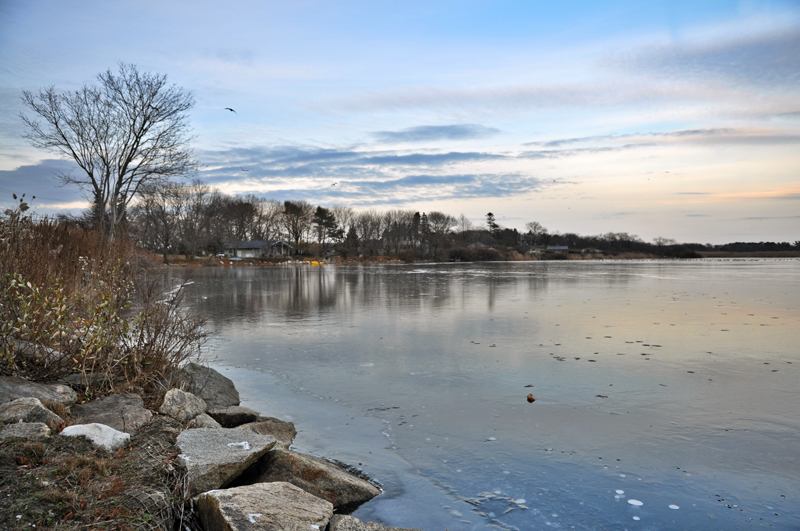
Assuming you are using photoshop what to do is
create a duplicate layer and then desaturate this copied layer.
Invert this desaturated layer to give a black & white negative of the background image.
Change layer mode to Overlay.
Apply a Gaussian Blur Filter to this layer. The level applied will depend on the size of the image. I used about 80 for this image but you will need to experiment.
The opacity of the layer should be altered to get the desired lighting effect.
Once done you can apply any curves, levels, other adjustments as you see fit to get the image to where you saw it. In my case I used a masked multiply layer and hue saturation layer.
Assuming you are using photoshop what to do is
create a duplicate layer and then desaturate this copied layer.
Invert this desaturated layer to give a black & white negative of the background image.
Change layer mode to Overlay.
Apply a Gaussian Blur Filter to this layer. The level applied will depend on the size of the image. I used about 80 for this image but you will need to experiment.
The opacity of the layer should be altered to get the desired lighting effect.
Once done you can apply any curves, levels, other adjustments as you see fit to get the image to where you saw it. In my case I used a masked multiply layer and hue saturation layer.

hiddybiddy
Suspended / Banned
- Messages
- 679
- Name
- STEVE WINN
- Edit My Images
- Yes
Ooo yeah I like that. Here is one I did earlier. I know it is haloed but it fits the subject quite well I think.


Very phalic!


CaptainPenguin
Suspended / Banned
- Messages
- 5,161
- Name
- Nigel Cliff
- Edit My Images
- Yes
Looks really useful not for every shot but its saved as an action so I dont forget
Been having a play this morning and on the right type of shot its just brilliant,no excuse for not getting the exposure right in the first place but this technique can add so much sparkle to the right type of shot
However on this one there is a halo effect around the chimney,any idea what causes it
 [/IMG]
Been having a play this morning and on the right type of shot its just brilliant,no excuse for not getting the exposure right in the first place but this technique can add so much sparkle to the right type of shot
However on this one there is a halo effect around the chimney,any idea what causes it
Last edited:
OP

HIMUPNORTH
Suspended / Banned
- Messages
- 5,178
- Name
- Gary
- Edit My Images
- Yes
Looks really useful not for every shot but its saved as an action so I dont forget
Been having a play this morning and on the right type of shot its just brilliant,no excuse for not getting the exposure right in the first place but this technique can add so much sparkle to the right type of shot
However on this one there is a halo effect around the chimney,any idea what causes it
Glad you are finding this technique useful.
Don't forget that this is a contrast mask therefore the differences are going to be more noticeable near an edge.
The mask is a "blurred" inverted negative so it is going to have most difficulty near edges which are dark/light. To remedy simply apply a layer mask and with a low opacity paint over the halo area until it matches the sky tone. Use a soft edge and do not worry about going over the building a little as it will be less noticeable than the halo effect.


psybear
Suspended / Banned
- Messages
- 1,895
- Name
- Brian
- Edit My Images
- No
Glad you are finding this technique useful.
Don't forget that this is a contrast mask therefore the differences are going to be more noticeable near an edge.
The mask is a "blurred" inverted negative so it is going to have most difficulty near edges which are dark/light. To remedy simply apply a layer mask and with a low opacity paint over the halo area until it matches the sky tone. Use a soft edge and do not worry about going over the building a little as it will be less noticeable than the halo effect.
I know you said 'simply' but could you possibly break this down further for PS numpties like me?
Thanks.


- Messages
- 7,450
- Name
- Andy!
- Edit My Images
- Yes
Fantastic work guys.
I've been using this for quite a while, and very frequently!
Without a doubt, the best editing technique I've learnt yet
I've been using this for quite a while, and very frequently!
Without a doubt, the best editing technique I've learnt yet
Dangerous_Dave
Suspended / Banned
- Messages
- 128
- Name
- Dave
- Edit My Images
- No
I tend to use this technique a lot, thanks very much for this tutorial.
Here here. John (jgs) posted a link to this on our Astro forum a while back and I have been using it for my daytime shots ever since. Great tip.
rasmusrok1
Suspended / Banned
- Messages
- 632
- Name
- Jonny
- Edit My Images
- Yes
Thanks a lot for the heads up its a great technique very simple and effective!

horrocks
Suspended / Banned
- Messages
- 2,536
- Name
- Toby
- Edit My Images
- No
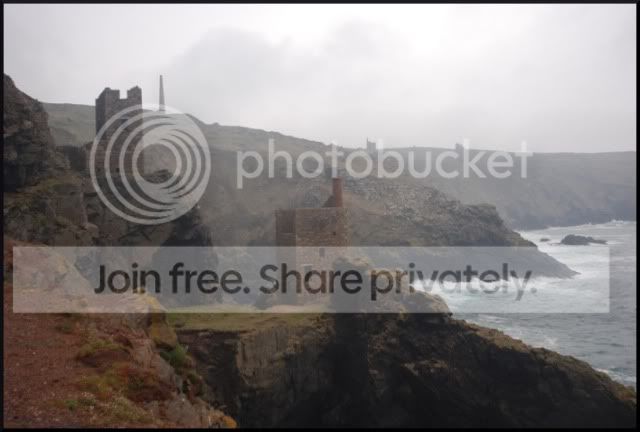
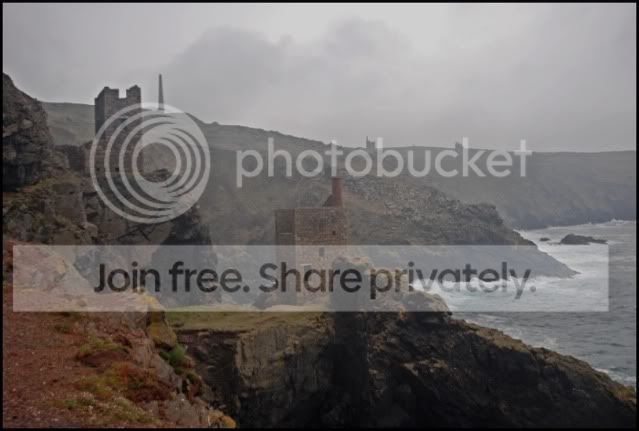
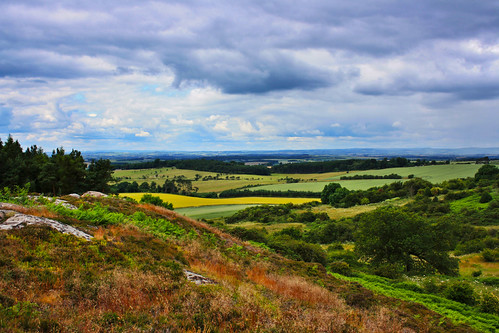
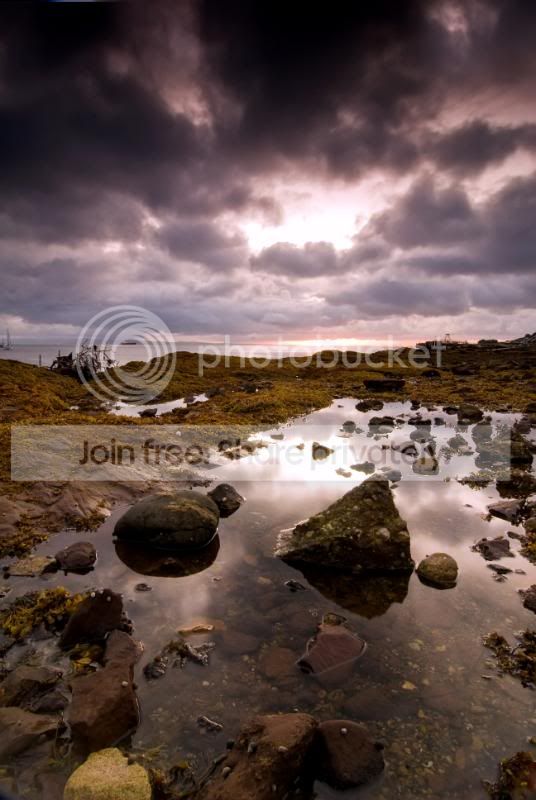
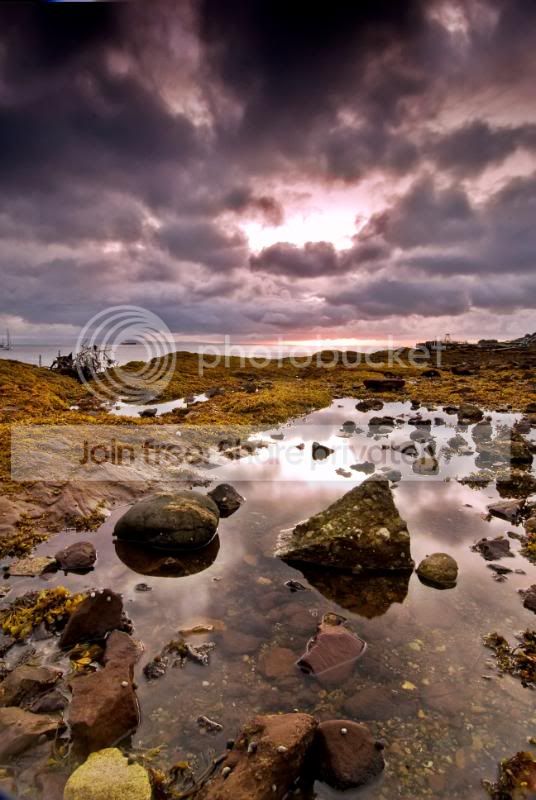
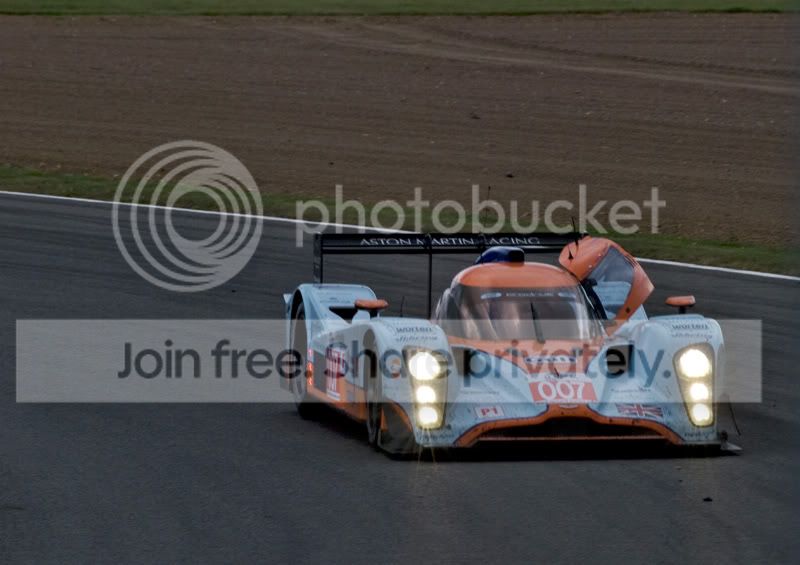
I have struggled with this. The first is from the camera. As you can see, the natural light was pretty desaturated and quite flat, but there is some drama in the contrast beween the foreground and the distance. The problems with the original related to loss of detail in the foreground shadow, and a washed out sky. Whilst I have gained some of the missing shadow detail, the sky has both darkened but flattenened. I need those 'whites' back. I am using GIMP.
Help......! Any thoughts?
Help......! Any thoughts?





xoutofstepx
Suspended / Banned
- Messages
- 37
- Name
- Dan
- Edit My Images
- No
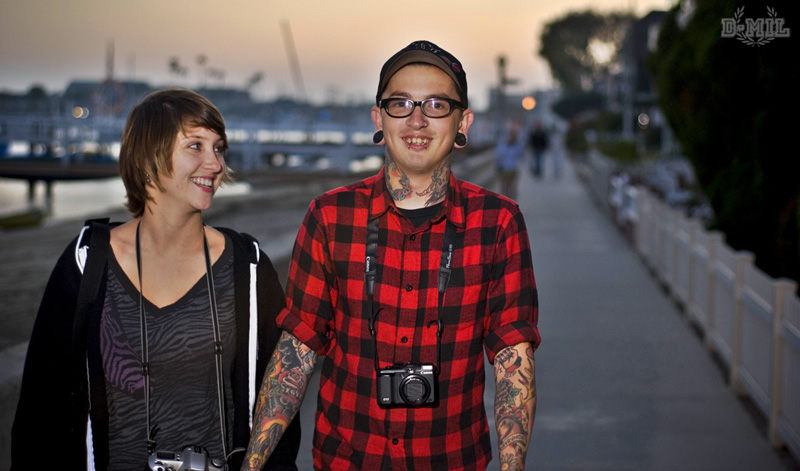
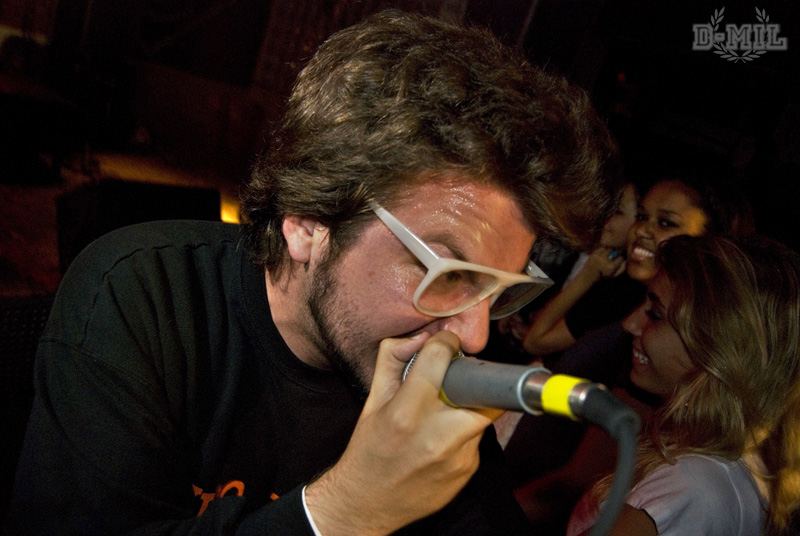
I was bored, so I used this on a few photos. Thanks for the tutorial!
Before:
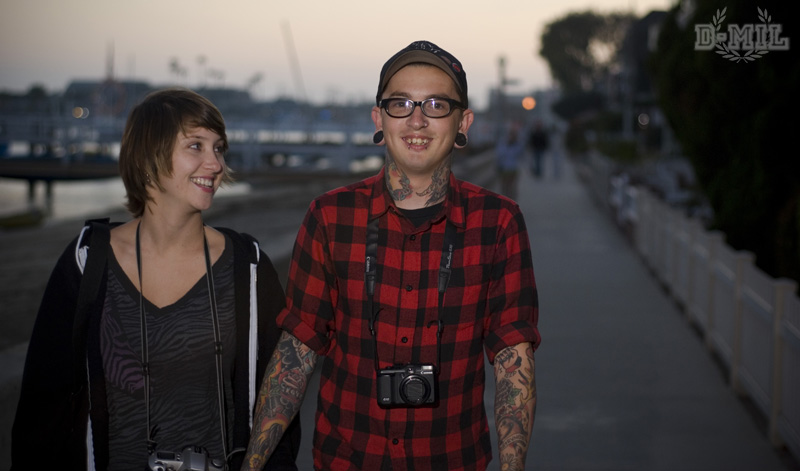
After:
Before:
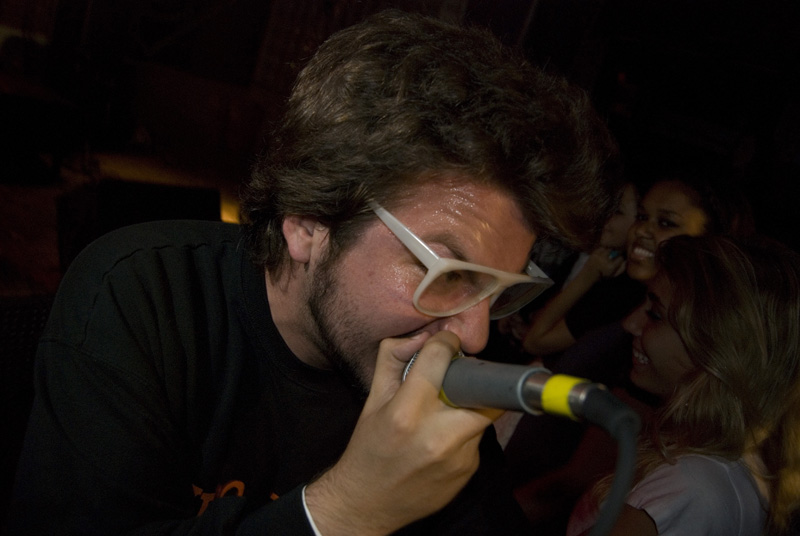
After:
Before:
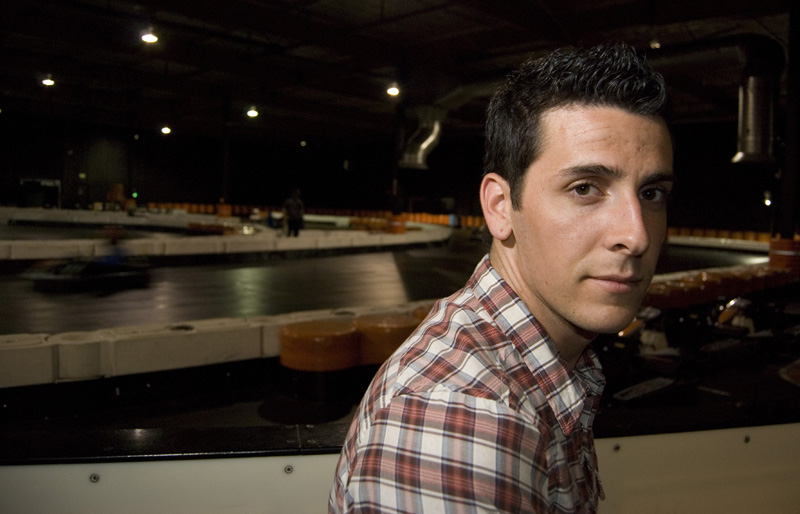
After:
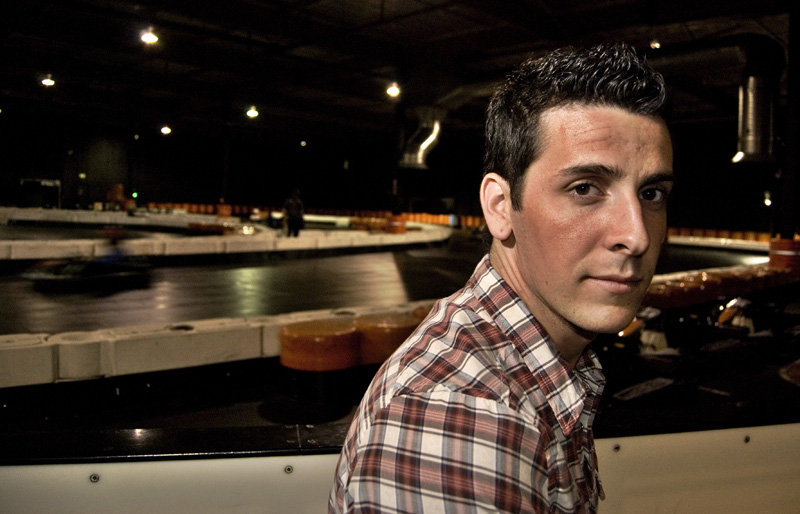
Before:
After:
Before:
After:
Before:
After:
xoutofstepx
Suspended / Banned
- Messages
- 37
- Name
- Dan
- Edit My Images
- No
Before:
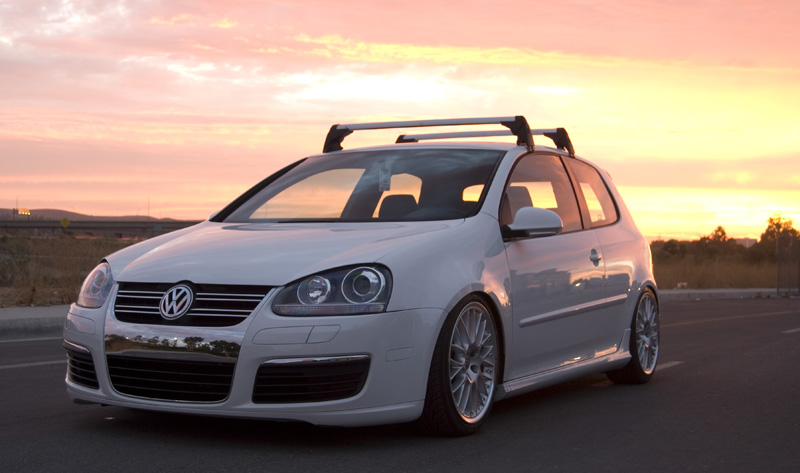
After:
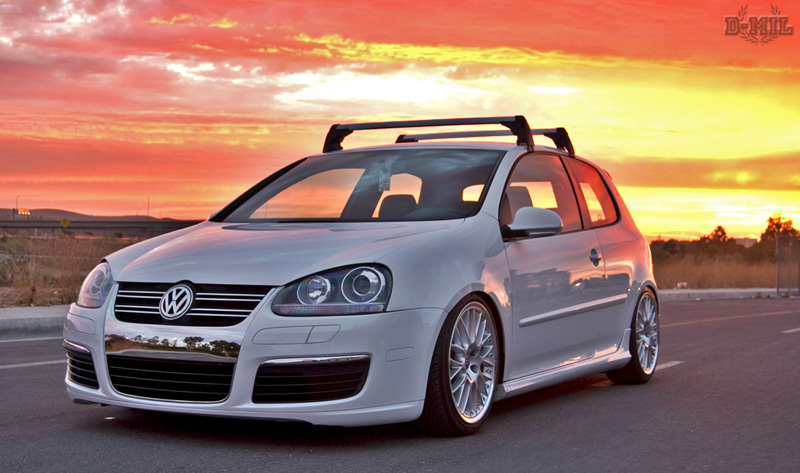
After #2:
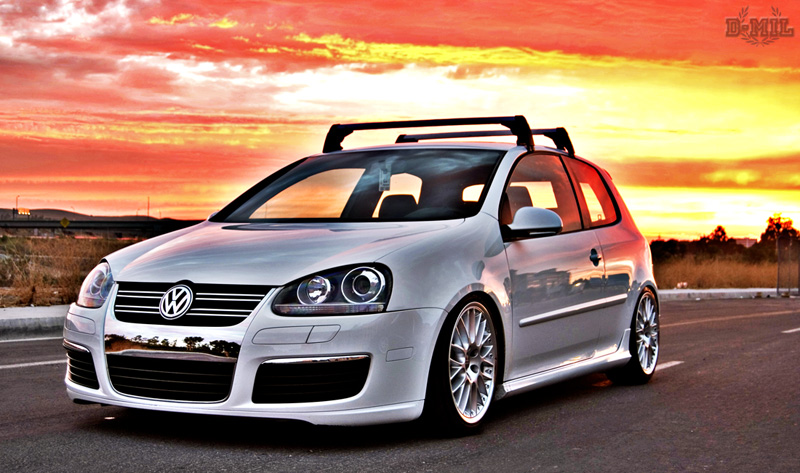
After:
After #2:

Pirate Neilsouth
Suspended / Banned
- Messages
- 4,379
- Edit My Images
- Yes
Some fantastic halo's aswell
*grin*
*grin*

upperoilcan
Suspended / Banned
- Messages
- 94
- Name
- Graham
- Edit My Images
- Yes
Great result's on some of these pics,would anyone care to put up some instructions for the same affect using Elements 7 ?.......as im new to processing and would love a go at something like this....many thanks.
upperoilcan
Suspended / Banned
- Messages
- 94
- Name
- Graham
- Edit My Images
- Yes
create a duplicate layer and then desaturate this copied layer.
Invert this desaturated layer to give a black & white negative of the background image.
Change layer mode to Overlay.
Apply a Gaussian Blur Filter to this layer.
HELP ! hi, i can get this far on my images but cannot seem to get the colour back into them...ie they are staying black n white.....im using Elements 7 so how do i get the colour back to the converted image ????????
Any help will be a blessing........many thanks.
Invert this desaturated layer to give a black & white negative of the background image.
Change layer mode to Overlay.
Apply a Gaussian Blur Filter to this layer.
HELP ! hi, i can get this far on my images but cannot seem to get the colour back into them...ie they are staying black n white.....im using Elements 7 so how do i get the colour back to the converted image ????????
Any help will be a blessing........many thanks.

B_M
Suspended / Banned
- Messages
- 199
- Name
- Brian
- Edit My Images
- Yes
Last edited:
upperoilcan
Suspended / Banned
- Messages
- 94
- Name
- Graham
- Edit My Images
- Yes
Thanks for the reply,but the link no longer works........

DigitalRelish
Suspended / Banned
- Messages
- 2,240
- Name
- Will
- Edit My Images
- Yes
Thanks for the reply,but the link no longer works........
The posted link was deformed.
Here it is again - http://www.petercox.ie/tutorials/contrast_mask.php
upperoilcan
Suspended / Banned
- Messages
- 94
- Name
- Graham
- Edit My Images
- Yes
BRILLIANT ! i have now found where i was going wrong........:bang:
Thanks for the head's up........
Thanks for the head's up........
B_M
Suspended / Banned
- Messages
- 199
- Name
- Brian
- Edit My Images
- Yes
Thanks for the reply,but the link no longer works........
Thanks for pointing that out. I have corrected the URL.

TheThistle
Suspended / Banned
- Messages
- 1,556
- Name
- Graham
- Edit My Images
- Yes
Thanks Gary,
had a play tonight and it really works "amazing" thank you for sharing
________
Graham
had a play tonight and it really works "amazing" thank you for sharing
________
Graham


FreeloaderJoe
Suspended / Banned
- Messages
- 510
- Name
- Joe
- Edit My Images
- Yes
Thanks. I'm also pleased with this tip.


