combining two images

portugaled

Suspended / Banned
Messages
18
Name
steve
Edit My Images
Yes
Could someone please put me on the right path.
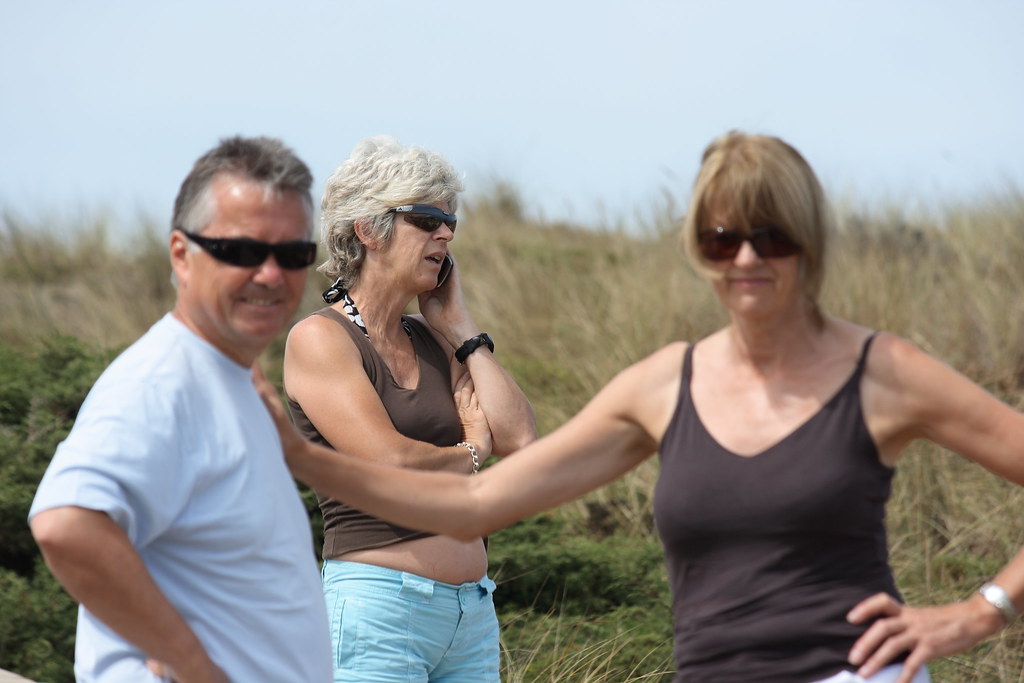
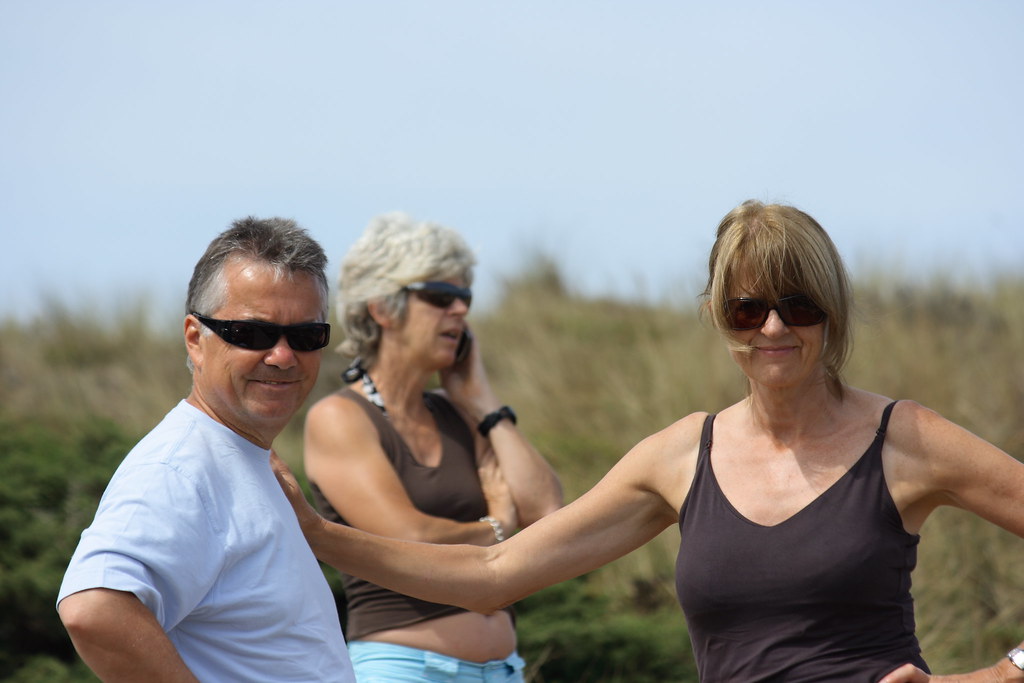
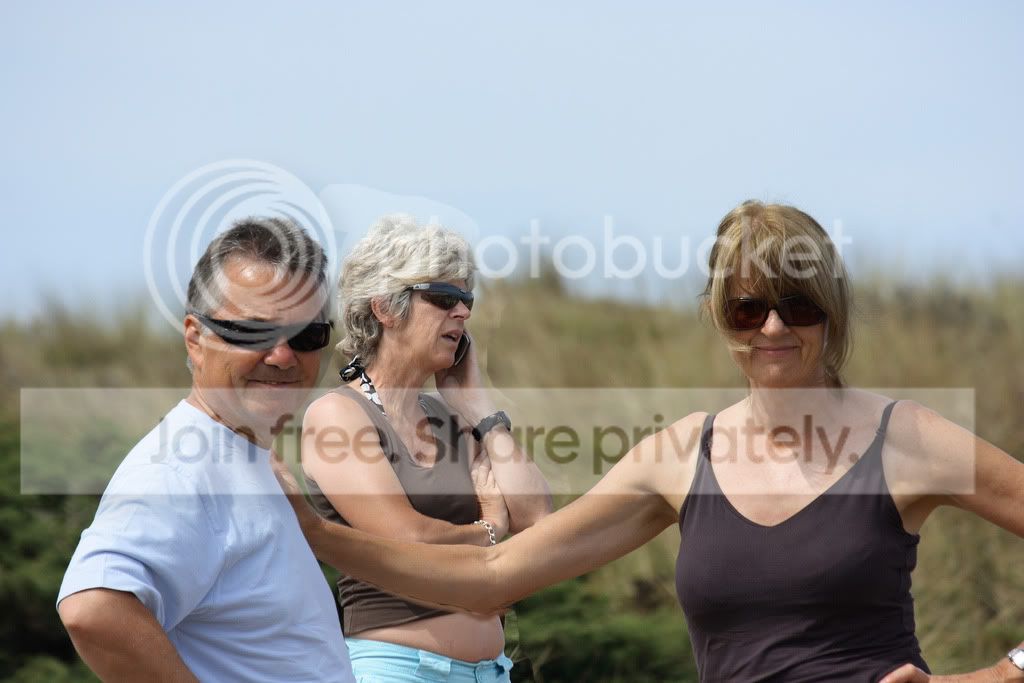
I have two images with the same three people on them. In one the two in the foreground are in focus, the third in the background is out of focus. The second image is a reverse of this. i would like to combine the two so all three are in focus. As a beginer to editing I've played around with masks and various other techniques and watched some tutorials. This exercise would make a good practice session for me.
Your guidance would be appriciated.

Steve
 
What software do you have? I would use layer masks in photoshop, simply place one layer on the other, add a layer mask to the top image and (depending on mask) either paint in or paint out the bits needed.
 
using a mask is best but you could try copying one image and pasting onto the other then use history brush or the eraser and erase what isn't needed in the photo after it's pasted...
 
Nope. Not going to well. I'll show you the images, I've a bit more to learn but maybe someone could give me a hint.

I've tried copying and pasting but could not align the two acurately, I've selected and edited but cant paste, also when i have two images how do i merge the layers, with i move from one image to another the background layer disappears. Although i'm probably missing something quite basic I really don't want my headache to get worse:bonk:

4998231597_8ccb2b95f9_b.jpg


4998191451_76a6601cc1_b.jpg


Steve
 
OK, I've had a quick play, and this is a very very rough effort, but it also shows some of the work that you need to do:

312dcb40.jpg


This is based on PS, and I'm afraid that I don't know the equivalents in PSP, so you will have to work out the translation!!

Method:

Open both images files in PS
Create a new layer on one image
Paste the other image onto that layer
Drop opacity down to 25% on the top layer and the realign the two so that they match (a touch of rotation is needed as well).
Create a layer mask on one the top layer (easier to do with the background character OOF).
Mask out the OOF character.

The masking in this case is very rough, but deliberately so, because it shows that the two images have slightly different exposure levels.

You will either need to darken the image with the background figure in focus, or lighten the foreground ones, otherwise it will look 'shopped'.

The haze under the foreground elbow is where the alignment of the images is slightly off, as I didn't bother with the rotation needed in this case.

Hope that helps and makes sense! :D
 
It's do-able, but you need to do some fiddling around in order to minimise the amount of cloning out you need to do:

merged.jpg


As the lady on the phone involves the least work, I copied her on to the other photo.

I then rotated and stretched a bit to get the best possible fit with the other image.

Then it's down to cloning out the bits you don't want. I used a small brush and kept opacity at 60% or so.

The above was done very quickly, so with a bit more patience you could achieve a good enough version.
 
gq6RL.jpg


Bear in mind thats the first time I've done anything like that, so if it sucks... bite me:lol:
 
None of those suck, it's given me a bit of a push to have another go.
Thanks for you efforts, i'll try and get my effort up in a while.
 
Back
Top