Colour correction in Affinity

LCPete

Suspended / Banned
Messages
9,785
Edit My Images
Yes
Afternoon everyone can some explain how to do colour corrections for black, white and grey in Affinity please ?
In photoshop find the black , white and grey points in the image in the following way
I use threshold then move the slider to the left for black , threshold slider to the right for white
For the grey point new layer 50% grey, change blend mode to difference then threshold slider to the left
Then mark the points and correct using black white and grey dropper in curves

Is there a way of doing the same thing in Affinity?
 
Last edited:
Is it this you are looking for Pete?
With an open image, go to adjustments, and the click the default thumbnail,
to get the adjustment box to open


Untitled-1.jpg
 
Is it this you are looking for Pete?
With an open image, go to adjustments, and the click the default thumbnail,
to get the adjustment box to open


View attachment 322794

Thanks Chris that’s it :) I’m so used to the layout in photoshop that I’ve still been going back into an old version of photoshop just to do colour corrections will have a go at that
 
Would it be here Pete?

Thanks I couldn’t see anything specifically for colour corrections but Chris has shown me what I need but will watch a couple of the videos anyway will most likely learn from it anyway :)
 
Interesting PS methodology; nothing I've ever heard of before, and I do not believe that there is similar in Affinity Photo.

But, your technique finds what is currently darkest/lightest (and mid gray) in the image; which is fine. But that is not the same thing as identifying what should be pure black, pure white, or even 50% grey (or if anything actually should be)... and to a very large extent, that is a creative choice more than there being a technically correct setting.
 
Thanks Chris that’s it :) I’m so used to the layout in photoshop that I’ve still been going back into an old version of photoshop just to do colour corrections will have a go at that
Affinity has the same ability to show the regions of the image that are black/white while moving the sliders (hold alt key) as Adobe does. But it does not have any of the preset (w/b/g) pickers/setters; at least not that I can find anywhere.
 
Interesting PS methodology; nothing I've ever heard of before, and I do not believe that there is similar in Affinity Photo.

But, your technique finds what is currently darkest/lightest (and mid gray) in the image; which is fine. But that is not the same thing as identifying what should be pure black, pure white, or even 50% grey (or if anything actually should be)... and to a very large extent, that is a creative choice more than there being a technically correct setting.

Ahh I see thanks Steven I hadn’t realised that but I see what you mean that does make sense
So I should be correcting the image as a creative choice to what looks right
 
Last edited:
Affinity has the same ability to show the regions of the image that are black/white while moving the sliders (hold alt key) as Adobe does. But it does not have any of the preset (w/b/g) pickers/setters; at least not that I can find anywhere.
Thanks that’s useful to know
 
But it does not have any of the preset (w/b/g) pickers/setters; at least not that I can find anywhere.
Not that I have found either, but its not something I use anyway.
 
Ahh I see thanks Steven I hadn’t realised that but I see what you mean that does make sense
So I should be correcting the image as a creative choice to what looks right
Yes, I would say so...
If you have a pure specular reflection on chrome; that should probably be pure white, or a black robe/tire in shadow should probably be pure black. But actually pure at either end is rare in nature... and "creativity/art" should almost always prevail regardless.
 
Last edited:
Not that I have found either, but its not something I use anyway.
*If* an image has things that should be pure white/black (or very nearly, such as a specular catchlight), then those samplers in Adobe can do a very good job of correcting white balance to "true colors;" especially if an image has things that should be both pure black and pure white...
The counter to that is that you might not want true colors, preferring "natural colors" instead (i.e. showing the warmth of sunset glow).

One thing though... the Adobe samplers are not dependent on monitor calibration/brightness/lighting. But setting exposure/colors by eye is VERY dependent on monitor calibration/brightness/ambient lighting.
 
Last edited:
*If* an image has things that should be pure white/black (or very nearly, such as a specular catchlight), then those samplers in Adobe can do a very good job of correcting white balance to "true colors;" especially if an image has things that should be both pure black and pure white...
The counter to that is that you might not want true colors, preferring "natural colors" instead (i.e. showing the warmth of sunset glow).

One thing though... the Adobe samplers are not dependent on monitor calibration/brightness/lighting. But setting exposure/colors by eye is VERY dependent on monitor calibration/brightness/ambient lighting.

Thanks yes that’s partly why was using the adobe samplers in case my monitor or lighting was off , I’ve has issues with this in the past ( I do calibrate now ) but I’ve learned to save the original raw files in case I have to re edit an image
 
Thanks yes that’s partly why was using the adobe samplers in case my monitor or lighting was off , I’ve has issues with this in the past ( I do calibrate now ) but I’ve learned to save the original raw files in case I have to re edit an image
I often use them for the same reason, even if only as "a sanity check"... I don't currently have great control over my editing environment/lighting. But if I didn't have them available I would be OK I think.
 
*If* an image has things that should be pure white/black (or very nearly, such as a specular catchlight), then those samplers in Adobe can do a very good job of correcting white balance to "true colors;" especially if an image has things that should be both pure black and pure white...
As I mostly shoot live stuff, there is never a solid black or a pure white on fur even things that might look black from a distance are usually very dark brown, in reality.
Pure white usually means the highlights are blown, on the slightly off white patches.
So hence me saying I never use it.

ACR is a far better tool for this IMO.
 
ACR is a far better tool for this IMO.
ACR/Lightroom does not have the same capability to correct WB to the same degree/in the same way and show you what the true colors are, so IDKW you would say ACR is better... IMO, the single "select something neutral" dropper for WB correction commonly available (as in ACR) is much more variable/unreliable, and much more dependent on calibration.

I can often use the technique effectively on living things (e.g. using a catchlight and pupil). And it doesn't have to be something that is actually pure white/black, but rather something that should record/display as pure white/black if uncontaminated (e.g. clipped reflections/very deep shadows w/o WB shift). That said, it is still primarily subjective and a creative choice...
 
Last edited:
I can often use the technique effectively on living things (e.g. using a catchlight and pupil).
I'm talking the whole thing not just part of an animal, and yes I have tried in the the past and it makes a right mess ...

IDKW you would say ACR is better... IMO,
An ACR hater, that's very unusual TBH.
Most people think its the god of processing, I use it when applicable. And its not always the case.
 
Just to add though, there are 100's of editing programs out there, many with slightly different tools,
and many different ways to end up with the same result, we use what suits us..
(Which I think is pretty much what you said anyway)
 
An ACR hater, that's very unusual TBH.
Not at all. I primarily use LR classic which is just an ACR interface really.

The difference is that the white/black droppers in PS (levels/curves adjustment layers) actually set the sample points to white and black (and they tend to leave each other alone). Whereas the neutral sampler (typical WB picker) just sets the RGB levels of that point to (nearly) the same values and shifts all others; which can be a very different result.

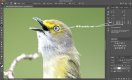
Imported NEF raw file w/ no correction.
1.jpg

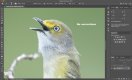
White balance/neutral picker (note that it does not set the selected point to middle grey/128's)
2.jpg

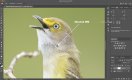
White point and black points set w/ w/b pickers (note that shifting the blacks second didn't shift the whites back away from 255's)
3.jpg

Setting white/black (as suitable) is most likely to give the most accurate colors. Typically one should then reduce whites down to ~ 245-250 and maybe blacks up to ~ 5 (I'm more likely to allow shadow clipping as opposed to highlight clipping unless it is a specular reflection)... I didn't do that here, but it would have restored some detail in the throat feathers (maybe along with some masking in areas). If I send an image to PS I almost always set/check the w/b points in this way; and I usually prefer the results overall (but I seldom send an image to PS for just that).
 
Last edited:
Setting white/black (as suitable) is most likely to give the most accurate colors.

I'm not sure what you are trying to show me, here.
I took your base image and 2 mins in cs5 ended up with an equal if not better image to your final one.
And that's working on a low quality jpeg of course.
 
I'm not sure what you are trying to show me, here.
I took your base image and 2 mins in cs5 ended up with an equal if not better image to your final one.
And that's working on a low quality jpeg of course.
What I was trying to show is that Pete's original PS method is very valid and (typically) more accurate than the WB neutral picker other programs (ACR/LR/etc) offer.
And it takes mere seconds to set the white/black points using levels/curves white/black pickers. And if the white/blacks at either end are correct (w/o color shift), then every color in between will also be about as correct as possible. Which is/was the topic of this thread.

I could also have done better with more time... I didn't reduce the white levels to recover the exposure, apply any masking, or do any selective/creative edits (it was an unedited raw file other than color). Of course "better" is subjective, and typically white balance is more of a creative choice rather than a technical one. But "correct colors" is certainly not irrelevant in most cases.
 
Last edited:
What I was trying to show is that Pete's original PS method is very valid
I think its best left there. Neither one of us is ever going to agree with the other persons idea of photo manipulation (y)
 
Thanks for the help, Stephen, Chris and Jak
Sorry it’s taken me a while to respond again I’ve been busy it’s still peak season for the butterflies and damselflies and I’ve been trying to compare correcting the colours in Photoshop and Affinity
I’m trying to move over to Affinity as I mentioned but there’s still one or two things I still do in Photoshop.
I’ve found that in normal good light that I can get good results in both programs.
With photographing insects sometimes they are found in less than ideal light for example in shade or in areas where there’s lots of reflections from leaves giving a bit of a green cast. I find it easier to correct shots taken in those sorts of light with the colour dropper in curves in Photoshop the white colour dropper seems to make the most difference.
The way of finding the white grey and black points in photoshop isn’t my idea I read about it years ago , I can’t remember where though
Thanks again for the help it does look like there’s no right or wrong way of doing colour corrections, I think it’s just I’m so used to using Photoshop but Affinity is excellent and I’m still planning on using it more.
The iPad version of Affinity is especially excellent it’s amazing what you can do with it and the automatic colour correction is often spot on
 
Last edited:
Back
Top