Colour casts on Film

That looks good on my iPad, the building is white whereas in the two previous images above the building has a blue/green tint.
Thanks for the feedback James,

Of course Paul and Nige are at a disadvantage ripping a small image from the screen whereas I have full size file to work on. (y)

After nearly giving up I have made some progress, its been a long day.
 
Hi Wayne,

This is the result if I use Auto Colour in Photoshop CC (no other editing):

View attachment 461220
There is probably someone here who is VG using photoshop that can lasso the clouds and turn the clouds to dark grey for Barney. erm I tried the lasso to turn fingers green in the comp but gave up even though I knew it can be done :rolleyes::(
 
Last edited:
There is probably someone here who is VG using photoshop that can lasso the clouds and turn the clouds to dark grey for Barney. erm I tried the lasso to turn fingers green in the comp but gave up even though I knew it can be done :rolleyes::(

It'd be easy to do that with a mask. and I can do that in Lightroom or Photoshop. The result I showed was just an Auto Colour with no other editing at all, and on a JPG, which isn't ideal. I rarely use Auto Colour though and 99% of what I do is in Lightroom / Negative Lab Pro.
 
There is probably someone here who is VG using photoshop that can lasso the clouds and turn the clouds to dark grey for Barney. erm I tried the lasso to turn fingers green in the comp but gave up even though I knew it can be done :rolleyes::(
Hello Brian,

That will be a good learning exercise for me to attempt. :)
 
Hello Brian,

That will be a good learning exercise for me to attempt. :)
.......and me Wayne (y) I had a shot recently where a car was parked in front of this old abbey ruining the shot and some kind person made the car disappear in the latest Photoshop...I don't think this was cheating as I could have taken the shot when the car wasn't there. Same for your shot in that if the background clouds were dark grey then thats also not cheating.
 
Which version of Lightroom are you using? If it's the latest, then it's literally a couple of clicks to automatically select and mask the sky in an image. :)
I have latest lightroom CC and latest photoshop, getting time to learn is the obstacle. Been out all day taking pictures and a 120 roll to develop.
 
It'd be easy to do that with a mask. and I can do that in Lightroom or Photoshop. The result I showed was just an Auto Colour with no other editing at all, and on a JPG, which isn't ideal. I rarely use Auto Colour though and 99% of what I do is in Lightroom / Negative Lab Pro.
Great .......Wayne and I look forward to learn something. When looking up on the net on how to do things e.g. lasso to change a colour they assume you have a decent knowledge how to use Photoshop, e.g. click button....where the #### is that, oh I have to put it on the menu bar and so on.
 
Great .......Wayne and I look forward to learn something. When looking up on the net on how to do things e.g. lasso to change a colour they assume you have a decent knowledge how to use Photoshop, e.g. click button....where the #### is that, oh I have to put it on the menu bar and so on.
HA HA

Me too!
 
Thanks Brian you have really cheered me up!
 
Hello Brian

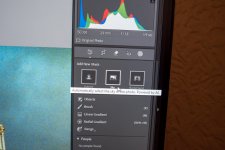
On My copy its Shift button and letter W at same time, and the middle one of three square buttons when the menu pops up.

SKY BUTTON.jpg
 
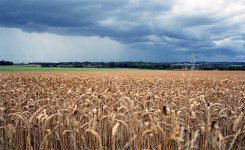
Well now got 2023 lightroom and used lightroom to turn the clouds in my shot dark grey erm but I prefer the clouds bluey as IMO the new image looks boring.
old image:-

1756115913117.jpeg


new image:-

0ymuk1l.jpg
 
Last edited:
The blue look better to me Brian, the grey ones look BNW
 
Well now got 2023 lightroom and used lightroom to turn the clouds in my shot dark grey erm but I prefer the clouds bluey as IMO the new image looks boring.
old image:-

View attachment 461372


new image:-

0ymuk1l.jpg
It would have looked more convincing had you included the row of hills on the right in the selection, they are still very blue.
 
It would have looked more convincing had you included the row of hills on the right in the selection, they are still very blue.
yeah I noticed that but didn't know how to remove it in lightroom or Photoshop. For the bluey one it's artistic licence o_O and if anyone argues would say it was a freak light source that turned the clouds blue ;)
 
yeah I noticed that but didn't know how to remove it in lightroom or Photoshop
Assuming you used Camera Raw in LR or PS and 'select sky' you can add or subtract other masks to / from the selection which will behave as a group when you apply the correction.
Camera Raw can be used as a filter in PS for any image format not just Raw files despite its name, I often use it for burning or dodging as you would under the enlarger or for adding a grad to a sky darker with more structure at the top lighter at the horizon. etc.

As with all these things there is an almost unlimited number of ways of going about it you just find a favourite way over time.
 
I am not impressed with the auto mask in lightroom, it is very imprecise.

I have tried it on several images and overlap into the subject is evident on many of them.
 
Assuming you used Camera Raw in LR or PS and 'select sky' you can add or subtract other masks to / from the selection which will behave as a group when you apply the correction.
Camera Raw can be used as a filter in PS for any image format not just Raw files despite its name, I often use it for burning or dodging as you would under the enlarger or for adding a grad to a sky darker with more structure at the top lighter at the horizon. etc.

As with all these things there is an almost unlimited number of ways of going about it you just find a favourite way over time.
Well I'm not up on "camera raw" as I'm not digi minded, but did try the healing tool in lightroom (for upper right that looks blue) but that was no help. Anyway made the clouds a darker black which hides it a bit more.
0gZrh4Q.jpg
 
Back
Top