Calibrating...

I'm happy with my BENQ SW272U and it's ability to show me the Adobe RGB and sRGB work spaces, ,...... but I do see a difference between the two - (although, apparently, you indicate that's not possible, so I suppose that it is a marketing illusion by BENQ)
You will often see a significant difference when a monitor is placed into sRGB emulation, depending on how it is implemented. On some monitors it still shows more than sRGB, on others it shows less than sRGB, and it often arbitrarily locks the screen brightness to some unusably low level. Also, ideally you would also have calibrated to the sRGB mode and the monitor should switch profile when switching modes. From what I've found your monitor is pretty flexible in how different modes can be implemented. but apparently the Palette Master software can be a bit hit/miss in managing the icc profiles.

If you have a fully calibrated workflow (LR/PS/Monitor) then there is no need for sRGB mode, or any other mode (Palette Master will let you set up several apparently). The sRGB mode and sRGB soft proofing are both trying to do the same thing; they both limit the viewed colors to sRGB. Except that soft proofing does it better; especially if the sRGB mode has any of the issues I previously mentioned. Even without issues:

Soft proofing allows you to remap out of gamut colors using the perceptual intent; which is often better for photographs. sRGB mode ("clamping"/"emulation"/tc) is limited to the relative intent. The relative intent can lead to "packing" at the limits if there is much that is out of gamut (it's like banding). Perceptual can often result in a more natural appearance for photographs even though it shifts more colors (I usually use perceptual).

Soft proofing allows the display to simulate the paper color/reflectivity, and ink density/colors for printing. Both CMYK (inkjet) and Pantone (offset) printing can replicate some colors outside of sRGB. Which your monitor may be able to show you if left in its' normal gamut.

Soft proofing keeps your monitor in its' normal viewing mode. I.e. the same way it will be used to view the image digitally later. It's the appropriate brightness for your situation and uses the same calibration profile/white point/etc.

'm happy with my LR workflow - import NEF, DNG and jpegs processing them for screen viewing and using a virtual copy to process a sRGB image for internet ......... I only use the sRGB image for this one purpose and stay away from sRGB for any other, (although you feel that the difference between Adobe RGB and sRGB is minimal)
Ok, this is the crux of it all. The differences are typically minimal, but can be notable when working with very bright/saturated colors (particularly magentas).

If you are doing what you described using LR's soft proofing function with the profile set to sRGB IEC61966, then you are doing it *correctly (it doesn't sound like it).
If you are doing it by setting your monitor to sRGB mode, soft proofing would most likely be *better.
If you are doing it by using both the sRGB mode and the sRGB soft proofing icc profile they are redundant; and the monitor's mode may be inhibiting the soft proofing function.
If you are printing you should be soft proofing using the paper/printer icc profile instead, and export the appropriate file type/color space as suitable. (if your printer only accepts sRGB jpegs you should soft proof in sRGB afterwards to deal with any remaining out of gamut color issues)

If you don't have the ability to soft proof, then monitor emulation may be your only other choice (using sRGB mode, or any other).
Some might prefer monitor emulation for a specific reason; e.g. if you need to frequently change white point for a different final viewing environment (e.g. D50 vs D65, etc). It can also be somewhat useful if you have a different/fixed editing environment with a fixed brightness level (setting an editing mode to a matching lower brightness). And it can be good enough, though properly setting up and calibrating the emulation is important. I.e. you can combine monitor emulation and soft proofing for a specific purpose, if you really know what you are doing.

*correctly/better are relative... everything about color in art is subjective. You can do everything absolutely "wrong," and it doesn't matter if you like the result.


I'm thinking that the issue you describe with the forum/web use has more to do with color space embedding/tagging in the output file as I previously described (because you seem to have the workflow mostly sorted/managed).

It is almost impossible to get color space wrong using LR, because lightroom always embeds the color space icc profile (which isn't absolutely required), and it always also updates the exif tag (seldom required); even if the image doesn't need anything else done to export it...
E.g. if the image is already a jpeg of the correct size, but it just doesn't have the color space embedded, LR will embed the colorspace on export; even if it doesn't need to do anything else. And LR correctly defaults to sRGB for jpegs; unless you have overridden that. But it will export an image in an unsuitable color space if you tell it to (converted/embedded/tagged); so it is still possible to have an issue.

However, it is fairly easy to get image color space wrong using other programs; Photoshop will do it pretty easily. Photoshop wants to convert images to its' working color space on opening (ProPhoto in my case), and it doesn't automatically convert to a common viewing color space on saving. Photoshop does not automatically embed the color space icc, and it doesn't always (ever?) edit the color space exif tag. So it's quite possible to get the exif tag and actual color space out of sync or "unknown." Photoshop certainly isn't the only program to have these potential issues. A lot of programs ignore the color space exif tag and are lost without an embedded profile; and some programs ignore embedded color spaces as well (but fewer these days). If any of those things happen, it is likely that the image will be rendered wrong.

The solution in PS is to always select the "Convert to sRGB" and "Embed Color Profile" check boxes when saving images out for the web. LR doesn't give you those options because it does them automatically; it only gives you a choice on which color space to embed/tag/convert to (and you must select one).
 
Maybe my "work flow" is too simple, but

I don't use the Palette Master software I use Calibrite - the advanced settings with 460 odd patches, (with the ability to set up brightness, etc., etc., separately, using the "puck" with the BENQ screen .......) ....... I always "calibrate" after the monitor has been running for at least a couple of hours .......there can be a difference

when I want an image for the web I process it in LR using the monitor switched to sRGB........I adjust to what I want in this colour space then export it as a sRGB file

when I print I use the Adobe RGB space and the paper profile for the paper I am using, (depends how I feel sometimes I use the PP in LR and sometimes in the Epson print software ........in any case I always switch to the appropriate PP in Epson software when I want to print)

sometimes I use the jpeg file rather than the RAW ....... depends what I see in the image

I seldom use PS ...... but sometimes for "stacking" and "panos" ......... I used PS in the past but it has got beyond me and I can do what I want quickly in LR

(my issue is not a technical one, it is that you spend all this time taking the shot in RAW, processing it in PS/LR then when you want to post it to the web it gets significantly downsized and it looks worse than the original file) - if all you do is post to the web buy a cheap camera, a cheap sRGB Display, take jpegs, just adjust the WB, b & W and let the internet do it's worst - maybe P3 will be progress albeit small)

Maybe you should consider this regarding the BENQ Display

Many professional BENQ displays, particularly their SW series can show both Adobe RGB and sRGB working spaces because they provide broad color gamut coverage, often near 99% for Adobe RGB and 100% for sRGB. These monitors feature specific color modes and software integration to allow users to switch between and preview different color spaces, such as Adobe RGB for print workflows or sRGB for web-based work, enabling accurate color reproduction for various creative applications.

How BenQ Monitors Support Both Spaces
  • Wide Color Gamut Coverage: BenQ's professional monitors are designed to display a wider spectrum of colors, with models like the SW series covering close to 100% of Adobe RGB and 100% of sRGB, providing the necessary range for both color spaces.
  • Dedicated Modes and Software: The monitors offer selectable color modes and sometimes include specialized software like BenQ Paper Color Sync or Palette Master Element, allowing users to switch between color profiles (sRGB, Adobe RGB, etc.) and calibrate their display for precise color accuracy.
  • Dual Color Space Functionality: Some high-end BenQ monitors feature the GamutDuo function, enabling the simultaneous display of two different color spaces (like Adobe RGB and sRGB) on a single screen, which is useful for previewing how an image will look on different platforms or before printing.
Why This Matters
  • sRGB: This is a standard color space for most web content, online photos, and everyday digital displays.
  • Adobe RGB: This is a much wider color space, particularly beneficial for print photography and graphic design because it contains more colors that can be produced by CMYK printers. By supporting Adobe RGB, BenQ monitors can display more accurate color detail, preventing unwanted surprises when producing hard copies.
When to Use Each
  • Adobe RGB: Use this color space when your work is intended for professional CMYK printing, ensuring that the printed output is as close to your on-screen preview as possible.
  • sRGB: This is suitable for work that will be viewed on computer monitors, shared on the internet, or viewed on HDTVs, where it serves as the standard color space.

maybe you should also look at what my printer the Epson ET 8550 can do

The Epson ET-8550 can print in Adobe RGB by setting the colour management in the printer's driver or the Epson Print Layout software to use an Adobe RGB color profile. To achieve the widest possible color gamut from your photos, you should work in the Adobe RGB colour space and use the appropriate printer driver settings, often selecting "Printer Manages Colors" and choosing an Adobe RGB profile when printing from applications like Photoshop.

above BENQ and Epson info from the web
 
Last edited:
I've been experimenting a bit today as my Calibration tool has arrived AND I've figured out how to get the correct colour space profiles into Lightroom.

It's this bit I just wanted clarity on.

In order to approximate what I liked about the original digital image in print, it looks like it's been pushed to a point of ridiculousness when viewed in the sRGB space.

So what I should do for export is to switch back to sRGB from the OneVision template then export?

It seems to be about right when printing on my little Canon Selphy, but it's very difficult to match it - though I think this might be because in this example, I'm starting with my exported JPEG.

In the future, I guess I need to ensure I don't delete the RAWS of my favourite pics in case I want to print them.
What is the "one vision template"? The printer/paper profile?

You should leave your monitor in it's normal (preferably calibrated) state and soft proof with the paper/printer profile selected.

If the printer is not color managed, and/or wants images only in the sRGB color space, then you should switch to sRGB soft proofing after using the printer profile. Then you can deal with any colors that remain out of gamut... there really shouldn't be any if the printer/paper profile provided for the output includes sRGB as the input (it should). After verifying there are no issues remaining (or correcting them), you should export the image as a jpeg in sRGB.

If you have a wide gamut monitor and the image contains some wider gamut colors the printer can reproduce, then you would prefer to export the image in a common wide gamut color space that includes those colors (e.g. ProPhoto). You can even use the softproofing printer profile provided if the printing system also has that profile (or you embed it to send along). But realize that mixing non standard color spaces makes the exported files especially specific use... i.e. it is quite possible to export a jpeg in the Adobe or ProPhoto color spaces. And that would work just fine assuming the printer is color managed and also has those color spaces available. But it is generally best to just stick with commonly accepted standards (jpeg/sRGB, tiff/aRGB).
 
Last edited:
I don't use the Palette Master software I use Calibrite
My understanding is that only the Palette Master software can properly hardware calibrate the monitor; and calibrate for the various emulation modes (update the LUT). DisplayCal is software calibration; preferable to nothing and the only option for some (like me), but less ideal/effective. A calibrated LUT is the source reference for all colors/modes (and higher accuracy).

Maybe you should consider this regarding the BENQ Display
I am aware of all of that... emulation modes are an alternative to soft proofing; they can potentially be "as good" for certain purposes. And it does seem like your monitor offers better than average emulation options.
But yes, the manufacturer's descriptions are somewhat simplistic in how things actually work, and somewhat over-hype "the feature" and its benefit... which is pretty typical of all manufacturers/products really.

All display modes depend on how well they are setup/calibrated... which doesn't sound like is correct/optimal (from what I've read elsewhere). Software calibration lies on top of the emulation modes. You know how you have to set a display brightness and select a white point during calibration? Well, if those change (i.e. reduced brightness in sRGB mode) then the calibration you are using is no longer necessarily correct/optimal (but it could be near enough to not matter, or the best you can get).

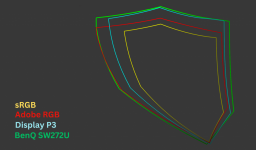
This is the four color gamuts/spaces we have primarily discussed (in LAB coordinates). The gamut for your monitor is the largest of all and it can display colors well outside of aRGB; similar to how aRGB can show colors outside of sRGB. If you have native calibrated and sRGB modes set up, the native is actually aRGB Plus (usually described as 100% aRGB), and sRGB is sRGB Plus/Minus . If you have actual aRGB and sRGB modes setup/switchable, then you are never taking advantage of the full capability of the monitor (and possibly the printer and camera colors).

1759858728939.png

But in the end none of it really matters, as long as you are happy with your results. What I see might be hugely different, or it may not... in any case it will never be 100% the same.
I've tried to help as much as I can...
 
I am aware of all of that...
Then why did you say that it was not possible for the display to switch between Adobe RGB and sRGB?........ etc., etc.
 
Last edited:
Thanks for the additional info.

Sorry - OneVision is the site I’m sending them to. It’s their profiles I’m now using.

I also went back through my backups and uploaded the original RAW file to work with.
 
Then why did you say that it was not possible for the display to switch between Adobe RGB and sRGB?........ etc., etc.
Because it's not actually switching capabilities, it is emulating different capabilities; and how useful that is depends on how well the emulation is done. Some are terrible at it, some are good (if managed/set up correctly).

As I said, if you are switching between "default" and "sRGB mode" and it is being called "adobeRGB" and "sRGB mode", then that is wrong/misleading. And even if it is actually limiting to aRGB and sRGB, you are always negating some capabilities of the monitor/camera/printer. And the chances of aRGB and sRGB emulation being entirely correct are slim...

But whatever. You said you had a color management issue and found an "unusual" solution. I was just trying to help figure out what/where the issue is, and what the "correct" solution is. I.e. editing in a limited color space to compensate for a colorspace tagging/embedding issue is an odd solution... if that is what is/was actually happening ( I still don't know for sure).
 
The reason I use Calibrite and not PMU is because I wanted (initially) to compare the three Displays that I use ...BEN, iMac and MacAir and also Calbrite has a setting that measures the ambiant light, (not sure about PMU.....they say so but I'm not convinced), in my study which is as constant as it can be because I have blinds and reasonable lighting............PMU (120 nits) tends to give a "brighter" screen...i.e. a shade more brightness

Maybe I'll switch to PMU once I'm settled as I realise one writes the info to the hardware and one to the software......... the PMU being more "reliable" so to say ......... but I'm happy with Calibrate for printing although PMU has a soft proofing calibration, (whatever that is), which can easily be switched to in the Mac Settings menue

Remember there are 3 possibilities with so called colour spaces on a SW Display, (and also on the PD range) - controlled by the "puck" and you can assign any - default is 1 = Adobe RGB, 2 = sRGB and 3 = B & W ........ but the SW "native" calibrated colour space if that is the correct word could be assigned to 3, which I have done (and) maybe I can assign the colour space applicable to the ET 8550 printer????

still learning

Thanks again for your time - I know the subject is not simple.......... and some of your points you illustrate are too technical for me

I believe what I am doing as far as creating images for the internet, to view on screen and for printing is correct - my "problem with colour management is that I do not appreciate in many cases sRGB images that end up as being posted on the internet, so I try to process/edit them separately, in a sRGB colour space to look as best as I can using the SW sRGB colour space....... but I still think some/many are disappointing, (compared with the Adobe colour space)

In fact I may get a dedicated (only) sRGB monitor, I believe they are inexpensive, to complete my frustration

EDIT:

just thought about it and will try to explain SIMPLY what I'm trying to achieve ....... and I'm quite happy that I am near this

Basically to get my outputs, (sRGB images and printed images) to look as near as I can to my inputs, i.e. the images I have worked on in LR, and to get the "best" image for viewing on my screen(s)

The BENQ SW has this puck thing that allows three "Colour Modes" - I think that you prefer to call them emulations
The Mac has lots of Colour Profiles in display settings
When I calibrate my Displays additional Colour Profiles are added to Mac settings
I have added Colour Profiles produced by Calibrite and PMU Calibrations to these Colour Profiles
My Bluetooth BENQ puck is set to 1 adobe RGB.....2 sRGB and 3 ...the SW Profile created by PMU
BUT I can use either the Calibrite Calibrated Profile by changing this in Display settings on the Mac or the PMU one

so I use the sRGB setting, (emulation) to process any image to post on the internet
and
I have found that I get slightly "better" prints if I use the Calibrite Calibration as a starting point, (but this can be PP and paper dependant) for printing

I cannot go into your detail ........I try not to complicate things
and I do see differences between as three (original) images "states" which was my starting point

I suppose that the next step is to calibrate my printer!
 
Last edited:
Back
Top