Calibrating prints

Amp34

Suspended / Banned
Messages
2,859
Edit My Images
Yes
I'm getting a little confused as to how to calibrate and profile for printing. Generally when I send prints off for printing (using Loxley, and photobox in the past) they come back a lot darker than they appear on my monitor. This I was told is not right, and I shouldn't need to lighten them up before sending to print. So i'm wondering were my system is going wrong.

I have a Huey which calibrates my monitor (generally with light adjustment on so when it gets dark it can change my screen brightness).

I use CS3 and have:

Edit>Colour - North American General Purpose 2, and RGB set to sRGB

I notice in View> Proof settings it is set to working CMYK, should that also be set to sRGB?

From what I understand Loxley use sRGB so technically it should come out almost precisely what I see on my monitor, including darkness? But it isn't, which i've been told is wrong. Should I be using the Huey option in both the CS3 sections?

Thanks
 
Most likely your monitor is simply set too bright. The Huey won't adjust the overall brightness level and generally most monitors are much brighter than the target level of 130cdm2. What monitor is it?
 
It may not be your settings that are at fault if you've been having problems with certain online printers.
I received an order from Photobox yesterday, as soon as I saw them I e-orderd using another company & have repacked the PB ones to be sent back, poor saturation, poor paper quality & all very dark. After looking round other Photo forums, we appear to not be the only ones having issues.
HTH
 
What colour profile does the printer you use use for printing. Do they have this for download? If so, then download this and do a soft proof in photoshop. Tweek to how you want it, and if the resulting print is darker then the softproofed image on your monitor, then either there is something wrong at the printing press, or there is something wrong with the calibration of your monitor.
 
Just to add, your colour settings are right. The CMYK is just for proofing how an image would look printed in CMYK but doesn't affect the colours in the image itself. Dont' set the Huey profile in these options as you'll basically turn off colour management. sRGB isn't something you proof as it's a working space not an output one.
 
Most likely your monitor is simply set too bright. The Huey won't adjust the overall brightness level and generally most monitors are much brighter than the target level of 130cdm2. What monitor is it?

The brightness is set to 50% and it's a viewsonic VX2025wm (that looks to be 150 cdm2, but with the huey adjusting brightness can't be much difference?) The huey also tells you to stick the brightness to as high as possible when calibrating, which always confused me, I tried that once but it was way too bright.

It may not be your settings that are at fault if you've been having problems with certain online printers.
I received an order from Photobox yesterday, as soon as I saw them I e-orderd using another company & have repacked the PB ones to be sent back, poor saturation, poor paper quality & all very dark. After looking round other Photo forums, we appear to not be the only ones having issues.
HTH

I found Photobox to be off on colour and brightness yeah, I reprinted with loxley but the darkness was still there.:)
What colour profile does the printer you use use for printing. Do they have this for download? If so, then download this and do a soft proof in photoshop. Tweek to how you want it, and if the resulting print is darker then the softproofed image on your monitor, then either there is something wrong at the printing press, or there is something wrong with the calibration of your monitor.

I don't have a photoprinter but loxley use sRGB.

Just to add, your colour settings are right. The CMYK is just for proofing how an image would look printed in CMYK but doesn't affect the colours in the image itself. Dont' set the Huey profile in these options as you'll basically turn off colour management. sRGB isn't something you proof as it's a working space not an output one.

Ah ok, I was a bit confused at that, so I'll just leave them like they are.:)
 
Spec for the monitor says 300cdm2. I'd try dropping it down some and calibrating again at the new level. Remember that the monitor is a light source and the prints aren't, unless you're comparing screen to print in good bright daylight expect it to look darker.

Think of it this way - would you expect a photo of the screen to be as bright as the screen?
 
I've dropped it down to 40% which should be below 130cdm2 now. I agree that a print should not be quite as bright as a monitor image but was told ther should be negligable difference between the two, in my images I need to change the brightness by around 30 to get a similar look on both the screen and print.

I'll post up a couple of shots to show the difference and see if they are about right. :)

EDIT: Ok here is the comparison

Untitled-1.jpg


They have both been processed a little to make them look petty much what I see when comparing them. (The photo was printed by loxley and had no brightness change at my end)

Almost all the dark area, that is quite visible on my monitor has just ended up as a very dark area with not much detail visible, whereas on screen there is a lot of difference between all the light and dark. This is similar on colour photos during the day as well.

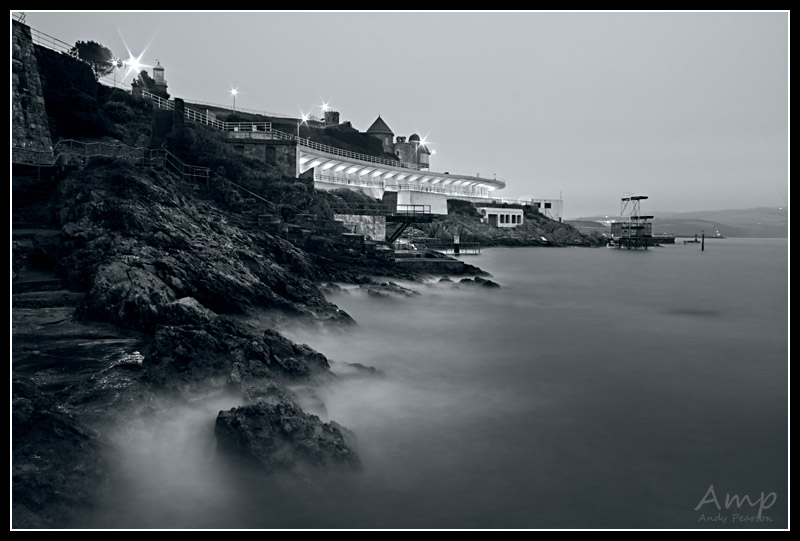
EDIT: Just for comparison this is the image...

2310647369_4d4c96002e_o.jpg
 
sRGB_chart.jpg


Turn the brightness down until you can't see a difference between the first and second dark squares top left, then bring it up until you can just see a difference.

Turn the contrast up until you can't see a difference betwee the last 2 squares top right, then drop it down until you can. Calibrate again, see how that looks.

On your monitor brightness controls the black level, contrast the whites (the difference between the two). If you still find the screen is too bright drop the contrast level, not the brightness.
 
Even with Brightness at 0 I can still see the difference between the first two squares, adjusting the contrast though does change the whites. Calibrating doesn't make much difference either.

Having said that, even with no ambient light the monitor isn't particularly nice to look at so I wouldn't want t use it every day like this.

EDIT: I've also added the actual shot I used to my previous post.
 
That you can still see the difference even with the brightness at 0 doesn't sound too encouraging but maybe it's the Huey calibration that's causing it. Go to the huey prefs and disable it for a minute, does the display get much darker? If so try adjusting to the chart again with the huey switched off and then calibrate, see if that helps.
 
I tried it with the calibration off :/

The monitor is supposed to be one of the best in it's class so I don't quite understand what is going on either, I would be interested to know how much different the photo of the print and the photo itself look on your monitor? (I know there will probably be a bit of difference to what I see, but having used a few monitors there is generally not too much difference to mine, and definately not as much difference in the blacks.)

Just to point out the Black does look pure black and the white pure white, and using this chart as well the difference between each step is about the same.

As there doesn't seem to be any way of actually calibrating my monitor well enough what is the best way to lighten up prints? Using the levels tool and adjusting the centre level or using the brightness tool?
 
The shots of the screen and print aren't ideal to compare. In the print shot the white paper/receipt isn't white at all so there's no way of know how much shadow detail from the print was lost and in the monitor shot the whites look blown and the black on the screen isn't black either.

The actual image looks pretty good on my screen but it really a mix of the other two. The shadow areas are close to the monitor shot but the lighter regions are closer to the print shot.

Certainly I wouldn't expect the a print of that shot to be as dark in the shadow areas as you seem to be getting. Maybe it's worth trying a print from DSCL to compare, if that comes back the same then it might be that you need to adjust images for printing or perhaps get Viewsonic to have a look at your monitor?
 
The faults you picked out are the issues I could see on the images as well, and the actual image is pretty much as you describe so the monitor can't be that far off (lights similar to the print and darks similar to the screen). Looking at it from my laptop it's very similar to my main screen too.

I have had this print printed of with both Photobox and Loxley so far, that print was the one from loxley, which is actually lighter than the photobox one. I'll have a look into getting it printed DSCL.

Thanks for spending so much time helping me sort this out. :)
 
Back
Top