Building a better watermark

Chris Reed

Suspended / Banned
Messages
303
Name
Chris Reed
Edit My Images
No
I have lots of photos i need to water mark as part of building my website. I want some thing a bit bigger then the lightroom water mark, but i know that it can't be changed, so i went into photo shop, and started doing them by hand, got 2 done, got bored, went to the coffe shop, did another one, got more bored and came back, there has to be a better way to watermark upwards of 50 files. share the wealth.
 
I don't know how to do it, but surely recording an action or running a script would be the way forward?

Hopefully a better informed member will be able to instruct!
 
Chris, have a look at this It allows you to insert a watermark image to any point and with a variety of settings. The image can be anything as you specify it in the export panel. I've not got to grips with the image as a watermark bit yet, but this is how I'm putting the borders and exif data in the border on my images.
 
doh i have lightroom one, because i am cheap so that's straight out.
 
there's a version for LR 1 also, check here
 
Chris, have a look here You use it in the export step to adjust the image. Be careful though, I had some weirdness using the LR image resize that caused jpg artefacts. Use the LR/Mogrify one instead. Of course that may just be me...
 
ok so i have dled, and unzipped the lrmogrify, now when i hit export i cant find any thing that lets me use mogrify, it just looks and acts like it did before, and i cant find anything else to install. what am i doing wrong? there seems to be no anwser on the wbpage
 
Sorry Chris, not sure.... This is from the Timothy Armes' website...

"Lightroom 1

LRMogrify.lrplugin is the stand-alone plug-in, and you need to copy it to the appropriate location. You may need to create the "Modules" directory.

On a Mac, copy the plug-in to:

~/Library/Application Support/Adobe/Lightroom/Modules
or /Library/Application Support/Adobe/Lightroom/Modules

On Windows XP, copy the plug-in to:

C:\Documents and Users\username\Application Data\Adobe\Lightroom\Modules

On Windows Vista, copy the plug-in to:

C:\Users\username\AppData\Roaming\Adobe\Lightroom\Modules

You should now restart Lightroom"

From this page...Then continue with the other setup bits as required. Mods I hope that the quote here is ok... If not I'll remove it.
 
i'm on a mac... so i moved the folder to the place you said too, still not working, now i'm going to take every individual thing out of the folder and try again.
 
Sorry, Chris, I'm a PC user. I've got no experience of Mac usage at all. Follow the instructions on that page and see how you go.
 
I hate computers... hate hate hate hate.

cheers for your help.
 
ok so i have dled, and unzipped the lrmogrify, now when i hit export i cant find any thing that lets me use mogrify, it just looks and acts like it did before, and i cant find anything else to install. what am i doing wrong? there seems to be no anwser on the wbpage

When you click export, you should be able to scroll down, and the Mogrify options will be there. There's the normal Lightroom one's, and then the Mogrify one's.
 
nope, i just get the normal lightroom options, nothing else, and no scroll bar.
 
1.

appoligies for my english fail in that last post, I'm showing my american education again.
 
In LR1 you find it from the drop down in the export panel that normally says "Export files to disk"
 
its not appearing in any of the drop down menus after i hit export, but for the record should it apper in the one at the top or bottom (i have checked both)
 
Is there a drop down that says Export files to disk? (at the top)
 
on top under "presets" i have: "custom" "Burn Full Sized Jpegs" "for email" "export to DNG" and "save as new preset"

at the bottom i have under "after export": "do nothing" "burn to disk" "show in finder" "open in photoshop" and "go to export action folders now" the "export actions" folder is empty, and dragging the lrmogrify there does nothing.
 
I'm on v2 Windows so it probably looks a bit different but when I click export a window opens and right at the top, looking like a heading it says "Files on Disk" (it has a picture background too) but it's actually an option bar - that's what you're looking for.
 
Ok, I found a screen shot of the mac export window here:

lightroom_dialog.jpg


See top right it says "Export files to disk" (no picture background)??? It's that you want to click to select the output destination.
 
Just to point out for you Chris that although LRMogrify is awesome, you can use it for watermarks in two ways.

1 - add up to 3 text based lines, in any font, and any size, at any opacity. Examples are say... "Sample" across the center of an image. You can position this at any of 9 points on the image.

Illustration:


2 - to add a graphical image as a logo/watermark etc. This can be any sized image - I saved mine in png format at 50% opacity and therefore apply as 'normal'.

Illustration:


Hope this info helps.
 
Any luck Chris ?

Hope you don't mind Chris. John, how did you get the PNG with no background ? I can't manage to achieve that...
 
Ok, I found a screen shot of the mac export window here:

lightroom_dialog.jpg


See top right it says "Export files to disk" (no picture background)??? It's that you want to click to select the output destination.

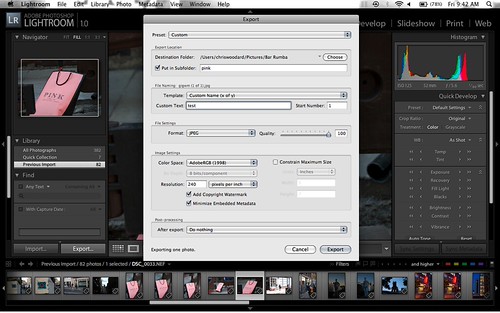
i'm not seeing that at all, i see this

2968277367_90b81c8314.jpg
 
I think an update to v1.4 is in order, it's still available from the Adobe website
 
ahhh... will update and get back. Cheers for all your time. i was having a bad day yesterday, the council knocked a hole in to our basement, i got a ticket, and i grabbed some facial scrub and confused it with toothpaste.
 
Ouch! Not a good day!

As mentioned before it looks like you are using a version of Lightroom that pre dates the options for plug ins...
 
Any luck Chris ?

Hope you don't mind Chris. John, how did you get the PNG with no background ? I can't manage to achieve that...
Easy jgs,

I used Photoshop to create a new empty document and ensured that the box with 'Background Contents' were selected as Transparent.

I then created the logo, when done I ensured it was set at 50% opacity and then just used the standard Photoshop 'Save-As', selected png from the drop down list and voila!

That's it as far as I remember.

John
 
Good stuff Chris :thumbs:. Thanks John... It was that first step I was missing out on... That was causing a lovely background to be squirted in for me...
 
Back
Top