Borders in Lightroom help please....

Cg_Girl

Jamie Oliver's best friend.
Suspended / Banned
Messages
11,487
Name
T.
Edit My Images
Yes
Is there a way of creating borders in Lightroom?

Googling it, and using the print module and stroke effect thingy it does give a border but once saved it saves like it's stuck on a sheet of white paper:shake:

Anyone know of another way? or i have elements 10 i could take them over there if there isn't..

T x:D
 
I can't help with Lightroom I'm afraid, hopefully someone else can.


If not, its easy enough to get a border using elements. Is it just a plain border round the image that you're after? If so, all you need to do is select the whole image, go to "edit" and select "stroke (outline) selection". Then decide how thick you want the border to be, a higher width px will give a thicker border. Select what colour you want it to be and click ok. Simple! Someone might have a different method but that's the one I use and its quick enough to do.

Hope that helps.
 
Last edited:
You can use the post crop vignette to make basic borders, just drop the feather and increase the midpoint. They will be inside your crop though, not outside.
 
In elements Trace I do the following...
Select all then go to "stroke", chose inner than around 50 px then colour, I tend to use black solid but you can also use it as a see through border (I forget which option to choose)
If then you want to add a second border do as above but choose a different colour and around 10px
 
[YOUTUBE]8F_xj4NSb7Y[/YOUTUBE]

[YOUTUBE]CcfYL-sUDFI[/YOUTUBE]

:D
 
I can't help with Lightroom I'm afraid, hopefully someone else can.


If not, its easy enough to get a border using elements. Is it just a plain border round the image that you're after? If so, all you need to do is select the whole image, go to "edit" and select "stroke (outline) selection". Then decide how thick you want the border to be, a higher width px will give a thicker border. Select what colour you want it to be and click ok. Simple! Someone might have a different method but that's the one I use and its quick enough to do.

Hope that helps.

In elements Trace I do the following...
Select all then go to "stroke", chose inner than around 50 px then colour, I tend to use black solid but you can also use it as a see through border (I forget which option to choose)
If then you want to add a second border do as above but choose a different colour and around 10px


Thank you both! i just had a quick play and it's easy (perfect for me:D)

Mostly it's solid black or white i wanted Martyn, and looking at the sliding opacity i think that goes see through.. I'm going to try doing a mix of black inner and white outer..:D
 
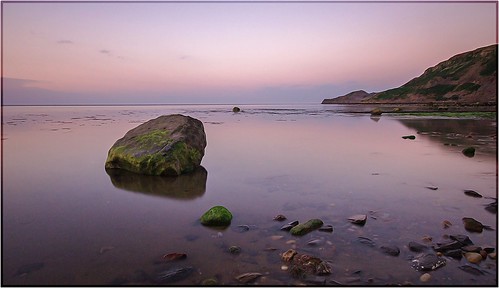
Here's one Trace with black see through at 50px the white at 10px so gives an idea what it looks like...


Runswick bay (LE) by martyndt, on Flickr

Edit...you can't see the white as its on a white background...doh at me :lol: if you click it you'll see on black background
 
Last edited:
:lol::lol::lol: I'm glad you said click it because otherwise i'd have a :thinking: face hehehe

Yes that is exactly what i want thank you :thumbs::D


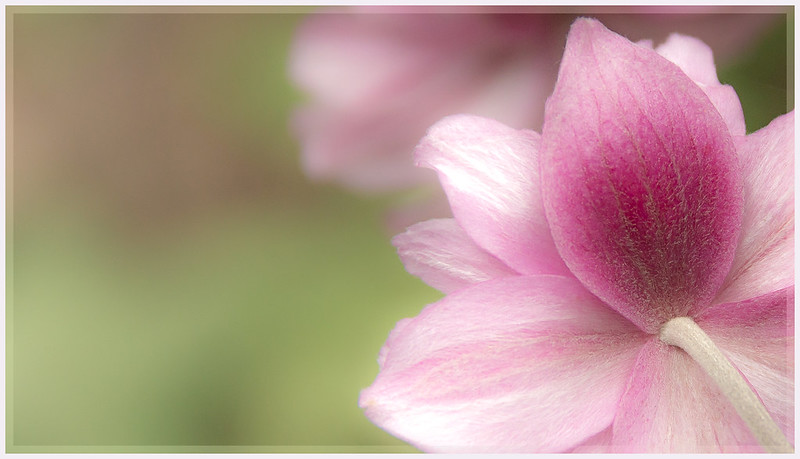
I do believe i've done it...:grin:


One pink petal.. by Cg_girl, on Flickr


Oops b****r and yes the white doesn't show here lol
 
Last edited:
Back
Top