
and please use their services
You are using an out of date browser. It may not display this or other websites correctly.
You should upgrade or use an alternative browser.
You should upgrade or use an alternative browser.
Bluring background?
- Thread starter Shogun
- Start date


whittyp
Suspended / Banned
- Messages
- 130
- Name
- Paul
- Edit My Images
- Yes
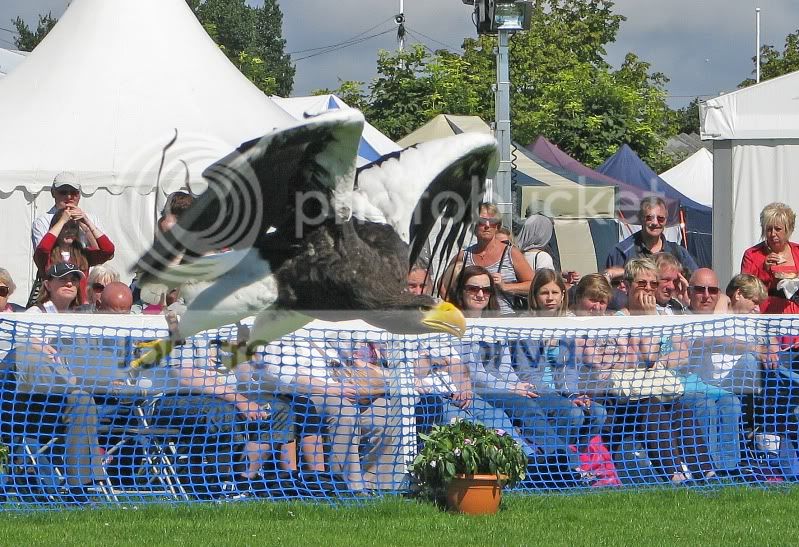
There are quite a few videos on Youtube that run you through the process but generally in Photoshop it is done like this.
Duplicate the layer. (lets call this top)
Select the bottom layer and apply a blur filter to it. The glausian blur is normally used if you want to highlight something, but in this case if you want to enthasise movement then a motion blur would also work.
Go back to the top layer and apply a mask to it. Then in the mask paint with black the area of the hawk. This will cause the sharp bird to show up. If you make anuy mistakes painting with white will hide the area again.
Duplicate the layer. (lets call this top)
Select the bottom layer and apply a blur filter to it. The glausian blur is normally used if you want to highlight something, but in this case if you want to enthasise movement then a motion blur would also work.
Go back to the top layer and apply a mask to it. Then in the mask paint with black the area of the hawk. This will cause the sharp bird to show up. If you make anuy mistakes painting with white will hide the area again.
Select the bird. I used the polygonal lasso tool then once it's selected go to "select' then choose "inverse" and then go to "filter" choose "blur" "gaussian blur". I used 4.7. This is a quick edit just to give you an idea of what it will look like. You can blur it more or less depending on how you would like to see it. Hope this helps...


CGeezer
Suspended / Banned
- Messages
- 4,104
- Name
- John
- Edit My Images
- Yes
Look at Alien Skin Bokeh it's awesome 


Kerioak
Suspended / Banned
- Messages
- 7,245
- Name
- Christine
- Edit My Images
- Yes
Another way
Duplicate layer ((I always duplicate first so I have a clean original to fall back on)
Roughly select bird using marquee
Create mask (box with circle in it at bottom of layers pallet)
Using brush tool and with colours set to black and white use black to bring back detail and white to erase it
Create new layer from original
Filter
Blur
Gaussian blur - to taste - if you do it too much you will need to shrink the original as the blur will show outside the new bird layer

Once you have got this far you can also introduce a new background, one you prepared earlier

This one the light was not coming from quite the right direction so I had a play with Filter, Render, Lighting effects - first time I have done this so still might not be right but is closer than the original sky was
Duplicate layer ((I always duplicate first so I have a clean original to fall back on)
Roughly select bird using marquee
Create mask (box with circle in it at bottom of layers pallet)
Using brush tool and with colours set to black and white use black to bring back detail and white to erase it
Create new layer from original
Filter
Blur
Gaussian blur - to taste - if you do it too much you will need to shrink the original as the blur will show outside the new bird layer
Once you have got this far you can also introduce a new background, one you prepared earlier
This one the light was not coming from quite the right direction so I had a play with Filter, Render, Lighting effects - first time I have done this so still might not be right but is closer than the original sky was

Frankie_flea
Suspended / Banned
- Messages
- 805
- Name
- Frank
- Edit My Images
- Yes
None of these procedures can improve your image as much as a little fore-thought. A wider aperture would have resulted in a faster shutter speed, which would have frozen the wing flap, and put the crowd out of focus.
Last edited:

swanseamale47
Suspended / Banned
- Messages
- 10,876
- Name
- wayne clarke
- Edit My Images
- Yes
 Yep this works really well.
orangeframestudio
Suspended / Banned
- Messages
- 964
- Name
- Ben
- Edit My Images
- No
you might (will) find it best to clone out the bird on the layer you are going to blur, before you apply the blur.
If you dont, like the example shots above, you will end up with the 'blurry halo effect' on your sharp subject.
All you need to do is use the clone tool to roughly get rid of the bird. you will blur the layer anyway so your cloning can be very rough and quick. but it will look much better without the halo.
I did a tutorial on youtube for this a while ago...
hope its ok to post this..
http://www.youtube.com/watch?v=lgpZRfHxDXY&feature=player_embedded
If you dont, like the example shots above, you will end up with the 'blurry halo effect' on your sharp subject.
All you need to do is use the clone tool to roughly get rid of the bird. you will blur the layer anyway so your cloning can be very rough and quick. but it will look much better without the halo.
I did a tutorial on youtube for this a while ago...
hope its ok to post this..
http://www.youtube.com/watch?v=lgpZRfHxDXY&feature=player_embedded