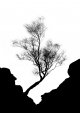
Very quick effort to prove it can be done;
 posiviewblend
 by
Craig Hollis, on Flickr
I ran into some issues working with the small files, I think tomorrow with more time I will screen grab the bit around the tree from the larger file on flickr and have a more detailed go. Then do the screen grabs for a 'how to' from that if it's ok? Or you can send me the larger jpegs if you want me to have a proper go at it.
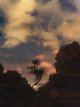
I would also being quite experienced at the Photoshop side of things have made life easier for myself in the field with the images I captured. What makes this blend harder is the bits of white cloud behind the silhouette of the tree in the shorter exposure. If you had waited until they had drifted by and you had a more uniform blue background it would make the masking easier.
Having knocked up this quick blend though I wonder if you prefer the idea you had in your head, or now having seen it prefer one of the standard exposures? Sometimes you have to try something to see if it works though. I quite like the long exposure with the tree blurry and the clouds showing the wind but the rocks standing up to it all.
In essence, the steps you take to do this are as follows;
Put shorter exposure on top. Unlock background layer, edit; auto align layers.
Go into channels, take the blue channel, click on it, then command click it to select it, click the icon that creates a new alpha channel. Open curves, (cmd+M) then pull the white point in and the black point up till the silhouette appears strongly how you want it.
 Screen Shot 2017-11-20 at 23.02.14
 by
Craig Hollis, on Flickr
Then get the brush tool with 100% hardness and touch up the sky using white and the rocks using black to get rid of grey parts.
 Screen Shot 2017-11-20 at 23.03.23
 by
Craig Hollis, on Flickr
Then take the red channel and repeat what we did to the blue channel. Neither of these sections are perfect, but together they start to work. So select the modified red alpha channel (cmd+click) then go into the modified blue alpha channel and paint through the bits from alpha 2 that are missing in alpha 1.
Deselect, invert, (cmd+I) then select finished alpha 1, go back to layers tab, create a new folder and click the layer mask icon to add your alpha 1 selection from the channels tab to the folder, then drag your shorter exposure up into the folder. It will still be a mess because now you are revealing the shorter exposure tree and foreground, but the blurred sky shows the bit of moving tree either side. For this exercise I simply duplicated the longer exposure, then transformed it so that it was stretched downwards to remove the tree to behind the rocks. Then using my existing alpha selection with the lasso to add the tree in I masked the ground back in from the layer beneath.
The rest of the work was using adjustment layers within the folder above the shorter exposure to get rid of the haloing caused by the shorter exposure being brighter and a different colour temperature slightly.
(Please ignore laziness around rocks)



 SOOC 1
 SOOC 2