Blending...is this possible?

posiview

Suspended / Banned
Messages
19,304
Name
Andy
Edit My Images
Yes
Evening all, so, is it possible to blend a long and short exposure in Photoshop?

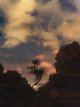
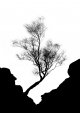
I was at Brimham Rock today, I took a long exposure for the clouds and a shorter one to maintain detail in a tree that was moving in the wind.

Thanks.
 
Yes sure it’s possible to blend anything, no? Bring them in as separate layers then use layer mask to show only what you want from the short exposure one on the long exposure layer for example.
 
Yes, but not automatically...
You could try using either the lighter color/darker color layer blend modes and then masking out anything undesirable showing through. But you'll likely need to manually select the sky in your static tree shot and remove/mask it.
 
Post the 2 Jpegs on here/Flickr and I will create a quick 'how to' with them if you want using channel selections and luminosity masks.

I'm imagining it will depend on how blurred the blurred tree is on how i would go about it but I'm happy to try
 
Post the 2 Jpegs on here/Flickr and I will create a quick 'how to' with them if you want using channel selections and luminosity masks.

I'm imagining it will depend on how blurred the blurred tree is on how i would go about it but I'm happy to try

Here you go, Craig, much appreciated.

SOOC 1 by aNdy sHeader, on Flickr

SOOC 2 by aNdy sHeader, on Flickr
 
Very quick effort to prove it can be done;

posiviewblend by Craig Hollis, on Flickr

I ran into some issues working with the small files, I think tomorrow with more time I will screen grab the bit around the tree from the larger file on flickr and have a more detailed go. Then do the screen grabs for a 'how to' from that if it's ok? Or you can send me the larger jpegs if you want me to have a proper go at it.

I would also being quite experienced at the Photoshop side of things have made life easier for myself in the field with the images I captured. What makes this blend harder is the bits of white cloud behind the silhouette of the tree in the shorter exposure. If you had waited until they had drifted by and you had a more uniform blue background it would make the masking easier.

Having knocked up this quick blend though I wonder if you prefer the idea you had in your head, or now having seen it prefer one of the standard exposures? Sometimes you have to try something to see if it works though. I quite like the long exposure with the tree blurry and the clouds showing the wind but the rocks standing up to it all.

In essence, the steps you take to do this are as follows;

Put shorter exposure on top. Unlock background layer, edit; auto align layers.

Go into channels, take the blue channel, click on it, then command click it to select it, click the icon that creates a new alpha channel. Open curves, (cmd+M) then pull the white point in and the black point up till the silhouette appears strongly how you want it.

Screen Shot 2017-11-20 at 23.02.14 by Craig Hollis, on Flickr

Then get the brush tool with 100% hardness and touch up the sky using white and the rocks using black to get rid of grey parts.

Screen Shot 2017-11-20 at 23.03.23 by Craig Hollis, on Flickr

Then take the red channel and repeat what we did to the blue channel. Neither of these sections are perfect, but together they start to work. So select the modified red alpha channel (cmd+click) then go into the modified blue alpha channel and paint through the bits from alpha 2 that are missing in alpha 1.

Deselect, invert, (cmd+I) then select finished alpha 1, go back to layers tab, create a new folder and click the layer mask icon to add your alpha 1 selection from the channels tab to the folder, then drag your shorter exposure up into the folder. It will still be a mess because now you are revealing the shorter exposure tree and foreground, but the blurred sky shows the bit of moving tree either side. For this exercise I simply duplicated the longer exposure, then transformed it so that it was stretched downwards to remove the tree to behind the rocks. Then using my existing alpha selection with the lasso to add the tree in I masked the ground back in from the layer beneath.

The rest of the work was using adjustment layers within the folder above the shorter exposure to get rid of the haloing caused by the shorter exposure being brighter and a different colour temperature slightly.

(Please ignore laziness around rocks)

 
Very quick effort to prove it can be done;

posiviewblend by Craig Hollis, on Flickr

I ran into some issues working with the small files, I think tomorrow with more time I will screen grab the bit around the tree from the larger file on flickr and have a more detailed go. Then do the screen grabs for a 'how to' from that if it's ok? Or you can send me the larger jpegs if you want me to have a proper go at it.

I would also being quite experienced at the Photoshop side of things have made life easier for myself in the field with the images I captured. What makes this blend harder is the bits of white cloud behind the silhouette of the tree in the shorter exposure. If you had waited until they had drifted by and you had a more uniform blue background it would make the masking easier.

Having knocked up this quick blend though I wonder if you prefer the idea you had in your head, or now having seen it prefer one of the standard exposures? Sometimes you have to try something to see if it works though. I quite like the long exposure with the tree blurry and the clouds showing the wind but the rocks standing up to it all.

In essence, the steps you take to do this are as follows;

Put shorter exposure on top. Unlock background layer, edit; auto align layers.

Go into channels, take the blue channel, click on it, then command click it to select it, click the icon that creates a new alpha channel. Open curves, (cmd+M) then pull the white point in and the black point up till the silhouette appears strongly how you want it.

Screen Shot 2017-11-20 at 23.02.14 by Craig Hollis, on Flickr

Then get the brush tool with 100% hardness and touch up the sky using white and the rocks using black to get rid of grey parts.

Screen Shot 2017-11-20 at 23.03.23 by Craig Hollis, on Flickr

Then take the red channel and repeat what we did to the blue channel. Neither of these sections are perfect, but together they start to work. So select the modified red alpha channel (cmd+click) then go into the modified blue alpha channel and paint through the bits from alpha 2 that are missing in alpha 1.

Deselect, invert, (cmd+I) then select finished alpha 1, go back to layers tab, create a new folder and click the layer mask icon to add your alpha 1 selection from the channels tab to the folder, then drag your shorter exposure up into the folder. It will still be a mess because now you are revealing the shorter exposure tree and foreground, but the blurred sky shows the bit of moving tree either side. For this exercise I simply duplicated the longer exposure, then transformed it so that it was stretched downwards to remove the tree to behind the rocks. Then using my existing alpha selection with the lasso to add the tree in I masked the ground back in from the layer beneath.

The rest of the work was using adjustment layers within the folder above the shorter exposure to get rid of the haloing caused by the shorter exposure being brighter and a different colour temperature slightly.

(Please ignore laziness around rocks)


As the rocks and tree are pretty much black, I’d have used blend if.
 
I can not see what you are trying to achieve, the rocks and tree have no additional detail in either shot...?
 
what is the purpose? there is very little detail in the rocks either way, so is the purpose just to have the non blurred tree on the darker sky?
or just to muck around with levels and blending options? it's a fun image to play with however
Untitled1_small.jpg.jpg
 
Last edited:
oh right, I see now. very tricky to do with my limited knowledge without trying to delete bits of the lighter sky in within the branches

what I haven't tried is taking the sharp tree in isolation and making it B&W, and then clipping out the light areas more.
 
A simple stack using "blend if" or "darker color" could work if you painted out the blurry parts first... something like that is going to be required either way.

The advantage of my admittedly long winded method is not applicable to this picture. But with a foreground exposure that held more detail (i.e. a brighter exposure) you would have the benefit of a clean blend that revealed the sharp tree and more detail in the tree trunk and rock face.

Using a darken blend mode would sort the sharp tree out once you'd dealt with the blurred tree on the base layer and be quicker but would be messy and ineffective if you were trying to also increase dynamic range with an exposure that allowed you to.
 
The advantage of my admittedly long winded method is not applicable to this picture. But with a foreground exposure that held more detail (i.e. a brighter exposure) you would have the benefit of a clean blend that revealed the sharp tree and more detail in the tree trunk and rock face.

Using a darken blend mode would sort the sharp tree out once you'd dealt with the blurred tree on the base layer and be quicker but would be messy and ineffective if you were trying to also increase dynamic range with an exposure that allowed you to.
I agree, there aren't many times where I would suggest a simpler method as being as good.
Part of the issue is that this is actually a surprisingly difficult blend to pull off well. The similarities and differences both combine to make it more difficult, as does the fine level of detail (see through) which is why there is no option that isn't going to require some form of manual replacement/recreation of sky. Combine that with the fact that the finer details (branches) also seem to have a bit of CA/blue to them... making an adequate selection is quite difficult.

I think I managed a decent selection, but it required a lot of manipulation prior to making the selection, and then a lot of refinement using the brush in overlay mode... it's probably possible to do better, but I already spent more time on it than I wanted.

mask.jpg
 
Reminds me of Milky Way shot from earlier this year were I had the same problem - went for a sharp shot of the tree in blue hour then MW longer exposure later. Used blue channel selection method similar to Craig’s above and worked quite well.
 
Back
Top