Black and White Conversions look 'muddy'

Marcus Geezer

Suspended / Banned
Messages
3,522
Name
Marcus
Edit My Images
Yes
After posting up some images for C&C, someone rightfully commented that my B&W images look 'muddy'. Having had a look and practiced some conversion styles feel a bit of a loss on how to process a clean well contrasted image in B&W. It's such a basic thing but I'm sorry it just escapes me as to what the basic knack is.

I've tried basic desaturation, then tried to increase contrast using curves and levels. Tried channel mixer, and black and white adjustment function, and I'm not confident I'm producing what I want to see.

Not dwelling on what I'm doing wrong, can anyone provide some tips, technique or workflow that would at least point me in the right direction.
 
With the limited play I've had with B/W conversion, the proportion of each colour applied to the B/W is the biggest contributor to the feel. In Lightroom, it is in the B/W section of the develop module. For example, playing with the blue proportion of contribution will dramatically effect the look and feel of the sky in any b/w image. Not sure what software you are using though...
 
If you have Photoshop there is the B&W option under adjustments. Some of these presets work well, although I still prefer to use the Channel mixer option. I would also suggest that whilst these can give a good starting point some work may still bee needed in curves or similar, Personally I agree with Andy that the controls in Lightroom are probably a better and quicker option.

If you have Photoshop you have access to the ACR engine which is the same as the develop modul in Lightroom , but without the more sophisticated user interface
 
If you have access to Capture One the b+w styles are nothing short of stunning.
One click and colour files look almost as good as Tri-X.
Never got great results from Photoshop.
 
Sorry, yes I am using Photoshop CS5. I've got to grips with the different options such as channel mixer and black and white adjustment, where you can use add/subtract colours to refine the image, but I still end up with a 'muddy' image,where the mid tones either seem to burn or gray out making the image muddy. I'm looking, for example, to take a portrait of someone and just make it B&W, make the blacks black, the whites white but I'm not getting something as it gets a bit messy. I like to think I can use levels and curves quite well, but not obviously as well as I'd like.
 
Marcus, try downloading the trial of silver efex pro. Does the job fantastically.
 
Sometimes a B+W conversion will benifit from a gentle S curve, it just "tweeks" the contrast that bit.
 
Marcus, try downloading the trial of silver efex pro. Does the job fantastically.

I'll have a look Dean. Thank you.

Sometimes a B+W conversion will benifit from a gentle S curve, it just "tweeks" the contrast that bit.

I use the s curve to tweak the contrast, but even gently find that on the black and white images it causes that 'muddy' look. I can see the pic, as most do, need a little punch by using curves, but I feel it starts to give it that 'dirty' look. I think it's my technique and workflow that is causing this, rather than my tools (CS5).

Perhaps someone can offer a workflow for me to try?
 
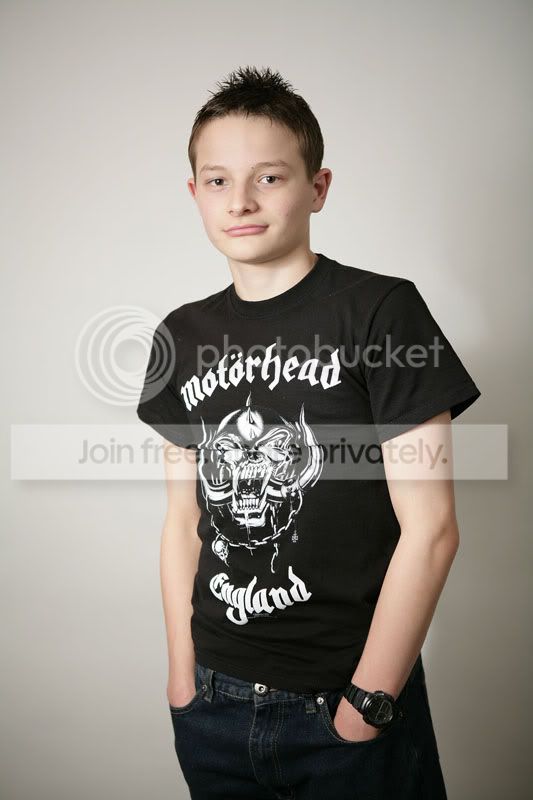
Straight from camera

IMG_2133.jpg


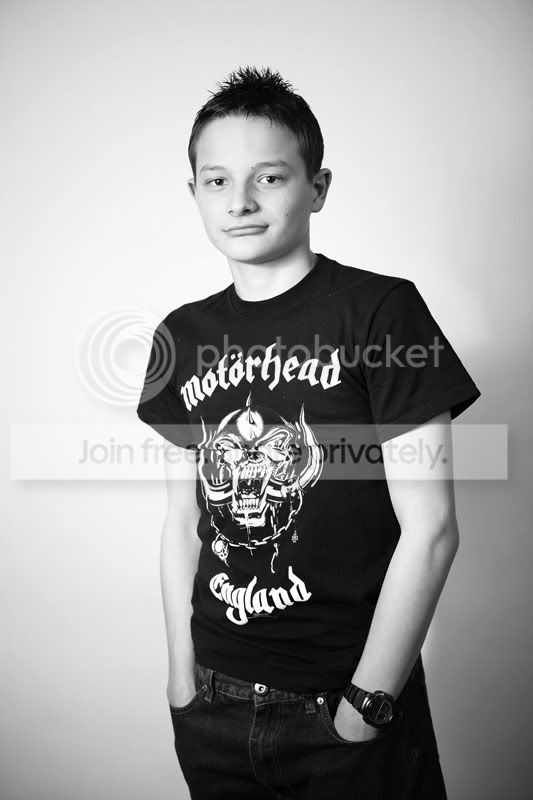
My attempt using black and white adjustment with a levels and curves adjust.

IMG_2133process.jpg


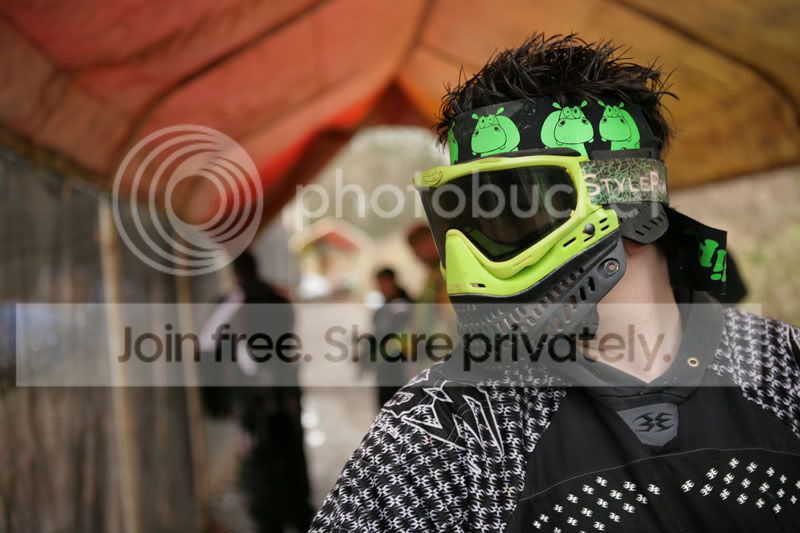
Straight from camera

IMG_1959-1.jpg


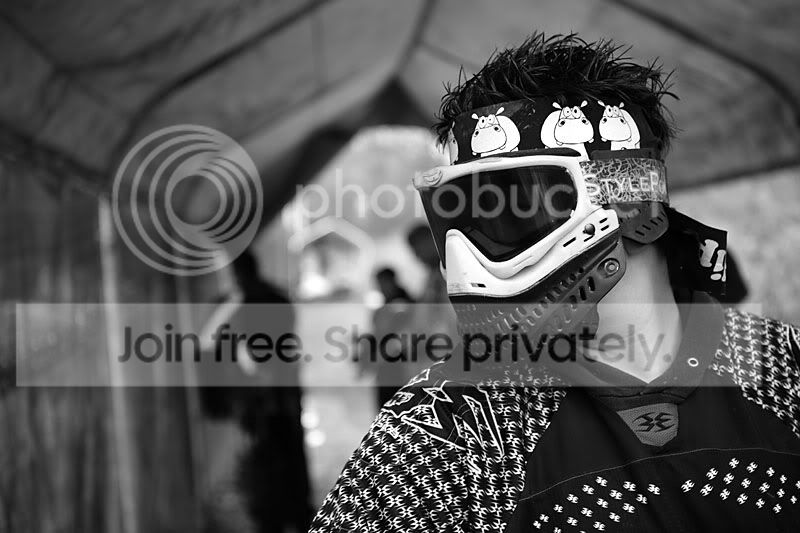
My attempt using black and white adjustment with a levels and curves adjust.

IMG_1959process.jpg
 
These don't look particularly muddy to me, the tones go from black to white, I'd interpret muddy to mean flat with no real highlight or shadow tomes. all mid grey-ish.
 
They look like good conversions to me too.

I don't know about PS/ Lightroom, but in PSP I have a few options for converting to B&W.

1) SImple desaturate/convert to grayscale

Usually the least effective method, depending on the image.

2) Channel Mixer

This is takes a lot of twiddling - you select the values for R G and B channels as well as a global brightness slider, best for fine tuning a conversion. (Use a high red and a low blue to give dark contrasty images, use the green channel to control brightness overall, looks almos tinfra red)

3) There is a Black and White Film feature which is what I use the most. It brings up a dialog with a colour filter choice, a brightness slider and a clarify slider. It's basically a simplified channel mixer, this is mostly what I use now for all my B&W work, usually with a yellow or green colour filter, a niudge to darken the image and a slight clarify to bring out details,

4) Infra Red film

This replicates the look of IR film pretty well, as long as there are no trees in view as it doens't simulate the woods effect. It's far far superior to the PS version.

If you have photomatix, it's preset B&W can make a good job of a gritty B&W as well, but it isn't suited to everything.
 
Only thing i would say really is that it seems to be lacking a bit of contrast.

Hope you dont mind - i had a quick fiddle with it following my usual conversion process.

Does this look any better?

IMG_2133-Edit.jpg
 
Hi. I think the issue with the boy in the black t-shirt is the lighting. Its quite soft, no harsh shadows, one light source. Perhaps play with the lighting effects in Photoshop? BTW next time get him to pose with his hands out of his pockets or resting on the pockets - it looks like hes been amputated!
 
Only thing i would say really is that it seems to be lacking a bit of contrast.

Hope you dont mind - i had a quick fiddle with it following my usual conversion process.

Does this look any better?

IMG_2133-Edit.jpg

The problem I 'feel' I have had is that too much contrast is killing the 'clean' feel of the picture. Leading on to....

Hi. I think the issue with the boy in the black t-shirt is the lighting. Its quite soft, no harsh shadows, one light source. Perhaps play with the lighting effects in Photoshop? BTW next time get him to pose with his hands out of his pockets or resting on the pockets - it looks like hes been amputated!

Its a strobist brolly box close to camera left, with a fill in bounce brolly right and high. We tried the hands out, hands in, and neither looked right, but this is how he felt most comfortable.

Anyway I guess what you are saying is that this image due to the style of lighting doesnt perhaps suit itself to a high contraqst b&w shot. Probably about right to be honest.
 
The problem I 'feel' I have had is that too much contrast is killing the 'clean' feel of the picture.
Whilst I don't know what the purpose of the shoot was, I suspect a young teenage (I assume) boy wearing a Motorhead T isn't going to want a clean image ;)
 
Your conversions look ok. perhaps a little bit too light.
The reprocessed one of the boy looks better, because the face is more defined and not lost in the white bit.

Another way to play with black n white is in Gimp (probably similar in other packages)...

Over saturate the picture a bit (optional)
Then under colours>Component>Channel mixer select the greyscale.
Play with reds/blues/greens (depending which is more dominant?) and try to keep close to the 100% in total over all three.
As an after effect, use the contrast and brighten slightly on both.

Mostly works out ok. Can always add noise before the channel mixer bit to make the pic look more older style...
 
I tend to use a gradient map adjustment layer, making sure black and white are set as bg/fg colours. If you get a crazy negative effect tick the reverse box.

Now you can adjust the smoothness of the gradient map to taste.

Give it a try :)

If you're lacking midtone contrast, try a high pass filter on a bg copy layer, run it on approx 40pixel, set to softlight blend, adjust down to taste.

Unsharp mask can also be used in a similar way

Hope that helps

Danny
 
I take the same opinion that 'muddy' would be interpreted as flat dull and lacking in contrast. The images posted have a good tonal range and good contrast (to my eye anyway).

I also second the opinion that if you are serious about BW you need to get Nik's Silver Efex Pro.

Rgds
 
Back
Top