Best way to save Light Room edited images for this forum?

Crotal Bell

Suspended / Banned
Messages
3,470
Name
Keith
Edit My Images
Yes
Hi folks

So far I have only been successful by choosing JPEG Small in the drop down menu, JPEG large is too big for the forum.
Is this the best way to save LR images for this forum or am I missing something?
 
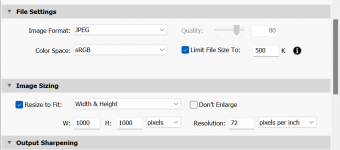
These are my settings. I think the 500k limit is the most important bit.

Screenshot 2023-05-28 193343.png

Works for everything. I don't think it's a dimension thing, more a filesize thing. Only have issues whey I screen grab stuff. Screen resolutions are getting so good, that even a screen grab can be well into Mb of filesize these days!
 
Exactly as Ian has said above, If you are linking to Flickr, choose the BBCode that has a longest edge of 1024px.
 
Ian has covered the Lightroom bits, but for uploading, size guides etc.
From the help pages,
I hope that err helps.

 
Last edited:
These are my settings. I think the 500k limit is the most important bit.

View attachment 390819

Works for everything. I don't think it's a dimension thing, more a filesize thing. Only have issues whey I screen grab stuff. Screen resolutions are getting so good, that even a screen grab can be well into Mb of filesize these days!
Thanks for helping
I cant seem to find this menu I only have the small left hand drop downs in LR Classic and can't seem to find how to set 500K ?
Are you using a different sizing app?
I tried to follow everything else but I don't think it's worked out too well without the 500K bit
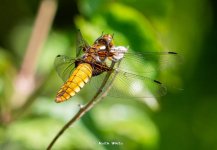
P1034724.jpg
 
I cant seem to find this menu I only have the small left hand drop downs in LR Classic and can't seem to find how to set 500K ?
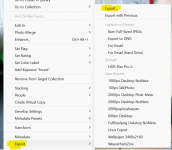
Not sure what you mean by this... Is it this?

Screenshot 2023-05-29 002156.png

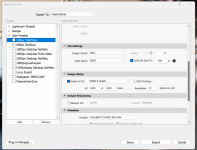
If so, instead of clicking on a preset, click the "Export" function (in yellow). This should pop out another screen...

Screenshot 2023-05-29 002318.png
It should then allow you to make the changes. When you're done, click the "Add" button to add the settings as a preset so that next time, you can just use the right click option.
 
Not sure what you mean by this... Is it this?

View attachment 390861

If so, instead of clicking on a preset, click the "Export" function (in yellow). This should pop out another screen...

View attachment 390862
It should then allow you to make the changes. When you're done, click the "Add" button to add the settings as a preset so that next time, you can just use the right click option.
I haven't seen any of this so maybe I'm not looking in the right place, I'll have a look tomorrow and follow you advice buddy
 
I no longer use Lightroom, but On1 Photoraw.

On the Imagesizing section above where it says Height and Width, does the drop-down allow Longest Side. That is what I use set to 1024. That way my software does the image resizing, not flicker. As Lindsay says use the BBC code for 1024.

I saved that as a export preset just for TP.
 
I haven't seen any of this so maybe I'm not looking in the right place, I'll have a look tomorrow and follow you advice buddy
All you have to do is click on the button in the bottom lefthand corner of the Library Module that says "EXPORT"
 
I always export from LR 'as is' at full resolution.

I then make a copy in the folder it's in, open in PS, run an action to resize to 1600 longest side, add signature, save & upload than version to Flickr, forums, Instagram etc
Do you know if it makes much difference to the pictures(sharper etc) posted on TP if

A) Post full size pic from LR to Flickr and let flick do it all, just select size to link when posting to TP

B) Use LR to post to another folder and use presets to sharpen resize etc then send to Flickr

TIA
 
I do exactly the same as Ian most of the time although sometimes I save at full res and resize in PSE.
Export is found in the first drop down menu (File) on LR, then select your options as shown above.
 
Do you know if it makes much difference to the pictures(sharper etc) posted on TP if

A) Post full size pic from LR to Flickr and let flick do it all, just select size to link when posting to TP

B) Use LR to post to another folder and use presets to sharpen resize etc then send to Flickr

TIA

Not got a clue sorry. I don't do either of those things you mention.

Best thing is probably to do both and start a thread posting both images in for comparison for people to comment on.
 
  • Like
Reactions: nog
I haven't seen any of this so maybe I'm not looking in the right place
Can you screenshot what you're seeing?

Should be a simple case of right click on any image and the Export function should show in the list as per my attachment with the yellow highlights above.

Of course, the one thing I didn't ask was whether you are on a desktop windows computer which is what I use. Macs and pads aren't my thing...
 
Can you screenshot what you're seeing?

Should be a simple case of right click on any image and the Export function should show in the list as per my attachment with the yellow highlights above.

Of course, the one thing I didn't ask was whether you are on a desktop windows computer which is what I use. Macs and pads aren't my thing...
I think it may be the type of LR I am paying for. It's just called Lightroom (not classic) also it only states "Photoshop" as something I get for a mobile.
There is a small export icon top right, plus the file/help etc tabs top left. Whatever I choose for export I only get a narrow black drop down on the right.

Image Type
Dimensions
Short side
Pixels
Quality
Copyright
File naming
Output sharpening
Colour space
 
As a matter of interest when LR starts what does the splash screen show?
Mine shows Adobe Photoshop Lightroom Classic
 
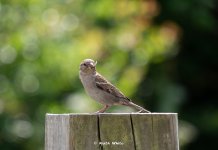
I cropped this one and sharpened etc and then saved in custom settings but tbh I don't know what I'm doing right or wrong. It's not come out too big for the Forum but it's more luck than judgement. The "long side" is 4.167 on the "Inches" setting. I don't know if that's what was being referred to as the 5K setting earlier.
Custom AA.jpg

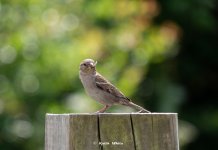
This time I set the long side to 5.000 and don't know if there's much difference?
Custom AA-1.jpg
 
Last edited:
OK so you appear to be using LR not LR Classic.
Click on File on the menu bar, then Export. You should see the Export sidebar (I think you have confirmed this).
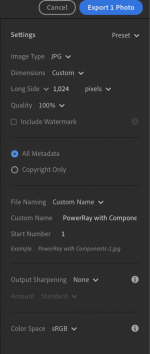
Make the settings as in this example:
1685365515371.png

See what file size comes out from that. If it's around or below 500kb, fine, if not then adjust the Quality setting down a little. I find I need only usually reduce to 90% if that is necessary. Experiment with this - sharpening for display for example
 
Sounds like you have the Lightroom that is used in conjunction with the cloud where the originals are saved.
 
OK so you appear to be using LR not LR Classic.
Click on File on the menu bar, then Export. You should see the Export sidebar (I think you have confirmed this).
Make the settings as in this example:
View attachment 390905

See what file size comes out from that. If it's around or below 500kb, fine, if not then adjust the Quality setting down a little. I find I need only usually reduce to 90% if that is necessary. Experiment with this - sharpening for display for example
That's the one, so I have followed your settings and saved this to a desktop file, now lets see how it comes out (and thank you for the help)
Lindsey.jpg
 
OK so you appear to be using LR not LR Classic.
Click on File on the menu bar, then Export. You should see the Export sidebar (I think you have confirmed this).
Make the settings as in this example:
View attachment 390905

See what file size comes out from that. If it's around or below 500kb, fine, if not then adjust the Quality setting down a little. I find I need only usually reduce to 90% if that is necessary. Experiment with this - sharpening for display for example
Just as an update, it's been a bit success/failure with these settings so I re-visited the advice, I'll try 90% etc, when you say "sharpening for display" do you mean adding a little in the drop down "Output Sharpening" ?
 
I always use LR (Classic) and export full size, upload to Flickr then 'share' whilst picking the right-sized BBCode. This enables a decent sized picture on the TP pages but allows folk to see a much bigger image, if they want to, by clicking on the displayed photo.
 
What I do is export from Lightroom Classic to my desktop as a jpeg max size 500 Kb and width 800 or 1000 pixels

Then I open up TP, write the message and click on the "insert image" above. That takes me to the desktop where the image is and I click on it to add it to the post.
 
I have to say, I output mine full res and then upload to Flickr and link to here.

That way, anyone interested can see it full size on flickr.

I appreciate however, that I now pay for my flickr account after I ran into the 1,000 image limit.
 
Back
Top