Banding issues on photo

PARTRIM

Suspended / Banned
Messages
27
Name
Matt
Edit My Images
Yes
Guys,


I continually suffer from what i believe is banding issues on my photos. There appears to be what I can only describe as a random splash of different tones in an image - almost like a drop of water has been dropped onto the image and smeared it in places In both black and white / colour pictures this issue keeps rearing it's ugly head.

I'm relly keen to :

a) Learn how i can correct this issue in CS4
b) Avoid it happening when I take a picuture.

Any help and advice would be greatly received!
 
Guys,

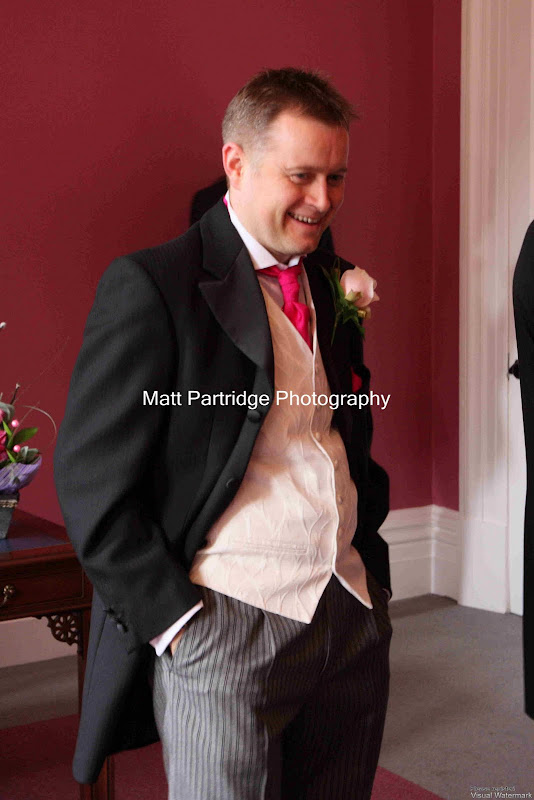
This is a lik to a photo with the issue. Look above the left shoulder as you look at the photo. This only really becomes noticeable on a slideshow view or when the imahe is printed.
PhotoIssue
 
Link is dodgy, but here is the photo..

IMG_4057.JPG
 
Doesnt look sensor related to me, more mix of High ISO, processing and some weird artefact compression.

Have you some more photos to compare? Is it the same pattern all the time, or different depending on the colour tones in the image?
 
I would have thought some form of jpeg compression, causing the tonal detail/range to be discarded.:thinking:
 
that's what most of the photos look like when I view them on my work PC - as though it is displaying in 16 bit colour
 
Tom, it seems to happen randomly. My gut feel is it mainly occurs when i tend to do quite a bit of processing in camera raw in CS4. I will post another image in a second to see if it helps.
 
It's almost certainly a processing/compression issue rather than a buggered camera issue I'd say. As to how to solve it, could be a number of things. What colour space is your camera set up for and what is the processing software set up for? When saving, what compression and quality settings ate you using?
 
That is some nastybanding. Does it show up on the original raw image with no processing applied? If not, work through your workflow, and see at what point it appears. Certainly JPEGcompression won't help and will exaggerate the effect, as will lots of sharpening to the JPEG file.
 
Posterizing? (reducing the colour "bits" in Photoshop can cause banding).

I was going to say about the photo hosting web site adding to the issue as it create it's own compression algorithm, but I think this might not be the case - especially with Flickr.
 
I have just examined the RAW files and there is no evidence of this 'banding' on them. After processing the images in CS4, I do a save as and save the file as a high quality JPEG (at this stage no banding is present). Then, I do another 'save as' and make sure it is low quality (so that the file size is very small for uploading to the web). Lastly, I would add a watermark. The first time I ever notice this issue is when I view the images as a slide show on the web
 
I have just examined the RAW files and there is no evidence of this 'banding' on them. After processing the images in CS4, I do a save as and save the file as a high quality JPEG (at this stage no banding is present). Then, I do another 'save as' and make sure it is low quality (so that the file size is very small for uploading to the web). Lastly, I would add a watermark. The first time I ever notice this issue is when I view the images as a slide show on the web

Or you can reduce the image size to a manageable, say 800 pixel width and save it as a high quality JPEG all the same. That should only end up as being something like a 150Kb file which is perfect for quick uploading for internet showing.
 
My Canon 40D's colour space is sRGB (rather than the optional setting of Adobe RGB). Saving the RAW file to a JPEG in CS4 is done via Adobe RGB 1998 (8 bit)
 
You want to be saving for web in srgb.
 
Then, I do another 'save as' and make sure it is low quality (so that the file size is very small for uploading to the web). Lastly, I would add a watermark.

There's your problem. You've saved it as a terrible quality pic for the web, and then edited it again by adding the watermark which has further artifacted the artifacts introduced.

Take a peek:

A snap at my standard export settings, see the 100% crop looks ok.

Image1.jpg


Zoom in and you can see the amount of detail that's just been anhilated by comporession.

Image2.jpg


And the compression uppd, and even at 100% it looks manky...

Image3.jpg


Simple answer: use less compression. A Lot less. :thumbs:
 
Guys,

I have just saved a test file using sRGB in photoshop. I have also used higher quality files rather than going straight for the lowest quality option. Guess what....All sorted!!

A big thank you to you all for your advice and help!
 
Glad it's sorted!
 
safe to say it's definitely not your camera then...it's YOU!!!

:lol:

Seriously though, you've obviously been shooting in JPEG (8-Bit) and editing alot of the colouring and casts so you end up with a tonal banding. If you are to manipulate your images heavily then it's best to shoot in RAW :)

EDIT: woops just noticed you got it sorted, congratulations! :thumbs:
 
Back
Top