Baffling home networking problem

StewartR

Suspended / Banned
Messages
11,513
Name
Stewart
Edit My Images
Yes
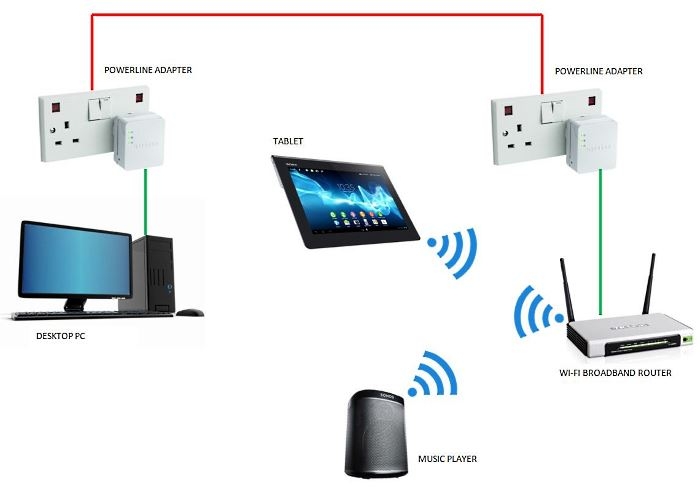
So I'm using the Windows 7 PC in the study at home and it says it can't connect to the internet. That's a bit disappointing as it was connecting perfectly well 15 minutes previously.

The first thing I thought of doing was rebooting the router. But still no internet connection from the PC. So I investigated a bit further, and this is where it starts to get confusing.
  • I can connect to the internet fine using the tablet, so that implies the broadband is working, the router is working, and the wi-fi is working.
  • I can listen to music via the Sonos system, and all the music files are on the hard disk of the PC, so that implies the powerline link from the PC to the router is working.
So ... the PC can talk to the router, and the router can talk to the internet. So what can't the PC talk to the internet?

Any ideas where the problem might lie? Could there be something subtly wrong inside the router?
11948-1434712577-f7ecdf9b4bfa8a8ab25d60a6feb6f151.jpg
 
Could be the DNS settings on your PC (only) are pointing at a Server that is not functioning. Usually, the default is to use the Router for this function but it is possible to override this.
 
I also use powerline adapters, and now, whenever there's an issue I reset them. I've had some mysterious failures just like yours.

If you can, plug the PC directly into the router and try again.
 
Could be the DNS settings on your PC (only) are pointing at a Server that is not functioning. Usually, the default is to use the Router for this function but it is possible to override this.
Could that explain why the PC's internet connection was working fine, and then 15 minutes later wasn't working?
 
I also use powerline adapters, and now, whenever there's an issue I reset them. I've had some mysterious failures just like yours.
Could that explain why the powerline adapters were transmitting data quite happily to the music system, but not to the internet?
If you can, plug the PC directly into the router and try again.
Not convenient, I'm afraid. Different floors, different ends of the house.
 
Does the PC have WiFi? May sound like a daft question since you are using power line adaptors but worth asking.

I have found those power line adaptors to be quite sensitive to having some power adaptors plugged in next to them, it may be worth making sure nothing is plugged in near them just as a test, also are they on the same circuit in your house? could one have been moved?

Can you ping the router from the PC?

Can you open the router admin page from the PC

Can you ping goolge.com from the PC?
 
Could that explain why the PC's internet connection was working fine, and then 15 minutes later wasn't working?

Not easily explained - unless 'something' has got hold of your PC settings and changed them.

If your 'network' is connecting locally (music files and Tablet connecting to Internet) it does seem like a DNS issue on your PC.
 
Does the PC have WiFi?
No. (There's no such thing as a daft question in situations like this!)
I have found those power line adaptors to be quite sensitive to having some power adaptors plugged in next to them, it may be worth making sure nothing is plugged in near them just as a test, also are they on the same circuit in your house? could one have been moved?
Nothing had changed in the 15 minutes from when it was working to when it wasn't. They're both on the same circuit and hadn't moved.
Can you ping the router from the PC?
Can you open the router admin page from the PC?
Can you ping goolge.com from the PC?
Good questions, thanks. I'll try all those things when I get home.
 
You need to start from the bottom and work your way up.

  1. Does your network card on the PC show 'connected', if you go into the Control Panel and Network Connections it should tell you.
  2. Do you have an IP address and default gateway. You will be likely using DHCP so you can either double click on the network connection you checked in step 1 and look at the details button or bring up a command window and type "ipconfig /all" (without the quotes).
  3. Bring up a command window and run a traceroute to an internet IP address such as 8.8.8.8. The command is "tracert -d 8.8.8.8"

How to do Step 1
https://technet.microsoft.com/en-us/library/gg252549(v=ws.10).aspx

How to bring up a command window
http://www.7tutorials.com/7-ways-launch-command-prompt-windows-7-windows-8

Post back the results.
 
1. Does your network card on the PC show 'connected', if you go into the Control Panel and Network Connections it should tell you.
It did. I looked at Control Panel / Network Connections and it said that my PC was connected to the router, but the router was not connected to the internet. However, at exactly the same time I was able to connect to the internet using my tablet. So the router definitely was connected to the internet, but the PC thought it wasn't.

That's when I started to wonder whether there could be a fault (possibly an intermittent one) in the router. Is it possible that it might be able to connect "port 1" (the internet) to the wi-fi but not to "port 2" (the connection to my PC)?

2. Do you have an IP address and default gateway. You will be likely using DHCP so you can either double click on the network connection you checked in step 1 and look at the details button or bring up a command window and type "ipconfig /all" (without the quotes).
3. Bring up a command window and run a traceroute to an internet IP address such as 8.8.8.8. The command is "tracert -d 8.8.8.8"
OK, will do when I get home.
 
We have a similar scenario to you - Router - powerline adapters >Desktop PC's plus phone/ tablets.

Intermittently we lose Internet access on a Desktop PC (phone / tablets working OK), it can last a few seconds / minute or so before Internet connection is normally restored - so far all testing has been inconclusive, but everything is pointing to an issue with the Router loosing contact with the DNS servers. We see a Yellow Triangle in the status bar indicating lack of Internet access.

- when it happens again if you go into "Network & Sharing Center" > change "Adapter Settings" then right click "local Area Connection" and "Disable" the adapter. Then right click and "enable", this normally restores our Internet connection as it forces the router to remake the connection.

[Another option could be that the "powerline adapter network" is misbehaving........................... we found that although in theory it should be impossible (improbable as our 2 houses are on different electrical phases) that one PC had actually connected to a neighbours router through an unprotected powerline adapter he had connected to his router - putting passwords on our powerline adapters solved that.]

The next stage in testing / resolving this issue; for us is to replace the router, which I will do at some point, but luckily the issue is intermittent and controllable. ;)
 
Could that explain why the powerline adapters were transmitting data quite happily to the music system, but not to the internet?
Not convenient, I'm afraid. Different floors, different ends of the house.

Just spotted this - If the router is on a different electrical "ring main" to the PC, most powerline adapters don't work that well across different ring mains. On ours we have a software utility (lights on each unit) that attempts to tell us how strong each Powerline adapter connection is - for some reason the strength readings varies from day to day. Might also be worth checking the powerline adapter network strength when it occurs.
 
Have you rebooted the PC? I know it looks like the connection is okay but I've had a similar sort of problem where my desktop PC wouldn't talk to the internet but the server on the same switch would. Rebooted the PC and all was well.
 
OK, an update of sorts. When I got home on Friday my wife had rebooted the PC and it was working fine. But right now it isn't, and I've got the same symptoms as on Friday.

Can you ping the router from the PC?
Yes. The router is 192.168.1.253 and I can ping it.

Can you open the router admin page from the PC?
No. I tried pointing the browser to http://192.168.1.253 but Chrome returned ERR_CONNECTION_REFUSED.

Can you ping goolge.com from the PC?
No. Ping request could not find host google.com. However I can ping 8.8.8.8.

Does your network card on the PC show 'connected', if you go into the Control Panel and Network Connections it should tell you.
Yes.

Do you have an IP address and default gateway. You will be likely using DHCP so you can either double click on the network connection you checked in step 1 and look at the details button or bring up a command window and type "ipconfig /all" (without the quotes).
IPv4 Address = 192.168.1.71
IPv4 Default Gateway = 192.168.1.254
IPv4 DHCP Server = 192.268.1.254
IPv4 DNS Server = 192.168.1.1

Bring up a command window and run a traceroute to an internet IP address such as 8.8.8.8. The command is "tracert -d 8.8.8.8"
Tracing route to 8.8.8.8 over a maximum of 30 hops.

1 88ms 100ms 98ms 192.168.1.254
2 15ms 15ms 15ms 195.166.130.152
3 35ms 14ms 14ms 84.93.249.97
4 57ms 30ms 16ms 195.166.129.0
5 64ms 18ms 17ms 195.166.129.5
6 45ms 14ms 15ms 72.14.223.32
7 63ms 16ms 15ms 216.239.48.37
8 52ms 15ms 16ms 216.239.46.253
9 54ms 15ms 15ms 8.8.8.8

Trace complete.


Incidentally I've been writing this on my phone which is using the house Wi-Fi, whilst listening to music streamed from the PC to the Sonos. So each of the individual links in the network are functioning, but I just can't connect to the Internet from a browser on the PC.

Does this help the diagnosis?
 
Your router is 192.168.1.254 NOT 192.168.1.253

try http://192.168.1.254 or maybe https://192.168.1.254

I would say the problem is not your network (as you've proved connectivity from your router to t'Internet) but your PC

As your tracert is to a known (google) DNS then it must be (somehow) your ipconfig of the PC

In fact, I can see it is - it's looking at192.168.1.1 as the DNS path (the router is the usual, default path for DNS) when it should be 192.168.1.254
 
Last edited:
It could work like this if 192.168.1.1 is the DNS but I very much doubt it .... more likely 192.168.1.254
 
Your router is 192.168.1.254 NOT 192.168.1.253

try http://192.168.1.254 or maybe https://192.168.1.254
OK, ta. I can connect to the admin functionality of the router when I use the correct IP address.

As your tracert is to a known (google) DNS then it must be (somehow) your ipconfig of the PC

In fact, I can see it is - it's looking at 192.168.1.1 as the DNS path (the router is the usual, default path for DNS) when it should be 192.168.1.254
That's interesting. I tried running the Windows Network Diagnostics and the message it returned was "Your computer appears to be correctly configured, but the device or resource (DNS server) is not responding.

So if that's the problem, how do I fix it?
 
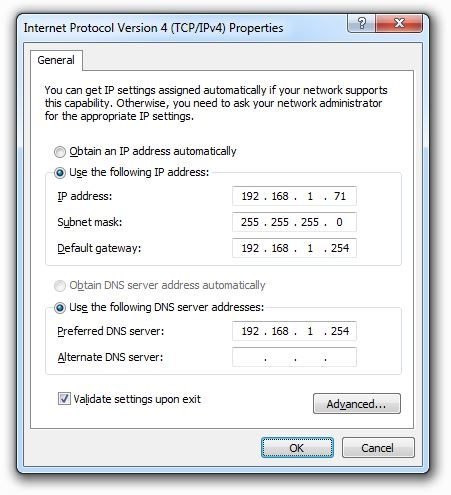
OK, so I went into the IPv4 section of the Network Adapter properties, and set it like this:

12036-1434892609-bdced81c066d5a03e2ffb0d89f2ef6d9.jpg


When I clicked OK, Windows Network Diagnostics ran. It said it could detect the correct network settings for me, which was a little annoying as I thought I had corrected them. But I don't really know what I'm doing and hopefully it does, so I clicked 'Apply this fix' anyway. And now everything works.

Upon close examination it's changed the settings in the above box to obtain an IP address automatically and to obtain the DNS server address automatically. I ran ipconfig and it confirms that my DNS server is now 192.168.1.254.

So that looks like a good fix, and a repeatable fix. Thanks everyone for their help!
 
OK, so I went into the IPv4 section of the Network Adapter properties, and set it like this:

12036-1434892609-bdced81c066d5a03e2ffb0d89f2ef6d9.jpg


When I clicked OK, Windows Network Diagnostics ran. It said it could detect the correct network settings for me, which was a little annoying as I thought I had corrected them. But I don't really know what I'm doing and hopefully it does, so I clicked 'Apply this fix' anyway. And now everything works.

Upon close examination it's changed the settings in the above box to obtain an IP address automatically and to obtain the DNS server address automatically. I ran ipconfig and it confirms that my DNS server is now 192.168.1.254.

So that looks like a good fix, and a repeatable fix. Thanks everyone for their help!

That'll do it.... sorry, got into GP mode! :(

Glad you're sorted.
 
It's also dependent upon the ISP DNS path working ok.... an alternative is, perhaps, to set the DNS to Google's which tends to be 'up' all the time.

Preferred DNS --- 8.8.8.8
Alternative DNS -- 8.8.4.4
 
That is an odd one, was the DNS set manually to 192.168.1.1 when you first looked as per post number 15?

The DNS should either be the same as the default gateway (i.e 192.168.1.254) or a public DNS server such as 8.8.8.8.
Obviously DHCP has pushed out the correct settings but curious to know why it was wrong before this.

Only thing I can think of is that you may have changed your ISP at some point in the recent past and your old router was 192.168.1.1.

Anyway, glad its sorted!
 
That is an odd one, was the DNS set manually to 192.168.1.1 when you first looked as per post number 15?
It was definitely set to 192.168.1.1 but I confirmed that via ipconfig, not via looking a the IPv4 properties in Windows Networking (as in post #19). So I don't know whether or not it had been set manually.
The DNS should either be the same as the default gateway (i.e 192.168.1.254) or a public DNS server such as 8.8.8.8.
That's useful info for a non-techie like me. Thanks.
Only thing I can think of is that you may have changed your ISP at some point in the recent past and your old router was 192.168.1.1.
Not within the last 2 years or so, and in fact not since I got this PC. So whilst I might once have had a router at 192.168.1.1, this particular PC would never have seen it.
Anyway, glad its sorted!
So am I! Thanks.
 
The DNS should either be the same as the default gateway (i.e 192.168.1.254) or a public DNS server such as 8.8.8.8.
It should be pointed out that not all routers have built in DNS. The "Super hub" supplied by the ISP we are using at our new office premises doesn't, much to my surprise. So, not very super at all, really.
 
Try reseting the network adapter in windows. Sometimes after a disconnect it can have problems getting a fresh local ip.
 
Switching off and rebooting often works, also try same with Router!!!

Works for me many times.
 
It should be pointed out that not all routers have built in DNS. The "Super hub" supplied by the ISP we are using at our new office premises doesn't, much to my surprise. So, not very super at all, really.

Virgin superhubs don't no, they pass on the dns settings to the virgin dns settings of
  • Primary address: 194.168.4.100
  • Secondary address: 194.168.8.100
Quite a few don't have dns built in, why would you want it for a local network of a limited number of device that don't talk to each other? (Windows networking will find and resolve as will macs) If it's a corporate environment and required you'd have it on a server probably giving out the dhcp as well.
 
I had a problem like this with a Laptop running Vista. I had a local connection to the router, but no connection to the Internet.
I didn't need to do anything other than restart the computer, but there are some web pages that offer help. Including how to edit the Registery.

From what I could find, there may be DCHP issue which can also happen with Win7 (apparently)

http://www.techentice.com/fix-dhcp-problem-in-windows-7/
 
Back
Top