
B&W Conversion advice please.

mikeyw

Suspended / Banned
Messages
1,436
Edit My Images
Yes
Guys,

I rarely do B&W but did a quick shoot recently and the client would like B&W. I've only recently moved into more full time photography so not pushing myself as high end but still want to deliver quality results.

Until now i've only every used lightroom 'black & white' conversion with additional adjustments of levels and some sharpening, do people favour other methods ? Like most i'd rather keep my workflow as straightforward as possible so using lightroom really helps here.

Here's an example - any feedback on what could be improved on the conversion very much appreciated.
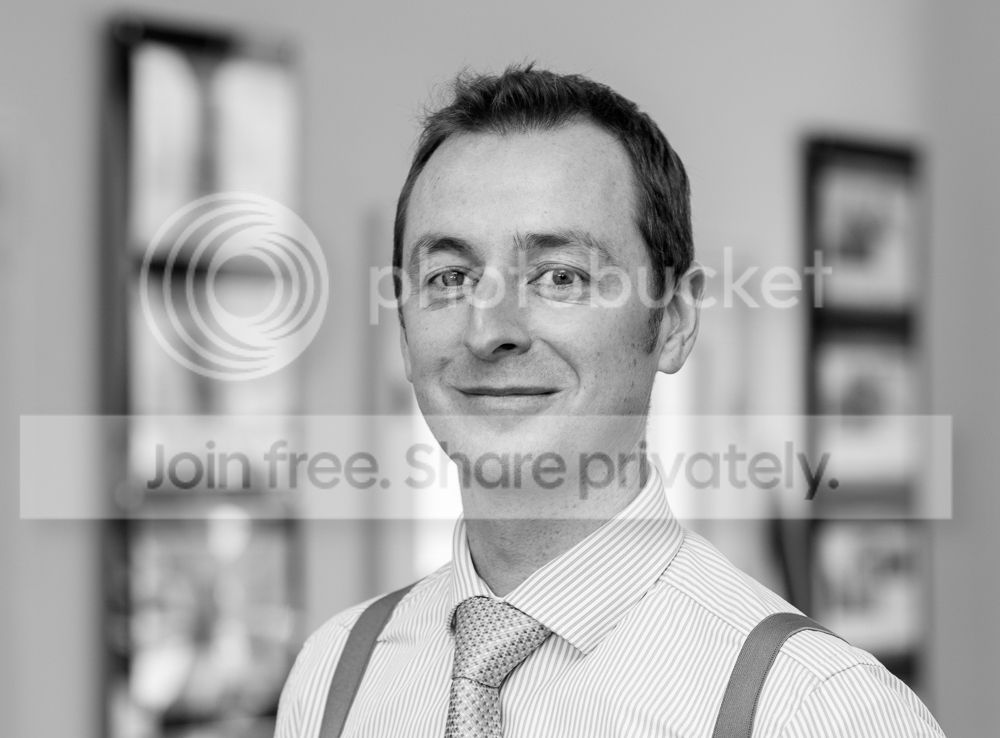


Thanks in advance,
Mike.
 
It's ok, bit "flat" maybe, with the subject matter I'd go for a bit more contrast, I use PhotoShop Elements, which isnt a bad price, not sure if it's cloud based now but you should be able to pick up a secondhand disc if needs be, version 11 seems quite good, although I have that and version 6, doesnt seem a massive difference in what they can do. Full blown PhotoShop CC is a bit overkill in my view, especially as you never actually own it.
Do you shoot in RAW or just Jpeg format?
Matt
 
I'll start by saying I'm no expert so my comments are probably as much about me learning than as giving any useful crit.

I'm not sure if the vertical shapes in the back ground are intended to frame the subject but I'm finding them a bit distracting. Can't see what colour they are from the conversion but could you take the saturation down for whatever colour they are? Would you then have more contrast between the subject and the background?

Just learning so happy to be told if I'm talking nonsense.
 
Thanks MFlip - we were in an estate agents so very difficult to find a wall without any distractions, they didn't want to use a plain backdrop either.

@MatBin - Could i add a bit more punch in LR by giving it some more contrast and clarity ? I always play it conservative with head shots, possibly too much.
 
Until now i've only every used lightroom 'black & white' conversion with additional adjustments of levels and some sharpening, do people favour other methods ? Like most i'd rather keep my workflow as straightforward as possible so using lightroom really helps here.
The colour channels are powerful tools when doing a black and white conversion in lightroom, plus the tone curve.

Clarity is something it's very easy to overdo.


It is all relative to the final uses…
sometimes darker, punchier, with more contrast etc.

As it is, I see no problem in this rendition and I like
that, as a layout artist, I could use all the flexibility
this shot offers… a good one Mike!
 
I'd definitely get a bit more contrast in there if it were me - maybe just dial in a little more black and a little more white in the sliders (I personally tend to avoid clarity - or just use around the 10-20 max mark as I feel it can look too overdone unless you're going for very edgy portraits) I feel it looks a little flat at the moment - you have however, got really nice separation between the subject & background so I think that adding in some values closer to absolute black & white would work really well :thumbs:
 
As Kodiak says, your example is pretty clean, especially for its stated purpose.

For B&W work in general, though, I'd say that Photoshop (or an equivalent, if there is one) is your friend. Unless you want to use plug-in presets (sigh). I'd be thinking tone curves and adjustment layers, maybe, on top of channel manipulation ...
 
or an equivalent, if there is one


Since I banned that maker from my operations,
I discovered many competent contenders!

Capture One as Raw converter is the heart of my
PP production and Affinity Photo is my pixel editor.

…but there are more!
 
Guys,

I rarely do B&W but did a quick shoot recently and the client would like B&W. I've only recently moved into more full time photography so not pushing myself as high end but still want to deliver quality results.

Until now i've only every used lightroom 'black & white' conversion with additional adjustments of levels and some sharpening, do people favour other methods ? Like most i'd rather keep my workflow as straightforward as possible so using lightroom really helps here.

Here's an example - any feedback on what could be improved on the conversion very much appreciated.


Thanks in advance,
Mike.

It's perfectly usable but the skin is almost exactly the same tone as the background and the whites of the eyes are a little grey. You might be able to tweak the colour sliders a bit but you may find that you can only address it by changing the lighting. A bit of a contrast-boosting S in the tone curve might help.

fwiw I probably spend longer on conversions than you want to but these days I tend to use a blend of gradient maps in Photoshop & a Silver Efex Pro conversion. Silver Efex Pro is very widely used and can be quick once you've set up a preset but it's spectacularly easy to overcook things with it and not realise until much later.

I'll start by saying I'm no expert so my comments are probably as much about me learning than as giving any useful crit.

I'm not sure if the vertical shapes in the back ground are intended to frame the subject but I'm finding them a bit distracting. Can't see what colour they are from the conversion but could you take the saturation down for whatever colour they are? Would you then have more contrast between the subject and the background?

Just learning so happy to be told if I'm talking nonsense.

Tweaking the luminosity is more likely to make a difference than altering the saturation - and that is pretty much what the colour sliders do in LR once you've selected the B&W conversion option.
 
Last edited:
I think you've caught who he is - slightly arrogant, confident looking guy. Well done.
 
Lightroom B&W is pretty versatile, but you need to practice to know what the effects are.
As others have mentioned, the colour sliders are worth experimenting with, but if you intend to do a lot of B&W work it might be worth considering a plug-in, such as Topaz or NIK SilverEFX.

Considering the image as presented I'd offer the following comments:
There's a bright area (window?) immediately behind the neck area, which is very distracting.
I'd also be inclined to crop a bit tighter, especially on the left side and maybe a bit off the bottom.
I think there are so many basic problems with the background it might be simpler to re-shoot.
 
I like the image as is. I again am no expert but believe the light was flat/soft and so to try and stretch to far from that in post will turn out looking a bit dodgy/odd. A slight curves/selective boost here and there would be ok I guess.

Gaz
 
Back
Top