
B&W + colour how do i with this?

maddog

Suspended / Banned
Messages
185
Name
stevie.
Edit My Images
Yes
Right, my wife has a thing for black and white photo's and as such...i must do as i'm told :lol:
I've spent forever in photoshop trying to get the background Black and white yet keep Hope and her bike in colour how do i do this. pls help :'(
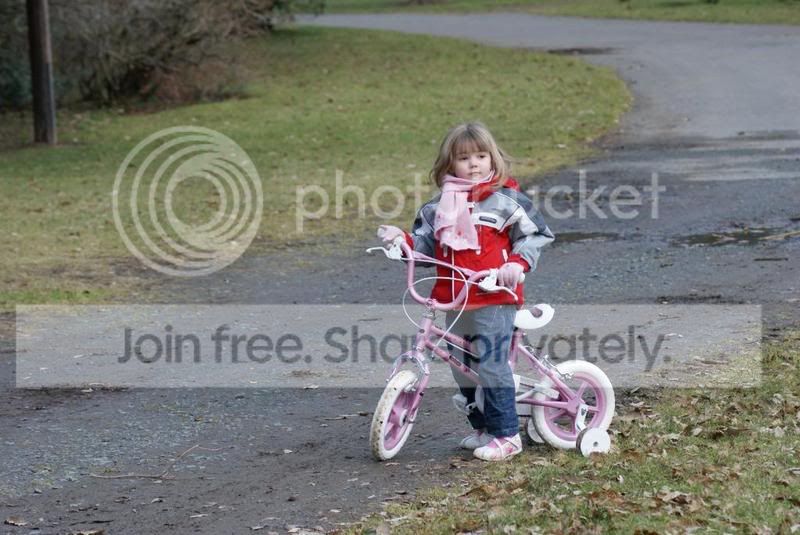
Raw00055.jpg


Thank's in advance.
 
Stevie

Do you have photoshop?

If you do it is relatively quick and simple by adding a layer - changing the saturation to change to black and white then erase the bits that you want to keep in colour.
 
I do have photoshop, when i try that i lose most of her hair and half the bike. Would getting her hair in pony tail thing or whatever it's called and taking the pic again help with that? (she loves to pose but that was a natural pose didn't see i had camera)
 
Stevie

Make sure you are zooming in to the pic and using as small a brush as practical to get the detail

Let me load my quick attempt up for you....
 
Buck, thank you very much!
I was hours at the same thing and just made a proper balls up of it.
I'm going to try simpler images, prob rally cars first. I've been trying to use the lasoo tool to do it which won't have helped either.
 
If using PS CS2/3/4 you can easily create a new B&W layer by clicking the half black/half circle icon in the layers palette. This will create a B&W layer mask on top of the colour layer. Erase the bits you want to return to colour by selecting the BRUSH tool and selecting BLACK colour. Paint over the bits you need to erase from the B&W layer to enable the colour bits to show through. If you make a mistake by revealing too much then change the brush to WHITE colour. This will paint back in the B&W that you require.

This is similar if using PS Elements but you have to create a layer mask in a different way. A search on YouTube will give you plenty of tutorials.
 
What version of Ps?

Easy way
Crate a B&W adjustment layer (you'll see a white mask)
This immediately chjanges the image to B&W.

Now click on the white mask (to make sure it's selected) and select the brush tool (press b) and make sure the foreground colour is black.

Now just paint black on your image (you are actually painting on the mask and revealing what's beneath the mask which is your colour image).

Go round the area you want to reveal as colour.
SelectColour.jpg
 
I've always wanted to know how to do that but everyone before has explained it in such an awkward fashion...

Thanks for making it so simple...

I still can't figure out how you managed to do it so quickly but a big thank you :)
 
Buck, thank you very much!
I was hours at the same thing and just made a proper balls up of it.
I'm going to try simpler images, prob rally cars first. I've been trying to use the lasoo tool to do it which won't have helped either.

You're welcome - alway good to have an excuse for me to practise too!

I find zooming in to the picture the best way and using a small brush around the edges then bigger brushes for the bigger blocks

This can be quite quick - my four amateur tips are: -

1) Use CTRL and + or - to quickly zoom in/out of the picture

2) Use the [ and ] kys to quickly change the size of your brush

3) Do the changes in small sections - this means if you get a bit wrong you can CTRL + Z to undo the error

4) If you erase the layer and create the colour on a section you didn't want to then you can swap the colour of your brish to white and use the brush to make these areas black and white again

Finally practise and practise - when you get it, it is a great feeling
 
I'll be having plenty of plays, I have a couple of photo's I think this would work well with...

I know it's a bit of a marmite subject but if done properly I think it looks stunning and very happy to know how to do it :)
 
I've always wanted to know how to do that but everyone before has explained it in such an awkward fashion...

Thanks for making it so simple...

I still can't figure out how you managed to do it so quickly but a big thank you :)

Even with a large image it's really only a 2 minute job but many togs don't like it. Personally I do and my clients do so I always look to do one where I can.
 
If you make any errors using the mask, press X to swich the foreground/background to white and paint over the error (paint the B&W back in) and then when ready switch to black again to hide what you want.
 
Back
Top