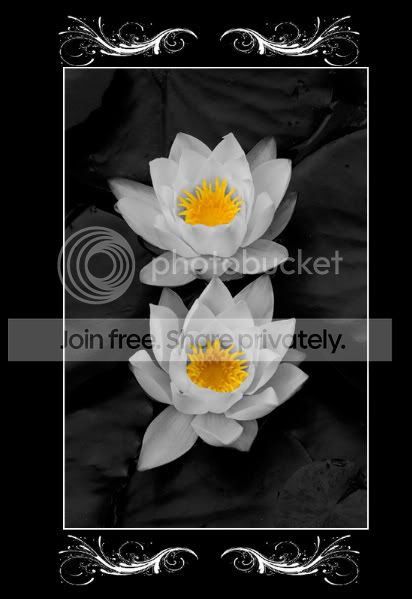
Adding black frame in PS but with Swirls around the edges too?

BalSanghera

Suspended / Banned
Messages
1,241
Name
Bal Sanghera
Edit My Images
Yes
Do you know what I mean? Is there anyway of doing this easily? All I seem to be able to find is paint brushes :shrug:

014_decorative-swirl-free-photoshop-brush.jpg


This sort of stuff :help: basically I wanted to create some cool 6x4 prints but cant get my head round the brushes thing, you cant rotate them or flip brushes :thinking:
 
Create a new layer on top of the photo. Stamp the brush and then you can rotate or flip using the normal methods . Alternatively use ctrl + t to access the manual transform box. Think of it as layers of acetate, stamp the brush twice on one layer and they will both be affected by movement, stamp them on individual layers and they can be moved independently.
 
BalSanghira...... is this what you'r after
Regards, Alan
Frame.jpg
 
Thanks for the replies.

@Sharp5 yes something along those lines but having the swirls inside the picture and less of a black border all the way round. Is there a stamp tool and a brush tool? I will have to have a mess around tonight.
 
Apologies for the confusion BalSanghera. When i said "stamp" i meant putting the brush on the layer, drawing on the layer if you like.

You mean something like below. I know it's not the same brushes that you have or that it suits the image but just to get an idea.

DSC094262.jpg


Go into the view menu on the toolbar in photoshop and make sure snap is ticked - this will make it a lot easier to line the brush up with the edge of the photo. Secondly make sure that you use the flip / rotate tools in the edit menu on the toolbar to adapt the brushes once they are on the additional layers, use the ones in the image menu and the whole image, photo and all will rotate (a few minutes of frustration when i started out using ps). Add the black frame after. Image>Canvas size (change the measurement to pixels), make sure that the little colour box below ia black, if not click in it and select black. As for an amount of pixels to add somewhere between 200-400 on a full size photo probably. Once you've done it right click onthe background layer and click flatten image, then save as normal.
 
Thanks for that nice effect you created there :thumbs:
 
Back
Top