A Daft Question: How to Select "Keepers"

Pegasus_Thrust

Suspended / Banned
Messages
512
Edit My Images
No
Hi, This may sound a bit of a silly question but does anyone out there have a quick and easy process or method of how to go through photos and select which ones make the cut that they'd care to share with me please?

(Don't laugh) What I currently do is load my images into a folder and then flick through them with windows photo viewer, if I see one I like I write the filename down. I then select the keepers as per my written list one by one and move them into a subfolder. It is then the contents of this subfolder I load into LR. This works well however having returned from a 1500 shot wedding I am now open to a more efficient method as time is precious.

I have tried loading the lot into LR and then selecting the ones I like at the bottom but I really like to be able to see largest image I can on screen so I can make the best decision hence photo viewer.

Is there a quicker way?.... is there a cheeky bit of software out there that allows me to see the photos as big as poss and then tag them there and then for a following action at all?

Please help!
 
If you're using LR why not load them all in, open the image up fully, then using the shortcuts for the star rating & the left & right arrows just flick through them & mark the keepers as 5*, then just filter out the rest so you're left with only the ones you've marked?
 
How big do you need the image to be?!

In Lightroom you can hit the tab key to hide side panels, or press 'f' to go full screen with an image.

'p' flags the image as a Pick, 'x' marks it as a reject, or just type a number between 0 and 5 to assign that number of stars.
 
Okay that sounds good- thanks. Just to double check 1) How do I open up the image fully?- I only seem to be able to view it in the surrounds of the program? 2) how/where is the filter function?
 
I think @Musicman has answered the bigger image question, not in front of my laptop atm so couldn't tell you about filtering but sure it's fairly self explanatory if you have a little look around.
 
1-5 for * to ******
6, 7, 8 9 assign colour codes
x to mark as reject
p to mark as pick.

You can use these, together with the filtering under attributes to select some or anything to filter by.
 
To increase the image viewing area you'll want to hide the top, bottom, left and right panels by clicking the arrows at the edges of the screen, by pressing F5, F6, F7 and F8 (each one toggles a different panel) or by pressing Tab to toggle the side panels only. When the panels are hidden you can hover over the edge of the screen with your mouse to make that panel auto show and when you've finished with it it will auto hide again.
 
Last edited:
'p' flags the image as a Pick, 'x' marks it as a reject, or just type a number between 0 and 5 to assign that number of stars.

I use this too. I put a 3* rating on any I'd like to edit, leave the "not sure about yet" pictures and hit 'x' to mark the ones for deletion. Once I have gone through I press Left Ctrl and Delete to deleted all the images marked as Delete.

Watch this YouTube video for a detailed tutorial
 
I want the image to best fit the screen ideally, I can't understand how folk can choose images via a smaller window or even via what they can see at the rear of the body.

So in theory I press "f" then am I able to navigate through via the cursors etc? hitting "p" when I see something I like?.... then what?
 
In the lightroom adobe tutorials, it shows just to mark each pic you like as a '1' and then go through the '1's again at the end and filter again to '2's for the true keepers!
 
So in theory I press "f" then am I able to navigate through via the cursors etc? hitting "p" when I see something I like?.... then what?

Yes. Arrow keys left and right to navigate. 'u' key removes the Pick or Reject flags you may have set, in case you make a mistake.

If you go back into Gallery view ('g' on the keyboard) you can then filter to see only your picks, rejects, or unflagged photos, using the Flag and/or Stars attribute.
 
F changes how much of your screen the application will fill.
F5, F6, F7, F8 change how much of the application the main view area will fill.
E makes the image fill the main view area.
G goes back to the thumbnail grid.

So the maximum image size setup is with the application in full screen mode (F to hide the title bar, then F again to hide the taskbar), the image in Loupe view (press E and it will show the selected image) and all the panels hidden (press F5, F6, F7, F8 in turn to hide each panel).

Most stuff in Lightroom has a UI button/slider/box/etcetera, a keyboard shortcut and a menu option if you can't remember the all the keys.
 
Yes. Arrow keys left and right to navigate.

Or - just put Caps Lock to 'ON'. Then press 'P' - Pick, 'X' - Reject or 'U' - Unflag; LR will flag that image and automagically display the next one. At the end press Ctrl-Backspace and delete all the rejects.
 
If I know I've got a lot of rejects I'll do a preliminary cull in FastStone. I don't waste time importing all the duds into LR and it's a lot quicker to step through the images pressing 'Space' or 'Delete'.
 
If I know I've got a lot of rejects I'll do a preliminary cull in FastStone. I don't waste time importing all the duds into LR and it's a lot quicker to step through the images pressing 'Space' or 'Delete'.

I find it a lot quicker and easier not to take dud images in the first place :p

:D
 
I find it a lot quicker and easier not to take dud images in the first place :p

:D

Indeed, but some of us still need to take a lot of duds in order to get to your level of experience!

(I guess the important thing is not deleting duds toooo quickly - you need to look at them and understand what you did wrong that you won't do next time...)
 
I find it a lot quicker and easier not to take dud images in the first place

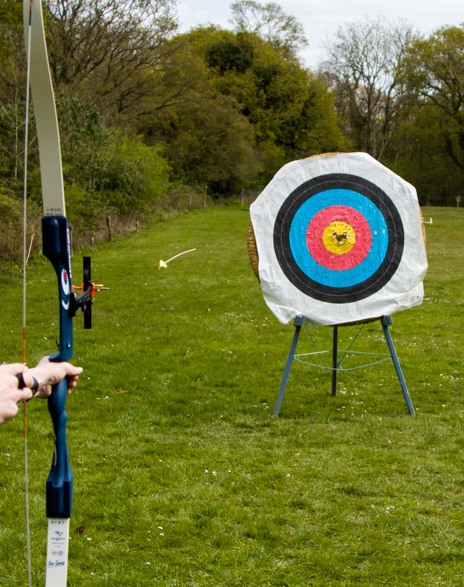
Yes, I could try to make things easy by not pushing myself. But when you're trying to capture an arrow in mid-flight there are going to be a few that aren't quite right.

Arrow%20Flight.jpg
 
Whoever's shooting that is gripping... bow should be on its way down by then ;)

That was 2 hours into her first session on a beginner's course. We weren't really expecting perfection there either. :-)
 
Back
Top