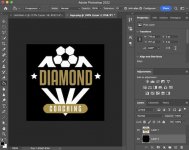
white fringe aragh

KIPAX

Seriously Likeable
Suspended / Banned
Messages
21,370
Name
KIPAX Lancashire UK
Edit My Images
No
I have a PSD LOGO file with a transparent background and the LOGO has a white ege I cant get rid of.. I tred layer matting defring and nothign changes.. I ahve tried cutting it out more with no edge still a white fringe.. tried filling the egde wiht paintpot.. nothing.. at,my whits end here :(
 

Attachments

  • session_2_013.jpg
    session_2_013.jpg
    130.2 KB · Views: 31
Can you post a link to the logo so we can have a play with it. I think the issue is the trans background?
 
This is the original I am trying to make transparent .... the white inside the logo such as ball and below diamond plus coaching lettering all need to be solid so just outside transparent.. either as PSP file or gif or png anyhting :)
 

Attachments

  • two_diamond.jpg
    two_diamond.jpg
    87.7 KB · Views: 6
I ahve had over an hr ..probably two and its done my head in and someone is going to come along and do it in 2 minutes because its easy when you know how :)
 
I'm far from an expert, is it feathering on the selection tool causing it?
 
Open the image in Photoshop and double click on the Layer, that will rename it to Layer 0
Select the Magic Wand Tool and then click in the top lefthand area of white
Now SHIFT CLICK on the bottom left area of white, the bottom right area of white and the top right area of white
Now press DELETE / BACKSPACE
 
Open the image in Photoshop and double click on the Layer, that will rename it to Layer 0
Select the Magic Wand Tool and then click in the top lefthand area of white
Now SHIFT CLICK on the bottom left area of white, the bottom right area of white and the top right area of white
Now press DELETE / BACKSPACE


You ahd me goign there :) For some reason I had been using quick selection and grabbing from the inside ..so i thought yours...but alas.. still a white fringe :(
 
You ahd me goign there :) For some reason I had been using quick selection and grabbing from the inside ..so i thought yours...but alas.. still a white fringe :(
Well in that case you need to expand the selection by ONE pixel

SELECT > MODIFY > EXPAND
 
Well in that case you need to expand the selection by ONE pixel

SELECT > MODIFY > EXPAND


Tolerance 32. Contiguous & Sample all layers... anti alias is off...

This is PSP CS6 BTW :)
 
Last edited:
session_2_013.jpg
 
Perfect guys thank you ..really apprciated.. it had me stumped.. :) all sorted
 
Back
Top