What screen calibration tool do you use?

BillN_33

Suspended / Banned
Messages
13,952
Name
Bill
Edit My Images
No
I'm on the printing learning curve .... with my new BENQ monitor etc., ........... and Keith Cooper uTube vids

initial printing is working well ....... prints look good and I'm happy with comparison with screen .............. all my displays are set at 50% brightness

but I now need to buy a Calibration tool and at £259 I want to get a good what ......... Spyder X seems to be the most popular

what tool are you guys using, plus any hints on how to use would be great

Thanks
 
I use the i1 Display Pro on my Benq monitor. Seems to do a good job.

If you are using an AMD GPU, you should use the Pro software and drivers not the Adrenaline.
 
I use a Calibrite Display Pro HL on my OLED laptop.

Easy to use and prints match the screen as best paper can.

£229 at wex, plus 20% off code running at the moment.

WEX link
 
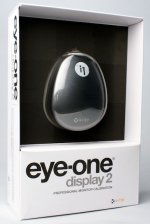
X-Rite. eye-one display 2 and DisplayCal software, has worked well for many years for me.

fjfyfyb.jpg
 
I use a Calibrite Display Pro HL on my OLED laptop.

Easy to use and prints match the screen as best paper can.

£229 at wex, plus 20% off code running at the moment.

WEX link

Thanks Gav

is the price £229 or £229 minus 20% = £173
 
Thanks Gav

is the price £229 or £229 minus 20% = £173
£229-20% = £183.20

You must enter CALI-20 during the check out stages, think it's at payment with wex.

If you don't emter the code it will charge you £229
 
I use a Calibrite Display Pro HL on my OLED laptop.

Easy to use and prints match the screen as best paper can.

£229 at wex, plus 20% off code running at the moment.

WEX link

There was no discount box on line so I called them and they reduced the price by 20% = £183 ........ thanks
 
Last edited:
I have an xRite i1 Display Pro and a BenQ but use their proprietary software called Pallete Master Ultimate.

Which monitor model do you have, as PMU is limited to certain models?

Before my BenQ I used a Spyder but updated to the i1 so that I could use BenQs own software.

PS AFAIK PMU can utilise a few different makes & models of calibration device.
 
I have an xRite i1 Display Pro and a BenQ but use their proprietary software called Pallete Master Ultimate.

Which monitor model do you have, as PMU is limited to certain models?

Before my BenQ I used a Spyder but updated to the i1 so that I could use BenQs own software.

PS AFAIK PMU can utilise a few different makes & models of calibration device.

I've got the BENQ SW272U and PMU seems to be there ........ plus the iMac 5K Retina........ and a MacBookAir M1

just bought the Calibrite Display Pro HL .... from the uTube vids it seems quite comprehensive ......... so see how it goes

setting up my new iPhone 17 Pro this afternoon ........ so looking forward to that
 
Last edited:
I've got the BENQ SW272U and PMU seems to be there ........ plus the iMac 5K Retina........ and a MacBookAir M1

just bought the Calibrite Display Pro HL .... from the uTube vids it seems quite comprehensive ......... so see how it goes

setting up my new iPhone 17 Pro this afternoon ........ so looking forward to that
Yup, just looked and both the monitor and your calibrator are PMU compatible:)
 
I use two monitors on my PC and a Spyder X with excellent results.

Dave
 
Just got the Calbrite Display Pro and calibrated my BenQ, iMac Retina and MacAir ...basically I'd, (before Calibration), adjusted all three as best I could by eye with a brightness level of about 50%..... to try to get them as near to each other as I could

Calibration says that the Apples in particular were too bright ........I'd always felt this as being an Apple ploy to make their screens look "good"

Anyway after calibration they have been adjusted down........ the iMac more than the others

I've read that most of the time Display monitor are run too bright .......... what I am asking is, is it normal that most run their Monitor too bright? or is it not just that simple?
 
Last edited:
Too bright a screen mostly is involved in the 'why are my prints so dark compared to my screen' complaints.

I calibrate my screen to 90 cd/m2 and am due another calibration. soon. FWIW I find this the best balance for the broadest range of exposures on my images. In the past I have gone as low as 80 cd/m2.

That is why I always do a test print on my ET-8550 before sending the file for commercial printing at @Tradecanvasprint
Stating the obvious, because I am not printing on the identical paper(s) if when I do my test print I feel it is a tad dark or light I will add or subtract 0.3 to 0.5 of a stop of exposure in post processing ~ this is to taste 'so to speak'.

Though my BenQ allows me to store 3 hardware calibrations I rarely if ever have one for "web viewing" i.e. brighter..... as I am content to use the 90 cd/m2 for all my viewing.

PS the brightness level via the OSD of the monitor is irrelevant as the calibration handles that as an absolute setting not the user setting of does the screen look(?) too bright or dark

Others views will/may differ so suffice to say YMMV

HTH :)
 
Last edited:
Too bright a screen mostly is involved in the 'why are my prints so dark compared to my screen' complaints.

I calibrate my screen to 90 cd/m2 and am due another calibration. soon. FWIW I find this the best balance for the broadest range of exposures on my images. In the past I have gone as low as 80 cd/m2.

That is why I always do a test print on my ET-8550 before sending the file for commercial printing at @Tradecanvasprint
Stating the obvious, because I am not printing on the identical paper(s) if when I do my test print I feel it is a tad dark or light I will add or subtract 0.3 to 0.5 of a stop of exposure in post processing ~ this is to taste 'so to speak'.

Though my BenQ allows me to store 3 hardware calibrations I rarely if ever have one for "web viewing" i.e. brighter..... as I am content to use the 90 cd/m2 for all my viewing.

PS the brightness level via the OSD of the monitor is irrelevant as the calibration handles that as an absolute setting not the user setting of does the screen look(?) too bright or dark

Others views will/may differ so suffice to say YMMV

HTH :)

Thanks Laurence .........just run the PMU and it's, (?) set the Luminance at 120 cd/m2 ........ Brightness = 57% as indicated by the settings on the monitor

with the BENQ display you can switch the display between sRGB and AdobeRGB at the press of a button on the "puck" ...........at the same LR settings, on the screen the Adobe RGB setting is brighter and has more colour shades ........some would say much more ........ so what I do now is create a virtual copy, switch to sRGB and adjust/process to export for posting to the web with the original being an Adobe RGB image in LR in case I decide to print it

I used the Calibrite software for my iMac 27" 5K Retina and the brightness was set at about 50% ....... on the MacAir using Calibrite the brightness was set to nearer 70%, (an estimate as you cannot should the % in Display settings on the Mac...... just the slider position...... ?)
 
Last edited:
Thanks Laurence .........just run the PMU and it's, (?) set the Luminance at 120 cd/m2 ........ Brightness = 57% as indicated by the settings on the monitor

with the BENQ display you can switch the display between sRGB and AdobeRGB at the press of a button on the "puck" ...........at the same LR settings, on the screen the Adobe RGB setting is brighter and has more colour shades ........some would say much more ........ so what I do now is create a virtual copy, switch to sRGB and adjust/process to export for posting to the web with the original being an Adobe RGB image in LR in case I decide to print it

I used the Calibrite software for my iMac 27" 5K Retina and the brightness was set at about 50% ....... on the MacAir using Calibrite the brightness was set to nearer 70%, (an estimate as you cannot should the % in Display settings on the Mac...... just the slider position...... ?)
Yes, the puck controller is very good as is the functionality of creating up to 3 custom profiles (and allocating them to the puck buttons).

With 120cd/m2 set, would you like to make a print and see how it compares to the image in your editing program that you used to create?
 
Yes, the puck controller is very good as is the functionality of creating up to 3 custom profiles (and allocating them to the puck buttons).

With 120cd/m2 set, would you like to make a print and see how it compares to the image in your editing program that you used to create?

Thanks again
just made a print

Image exported from LR in AdobeRGB Colour Space ..........file size was 16.7MB although original NEF was 50MB .... image just cropped a little ....... printed using Epson Print Layout App on Epson Glossy paper using the ICC Profile EPSON ET 8550 Series for that paper.

The image was as near as dam it to what I see on the screen
 
Last edited:
I got rid of a calibration toolfor the simple reason one had to keep adjusting it for the ambient light >daylight through window to room light in night. A real pain in the backside
 
I got rid of a calibration toolfor the simple reason one had to keep adjusting it for the ambient light >daylight through window to room light in night. A real pain in the backside
I have never trusted such ambient light auto adjustment.

So FWIW I edit in very subdued light to be in a consistently environment. NB AFAIK those that do it for living do the same in way a better controlled one than I can manage.
 
Too bright a screen mostly is involved in the 'why are my prints so dark compared to my screen' complaints.

I calibrate my screen to 90 cd/m2 and am due another calibration. soon. FWIW I find this the best balance for the broadest range of exposures on my images. In the past I have gone as low as 80 cd/m2.

That is why I always do a test print on my ET-8550 before sending the file for commercial printing at @Tradecanvasprint
Stating the obvious, because I am not printing on the identical paper(s) if when I do my test print I feel it is a tad dark or light I will add or subtract 0.3 to 0.5 of a stop of exposure in post processing ~ this is to taste 'so to speak'.

Though my BenQ allows me to store 3 hardware calibrations I rarely if ever have one for "web viewing" i.e. brighter..... as I am content to use the 90 cd/m2 for all my viewing.

PS the brightness level via the OSD of the monitor is irrelevant as the calibration handles that as an absolute setting not the user setting of does the screen look(?) too bright or dark

Others views will/may differ so suffice to say YMMV

HTH :)

Hi Laurence

I notice that you calibrate your screen to 90 cd/m2

When I use PMU it "suggests" 120 cd/m2 ... which I have used

I realise that my prints will not look the same as my screen because of reflected light and backlit screen, but some of my prints are slightly darker than screen .......... so is that why you calibrate at 90 or even 80 to adjust for this (I realise that different papers can also contribute to differences)

I'll give 90 a try and see what comes out and also test, (as you suggest) with adding 0.3 to 0.5 stops of exposure to the file before printing, (which may be the easier option)

Thanks for your advice
 
Last edited:
@BillN_33

I also edit at 90cdm, as I find it suits matching paper better, but...

Don't forget ambient room light will effect how you see the screen and the print, and just throw another issue in.. the print may look fine in the room you're editing in but may look 'wrong' in another due to differances in lighting, so you need to aim to print for final viewing rather than matching the screen for brightness, the colours are more important for matching the screen.
 
@BillN_33

I also edit at 90cdm, as I find it suits matching paper better, but...

Don't forget ambient room light will effect how you see the screen and the print, and just throw another issue in.. the print may look fine in the room you're editing in but may look 'wrong' in another due to differances in lighting, so you need to aim to print for final viewing rather than matching the screen for brightness, the colours are more important for matching the screen.

Thanks Gav - I've just added an example above of adding ½ a stop

I'll now have a go a re-Calibrating at 90cdm

EDIT: I got the best result by re-calibrating to 90cdm plus a careful re-edit of the image ........ so that's progress for today
 
Last edited:
AFAIK

120cd/m2 is the "standard" setting for sRGB (and aRGB?) at D65 colour temperature. I read an article by a guy called Rodney (can't recall his last name) who has the handle 'Digitaldog' explaining the standards. But that was for me too bright.......................I think Keith Cooper also has a video about brightness levels etc.

As mentioned, I edit in very subdued lighting and when I examine my test print I use a lamp with a 6000k LED bulb (I don't think this bulb has a particularly high CRI (Colour Rendition Index) but I am not looking at the colour precision of the print but how the overall appearance matches the screen that is OK.
NB I do have a purpose build graphics lamp when needed for more a critical look.

At the end of the day, it is IMO all about getting the balance of the edit on the screen the way you like but if the print is too dark then you need to make the discussed changes to meet your own requirements of what the print(s) will look like.
 
Back
Top