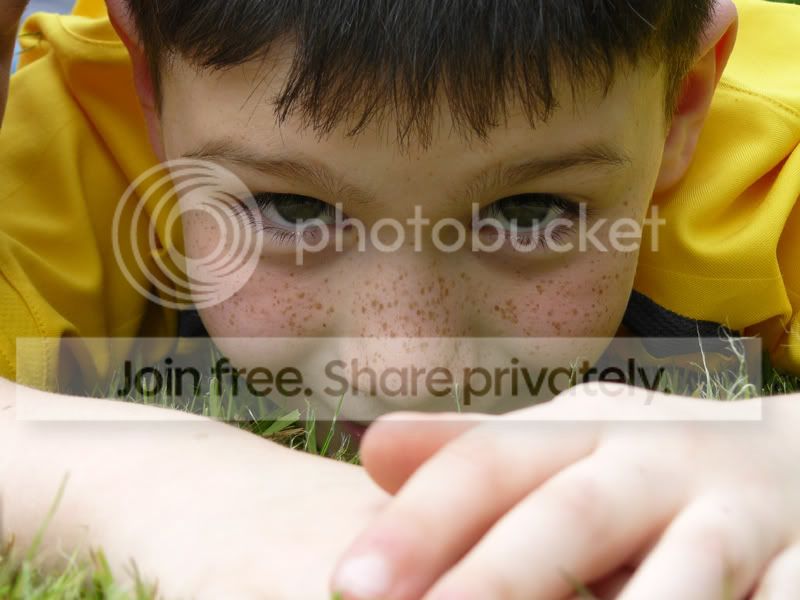
What can YOU do??

butterfly.shel

Suspended / Banned
Messages
212
Name
shellie
Edit My Images
No
hi i know i put a few on tonight this is the last ha ha

what can you do with this people have said his hands are too over exposed but how do you change that?

harry.jpg


thanks xx
 
Bit rough and ready, but it is possiblr to mostly save it .....

hands.jpg
 
ps, just used a layer adjustment using curves (put quite a severe adjustment curve, not just the usual S curve), then rub out everything else so only the hands have been changed.

ps just realised you haven't got 'edit' on, pm me if you want me to take the image down.
 
Lol, sorry, that's the problem with forums, you never know what the other people know/don't know.

Firstly the 'Edit' I was talking about is an option in your profile, if you tick the box, it will show a little icon by your user name, that lets people know that they are free to have a go at re-editing any pictures you post. You haven't got it turned on, so that's why I mentioned it, some people get touchy about that's all.

As for the image, it was edited in Adobe Photoshop, if you have a read round the forums/net the curves adjustment is a very standard manipulation tachnique.
 
tee hee you gonna laugh i have no idea what your saying i'm very very new at this and have no techno knowlegde, what was the edit thingy? take the image? :shrug::shrug:

Go to User CP, Edit your details, Additional Information, Image editing then tick yes.

This tells everyone that you are willing to edit their pictures. Of course if you don't want them to say no.
 
One question, did you make a selection of the hands first before making the curve adjustment?
 
No, just made an adjustment layer of the whole picture, pushed the curve as far as I thought I could get away with, then dropped the opacity down a bit as it looked very false at 100%. Then just used the rubber to remove all the face etc, from the curves layer, allowing the origional coulour of the face to show through. I'm not saying that's the best way, just a very quick way for a rough edit :)
 
i'd do a similar thing to the above (as hawker said), but use layer masks instead of the eraser, as these are far more forgiving and changable.

however, you could also do it using the burn tool, and another way would be using a overlay or softlight layer with a black brush at about 20-40% opacity.
 
Excellent photo Shel, very nicely done. It could obviously have benefited from some fill flash to lift the facial detail a tad but overall I really like it :thumbs:
If you raise the light levels of the image overall then I don't think that the hands really need changing much tbh - a slight darkening helps to add a bit more depth to the shadow - I duplicated the base layer & set it to multiply at a slightly lower opacity & then masked all of it away apart from the hands (you can just erase bits of the layer if you're not sure on layer masks - well worth researching though if you get chance)

I then applied a curves adjustment along with a brightness/contrast adjustment to generally lighten the whole image. Another copy of the whole image set to screen & masked/erased so that only the eyes show through added a bit more detail to that area.

Feel free to ask away if I can help with any of the steps above :thumbs:
(Just noticed that you still don't have your "edit" box checked but I've spent ages typing so I'd hate to erase it all now :lol: PM me of you want the image removed :thumbs:)

harry2.jpg


As I said before, it's an excellent image, very nicely done :thumbs:
 
thank you so much, i have now changed the edit thingy.

the pic was taken in a split second if i had had the time to think about what i was doing things may have been different but my (3) boys are NEVER still so i have to shoot when i can LOL .

I will be asking for those steps i have only just figured out how to brighten eyes using the dodge tool (that i didn't know existed)

Its a slow process learning all this stuff.

once again thanks xx:clap:
 
:lol: Kids never keep still do they? :lol:

The dodge tool has its uses but I'd recommend the method I outlined above as it is a non-destructive method (dodge alters the pixels & is therefore classed as destructive)
 
Excellent photo Shel, very nicely done. It could obviously have benefited from some fill flash to lift the facial detail a tad but overall I really like it :thumbs:
If you raise the light levels of the image overall then I don't think that the hands really need changing much tbh - a slight darkening helps to add a bit more depth to the shadow - I duplicated the base layer & set it to multiply at a slightly lower opacity & then masked all of it away apart from the hands (you can just erase bits of the layer if you're not sure on layer masks - well worth researching though if you get chance)

I then applied a curves adjustment along with a brightness/contrast adjustment to generally lighten the whole image. Another copy of the whole image set to screen & masked/erased so that only the eyes show through added a bit more detail to that area.

Feel free to ask away if I can help with any of the steps above :thumbs:
(Just noticed that you still don't have your "edit" box checked but I've spent ages typing so I'd hate to erase it all now :lol: PM me of you want the image removed :thumbs:)

harry2.jpg


As I said before, it's an excellent image, very nicely done :thumbs:

great workkk..man:thumbs:
 
Excellent photo Shel, very nicely done. It could obviously have benefited from some fill flash to lift the facial detail a tad but overall I really like it :thumbs:
If you raise the light levels of the image overall then I don't think that the hands really need changing much tbh - a slight darkening helps to add a bit more depth to the shadow - I duplicated the base layer & set it to multiply at a slightly lower opacity & then masked all of it away apart from the hands (you can just erase bits of the layer if you're not sure on layer masks - well worth researching though if you get chance)

I then applied a curves adjustment along with a brightness/contrast adjustment to generally lighten the whole image. Another copy of the whole image set to screen & masked/erased so that only the eyes show through added a bit more detail to that area.

Feel free to ask away if I can help with any of the steps above :thumbs:
(Just noticed that you still don't have your "edit" box checked but I've spent ages typing so I'd hate to erase it all now :lol: PM me of you want the image removed :thumbs:)

[/img]http://www.talkphotography.co.uk/gallery/data/1062/harry2.jpg[/img]

As I said before, it's an excellent image, very nicely done :thumbs:

Holy over sharpening batman!

Here's my take;

butterflysheledit1.jpg
 
It looks far too harsh on his hair, around his lip and in some of the lighter grass IMO, it's not too bad elsewhere on the image but I found it distracting to the degree I was seeing the sharpening more than the image.

His hands don't look blue though, on either of my screens. Mine is on the edge of being blue though I think.
 
Cheers for that mate, just had a look at the image on my other monitor & it looks oversharpened but not on the one I normally use :bang:
 
wow his eyes look awesome but call me fussy ha ha but i'm still not completely happy with his hands! maybe they were just dirty lol

I have a 15.5 in laptop (hubby says its fine ha ha )

they are all so good it hard to say which i like better. I think so far divine is my fav, maybe cropping the hands out a bit helps.

thank you all so much xx
 
Back
Top