Warming and matching face - care glamourish content

natjag

Suspended / Banned
Messages
2,498
Name
Nathan Hulse
Edit My Images
Yes
Hope someone can tell me the best way to approach this.
I need to:-
a. match the tone of skin on the body to face - make-up was applied to the face by the girl, which then didn't match the rest of the body.
b. warm up skin slightly - although I do have a method that usually works but not on very pale skin.
This is a typical picture which show the difference between the face and body.

I look forward to your suggestions.

_MG_0156.jpg
 
Have you tried making a layer with a copy of her face and taking a bit of yellow out? I'm sure you'll need to do a bit more than that but it's a starting point.

Then make sure you make up girl applies the right shade next time :-) I'm guessing she did this when the model was dressed?
 
Actually I just had a go and it's not very easy -the face starts to look blotchy. I'm wondering if you do find a method of warming the rest of the skin it might blend better. In which case you could make a mask that matches the body shape and blend it with a coloured filter until the level look right
 
If this is good enought for you and no one posts a simpler more effective way I'll post the details but have to get ready to go out now.

No warming added just the face fixed.

109904895.jpg
 
That looks good Paul
 
Hi Paul,
That does look good.
I was trying to bring the rest of the body to meet the face, but you've both suggested the other way round.
Paul if you can let me know how you did that. I'm happy to call you, as I realise some thing are easier to talk through than write down.
 
Hi NatJag

I have used Nik Softwares Viveza its very good for localised colour correction, its quite a good plugin for PS, you can dowload the program for a 15 day trial. Plus I have done a bit of Photoshop touch uppery, her stomach above the bikini was a bit blotchy, I've also reshaped a little bit using the liqquify tool, apologies for taking the liberty.


Wayne
 
Give this a try...

Select/Colour range > Use the dropper and select a light area of her stomach. Adjust the fuzziness untill the face and shoulders loose detail> OK

Create a curves layer and drag the line downwards as required. The selection from above should paste into the mask.

Blur the Curves Layer mask... Alt and click on the mask ( you should now see the B+W mask ) Filter>Blur>Gauzian blur somewhere between 1-3 should be enough > OK.

Click back into the background layer.


Repeat the above but select an area on the face.

Create a Levels layer and adjust the grey point to the left ( about 1.16 works for me)


Thats CS2, but i'm sure other versions will be similar to use.
 
Screengrab.jpg


I also slipped in a duplicate layer with a gauzian blur filter added. Layer opacity selected to 30% and masked off the defined features... eyes, nose, knickers, navel.

_MG_0156copy.jpg
 
Thanks single speed. I tried something like that to start with but it did work.
This does, with a bit of tweaking, will give me a better image to the do my usual stuff on.
 
Sorry it took so long to get back I was putting a greenhouse up yesterday and the damned thing took longer than I thought!

You already have some good suggestions (theres always half a dozen ways to skin a cat in PS).

Heres what i did, duplicated background and used the sponge tool to desaturate just the face avoiding eyes and lips, this keeps the tonal variation.
Then added a blank layer set to color and using the eyedrop tool selected a skin colour from the body and panted back in the colour on the face. I finaly added a hue and sat clipping layer to fine tune the colour of the face.

109957454.jpg
 
Yeah, she tango'd herself a bit there. A make up artist would be quite beneficial in future.
Join model mayhem and see of there is one in your area, TFCD is often accepted too.

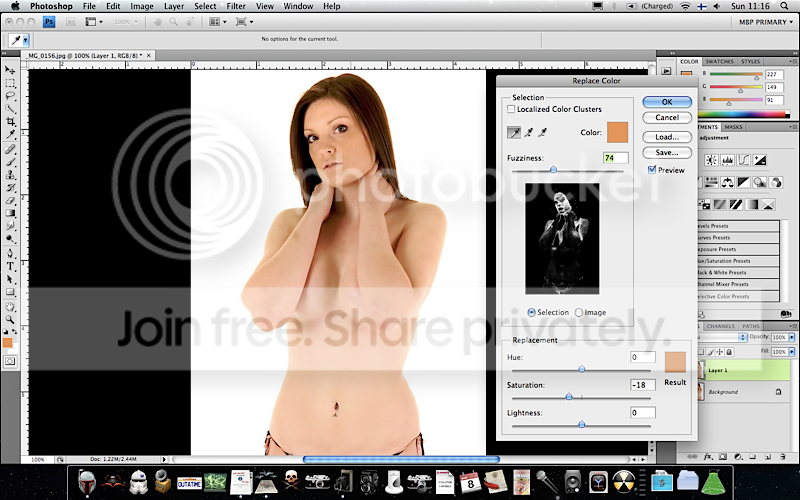
I agree, the colour replacement adjustment would be the most effective IMO, use the dropper tool to select the most saturated area and then adjust the fuzziness slider to control the selection.

Reduce the saturation to taste and that should rid you of most of the unwanted tone.

Picture6.png


As to warm, maybe a photo filter adjustment layer or selective colour adjustment layer?

Selective curves layers will help too and also removal of the darker blemishes maybe.

Also and you can tell me to shut my trap here but I think the BG is too hot, it's effecting the contrast of the image quite drastically, a 1/3rd or maybe 2/3rd's of a stop lower and the overall tones would be cleaner and more pleasing.
 
I like your suggestion thomas, I've not used replace colour before - didn't even know it existed.

As for the background. It was metered 1/2 stop over, thats all. And the front lights shot across the body to reduce shadows on the back. I have to admit, I did think the same as you, overexposed!
I did some other girls the same day, in rotation, they are all fine with plenty of room to play around with the image. Just this batch giving me a real pain.

Thanks all for your suggestions. I'm getting closer to having a good starting image to work on.
 
I like your suggestion thomas, I've not used replace colour before - didn't even know it existed.

As for the background. It was metered 1/2 stop over, thats all. And the front lights shot across the body to reduce shadows on the back. I have to admit, I did think the same as you, overexposed!
I did some other girls the same day, in rotation, they are all fine with plenty of room to play around with the image. Just this batch giving me a real pain.

Thanks all for your suggestions. I'm getting closer to having a good starting image to work on.

No worries mate, I checked some photo's on your web pages just after I posted the above reply and have noticed that you have done the more subtle approach before :bonk:

Glad to be of some use :lol:
 
Back
Top