Underexposed snowy field, what can I do?

kitschenalia

Suspended / Banned
Messages
434
Edit My Images
Yes
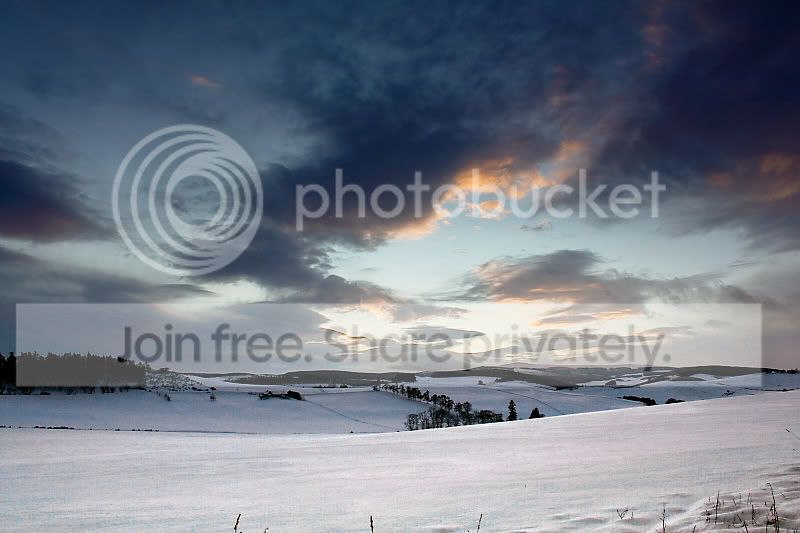
I've a nice shot from yesterday and it's a view from my back garden, snowy fields and a nice strong sky. Isn't the most brilliant, I didn't use a tripod but am just learning. I've followed a beginner Photoshop tutorial on here, and looked through a few others, but there must be some way to select the fields (drawing a line along the horizon?) and then brightening up the snowy fields whilst not blowing the highlights of the sky? I'm brand new to Photoshop so any help appreciated!
 
Why not post up the image so people can have a better idea of what might help?
 
OK thanks Haggis, I will. I've already done some stuff to it - maybe I'll post before and so-far afters...

Please bear in mind I don't think it's a brilliant image or anything, just learning, but trying to get my pics together for my 365 and only took a set of these y.day:

Before any editing (I do intend to crop bottom off too, forgot to do before this, sorry):

34ys7lg.jpg


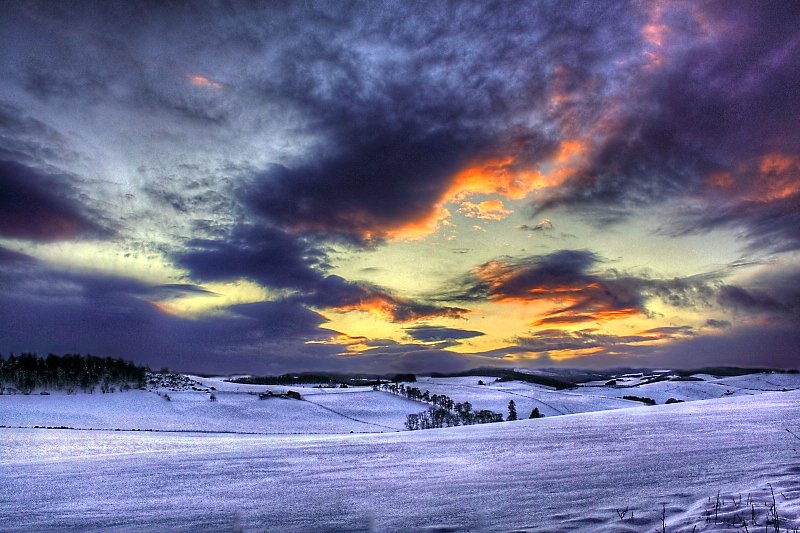
After messing around with colour balance (although may not keep these colours, just more to get hang of Photoshop):

jutmyc.jpg


But what I really want is white snow!

ETA: I sharpened the "before" pic before converting to Jpeg (from RAW) and saving. I didn't do any sharpening with the one I tweaked in Photoshop - sharpening is a mystery to me.
 
It's a lovely scene..

Try over exposing by a stop or two - the camera is currently trying to expose 'white' to what it thinks should be 'grey'

You could also try setting your own while balance from a clean patch of snow
 
This was a quick mess using the low res jpg.


quick001.jpg


You could do a lot better from the original file though.

This was +1.15 on exposure (only 50% above sky line), hue/sat, curves, levels and brightness.
 
Not too difficult to do, I'd use the selection tools to select the foreground area up to the horizon and copy into new layer. Then use image adjustments (color balance, exposure, brightness/contrast etc) to get the desired effect on the foreground. Once your happy just merge down the layers.

Heres a quick example. I was doing it quickly hence botched a bit of the horizon (right of centre) and the bottom and side edges. I didnt make it too white either as it doesn't quite look right with the dark sky:

34ys7lgedited.jpg


ps. use sharpening after any resizing.
 
Here is my very quick effort


duplicate layer, then adjust levels for the whole image, then create a hide all layer mask, then paint in the snowy foreground to reveal the adjusted layer, then load selection and tweak a little mor, flatten and save, took 1 min.
 
Done very quickly.
Levels adjust on the whole image and then use the brush tool to 'paint back' the original image where required.
Black and white layer to get rid of the cast on the snow and then adjust opacity of the layer to bring some of the colour back in

120836614.jpg
 
Great all, thanks for the help, will try some of these tips.

One problem I am having is that in order to edit my pic at ALL in Photoshop it's asking me to change from 16 bit to 8 bit. But THEN it won't let me use the history brush (am trying to use this for another image, just wondered if it's something obvious I am doing wrong?).
 
You need to be careful that you don't get an unrealistic photo by having the snow too white and the sky too dark.

But here's my take on it.

snow.jpg


Lightrooms grad filter does a nice job, ( +4 stops boost to the foreground)
 
Scarecrow and Chappers, both of these look good.

I will attempt this today, I like the effect Lightroom has had, and I have it on this PC BUT I haven't learnt to use it yet, and am TRYING to get to grips with Photoshop, only spent some of y.day on PS and still completely confused. I was trying to do the cut out a person tutorial on here, and still struggling with that (the shame). So to my shame, I must confess that I don't yet even know how to select the foreground and make it into a seperate layer *sob*

I am going to invest in that book on Photoshop which is made by Digital Photo mag.
 
The Lightroom effect is dead easy, like a lot of things in Lightroom.

Open you image in the Develop module. Select the Graduated filter tool and drag it from the bottom of the image to about half way. Now from the Grad Filter control box simply slide the exposure slider in the + direction. You could also use the brightness slider as this will lighten the image without "Blowing" the highlights. I used a combination of both tools.

You can do the same thing in Photoshop using the ACR develop module
 
Chaz, I like that.

Chappers, I followed your advice, which is great as I have now done something in Lightroom for the first time :-) and have a result, perhaps a little bright in the foreground but I think I possibly learnt something! Will post result in a minute - thanks for the advice.
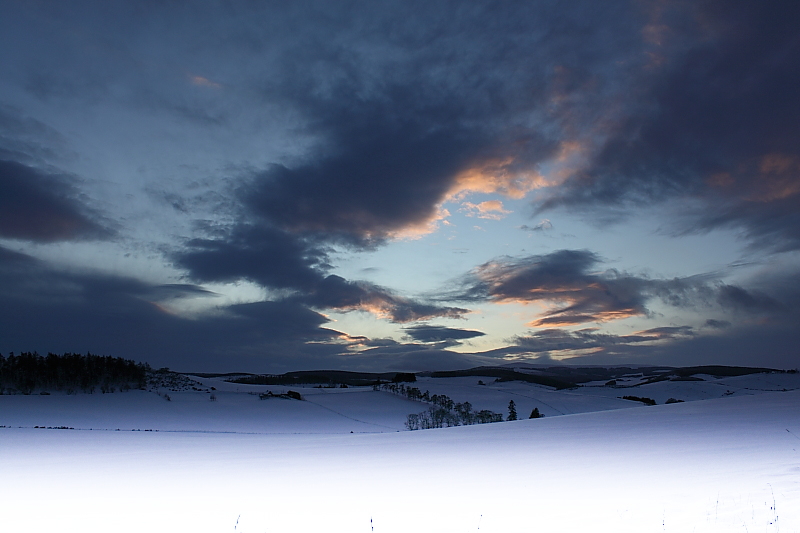
Thanks also to everyone else - I tried to mess about in PS and couldn't get very far - am getting that book on Saturday though!
 
Back
Top